
Users and roles

Manage who can sign in to the admin and what they can do. Capell uses site-scoped roles: a person can have one set of permissions on Site A and a different set on Site B.
Add a user
Section titled “Add a user”- Open Users in the admin sidebar.
- Click the create action.
- Fill Name, Email, and set a Password (and Password confirmation).
- Assign one or more Roles.
- Save. The user can now sign in to
/admin.
Change a user’s password
Section titled “Change a user’s password”- Open Users and edit the user.
- Enter a new Password and Password confirmation.
- Save. (Passwords are stored hashed; you cannot read an existing password back.)
Manage roles
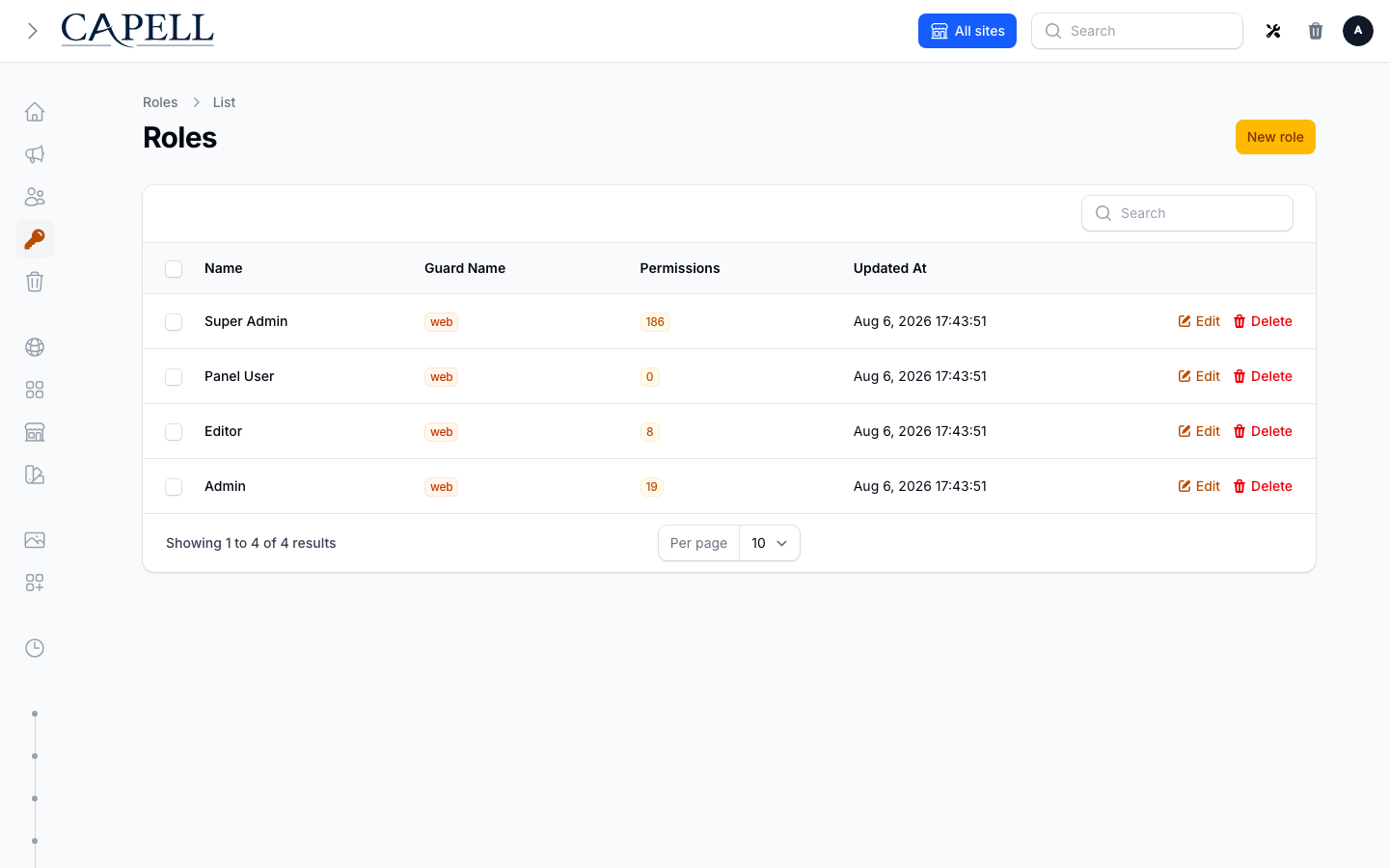
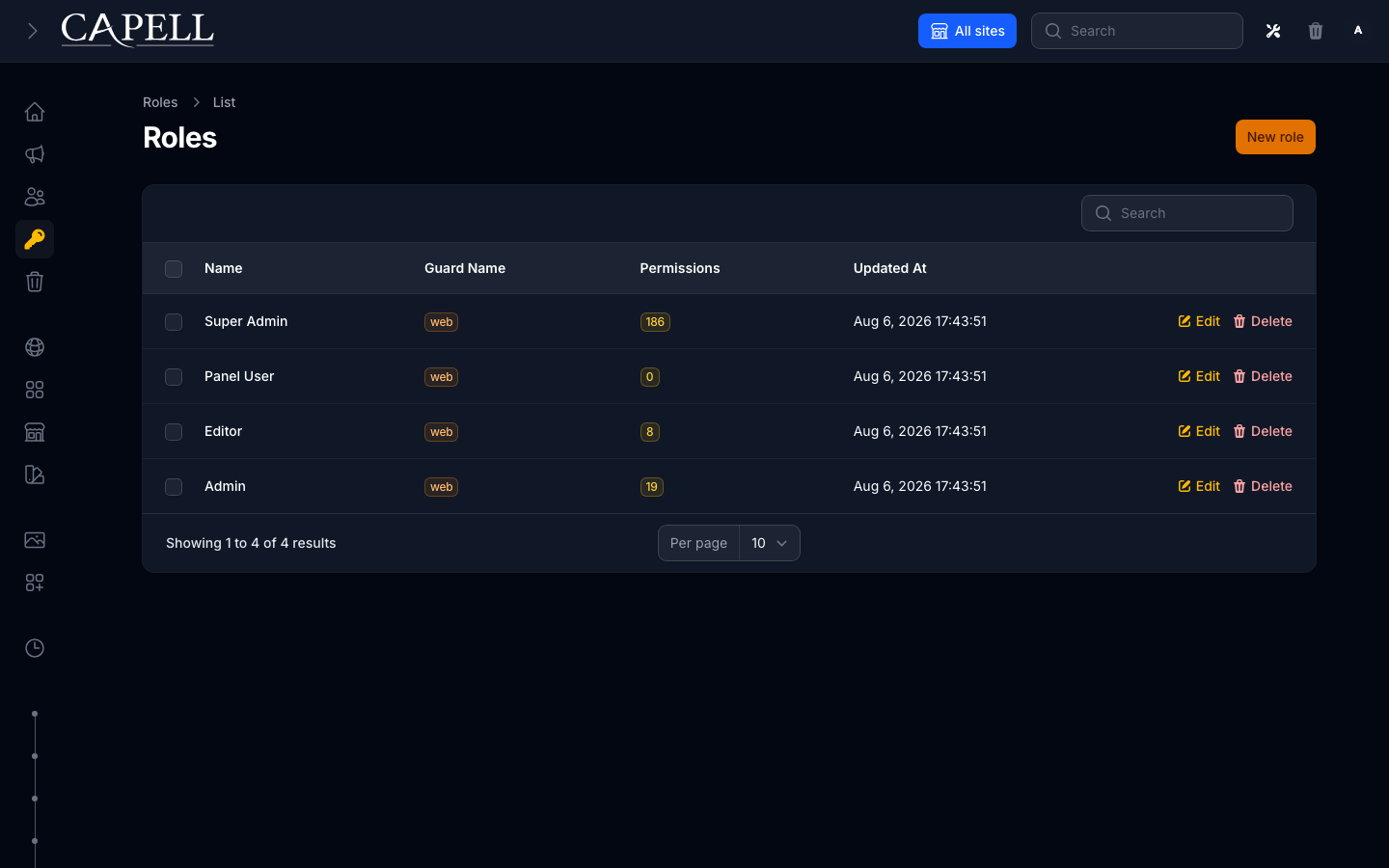
Section titled “Manage roles”- Open Roles to create roles and choose the permissions each role grants.
- Assign roles to a user from the user’s edit screen (Roles field), or per site from the Manage site permissions action on a site’s edit page (see below).
Give someone access to one specific site
Section titled “Give someone access to one specific site”Roles are scoped per site. To make someone an editor on just one site:
- Open Sites and edit the target site.
- Click Manage site permissions.
- Add the user and assign their role for this site.
The same person can hold a different role on each site, or none.
Restrict a page type to certain roles
Section titled “Restrict a page type to certain roles”On a page type’s configurator tab you can choose which roles may see and edit pages of that type. Users without one of the listed roles cannot access those pages.
Offboard someone
Section titled “Offboard someone”- Remove their roles to revoke access while keeping their account, or
- Delete the user from the Users list to remove the account entirely.
- Approval workflows (submit → review → approve) are provided by the optional
capell-app/publishing-studiopackage, not by core. - For the underlying RBAC model (Spatie teams, policies, page-type restrictions) see the developer guide: permissions and approval.