# Using Address
This guide is for admins who keep the shared list of countries and postal addresses tidy, so other parts of Capell can reuse them instead of re-typing the same location everywhere. No technical knowledge needed. Every step uses the labels you see on screen. Both screens live under the **Web Pages** group in the admin sidebar.
## Using Address (how-to)
### How to review available countries
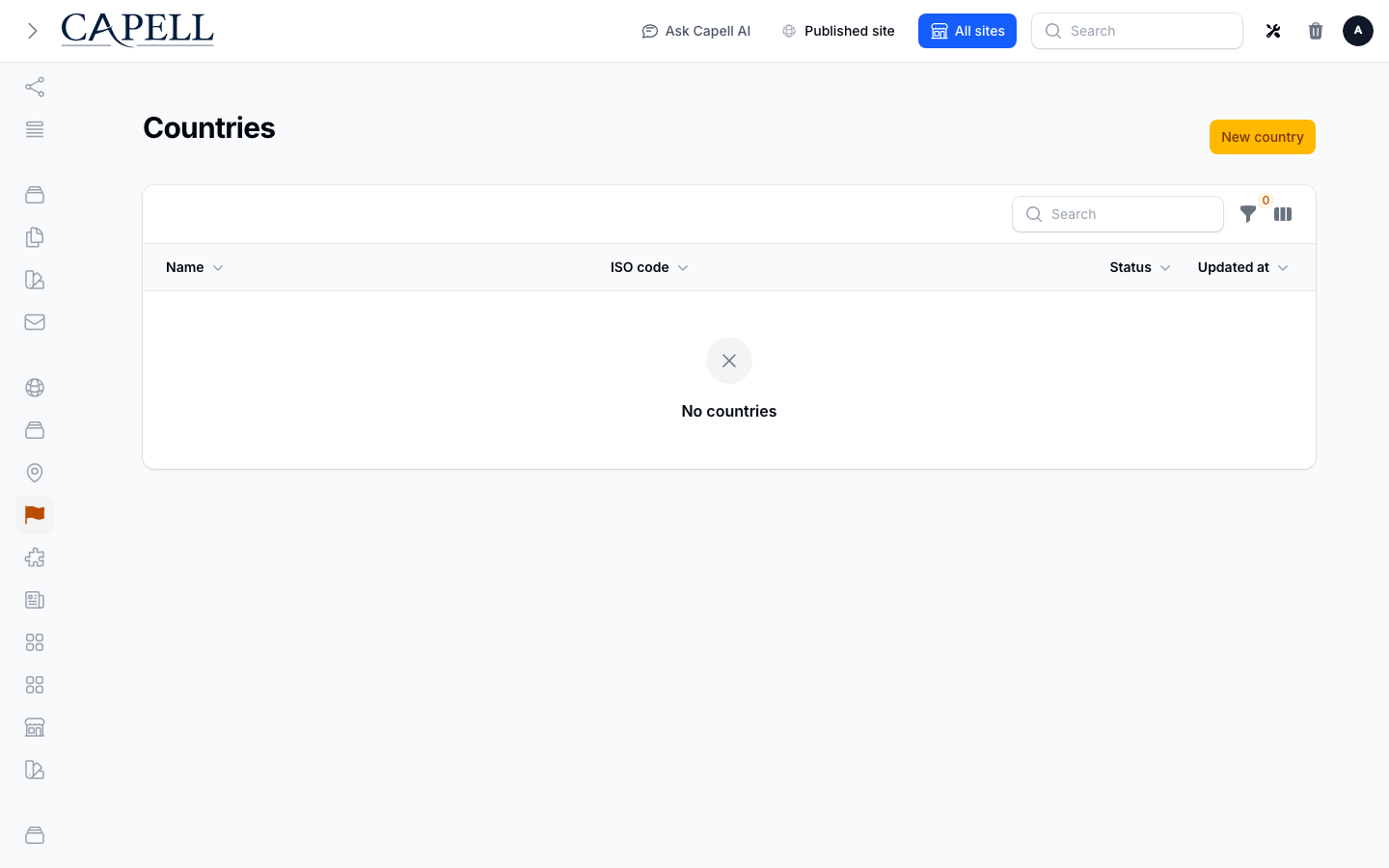
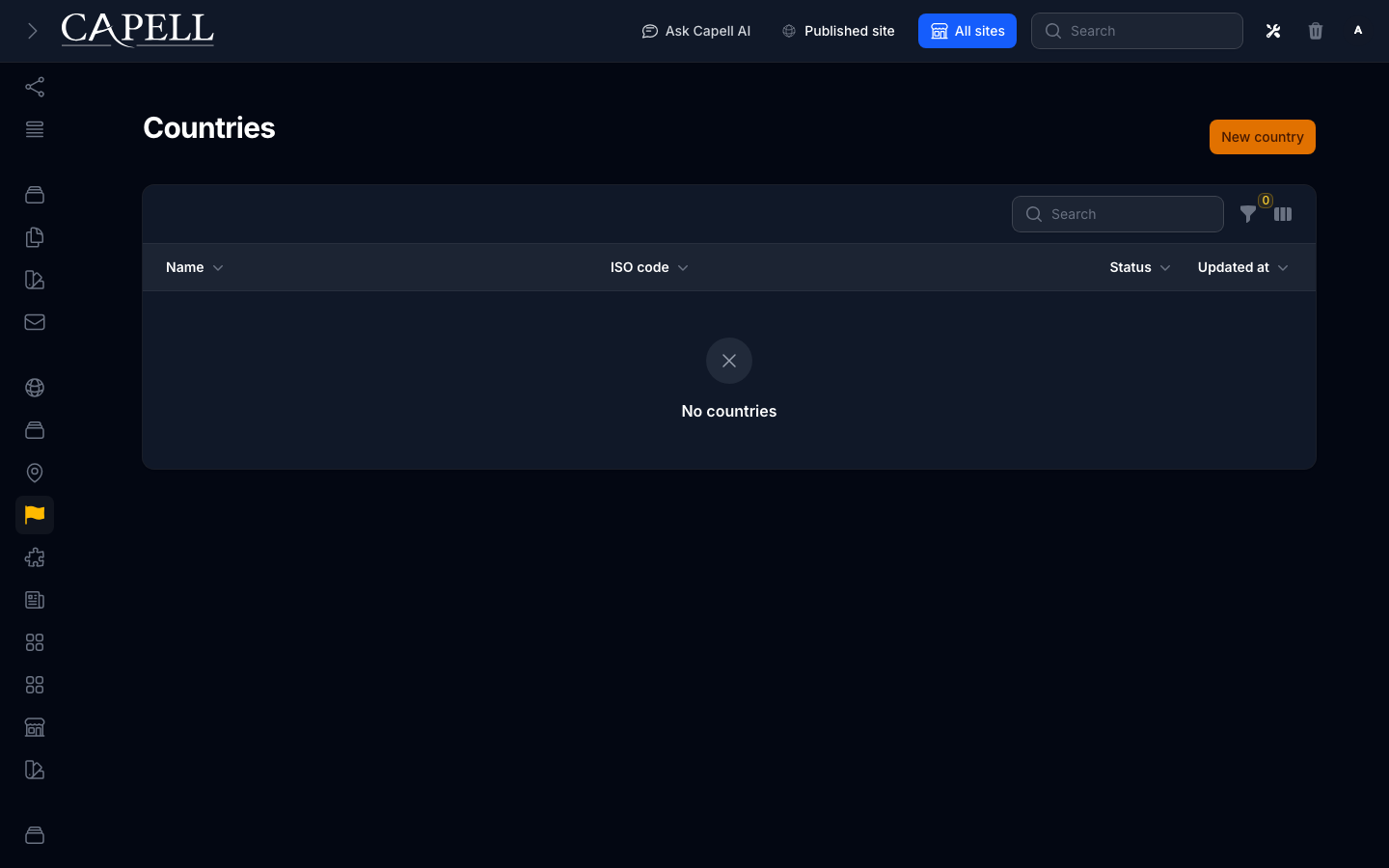
1. Go to **Web Pages > Countries**.
2. The list shows each country with its **ISO code** and how many **Addresses** use it.
3. Check this before you rely on country and address pickers elsewhere, so the country you need is present.
 ### How to add or correct a country
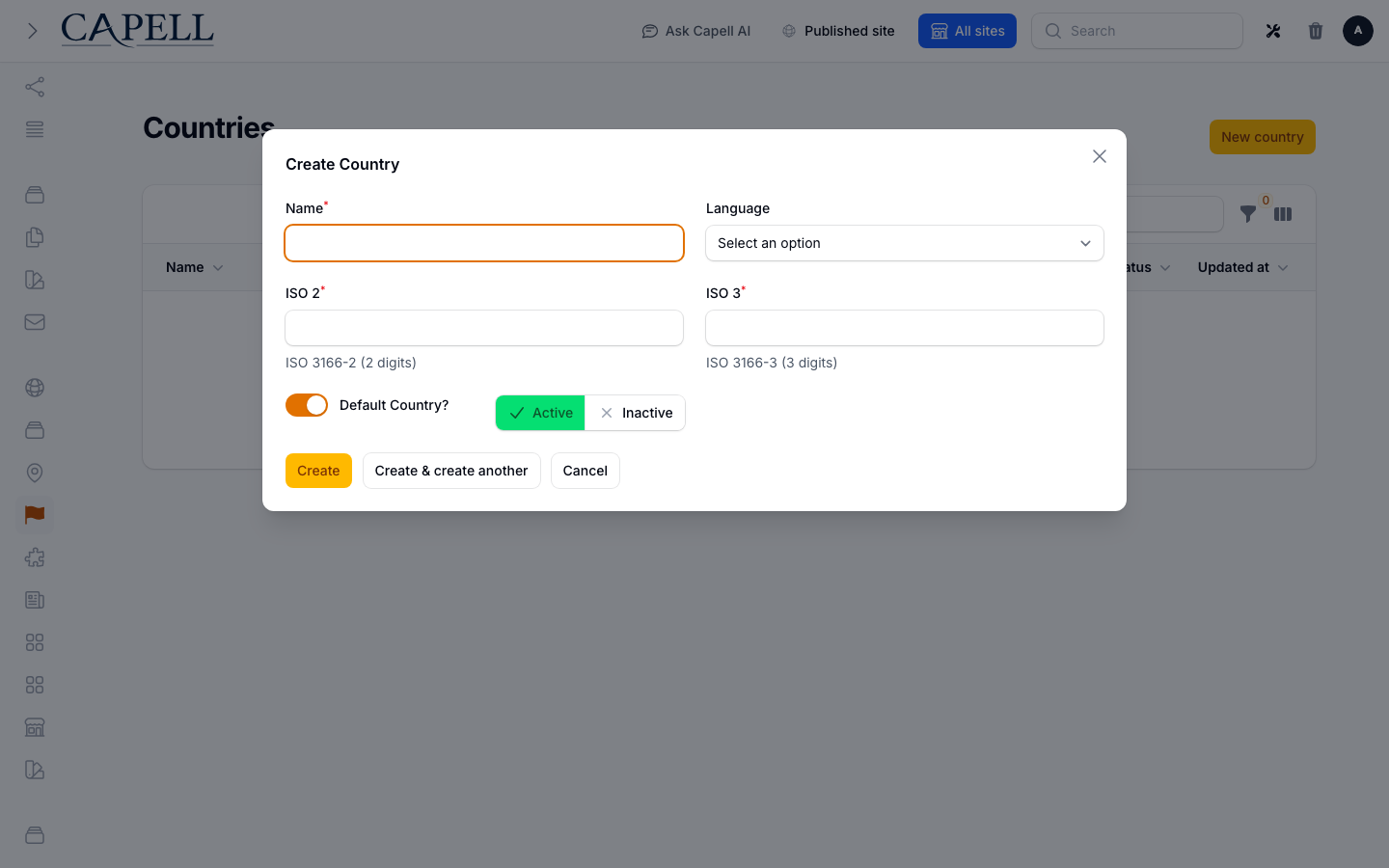
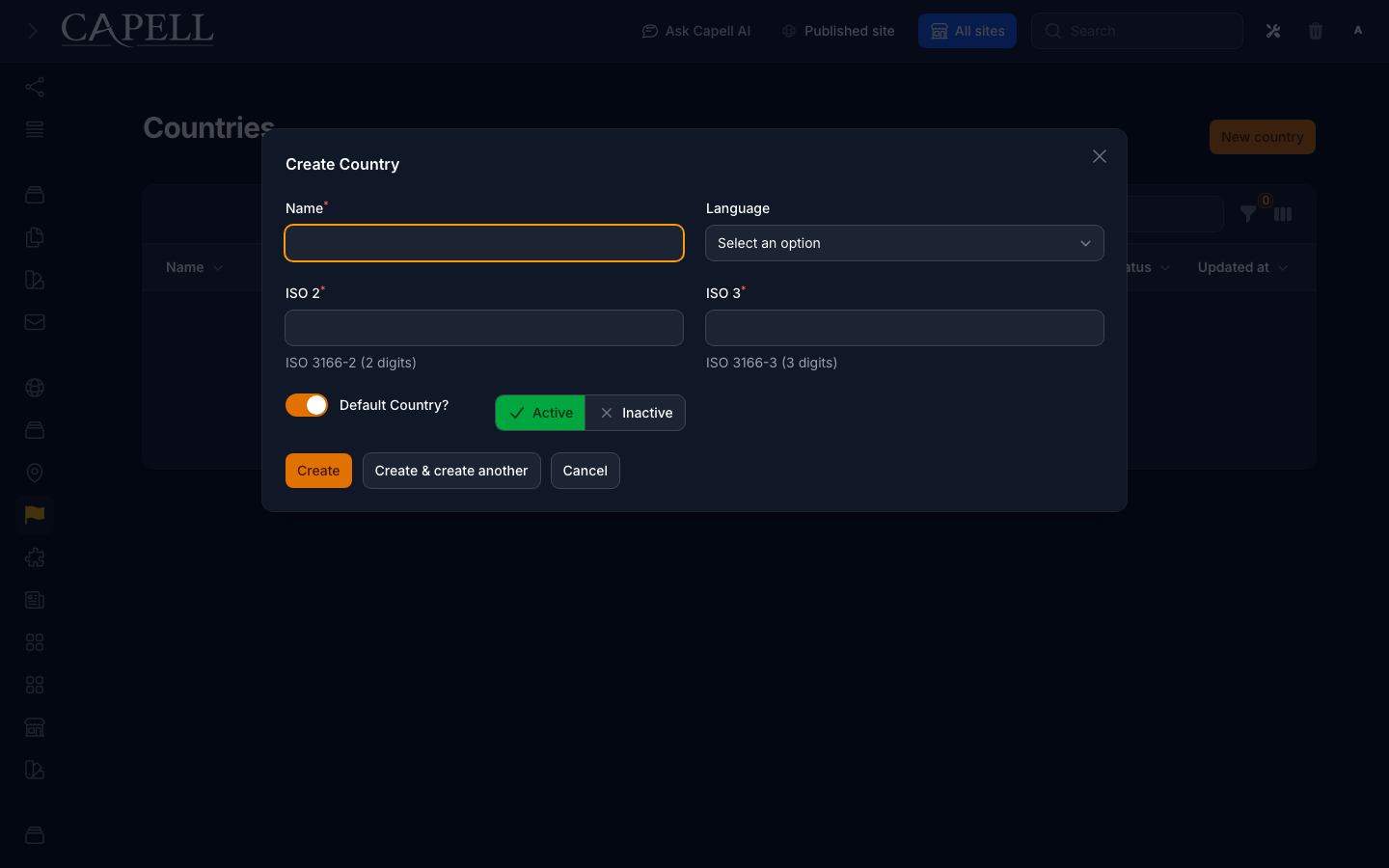
1. Go to **Web Pages > Countries** and start a new country (or open an existing one to fix it).
2. Fill in the **Name**.
3. Enter the **ISO 2** and **ISO 3** codes for the country.
4. Save the country.
### How to add or correct a country
1. Go to **Web Pages > Countries** and start a new country (or open an existing one to fix it).
2. Fill in the **Name**.
3. Enter the **ISO 2** and **ISO 3** codes for the country.
4. Save the country.
 ### How to review saved addresses
1. Go to **Web Pages > Addresses**.
2. The list shows each address with its **City**, **Postal code**, and **Country**.
3. Use this screen to find an address you have already saved, or to spot one that needs correcting.
### How to review saved addresses
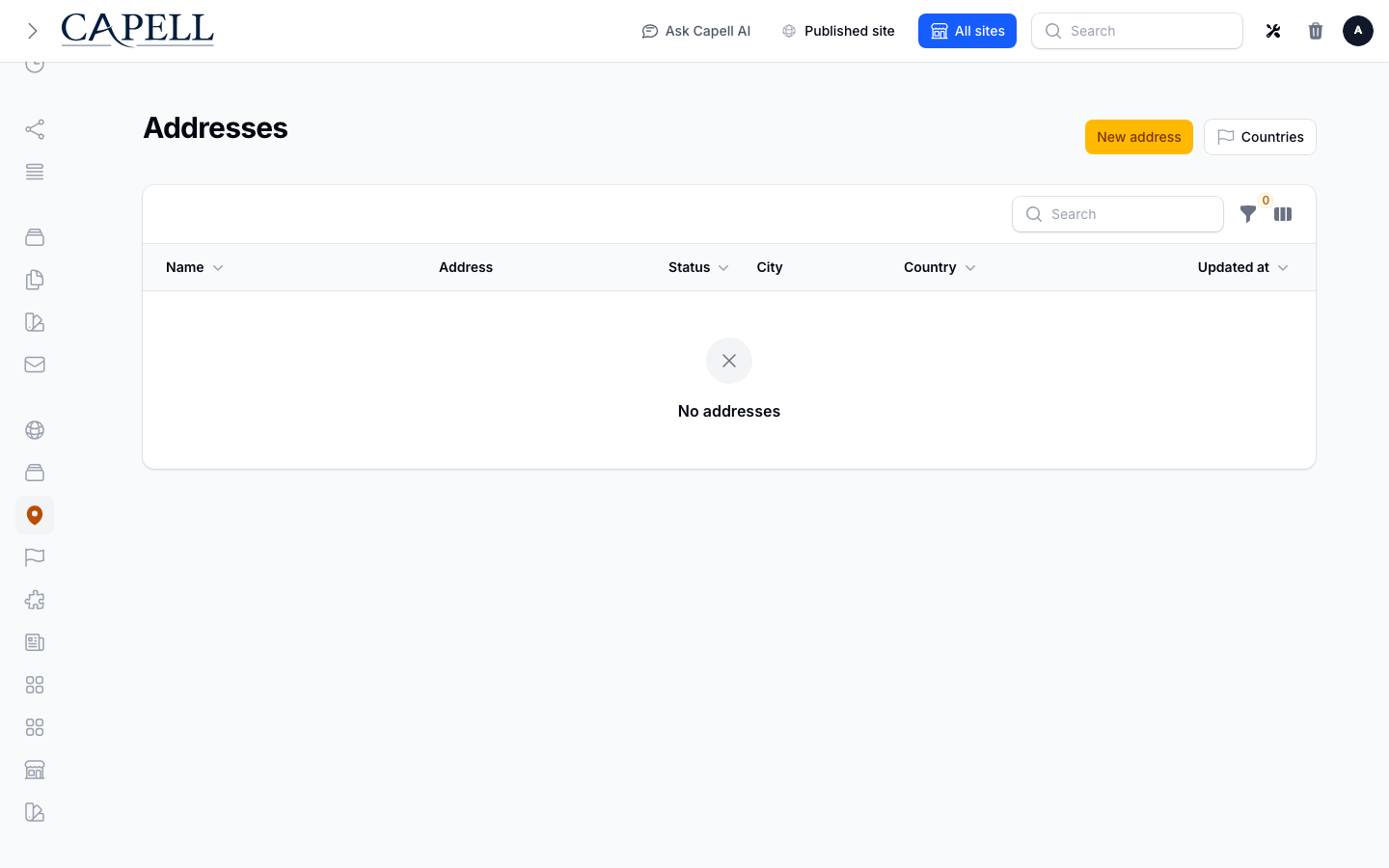
1. Go to **Web Pages > Addresses**.
2. The list shows each address with its **City**, **Postal code**, and **Country**.
3. Use this screen to find an address you have already saved, or to spot one that needs correcting.
 ### How to create a reusable address
1. Go to **Web Pages > Addresses** and start a new address.
2. Give it a **Name** so you can recognise it later.
3. Fill in **Address Line 1** and, if needed, **Address Line 2**.
4. Add the **City**, **State**, and **Postal Code**.
5. Choose the **Country** from the picker.
6. Save the address. It can now be selected anywhere that asks for an address.
### How to create a reusable address
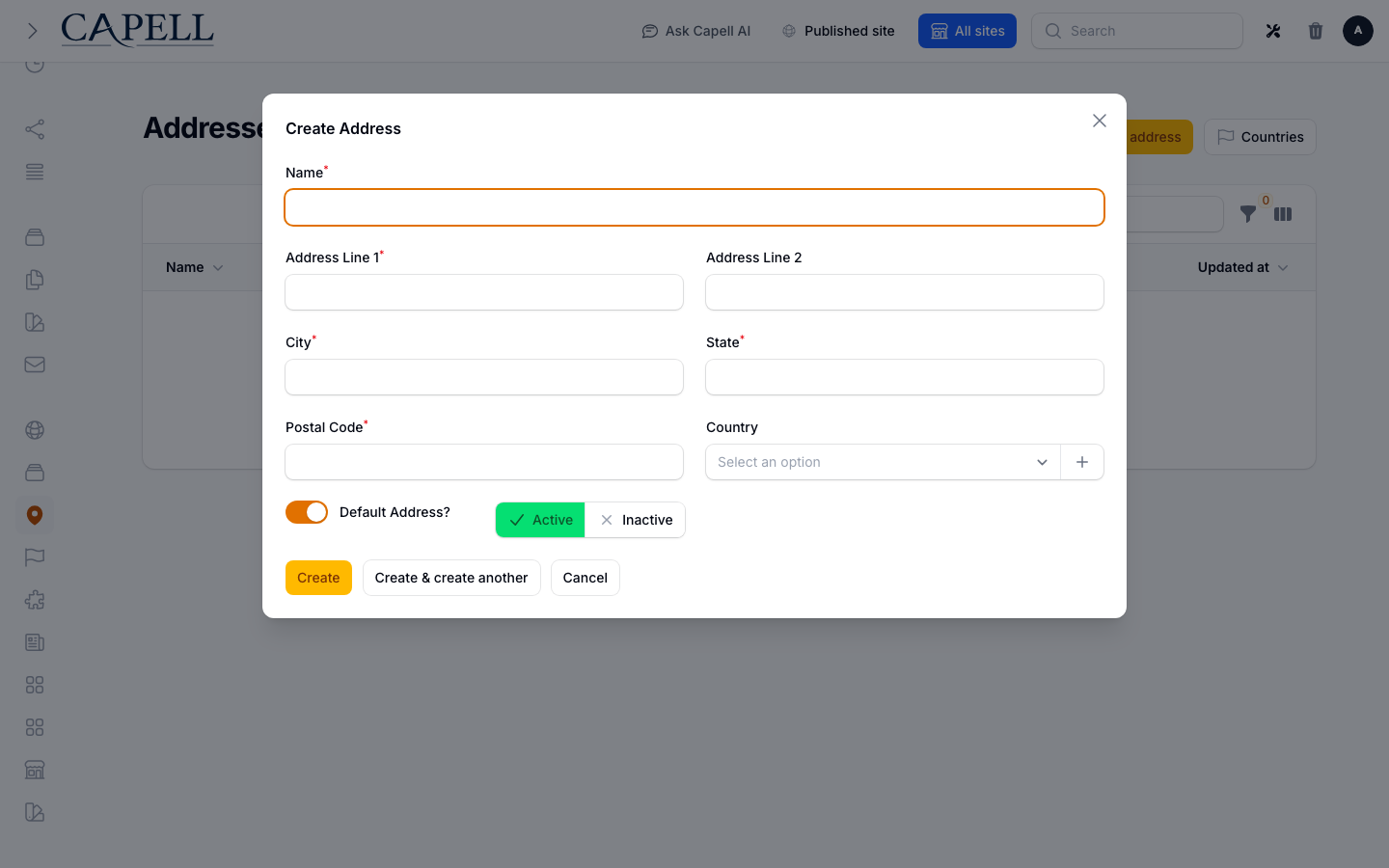
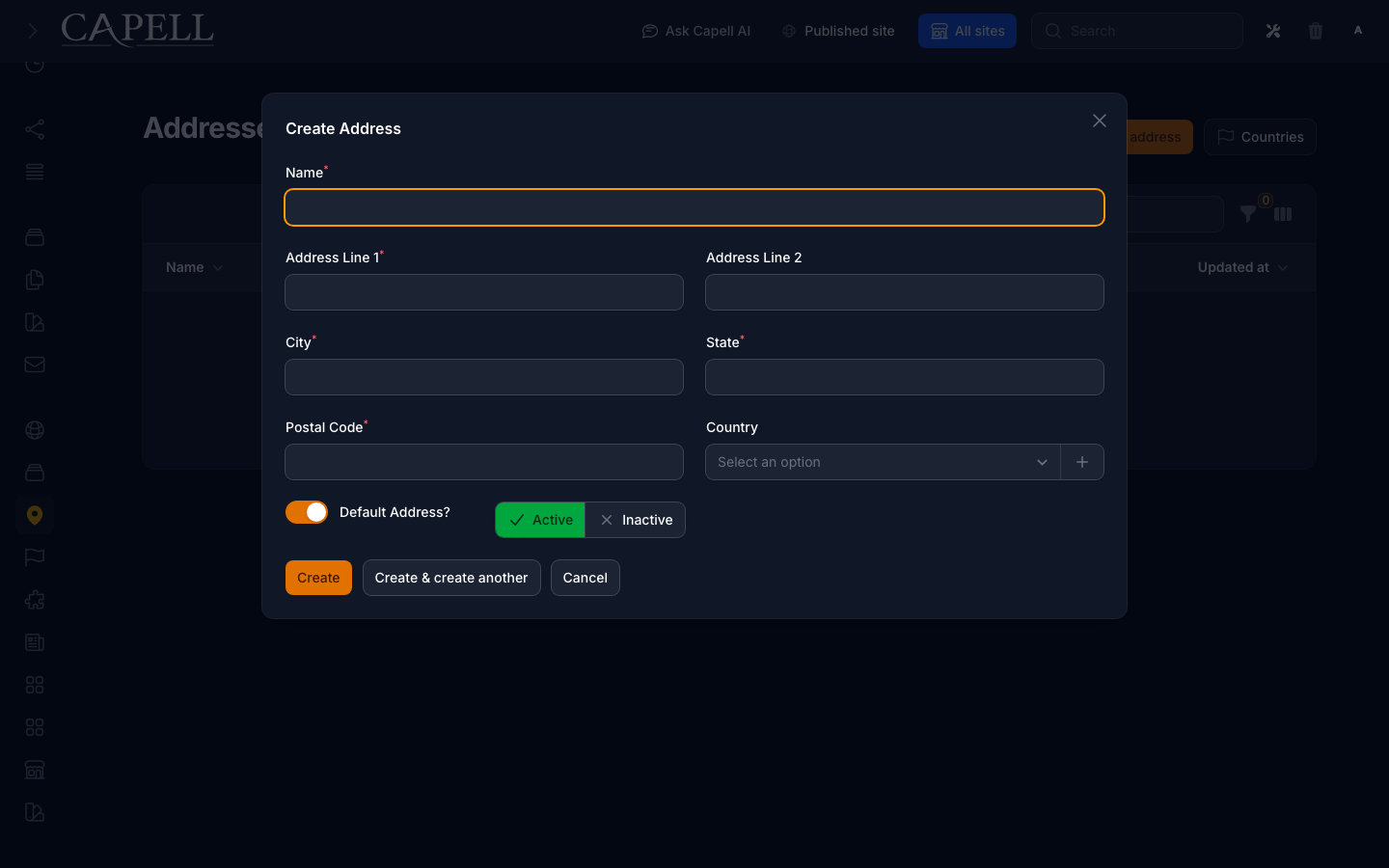
1. Go to **Web Pages > Addresses** and start a new address.
2. Give it a **Name** so you can recognise it later.
3. Fill in **Address Line 1** and, if needed, **Address Line 2**.
4. Add the **City**, **State**, and **Postal Code**.
5. Choose the **Country** from the picker.
6. Save the address. It can now be selected anywhere that asks for an address.
 ### How to use a saved address in site settings
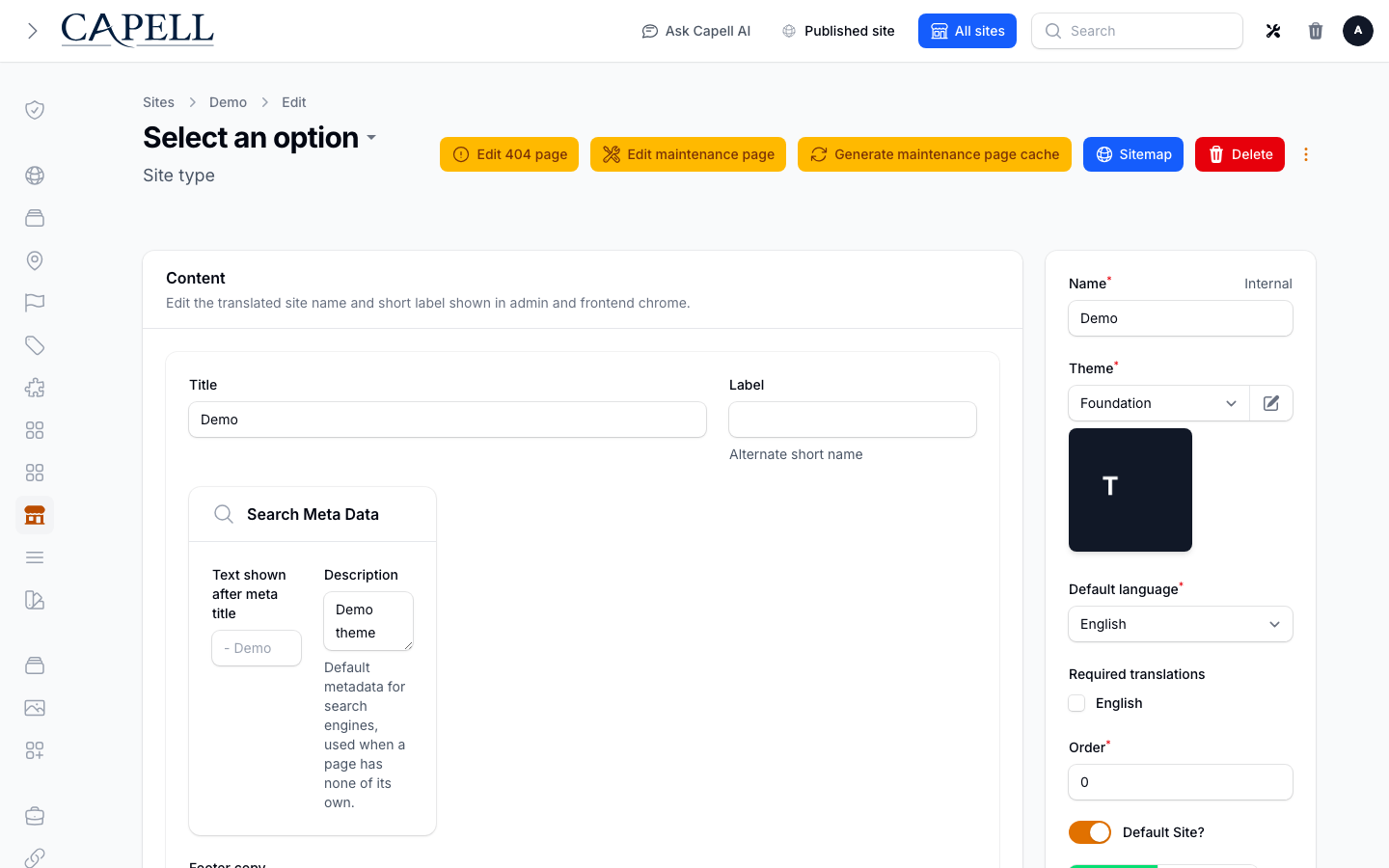
1. Open your site settings in the admin.
2. Find the address field and choose one of your saved addresses from the **Address** picker.
3. Save the settings. The site now uses that address. If you edit the selected address from the site picker later, the package may create a site-specific copy to avoid changing a shared or other site's address.
### How to use a saved address in site settings
1. Open your site settings in the admin.
2. Find the address field and choose one of your saved addresses from the **Address** picker.
3. Save the settings. The site now uses that address. If you edit the selected address from the site picker later, the package may create a site-specific copy to avoid changing a shared or other site's address.
 ## Troubleshooting
| What you see | What it means | What to do |
| ------------------------------------------------ | ---------------------------------------------------------------------------------------- | ------------------------------------------------------------------------------------------------------------- |
| The country I need is missing from a picker | That country has not been added yet | Go to **Web Pages > Countries** and add it with its **Name** and ISO codes |
| The address picker is empty in site settings | No addresses have been saved yet | Go to **Web Pages > Addresses** and create one first |
| A country shows zero **Addresses** | No saved address uses that country | This is fine; the country is still available to pick when you add an address |
| The address changed for one site but not another | The site picker created a site-specific copy to protect a shared or other site's address | Check the selected address on each site, then update the intended address record in **Web Pages > Addresses** |
## Troubleshooting
| What you see | What it means | What to do |
| ------------------------------------------------ | ---------------------------------------------------------------------------------------- | ------------------------------------------------------------------------------------------------------------- |
| The country I need is missing from a picker | That country has not been added yet | Go to **Web Pages > Countries** and add it with its **Name** and ISO codes |
| The address picker is empty in site settings | No addresses have been saved yet | Go to **Web Pages > Addresses** and create one first |
| A country shows zero **Addresses** | No saved address uses that country | This is fine; the country is still available to pick when you add an address |
| The address changed for one site but not another | The site picker created a site-specific copy to protect a shared or other site's address | Check the selected address on each site, then update the intended address record in **Web Pages > Addresses** |