# Using Insights
This guide is for owners and operators who want to understand how their site and content are performing. Insights records first-party visits, page views, clicks, and visitor journeys, and shows the key numbers in one place. It respects visitor consent, so people choose whether they are measured. No technical knowledge is needed. Every step uses the labels you see on screen.
## Using Insights (how-to)
### How to open the Insights page
1. In the admin sidebar, open the **Monitoring** group.
2. Click **Insights**.
3. The page shows your overview stats, popular pages, recent visitor journeys, and live activity.
### How to read the overview numbers
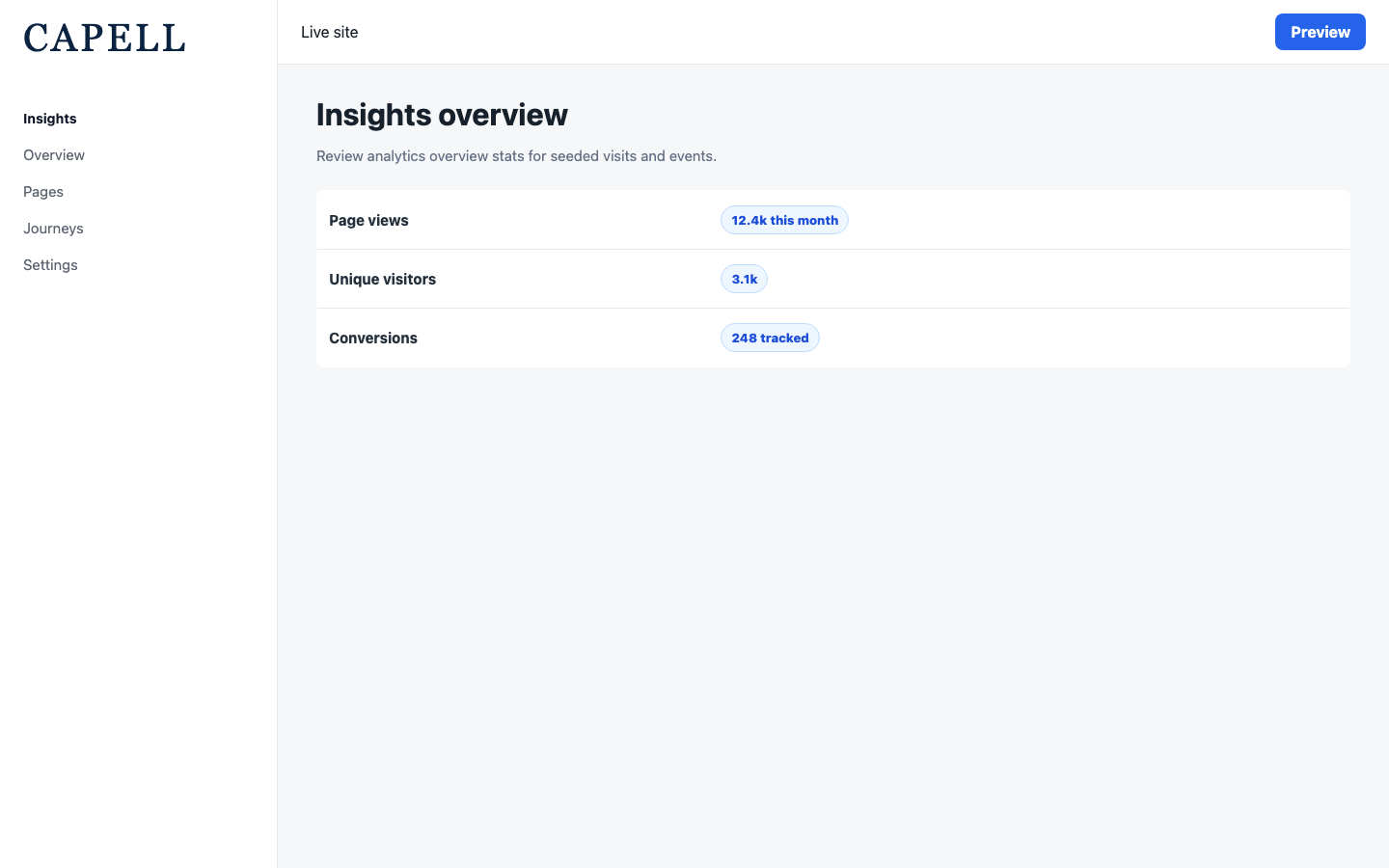
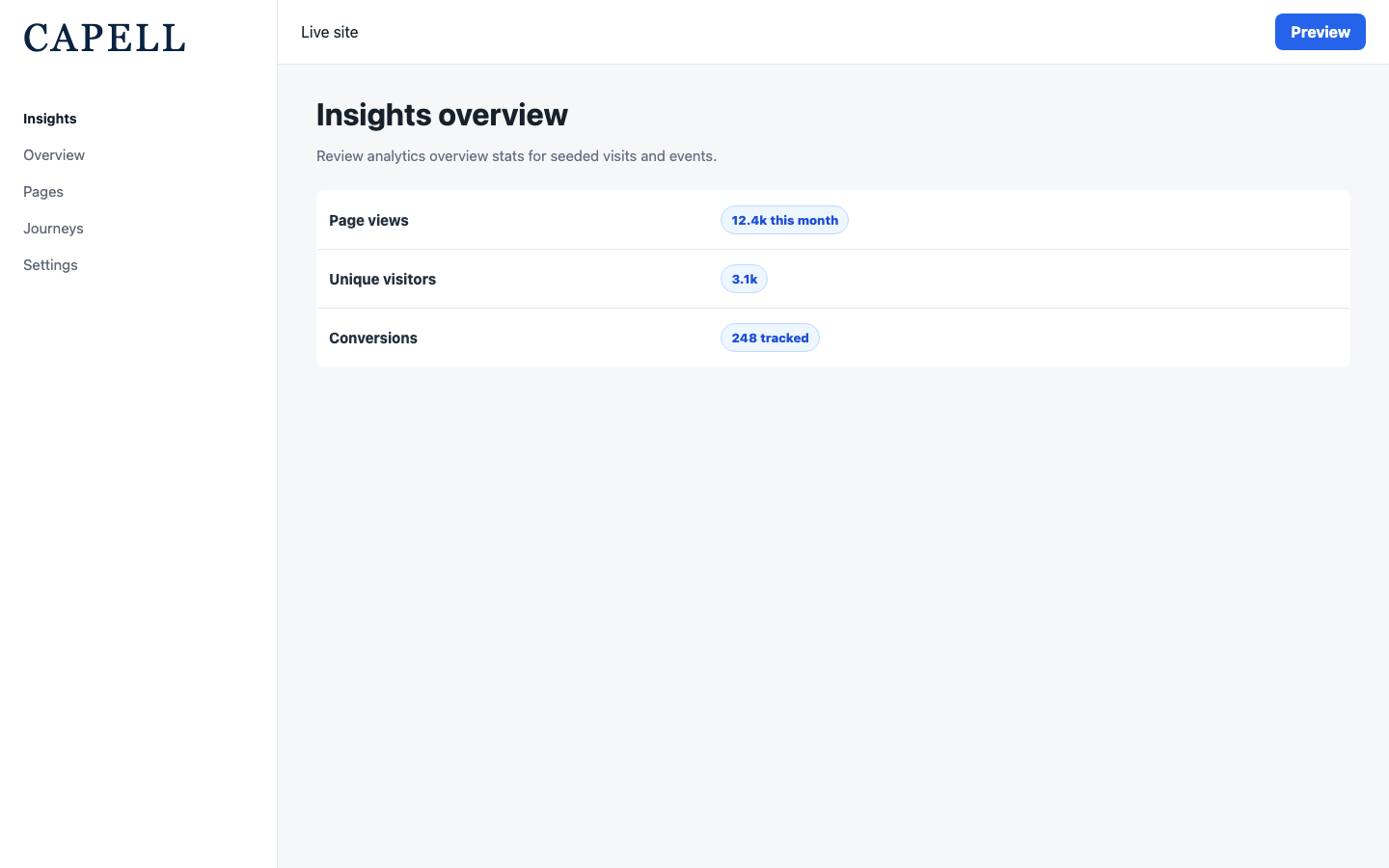
1. Open **Monitoring > Insights**.
2. The **Insights overview** shows headline figures such as **Visits**, **Unique visits**, **Page views**, **Events**, and **Clicks**.
3. Each figure is the recorded total for the dashboard window.
4. Compare the figures across regular checks, not against a single isolated visit or event.
 ### How to find your most popular pages
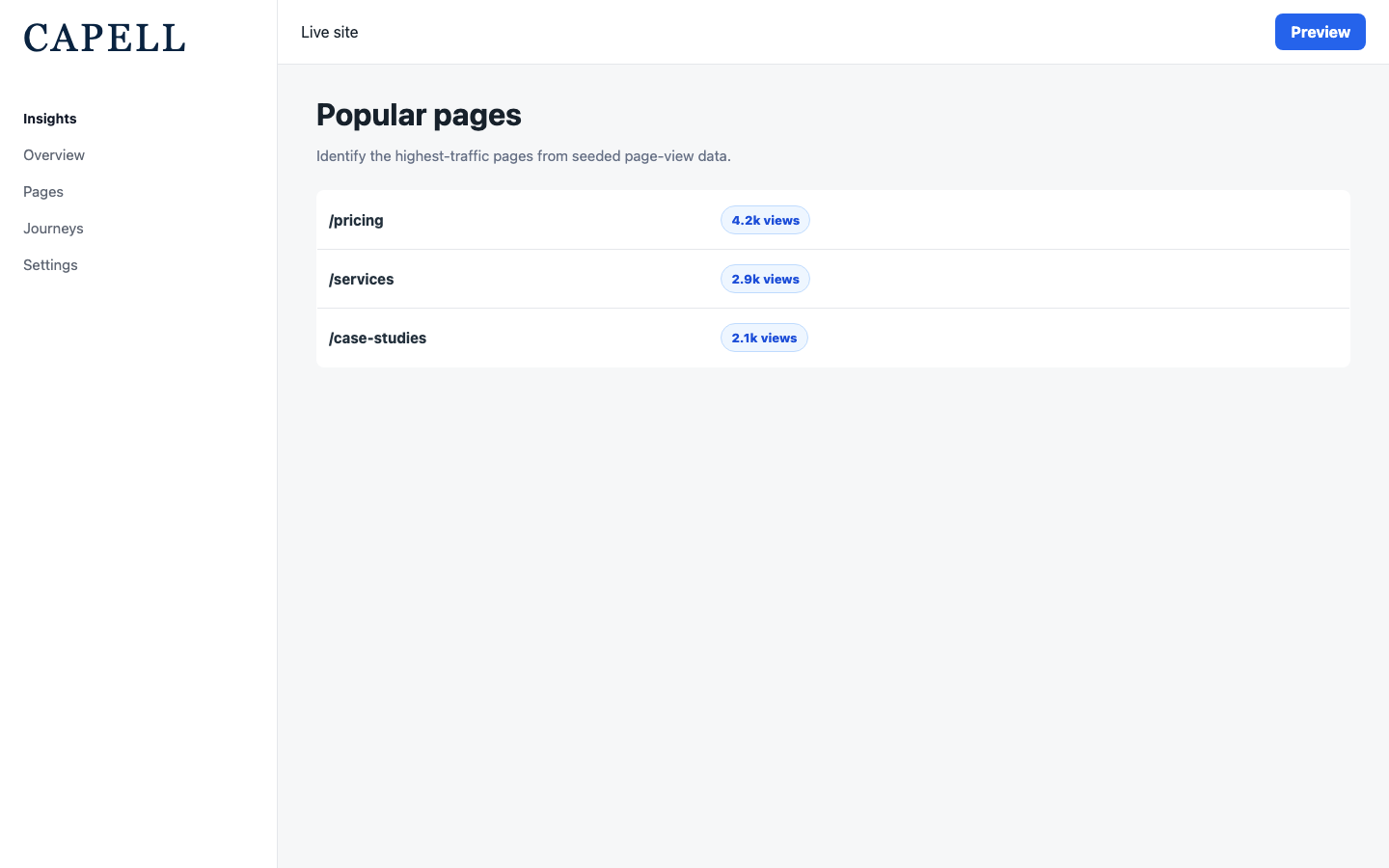
1. Open **Monitoring > Insights**.
2. Find the **Popular pages** panel.
3. It lists pages by **Path** with their **Page views**, so you can see which content earns the most traffic.
4. The **Trending pages** panel highlights pages gaining attention right now.
### How to find your most popular pages
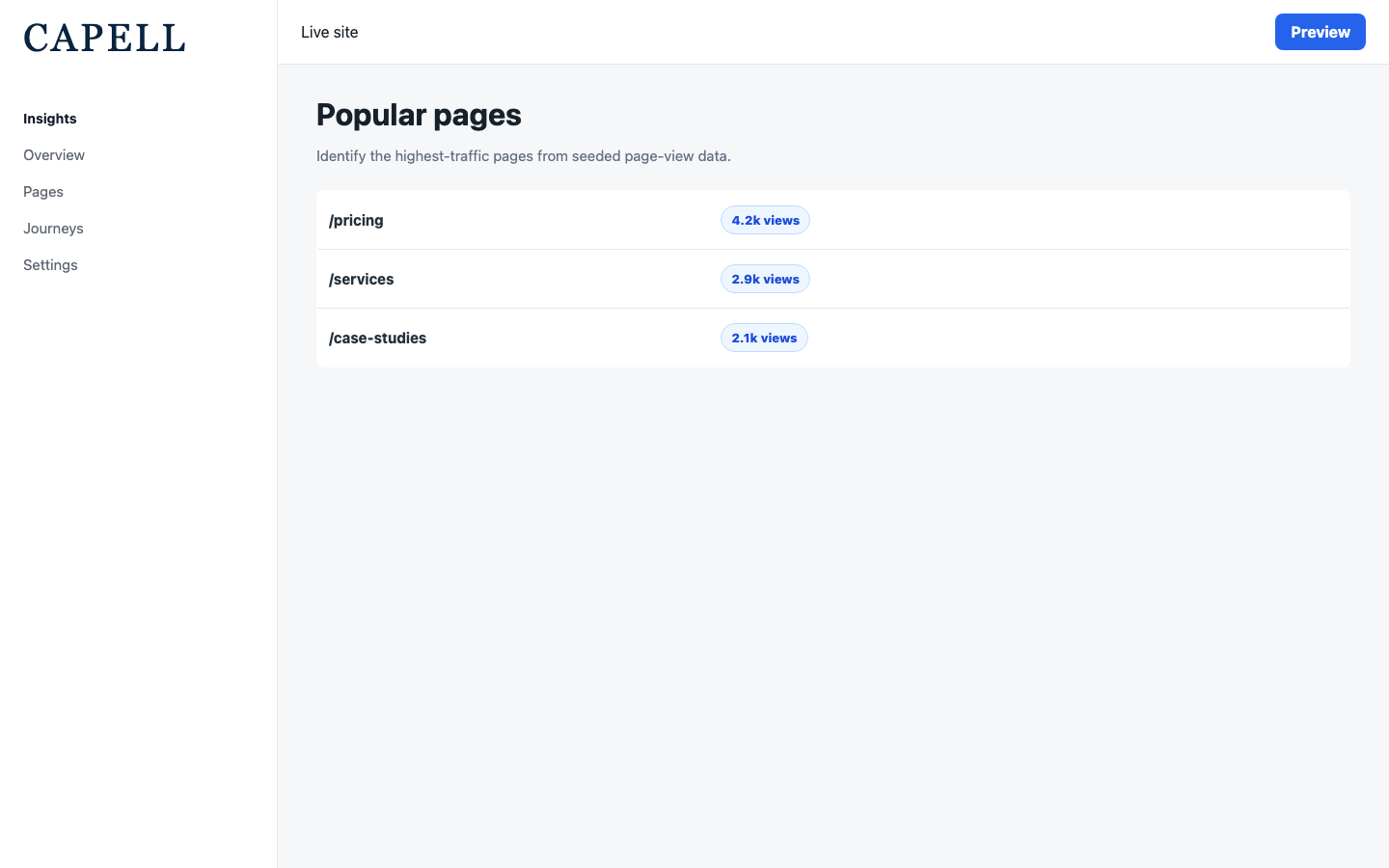
1. Open **Monitoring > Insights**.
2. Find the **Popular pages** panel.
3. It lists pages by **Path** with their **Page views**, so you can see which content earns the most traffic.
4. The **Trending pages** panel highlights pages gaining attention right now.
 ### How to see which actions visitors take
1. Open **Monitoring > Insights**.
2. Find the **Top actions** panel.
3. It lists the five most-recorded event names in the current dashboard window, with the number of **Events** for each one.
4. Use it to see which tracked interactions happen most often before you decide what to improve.
### How to see where visits come from
1. Open **Monitoring > Insights**.
2. Find the **Acquisition sources** panel.
3. It lists the five leading sources in the current dashboard window, including **Source**, **Medium**, **Campaign**, **Referrer**, and **Visits**.
4. Compare these rows to understand which campaigns and referring sites are bringing people to the site.
### How to follow recent visitor journeys
1. Open **Monitoring > Insights**.
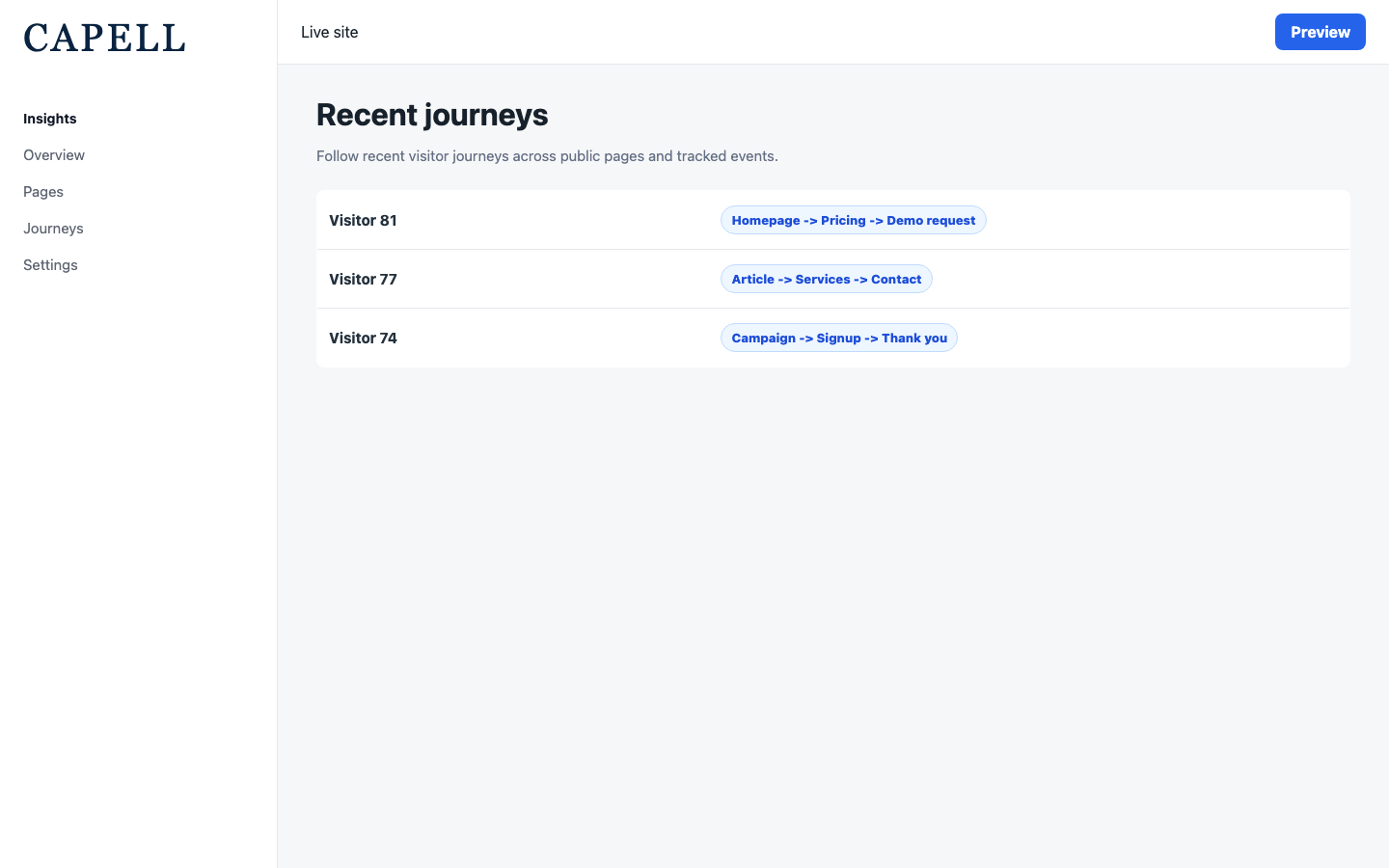
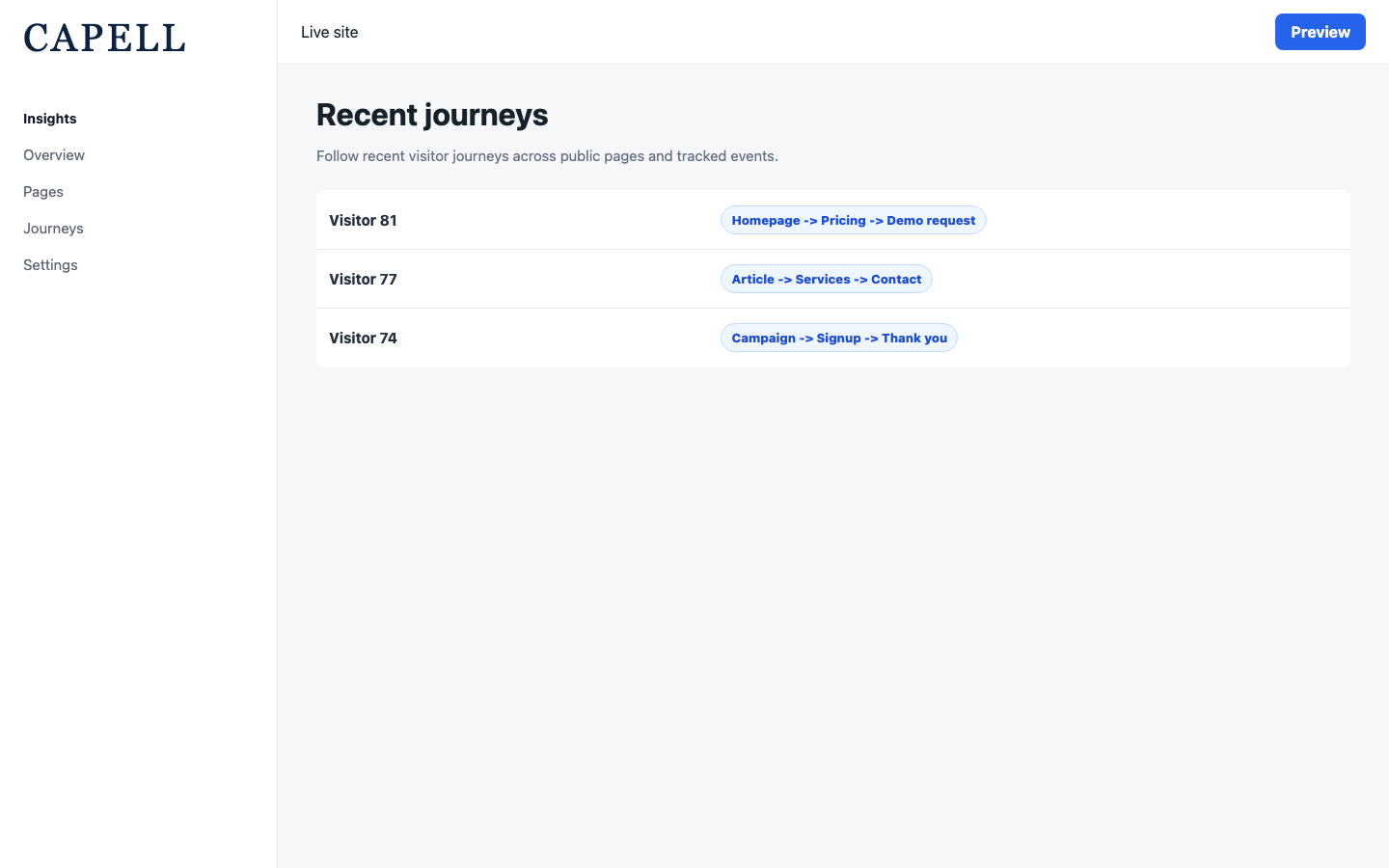
2. Find the **Recent journeys** panel.
3. Each entry follows one visit across pages and events, showing the **Steps** taken and the **Last path** reached.
4. Use this to understand how visitors move through the site before they leave or convert.
### How to see which actions visitors take
1. Open **Monitoring > Insights**.
2. Find the **Top actions** panel.
3. It lists the five most-recorded event names in the current dashboard window, with the number of **Events** for each one.
4. Use it to see which tracked interactions happen most often before you decide what to improve.
### How to see where visits come from
1. Open **Monitoring > Insights**.
2. Find the **Acquisition sources** panel.
3. It lists the five leading sources in the current dashboard window, including **Source**, **Medium**, **Campaign**, **Referrer**, and **Visits**.
4. Compare these rows to understand which campaigns and referring sites are bringing people to the site.
### How to follow recent visitor journeys
1. Open **Monitoring > Insights**.
2. Find the **Recent journeys** panel.
3. Each entry follows one visit across pages and events, showing the **Steps** taken and the **Last path** reached.
4. Use this to understand how visitors move through the site before they leave or convert.
 ### How to see live activity
1. Open **Monitoring > Insights**.
2. Find the **Live statistics** panel.
3. It shows **Active visits in the last 15 minutes**, **Page views in the last 15 minutes**, and the **Top live page** right now.
4. Use it to watch the effect of a launch or campaign as it happens.
### How to turn tracking on and choose what is measured
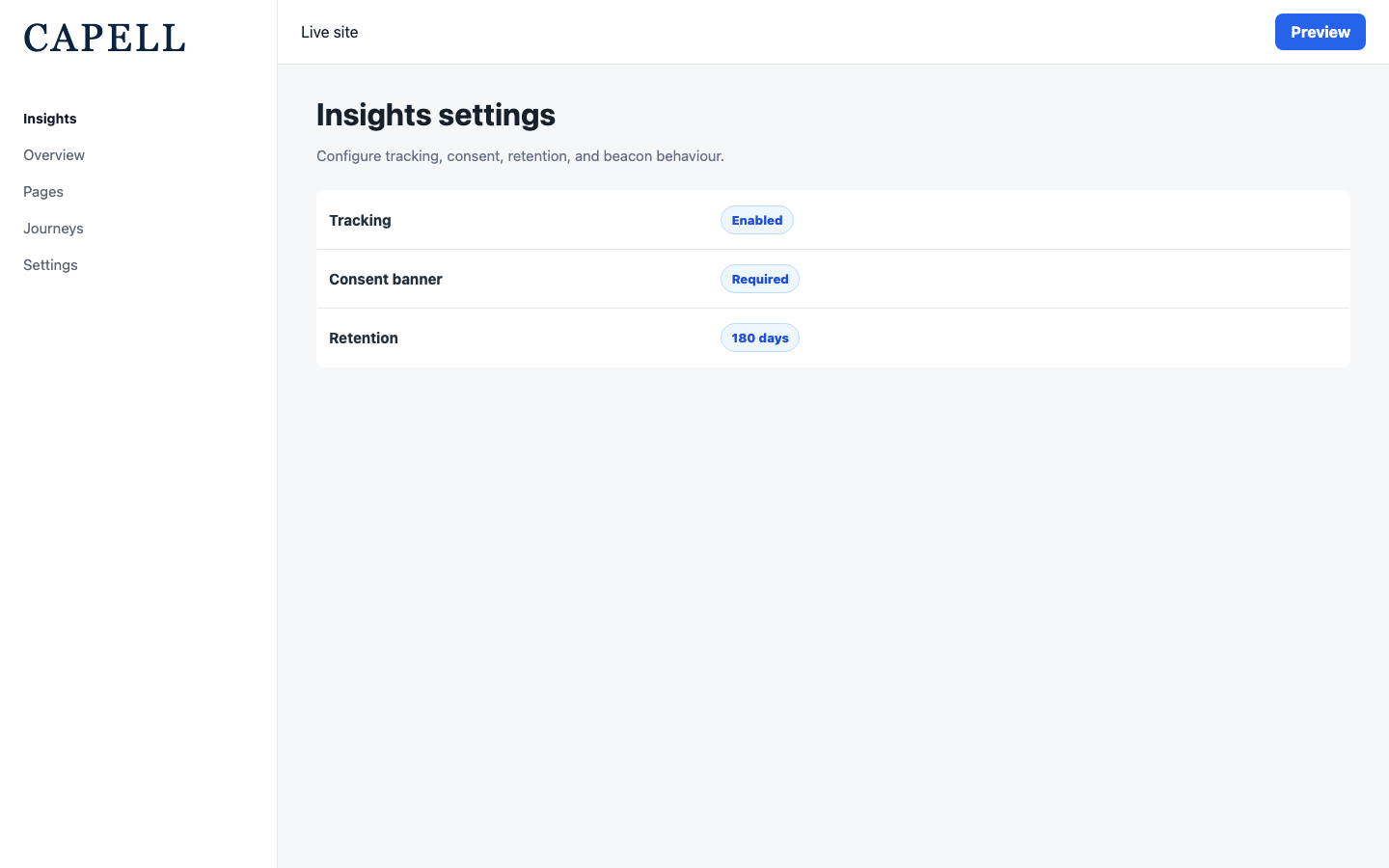
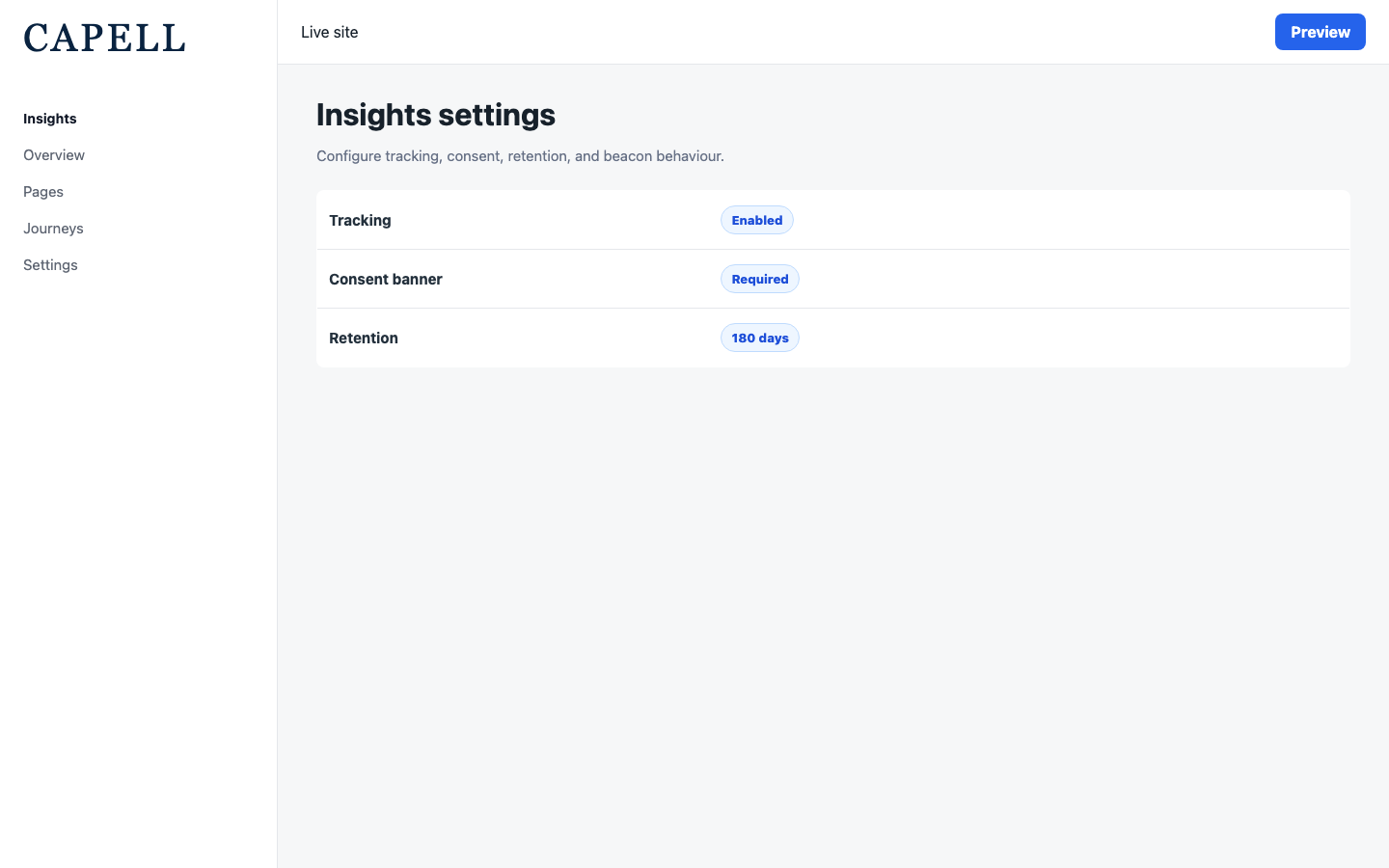
1. Go to **Settings** in the admin and find the **Insights** section.
2. Turn on **Enable insights**.
3. Choose what to record using **Track page views**, **Track clicks**, and **Track forms**.
4. Use **Ignored paths** to leave certain pages out of measurement, and **Ignored selectors** to leave out specific page elements from click tracking.
5. Save the settings.
### How to see live activity
1. Open **Monitoring > Insights**.
2. Find the **Live statistics** panel.
3. It shows **Active visits in the last 15 minutes**, **Page views in the last 15 minutes**, and the **Top live page** right now.
4. Use it to watch the effect of a launch or campaign as it happens.
### How to turn tracking on and choose what is measured
1. Go to **Settings** in the admin and find the **Insights** section.
2. Turn on **Enable insights**.
3. Choose what to record using **Track page views**, **Track clicks**, and **Track forms**.
4. Use **Ignored paths** to leave certain pages out of measurement, and **Ignored selectors** to leave out specific page elements from click tracking.
5. Save the settings.
 ### How to set consent and privacy options
1. Go to **Settings > Insights**.
2. Set the **Default consent region** and turn on **Require consent for all regions** if you want everyone asked before any analytics runs.
3. Turn on **Hash visitor data** to store visitor details in a disguised form, and set a **Hash salt** if your developer asks you to.
4. Update the **Policy version** when your privacy notice changes, so returning visitors are asked again.
5. Save the settings. Visitors see a consent banner where they can accept analytics, reject non-essential tracking, or manage their choices before anything is recorded.
### How to set how long data is kept
1. Go to **Settings > Insights**.
2. Set **Retention** to the number of days you want to keep visit and event data.
3. Save the settings. Older data is removed automatically once it passes the retention period, so review or note anything important before it ages out.
## Troubleshooting
| What you see | What it means | What to do |
| ----------------------------------------------------- | --------------------------------------------------------------------- | -------------------------------------------------------------------------------------------------------------------- |
| No numbers appear on the Insights page | Tracking is off, or no visits have been recorded yet | Turn on **Enable insights** in **Settings > Insights**, then wait for real visits |
| A page you expected is missing from **Popular pages** | It may be listed under **Ignored paths**, or it has no recorded views | Check **Ignored paths** in settings, and confirm the page has had visits |
| Clicks are not being recorded | **Track clicks** is off, or the element is excluded | Turn on **Track clicks**, and review **Ignored selectors** in settings |
| A number drops suddenly | Something changed, on the site or in how visitors behave | Look for a recent change to that page or campaign that could explain it |
| Old data is missing | It aged out past the **Retention** period | Increase **Retention** going forward; past data that was removed cannot be recovered |
| A metric is unfamiliar | The figure measures one part of visitor behaviour | Note what it measures before acting; for example **Unique visits** counts distinct visitors rather than total visits |
### How to set consent and privacy options
1. Go to **Settings > Insights**.
2. Set the **Default consent region** and turn on **Require consent for all regions** if you want everyone asked before any analytics runs.
3. Turn on **Hash visitor data** to store visitor details in a disguised form, and set a **Hash salt** if your developer asks you to.
4. Update the **Policy version** when your privacy notice changes, so returning visitors are asked again.
5. Save the settings. Visitors see a consent banner where they can accept analytics, reject non-essential tracking, or manage their choices before anything is recorded.
### How to set how long data is kept
1. Go to **Settings > Insights**.
2. Set **Retention** to the number of days you want to keep visit and event data.
3. Save the settings. Older data is removed automatically once it passes the retention period, so review or note anything important before it ages out.
## Troubleshooting
| What you see | What it means | What to do |
| ----------------------------------------------------- | --------------------------------------------------------------------- | -------------------------------------------------------------------------------------------------------------------- |
| No numbers appear on the Insights page | Tracking is off, or no visits have been recorded yet | Turn on **Enable insights** in **Settings > Insights**, then wait for real visits |
| A page you expected is missing from **Popular pages** | It may be listed under **Ignored paths**, or it has no recorded views | Check **Ignored paths** in settings, and confirm the page has had visits |
| Clicks are not being recorded | **Track clicks** is off, or the element is excluded | Turn on **Track clicks**, and review **Ignored selectors** in settings |
| A number drops suddenly | Something changed, on the site or in how visitors behave | Look for a recent change to that page or campaign that could explain it |
| Old data is missing | It aged out past the **Retention** period | Increase **Retention** going forward; past data that was removed cannot be recovered |
| A metric is unfamiliar | The figure measures one part of visitor behaviour | Note what it measures before acting; for example **Unique visits** counts distinct visitors rather than total visits |