# Using Layout Builder
This guide is for editors who build pages and owners deciding how to use widgets and sections. Every step uses the labels you see on screen.
## Using Layout Builder (editor how-to)
### How to add a widget to a page
1. Open the page you want to edit in the admin.
2. From the **widget panel**, drag a widget (for example a text block, image, or button) onto your page.
3. Drop it where you want it to appear.
4. Save the page.

### How to edit a widget's text, image, or colour
1. Click the widget on the page.
2. Change its **text**, swap its **image**, or pick a **colour** in the panel that opens.
3. Save the page.
### How to reorder widgets
1. In the page editor, drag a widget up or down.
2. Drop it in its new position.
3. Save the page. The new order shows on the live site.
### How to tune a layout container
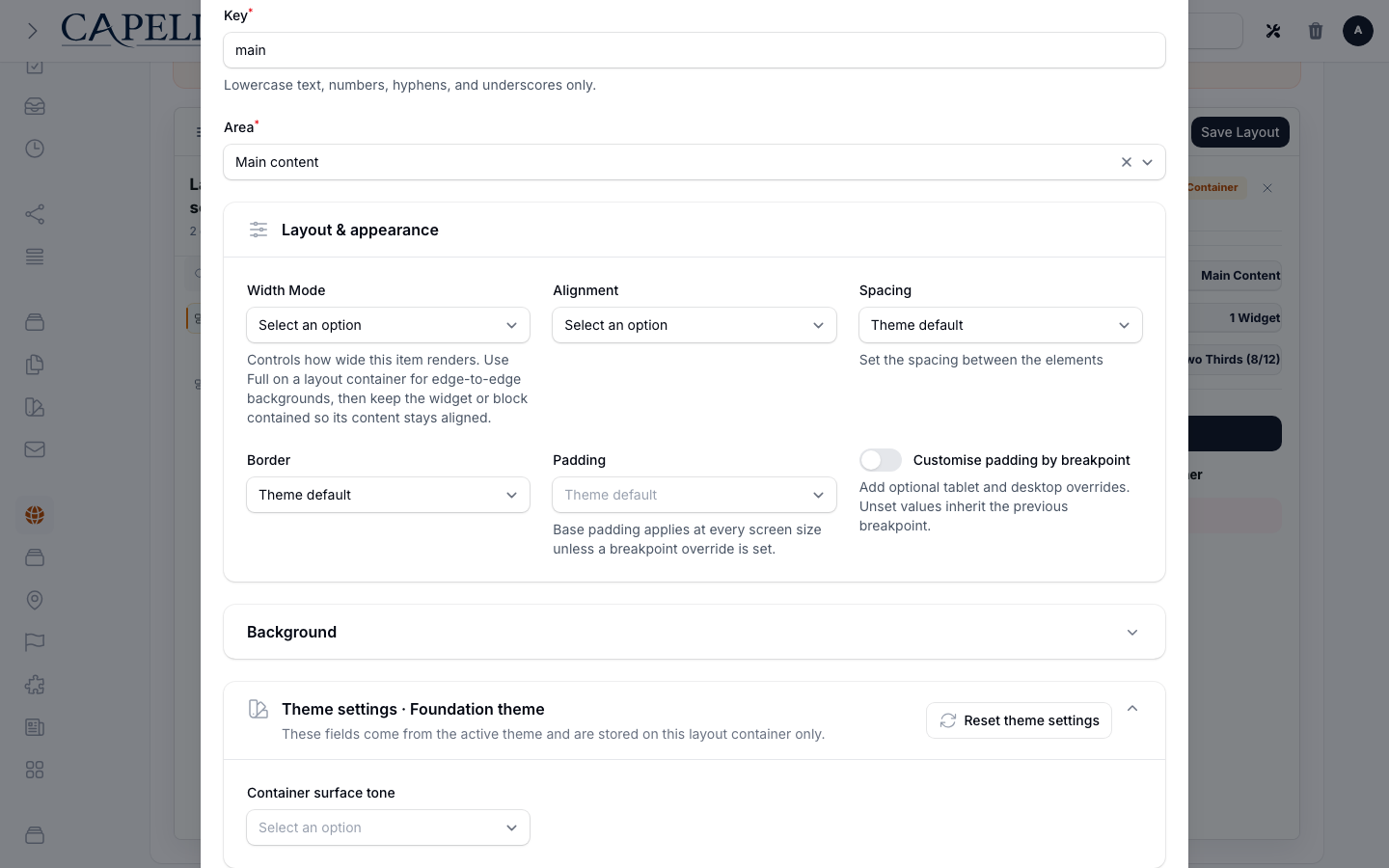
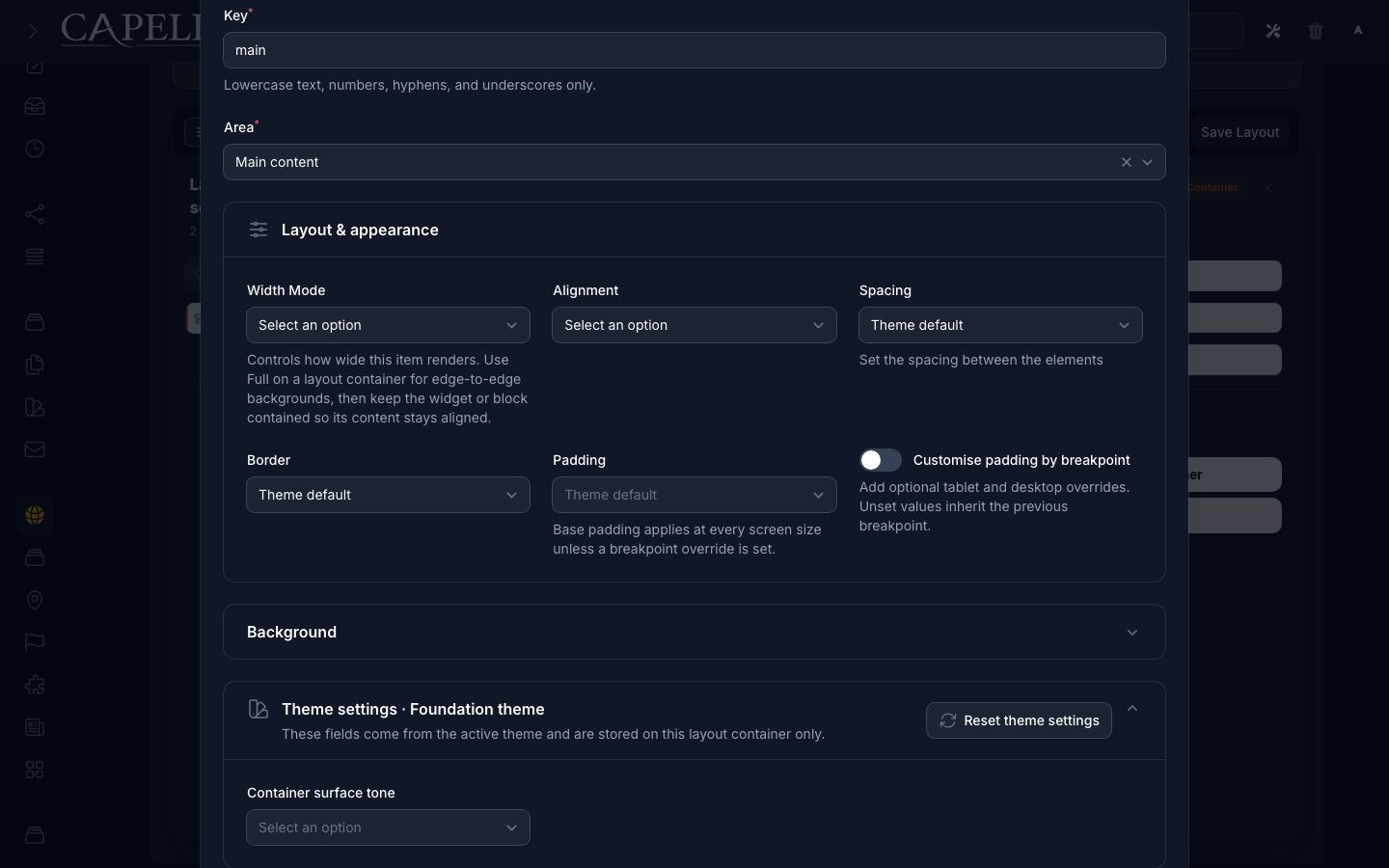
1. Open the page editor and select the container that holds the widgets you want to adjust.
2. Open **Layout & appearance**. Set width and alignment, then use:
- **Spacing** for the gap between widgets inside the container.
- **Padding** for space between the container edge and its widgets.
- **Border** for the container edge treatment.
3. Leave a value at **Theme default** to inherit the theme's normal treatment. Choose **None** when the container must explicitly have no spacing, padding, or border, even if the theme supplies one.
4. To vary padding by screen size, enable **Customise by breakpoint**. Base padding applies at every size, tablet replaces it from the tablet breakpoint, and desktop replaces the effective tablet or base value from the desktop breakpoint. An empty override inherits the preceding value; **None** removes padding at that breakpoint.
5. Open **Background** only when the container needs its own background.
6. Open **Theme settings · {Theme name}** for controls supplied by the active theme. The swatch icon and description identify these as theme-owned values for this container only.
7. Use **Reset theme settings** to clear only this container's values for the active theme. Confirm the action, then save the container normally. Core settings and values saved for other themes are left in place.
8. Open **Advanced** for column position, responsive visibility, tag, HTML class, column overrides, and legacy margin. Margin is outside the container; keep it for existing layouts, but prefer spacing and padding for new visual changes.
9. Save the page.
 ### How to upload an image or file for a widget
1. Click the widget, then the image or file field.
2. Upload a new file, or pick one you have used before.
3. Save the page.
### How to manage reusable widgets
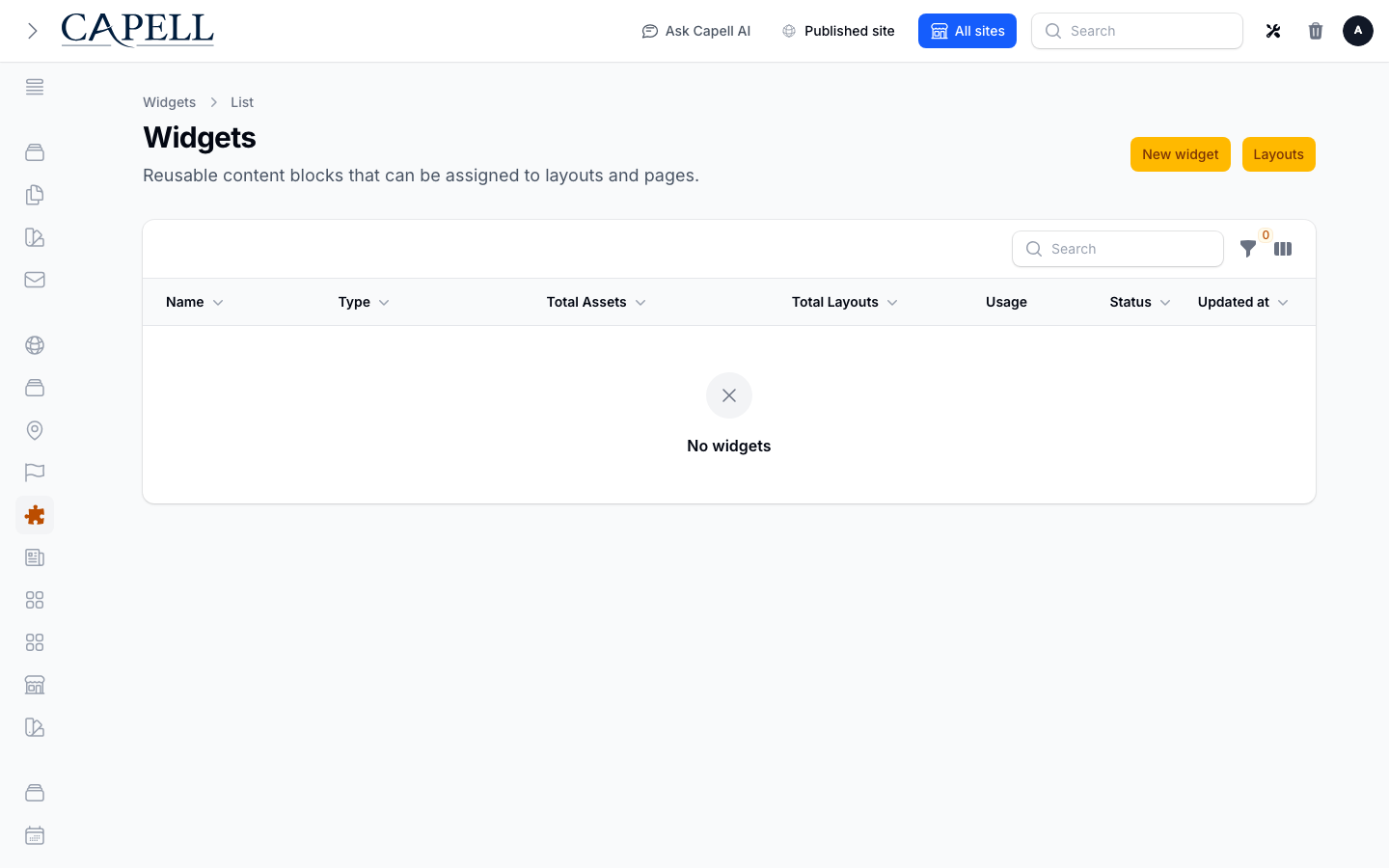
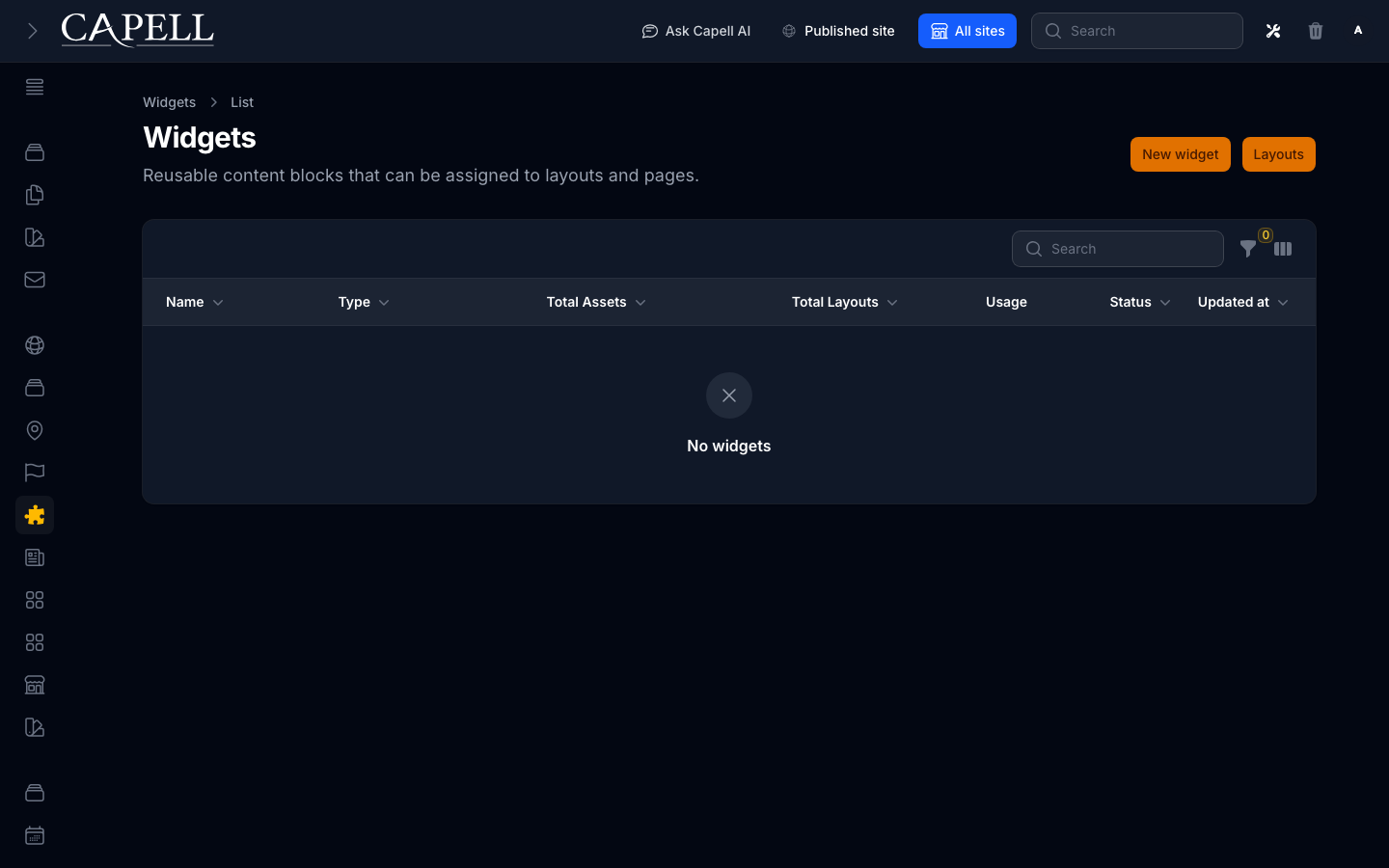
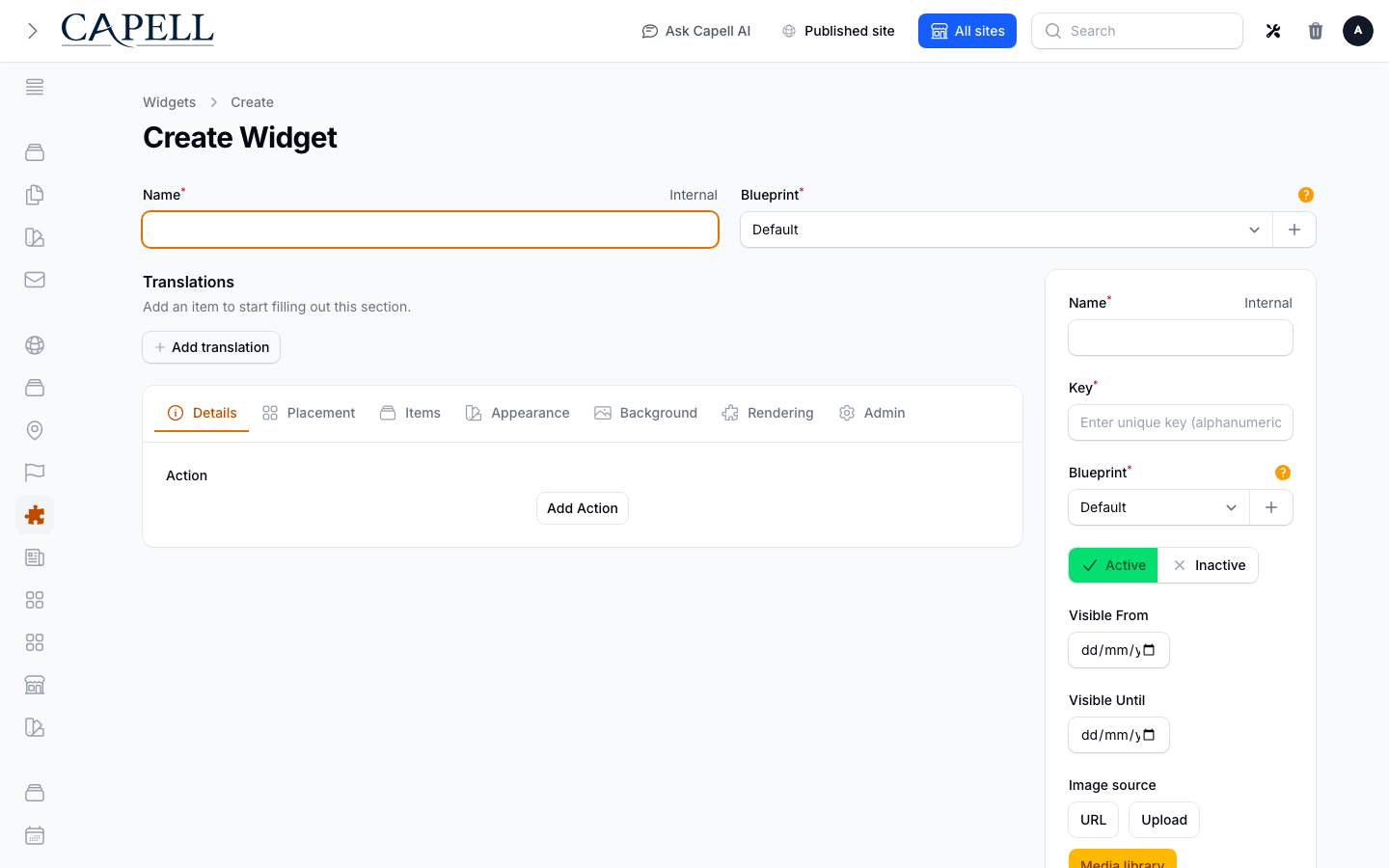
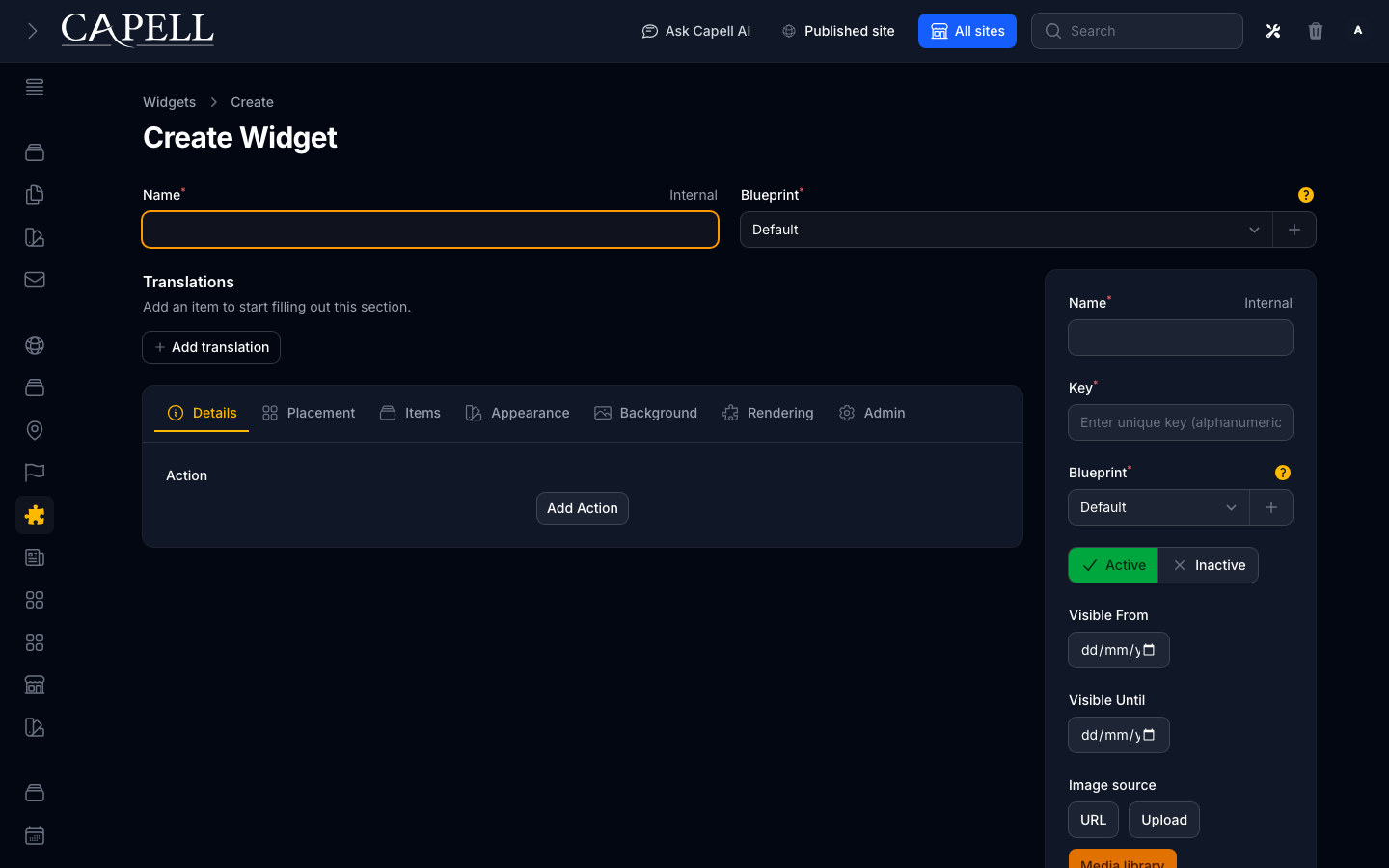
1. Go to the **Widgets** list to see your reusable widgets by component, usage, and status, and to search or filter them.
### How to upload an image or file for a widget
1. Click the widget, then the image or file field.
2. Upload a new file, or pick one you have used before.
3. Save the page.
### How to manage reusable widgets
1. Go to the **Widgets** list to see your reusable widgets by component, usage, and status, and to search or filter them.
 2. Open a widget to set its component, display settings, translations, and widget assets.
3. Save the widget so it is ready to drop onto pages.
2. Open a widget to set its component, display settings, translations, and widget assets.
3. Save the widget so it is ready to drop onto pages.
 ### How to reuse a block with Save as section
1. Arrange the widgets you want to reuse.
2. Click **Save as section** and give the section a clear name.
3. On another page, add that section from your section library instead of rebuilding it.
### How to review your sections
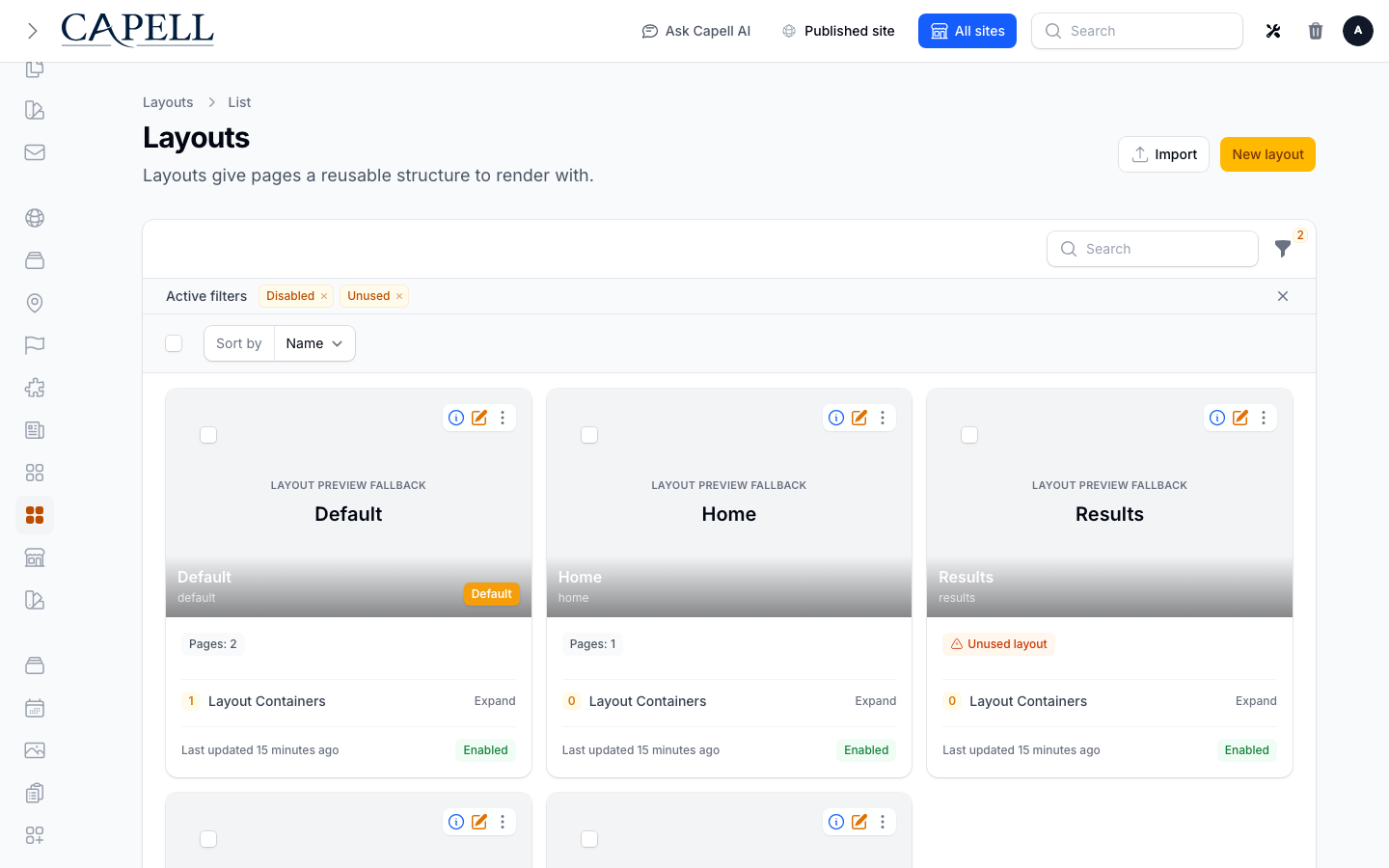
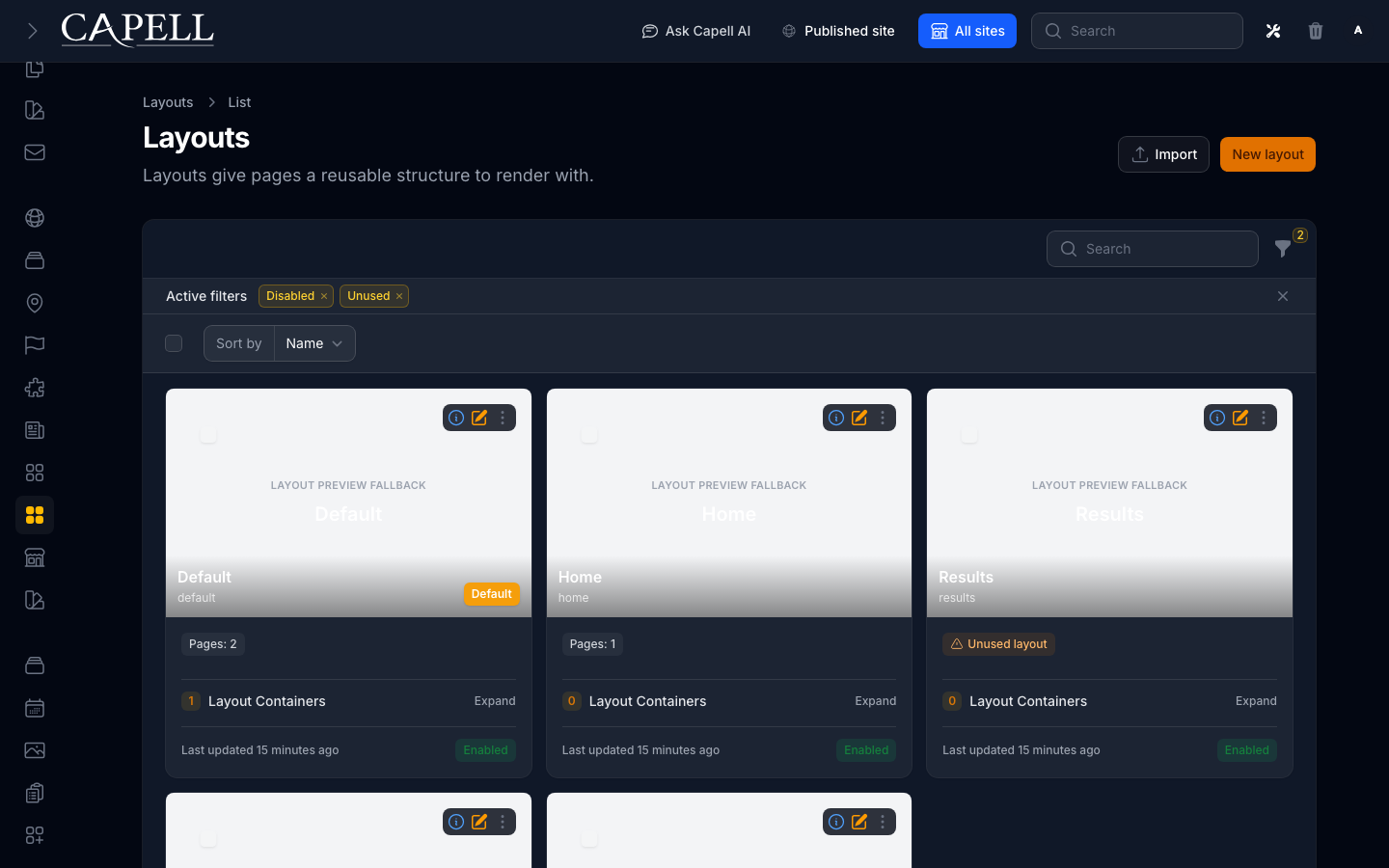
1. Open the **Layouts** list to review your saved sections and layout records.
2. Use it to see what reusable sections exist before building a new page.
### How to reuse a block with Save as section
1. Arrange the widgets you want to reuse.
2. Click **Save as section** and give the section a clear name.
3. On another page, add that section from your section library instead of rebuilding it.
### How to review your sections
1. Open the **Layouts** list to review your saved sections and layout records.
2. Use it to see what reusable sections exist before building a new page.
 ## Rolling out Layout Builder (for owners)
### Turn on first
- **Pages with a few core widgets.** Start with text, image, and button widgets so editors get comfortable building and arranging pages before you introduce more advanced blocks.
### Add when needed
| Need | Enable |
| ---------------------------- | -------------------------------------------------- |
| The same block on many pages | Save it once with **Save as section** and reuse it |
| Richer page sections | Add more widget types as your team is ready |
### Don't enable yet
- Hold back the full widget set on day one. A long panel of unfamiliar blocks slows new editors down.
### Who does what
| Role | First useful screen |
| ---------- | ----------------------------------------------------- |
| Editor | The page editor: add and arrange widgets |
| Site owner | The **Widgets** list: see the reusable widgets in use |
## Troubleshooting for editors
| What you see | What it means | What to do |
| -------------------------------------- | ---------------------------------------------------------- | ------------------------------------------------------------------ |
| A widget isn't where I dropped it | The page wasn't saved, or another widget shifted it | Drag it back into place and save the page |
| My change isn't on the live page | The page is still serving a cached copy | Wait a moment, or ask whoever manages caching to clear that page |
| I can't find a block I built before | It wasn't saved as a section | Rebuild it and use **Save as section** so it is reusable next time |
| The image looks wrong on the live site | The wrong file was picked, or it needs a moment to process | Re-open the widget, confirm the image, and save again |
## Rolling out Layout Builder (for owners)
### Turn on first
- **Pages with a few core widgets.** Start with text, image, and button widgets so editors get comfortable building and arranging pages before you introduce more advanced blocks.
### Add when needed
| Need | Enable |
| ---------------------------- | -------------------------------------------------- |
| The same block on many pages | Save it once with **Save as section** and reuse it |
| Richer page sections | Add more widget types as your team is ready |
### Don't enable yet
- Hold back the full widget set on day one. A long panel of unfamiliar blocks slows new editors down.
### Who does what
| Role | First useful screen |
| ---------- | ----------------------------------------------------- |
| Editor | The page editor: add and arrange widgets |
| Site owner | The **Widgets** list: see the reusable widgets in use |
## Troubleshooting for editors
| What you see | What it means | What to do |
| -------------------------------------- | ---------------------------------------------------------- | ------------------------------------------------------------------ |
| A widget isn't where I dropped it | The page wasn't saved, or another widget shifted it | Drag it back into place and save the page |
| My change isn't on the live page | The page is still serving a cached copy | Wait a moment, or ask whoever manages caching to clear that page |
| I can't find a block I built before | It wasn't saved as a section | Rebuild it and use **Save as section** so it is reusable next time |
| The image looks wrong on the live site | The wrong file was picked, or it needs a moment to process | Re-open the widget, confirm the image, and save again |