# Using Login Audit
This guide is for owners and operators who watch sign-in activity. Login Audit records who signed in, when, from where, and on which device, keeps a record of failed attempts, and can alert you to suspicious sign-ins. It helps you spot unusual activity and keep a record for compliance. No technical knowledge is needed. Every step uses the labels you see on screen.
## Using Login Audit (how-to)
### How to review sign-in activity
1. In the admin sidebar, open the **Users** group.
2. Click **Access Logs**.
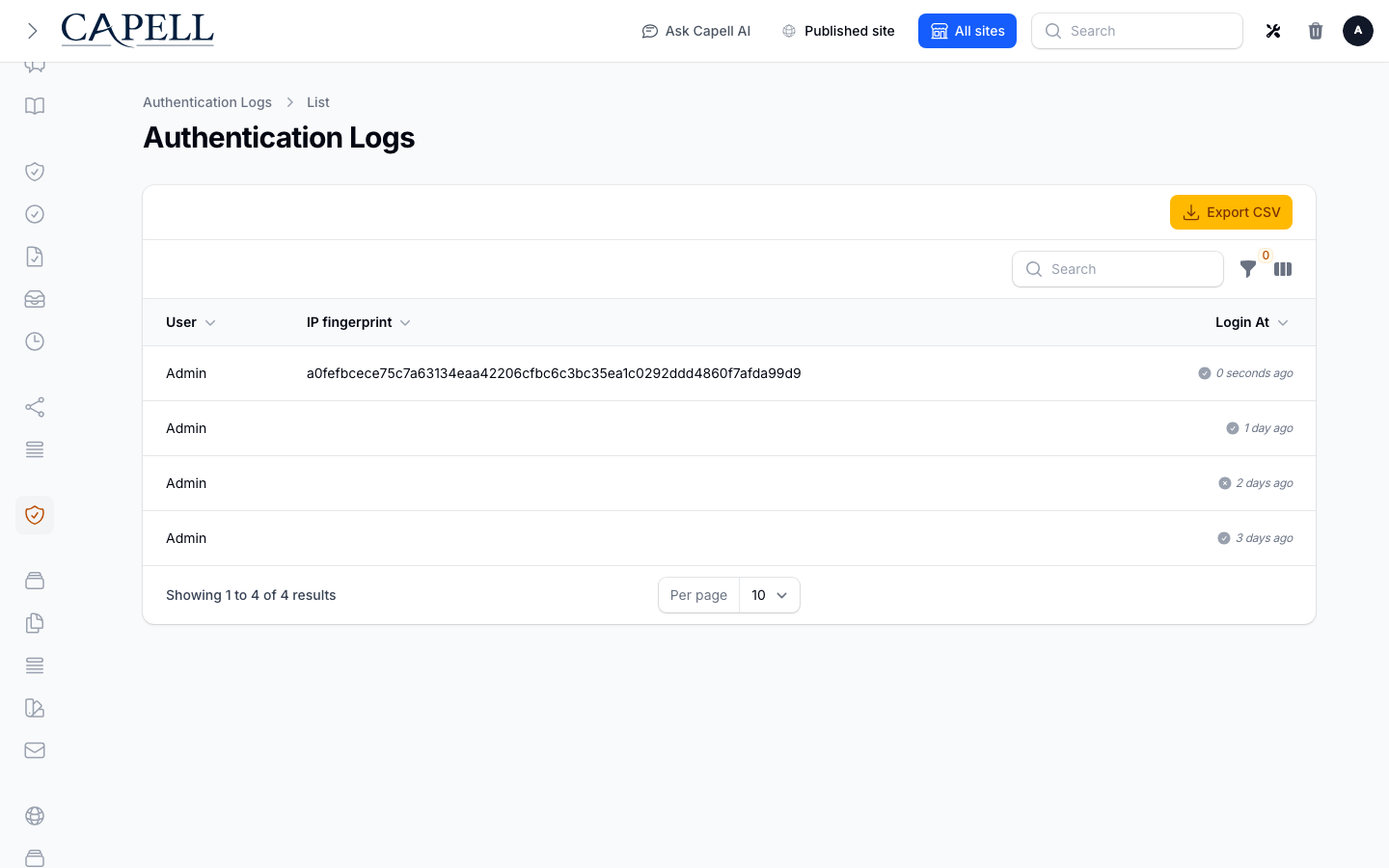
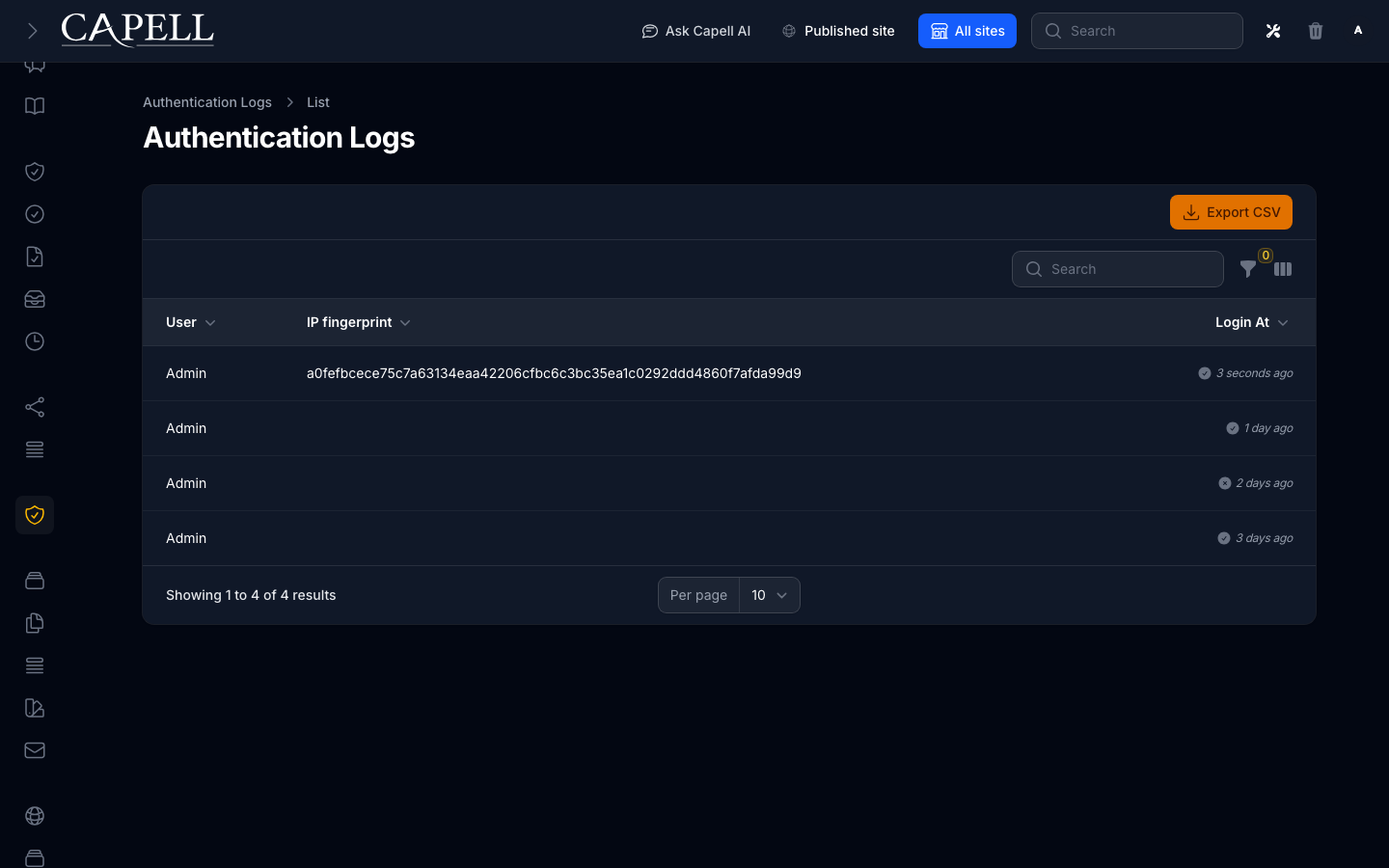
3. The list shows the user, **IP fingerprint**, and sign-in time. You can reveal the optional device, trusted-device, activity, logout, and location columns when you need them.
4. Both successful and failed attempts appear, so you can see the full history at a glance.
 ### How to filter the log to find specific events
1. Open **Users > Access Logs**.
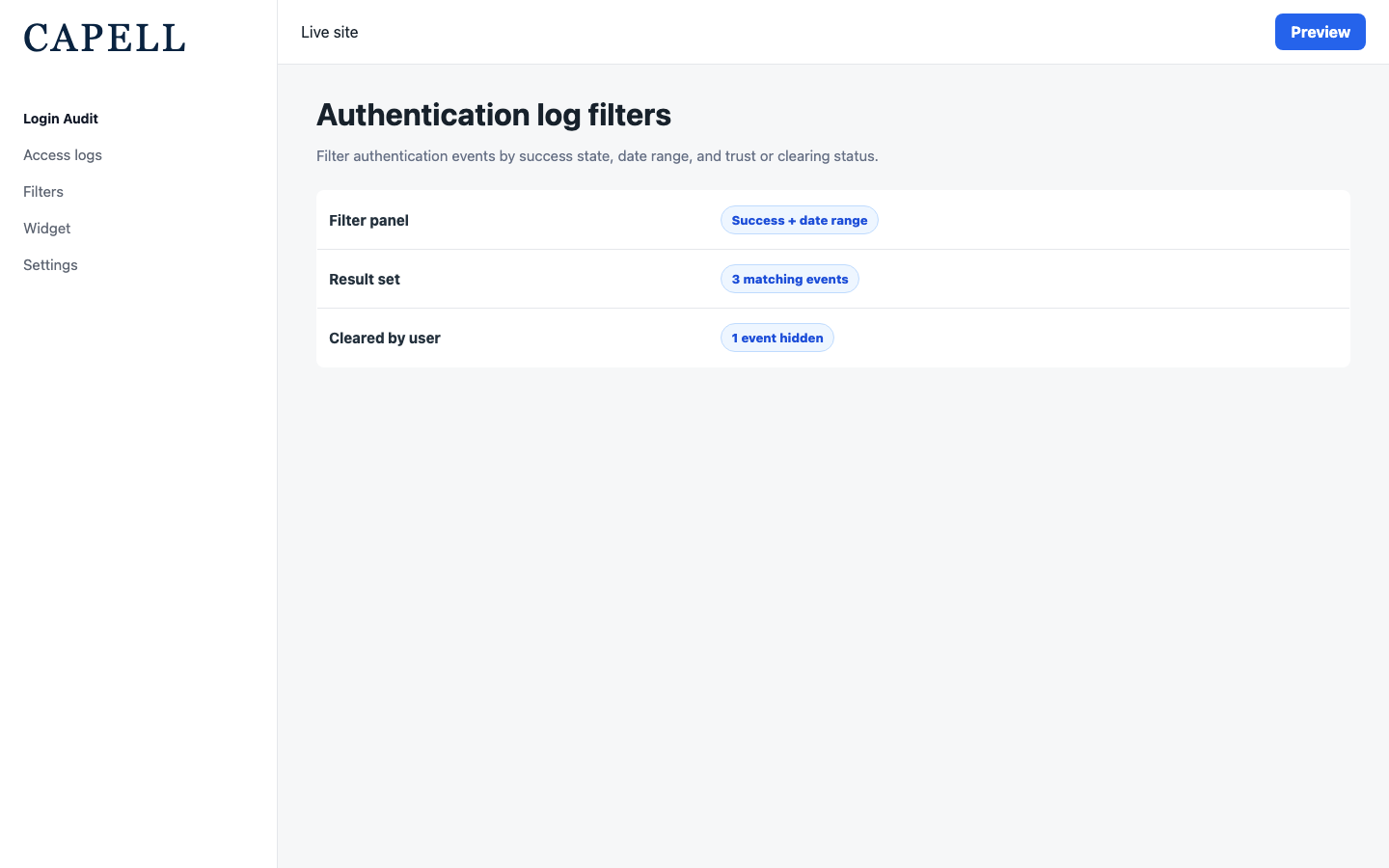
2. Open the filter panel at the top of the list.
3. Turn on the successful-login filter to show successful sign-ins. Leave it off when you need to review all recorded attempts.
4. Filter by a login date range to focus on a particular period.
5. Use the trusted-device filter to separate known devices from new ones, and filter on whether a row was cleared by the user.
### How to filter the log to find specific events
1. Open **Users > Access Logs**.
2. Open the filter panel at the top of the list.
3. Turn on the successful-login filter to show successful sign-ins. Leave it off when you need to review all recorded attempts.
4. Filter by a login date range to focus on a particular period.
5. Use the trusted-device filter to separate known devices from new ones, and filter on whether a row was cleared by the user.
 ### How to export the log for compliance
1. Open **Users > Access Logs**.
2. Apply any filters so the list shows only the period or events you need.
3. Click **Export CSV**.
4. Save the file and share it with whoever requested the records. The export contains the access-log dataset; table filters help your on-screen review but do not narrow the CSV.
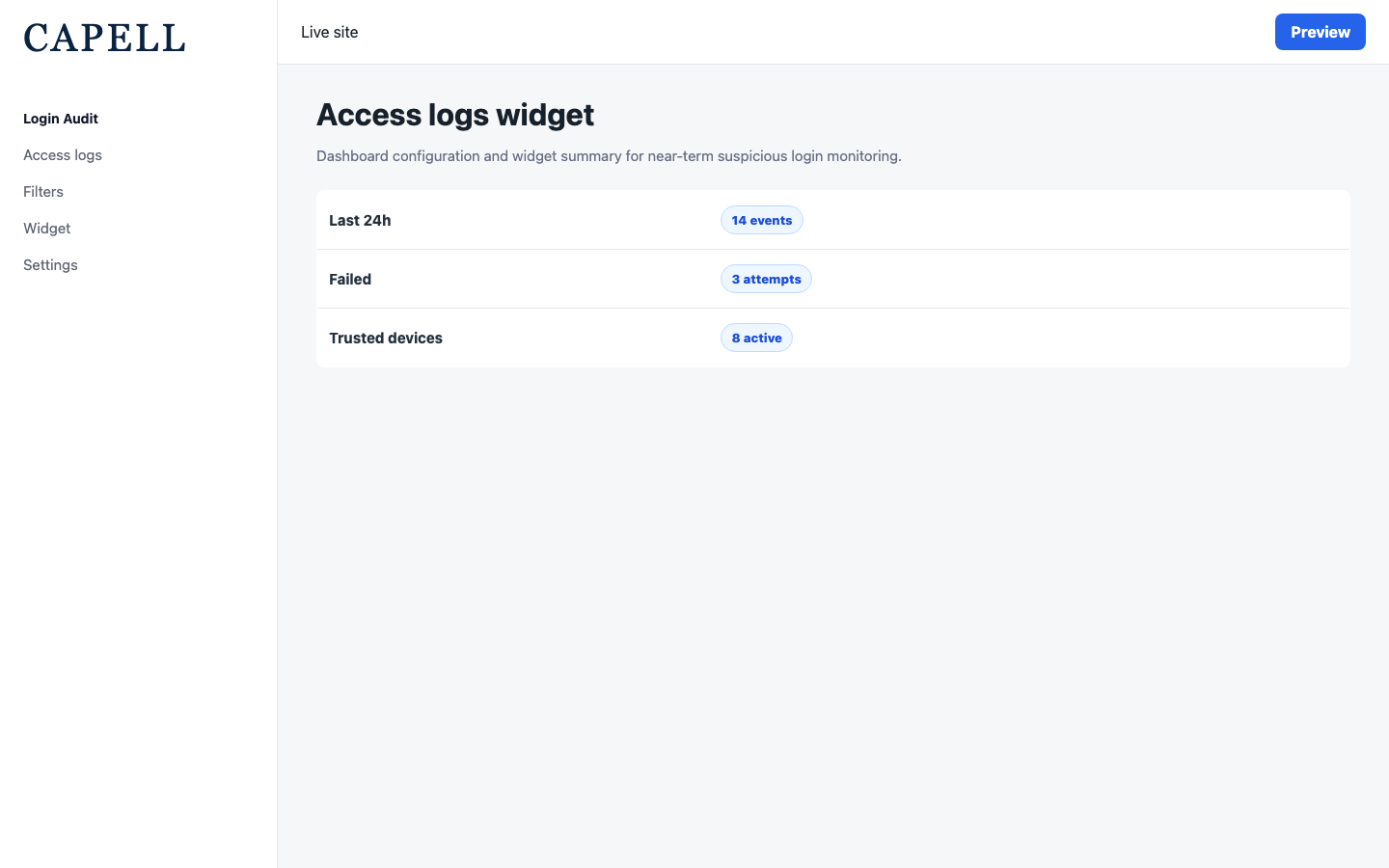
### How to add the Access Logs panel to a dashboard
1. Open your dashboard configuration in the admin.
2. In the list of available panels, find **Access Logs**.
3. Add it to a dashboard so recent sign-in activity is visible without opening the full log.
### How to export the log for compliance
1. Open **Users > Access Logs**.
2. Apply any filters so the list shows only the period or events you need.
3. Click **Export CSV**.
4. Save the file and share it with whoever requested the records. The export contains the access-log dataset; table filters help your on-screen review but do not narrow the CSV.
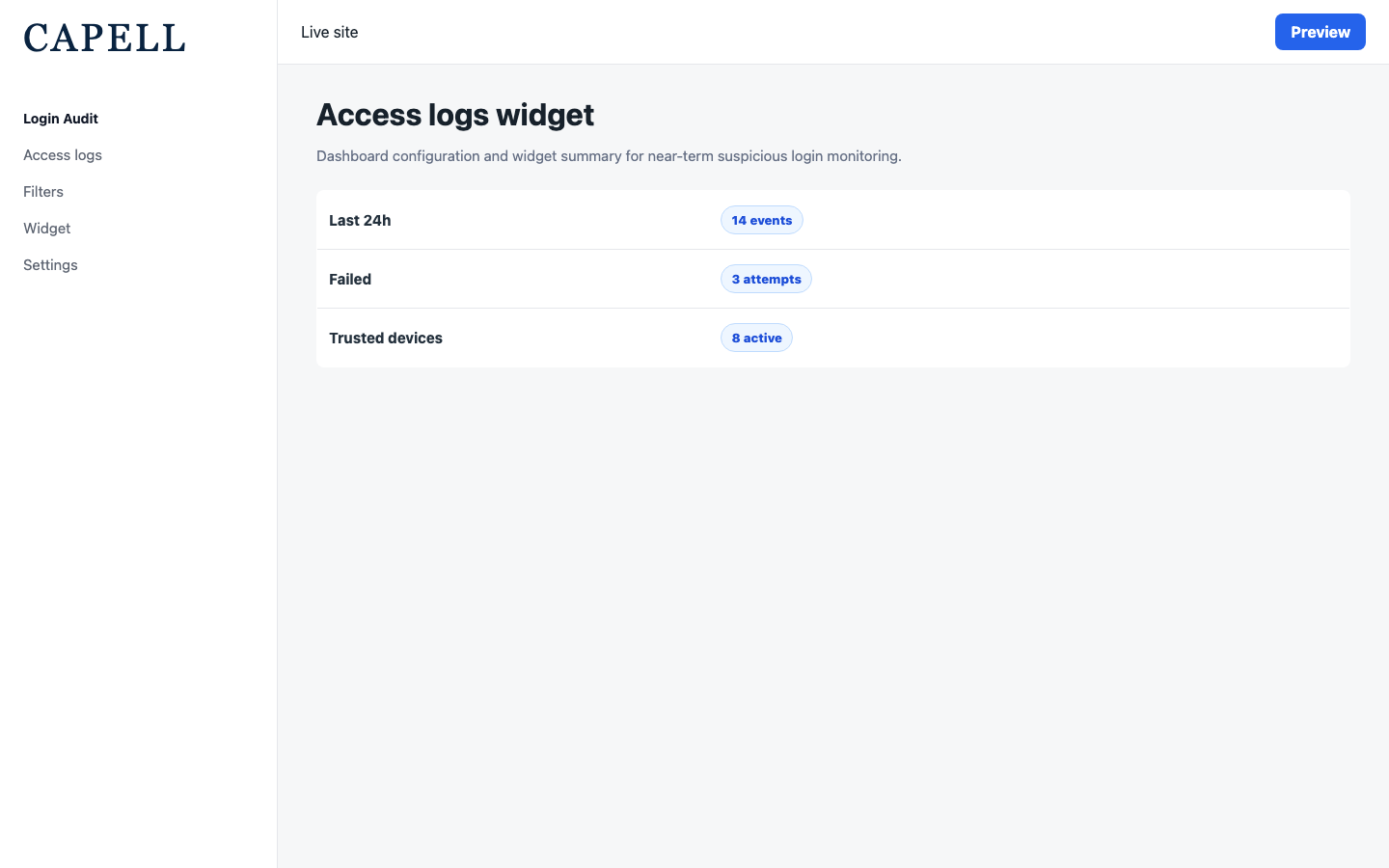
### How to add the Access Logs panel to a dashboard
1. Open your dashboard configuration in the admin.
2. In the list of available panels, find **Access Logs**.
3. Add it to a dashboard so recent sign-in activity is visible without opening the full log.
 ### How to check one user's sign-in history while editing them
1. Open the user's record in the admin (this requires **Show Access Logs on Users** to be turned on in settings).
2. Look at the access summary on the user's edit screen. It shows recent login counts, failed attempts, recent devices, and active sessions.
3. Open the **Access log history** for that user to see each of their authentication attempts, including which devices are trusted and when each was last active.
### How to turn on security alerts
1. Go to **Settings** in the admin and find the **Login Audit security alerts** section.
2. Turn on **Alert on Failed Logins** to be notified about failed sign-in attempts.
3. Turn on **Alert on New Devices** to be notified when someone signs in from a device not seen before.
4. Turn on **Alert on Suspicious Logins** to be notified when a sign-in is flagged as unusual.
5. Save the settings.
### How to tune suspicious-login detection
1. Go to **Settings** and find the **Security & Access** section.
2. Turn on **Detect Suspicious Logins** to flag repeated failures, rapid location changes, and successful logins straight after recent failures.
3. Set the **Failed Login Threshold** and **Failed Login Window** to control how many failed attempts within a period count as suspicious.
4. Turn on **Check Unusual Login Times** only if your team signs in within predictable hours.
5. Save the settings.
For example, a threshold of **5** and a window of **60 minutes** means the first four failed attempts remain ordinary failed-login records. The fifth failure for that account within the same 60-minute period is marked suspicious and raises the configured suspicious-login alert once for that exact record.
### How to check one user's sign-in history while editing them
1. Open the user's record in the admin (this requires **Show Access Logs on Users** to be turned on in settings).
2. Look at the access summary on the user's edit screen. It shows recent login counts, failed attempts, recent devices, and active sessions.
3. Open the **Access log history** for that user to see each of their authentication attempts, including which devices are trusted and when each was last active.
### How to turn on security alerts
1. Go to **Settings** in the admin and find the **Login Audit security alerts** section.
2. Turn on **Alert on Failed Logins** to be notified about failed sign-in attempts.
3. Turn on **Alert on New Devices** to be notified when someone signs in from a device not seen before.
4. Turn on **Alert on Suspicious Logins** to be notified when a sign-in is flagged as unusual.
5. Save the settings.
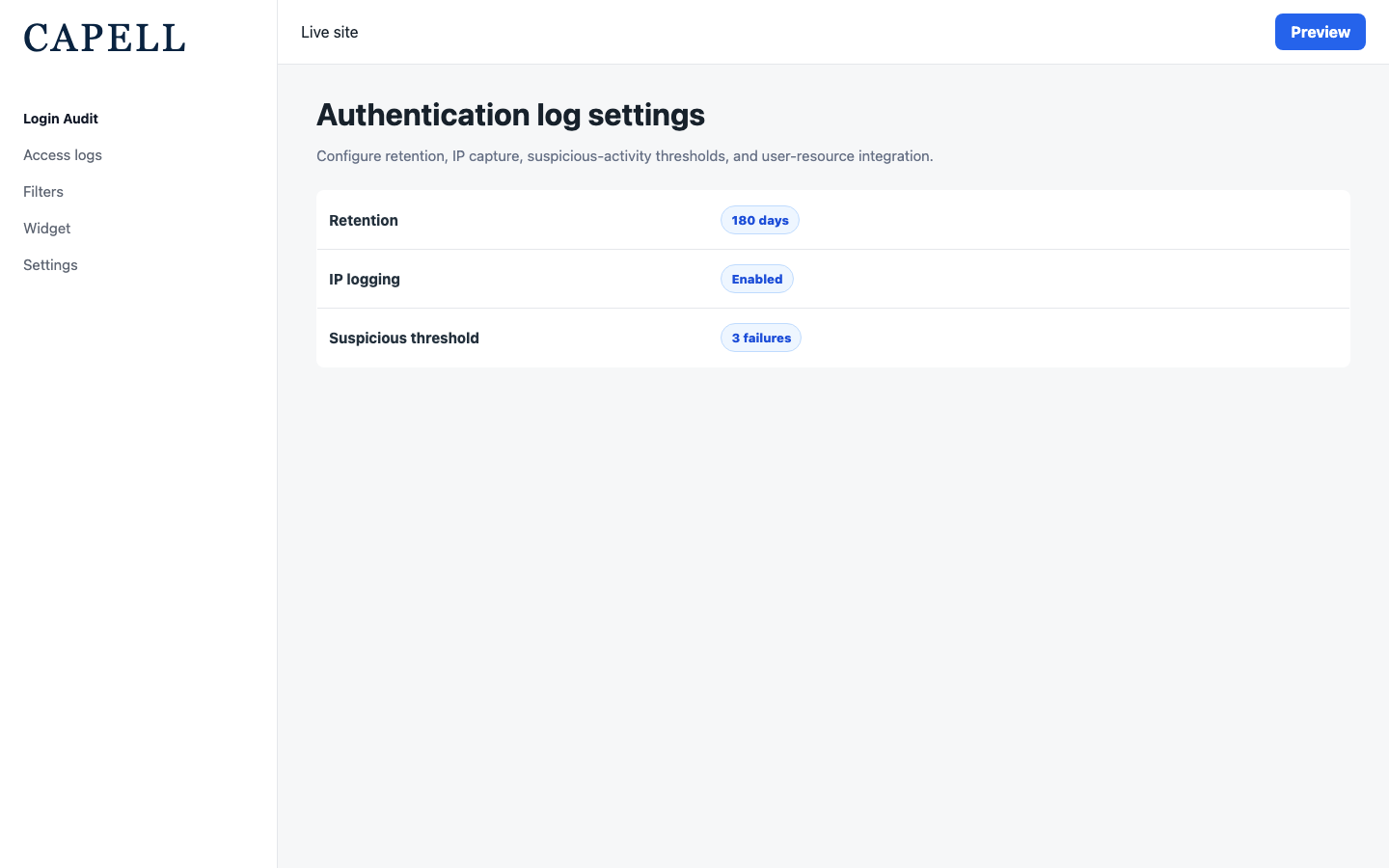
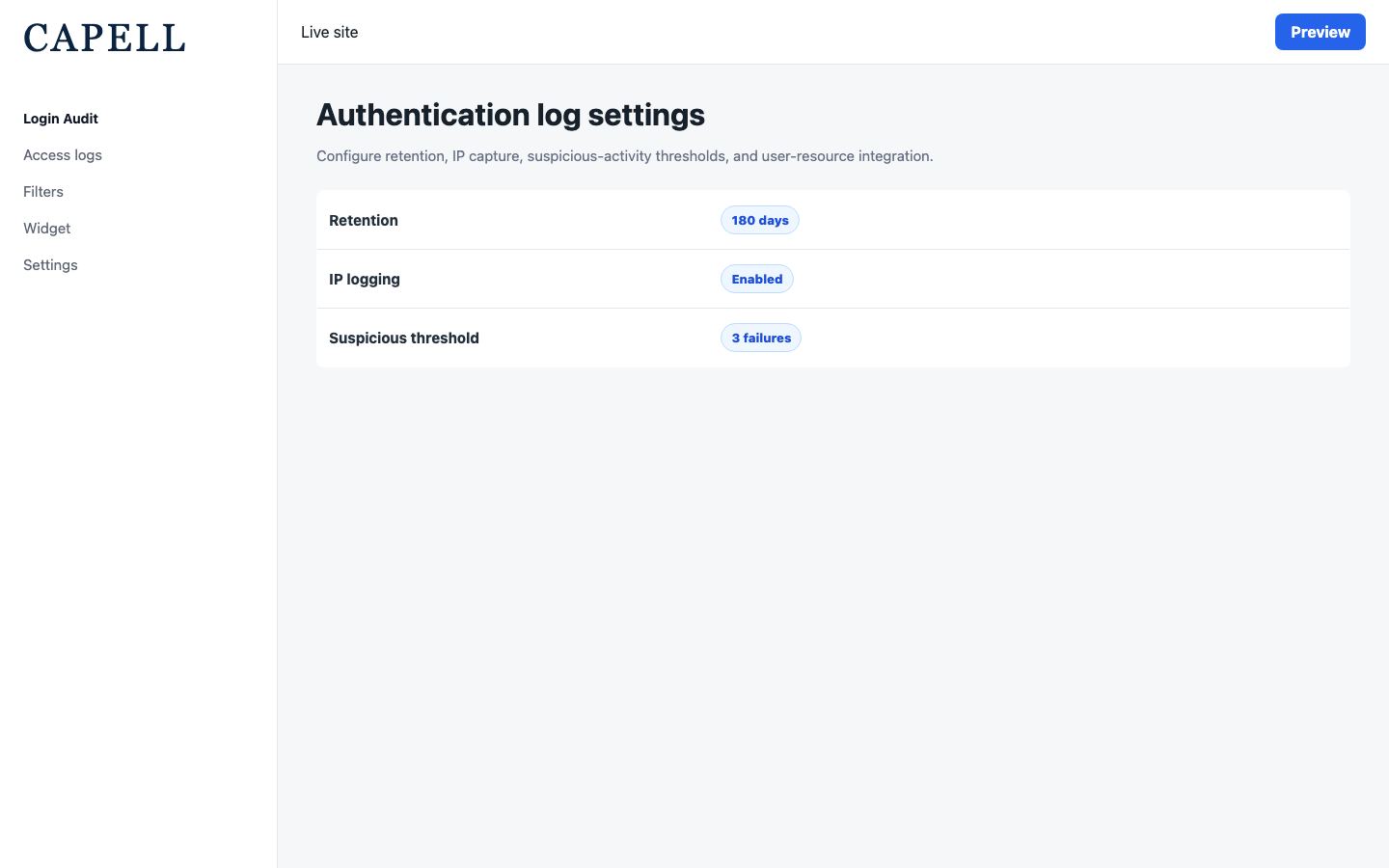
### How to tune suspicious-login detection
1. Go to **Settings** and find the **Security & Access** section.
2. Turn on **Detect Suspicious Logins** to flag repeated failures, rapid location changes, and successful logins straight after recent failures.
3. Set the **Failed Login Threshold** and **Failed Login Window** to control how many failed attempts within a period count as suspicious.
4. Turn on **Check Unusual Login Times** only if your team signs in within predictable hours.
5. Save the settings.
For example, a threshold of **5** and a window of **60 minutes** means the first four failed attempts remain ordinary failed-login records. The fifth failure for that account within the same 60-minute period is marked suspicious and raises the configured suspicious-login alert once for that exact record.
 ### How to investigate a suspicious-login alert
1. Open the suspicious-login notification. Detection runs only after the matching access-log record has committed, so the notified record is available for review.
2. Go to **Users > Access Logs** and filter to failed logins and the time range shown in the notification.
3. Find the notified record ID, then compare the surrounding records for that account, device, IP fingerprint, and location.
4. Contact the account owner to confirm the activity. If they do not recognise it, follow your incident process, such as resetting credentials and reviewing active sessions.
5. Record the outcome outside Login Audit if your organisation requires an investigation log; this package supplies the authentication evidence but does not manage incident cases.
### How to control privacy and what is recorded
1. Go to **Settings > Security & Access**.
2. Turn **Track User IP Addresses** off if your site policy requires access logs without IP retention.
3. Turn **Resolve Geo Location** on only if you have a location provider configured and a lawful basis for keeping location data.
4. Use **Show Access Logs** and **Show Access Logs on Users** to control where the log and the per-user summary appear.
5. Save the settings.
### How to set how long entries are kept
1. Go to **Settings > Security & Access**.
2. Set **Access Log Retention** to the number of days you want to keep entries.
3. Save the settings. Older entries are removed automatically after that many days, so review or export anything you need before it ages out. The **Last Purged** line shows when old entries were last cleared.
## Troubleshooting
| What you see | What it means | What to do |
| ---------------------------------------------------- | --------------------------------------------------------------------------- | ----------------------------------------------------------------------------------------------------------- |
| You want to check one person | You need that user's sign-ins only | Open their access summary from the user edit screen, if **Show Access Logs on Users** is enabled |
| Repeated failed sign-ins for one account | A possible attempt to break in | Treat it as suspicious; contact the user, and consider tightening sign-in rules with your developer |
| A new-device alert you did not expect | Someone signed in from an unfamiliar device | Contact the user to confirm it was them; if not, have them reset their password |
| The per-user summary is missing from a user's record | **Show Access Logs on Users** is off, or the user model does not support it | Turn on **Show Access Logs on Users** in **Settings > Security & Access** |
| Compliance asks for records | You need a file of the log | Review the requested period on screen, then use **Export CSV**; the CSV is not limited by the table filters |
| Old entries are gone | They aged out past **Access Log Retention** | Increase **Access Log Retention** going forward, and export future records before they age out |
| No location appears on entries | **Resolve Geo Location** is off, or no location provider is set up | Turn on **Resolve Geo Location** in settings if you have a provider and a lawful basis for it |
### How to investigate a suspicious-login alert
1. Open the suspicious-login notification. Detection runs only after the matching access-log record has committed, so the notified record is available for review.
2. Go to **Users > Access Logs** and filter to failed logins and the time range shown in the notification.
3. Find the notified record ID, then compare the surrounding records for that account, device, IP fingerprint, and location.
4. Contact the account owner to confirm the activity. If they do not recognise it, follow your incident process, such as resetting credentials and reviewing active sessions.
5. Record the outcome outside Login Audit if your organisation requires an investigation log; this package supplies the authentication evidence but does not manage incident cases.
### How to control privacy and what is recorded
1. Go to **Settings > Security & Access**.
2. Turn **Track User IP Addresses** off if your site policy requires access logs without IP retention.
3. Turn **Resolve Geo Location** on only if you have a location provider configured and a lawful basis for keeping location data.
4. Use **Show Access Logs** and **Show Access Logs on Users** to control where the log and the per-user summary appear.
5. Save the settings.
### How to set how long entries are kept
1. Go to **Settings > Security & Access**.
2. Set **Access Log Retention** to the number of days you want to keep entries.
3. Save the settings. Older entries are removed automatically after that many days, so review or export anything you need before it ages out. The **Last Purged** line shows when old entries were last cleared.
## Troubleshooting
| What you see | What it means | What to do |
| ---------------------------------------------------- | --------------------------------------------------------------------------- | ----------------------------------------------------------------------------------------------------------- |
| You want to check one person | You need that user's sign-ins only | Open their access summary from the user edit screen, if **Show Access Logs on Users** is enabled |
| Repeated failed sign-ins for one account | A possible attempt to break in | Treat it as suspicious; contact the user, and consider tightening sign-in rules with your developer |
| A new-device alert you did not expect | Someone signed in from an unfamiliar device | Contact the user to confirm it was them; if not, have them reset their password |
| The per-user summary is missing from a user's record | **Show Access Logs on Users** is off, or the user model does not support it | Turn on **Show Access Logs on Users** in **Settings > Security & Access** |
| Compliance asks for records | You need a file of the log | Review the requested period on screen, then use **Export CSV**; the CSV is not limited by the table filters |
| Old entries are gone | They aged out past **Access Log Retention** | Increase **Access Log Retention** going forward, and export future records before they age out |
| No location appears on entries | **Resolve Geo Location** is off, or no location provider is set up | Turn on **Resolve Geo Location** in settings if you have a provider and a lawful basis for it |