# Using Notes
This guide is for teams who leave private notes inside the admin: editors flagging things on records, and the people who pick those notes up. No technical knowledge needed. Every step uses the labels you see on screen. Notes are internal only - visitors to your site never see them.
## Using Notes (how-to)
### How to add a note to a record
1. Open the record you want to comment on (for example a page) so its edit screen is showing.
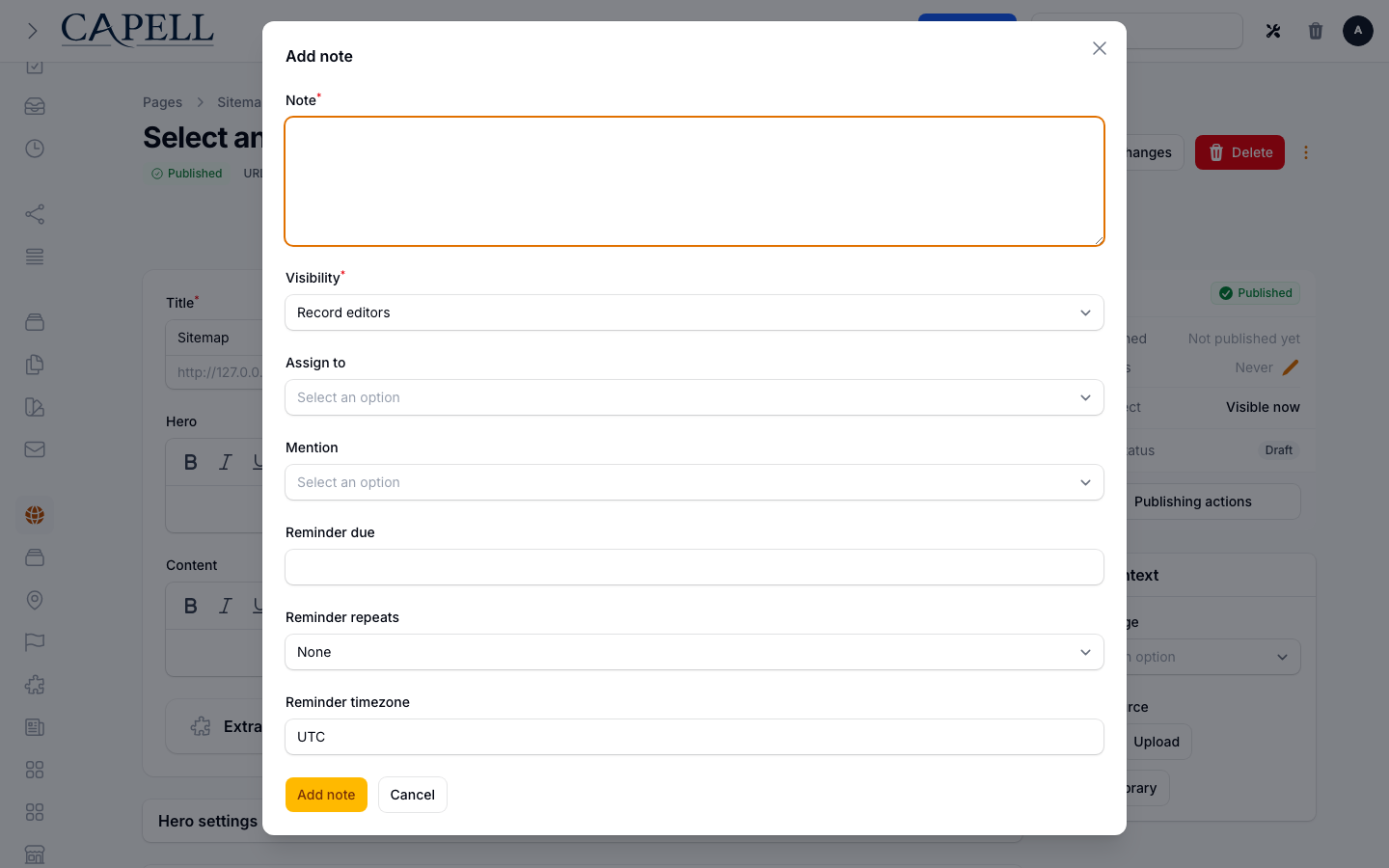
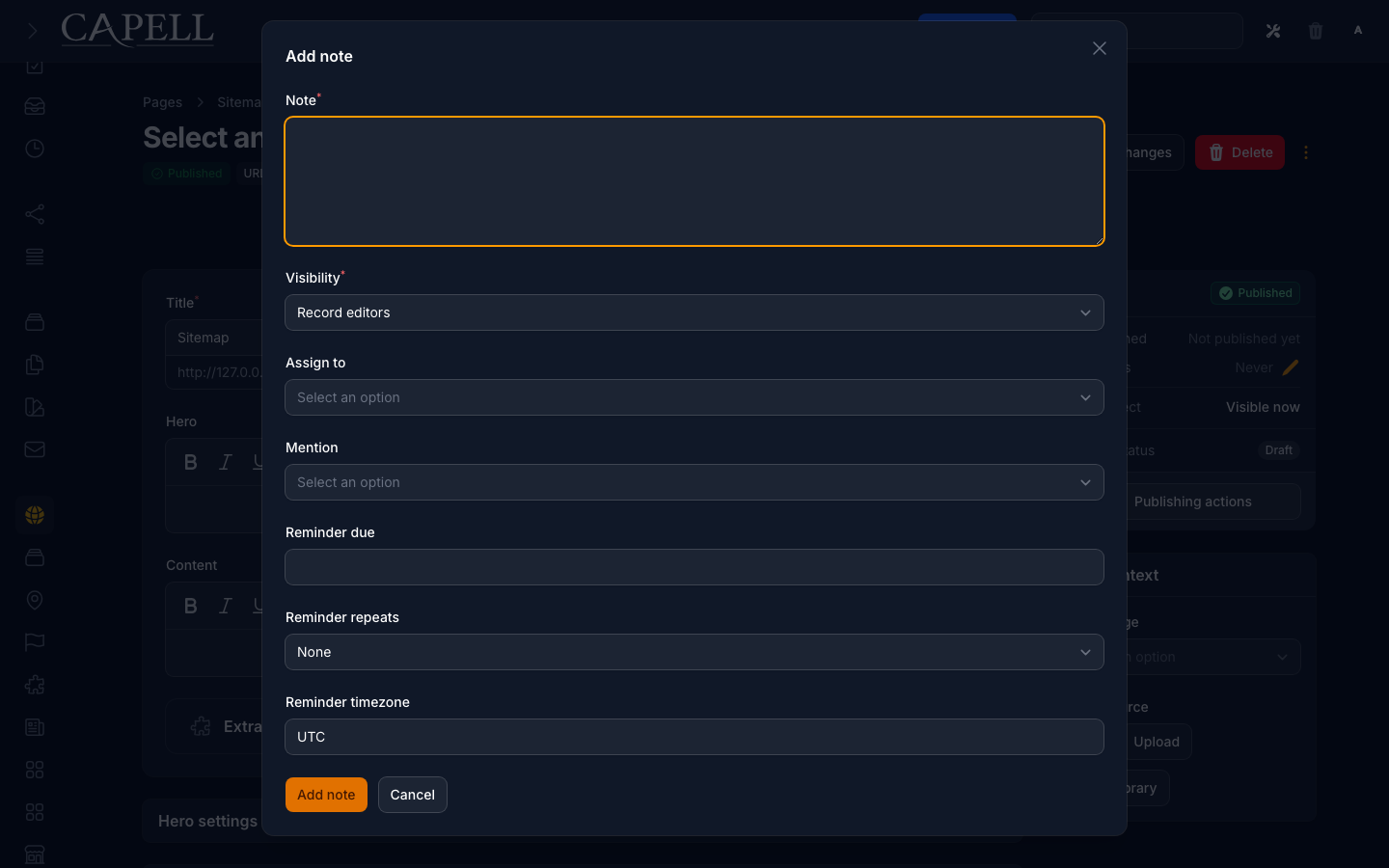
2. Click **Add note** in the header.
3. Type your message in the **Note** field.
4. Set **Visibility** to choose who can see it: **Private** keeps it to you and the people you involve, while **Record editors** shares it with everyone who can edit that record.
5. If someone should own the note, pick them under **Assign to**.
6. To pull someone's attention to it without assigning it, choose them under **Mention**.
7. Save the note.
 ### How to assign a note and mention people
1. While adding or editing a note, use **Assign to** to give it an owner. Assigned people see it in their inbox and are notified.
2. Use **Mention** to flag people who should be aware of the note but do not own it. Mentioned people are notified too.
3. Save the note. The people you assigned or mentioned will find it waiting in their **Notes** inbox.
### How to set a reminder on a note
1. While adding or editing a note, set **Reminder due** to the date and time you want to be nudged.
2. To make it repeat, choose a value under **Reminder repeats** such as **Daily**, **Weekly**, **Monthly**, or **Yearly**. Leave it on **None** for a one-off reminder.
3. If the time should follow a particular zone, set **Reminder timezone**.
4. Save the note. When the reminder is due, the note surfaces for follow-up.
### How to find notes that need your attention
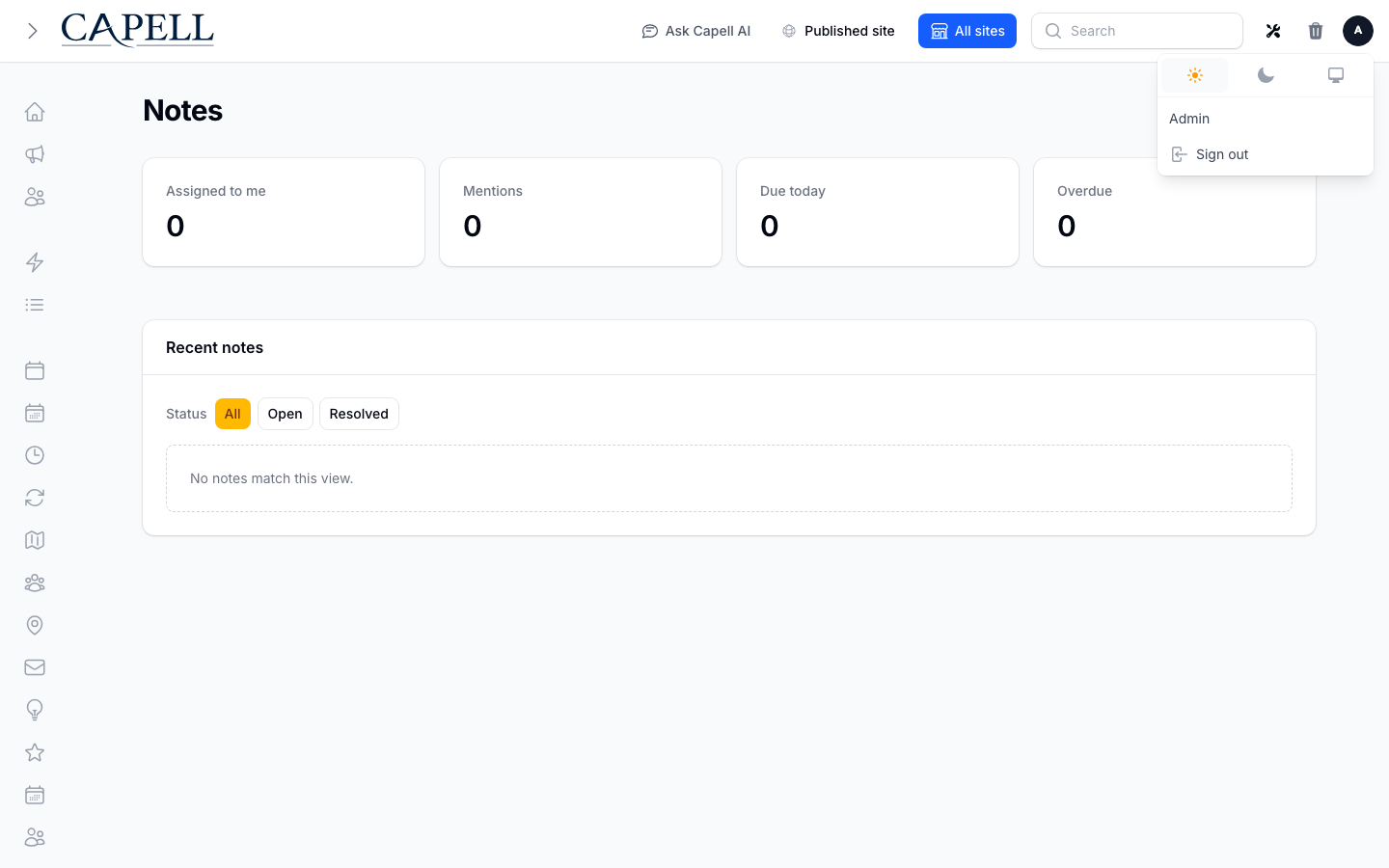
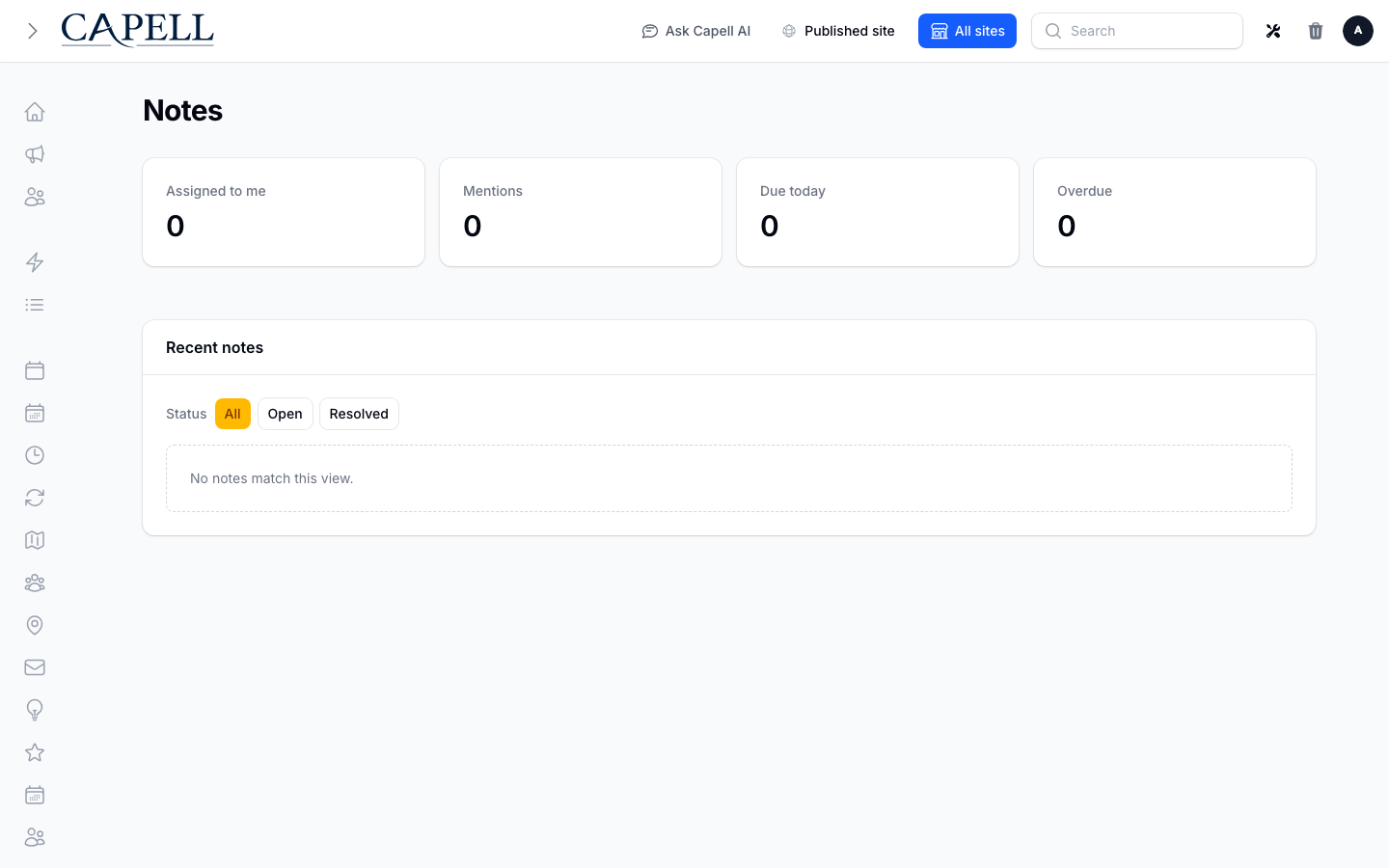
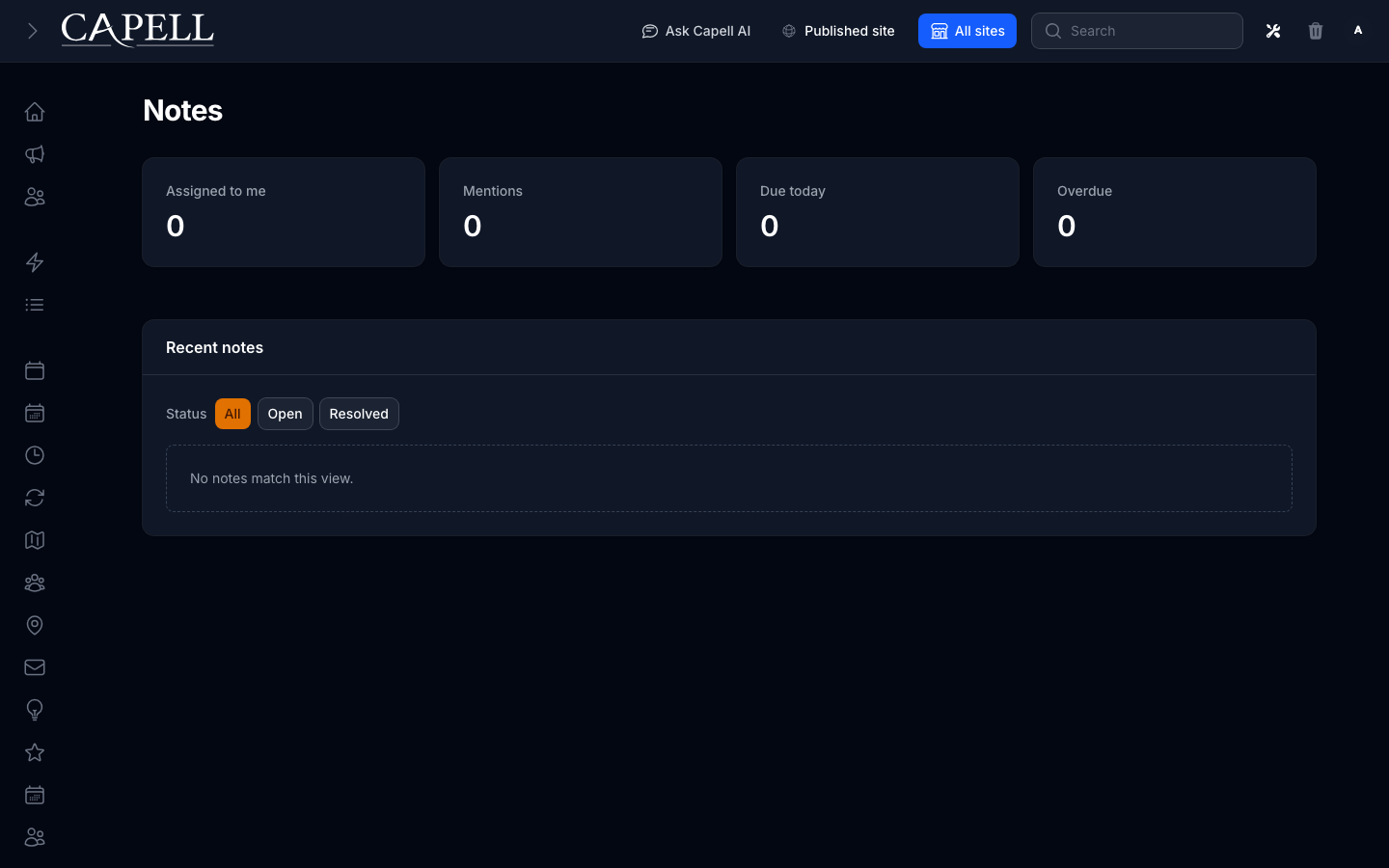
1. Open **Notes** from the main navigation, under the **Extensions** group. It is also available from your account menu in the top corner, where a badge shows how many notes need you.
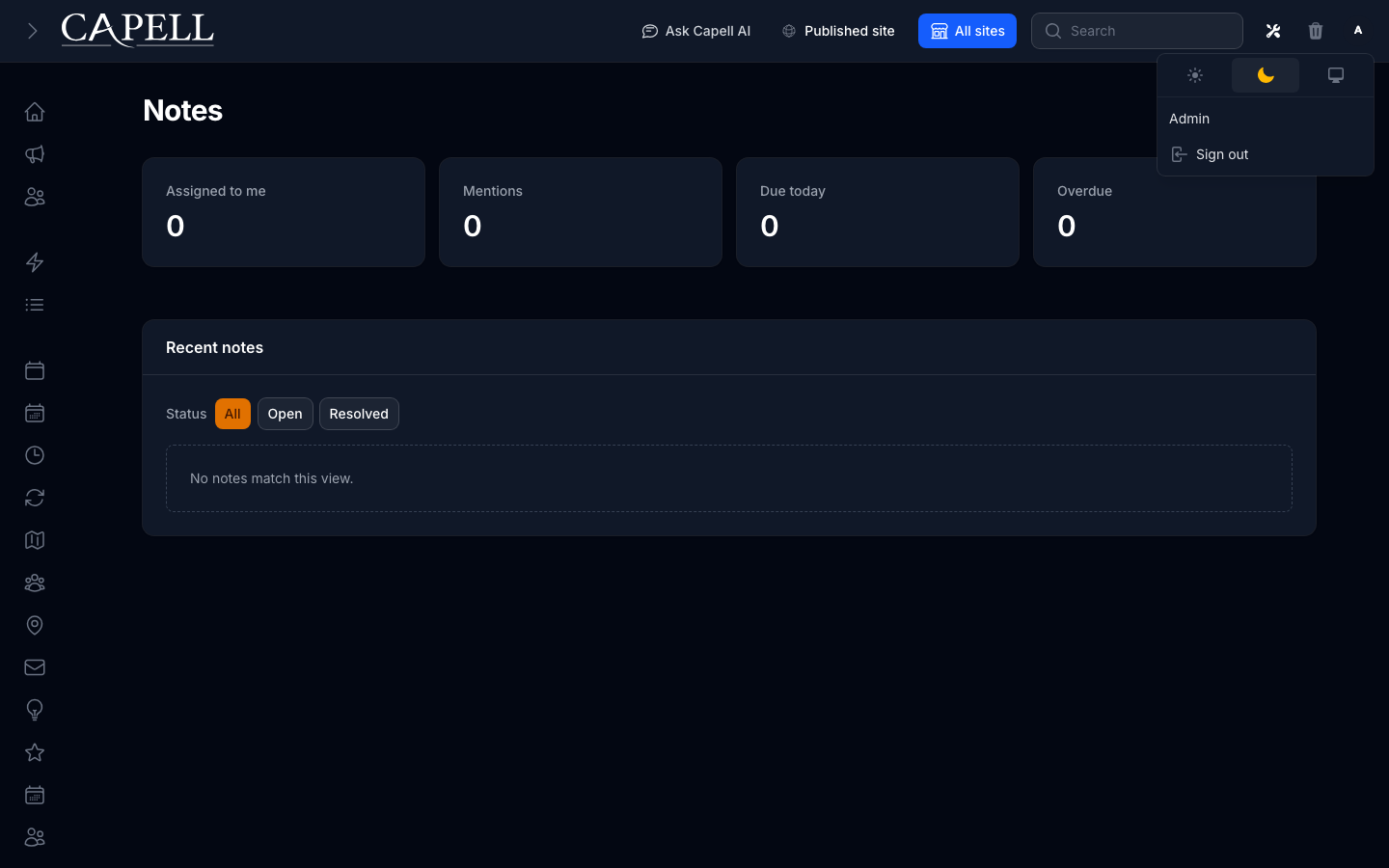
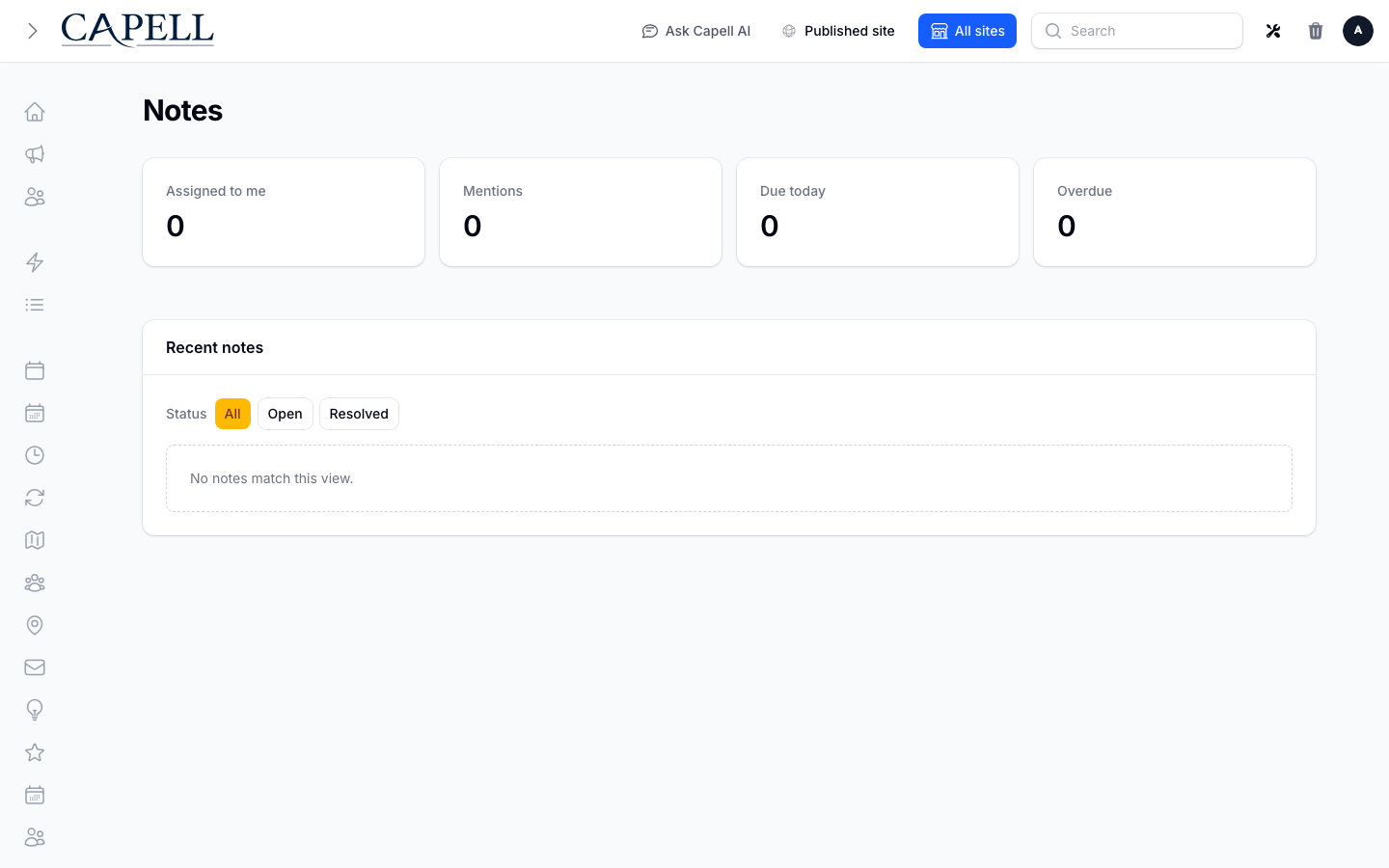
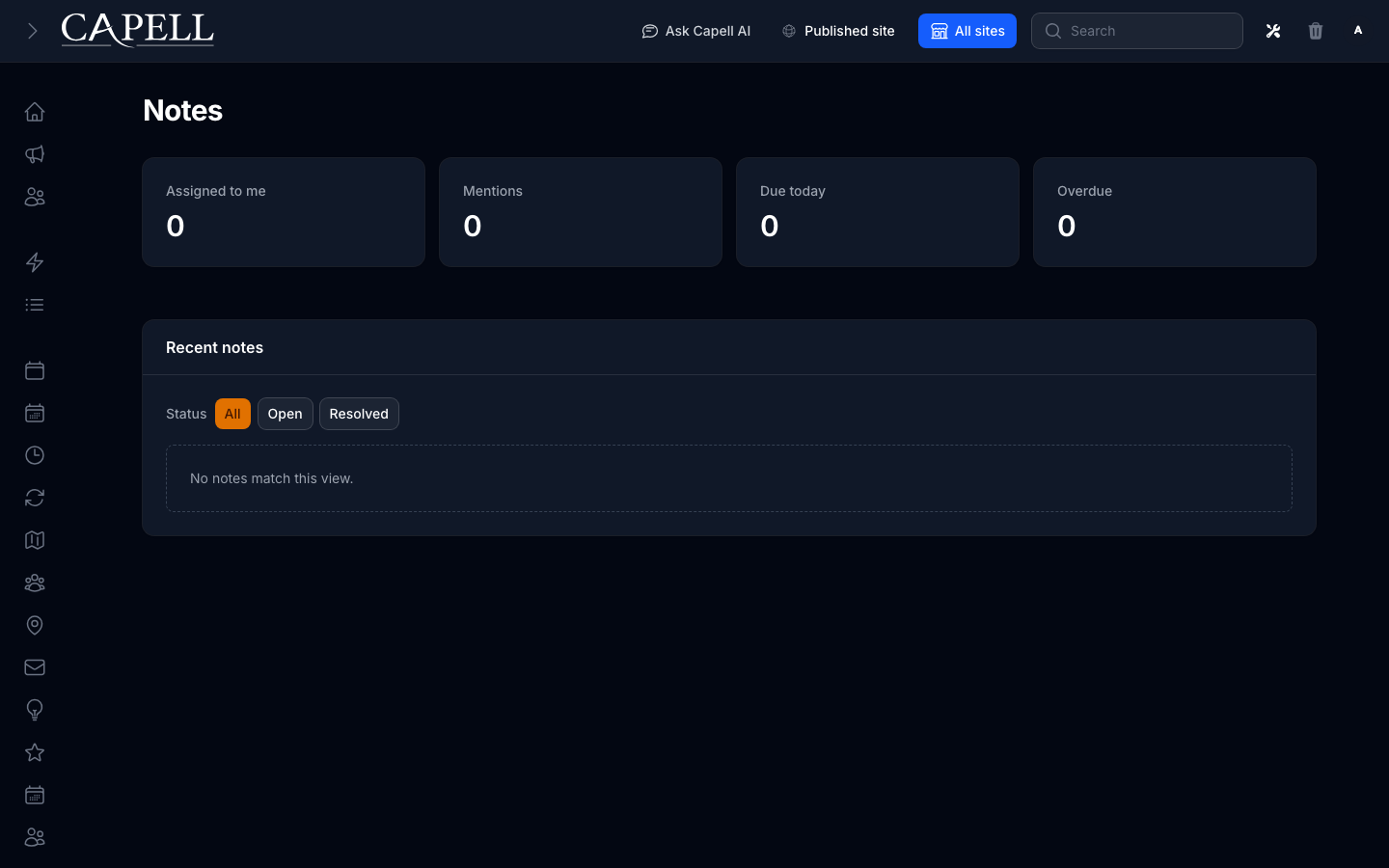
2. The inbox gathers notes that involve you: those **Assigned to me**, your **Mentions**, items **Due today**, and anything **Overdue**.
3. Use the **Status** filter at the top to switch between **All**, **Open**, and **Resolved** notes.
### How to assign a note and mention people
1. While adding or editing a note, use **Assign to** to give it an owner. Assigned people see it in their inbox and are notified.
2. Use **Mention** to flag people who should be aware of the note but do not own it. Mentioned people are notified too.
3. Save the note. The people you assigned or mentioned will find it waiting in their **Notes** inbox.
### How to set a reminder on a note
1. While adding or editing a note, set **Reminder due** to the date and time you want to be nudged.
2. To make it repeat, choose a value under **Reminder repeats** such as **Daily**, **Weekly**, **Monthly**, or **Yearly**. Leave it on **None** for a one-off reminder.
3. If the time should follow a particular zone, set **Reminder timezone**.
4. Save the note. When the reminder is due, the note surfaces for follow-up.
### How to find notes that need your attention
1. Open **Notes** from the main navigation, under the **Extensions** group. It is also available from your account menu in the top corner, where a badge shows how many notes need you.
2. The inbox gathers notes that involve you: those **Assigned to me**, your **Mentions**, items **Due today**, and anything **Overdue**.
3. Use the **Status** filter at the top to switch between **All**, **Open**, and **Resolved** notes.
 ### How to resolve, reopen, and complete notes
1. Open **Notes** and find the note in the inbox.
2. When a note is dealt with, click **Resolve** to close it off.
3. If a resolved note needs more work, click **Reopen** to bring it back to open.
4. For a note that was assigned to you, click **Complete assignment** once you have finished your part.
### How to resolve, reopen, and complete notes
1. Open **Notes** and find the note in the inbox.
2. When a note is dealt with, click **Resolve** to close it off.
3. If a resolved note needs more work, click **Reopen** to bring it back to open.
4. For a note that was assigned to you, click **Complete assignment** once you have finished your part.
 ### How to read an empty inbox
1. Open **Notes**.
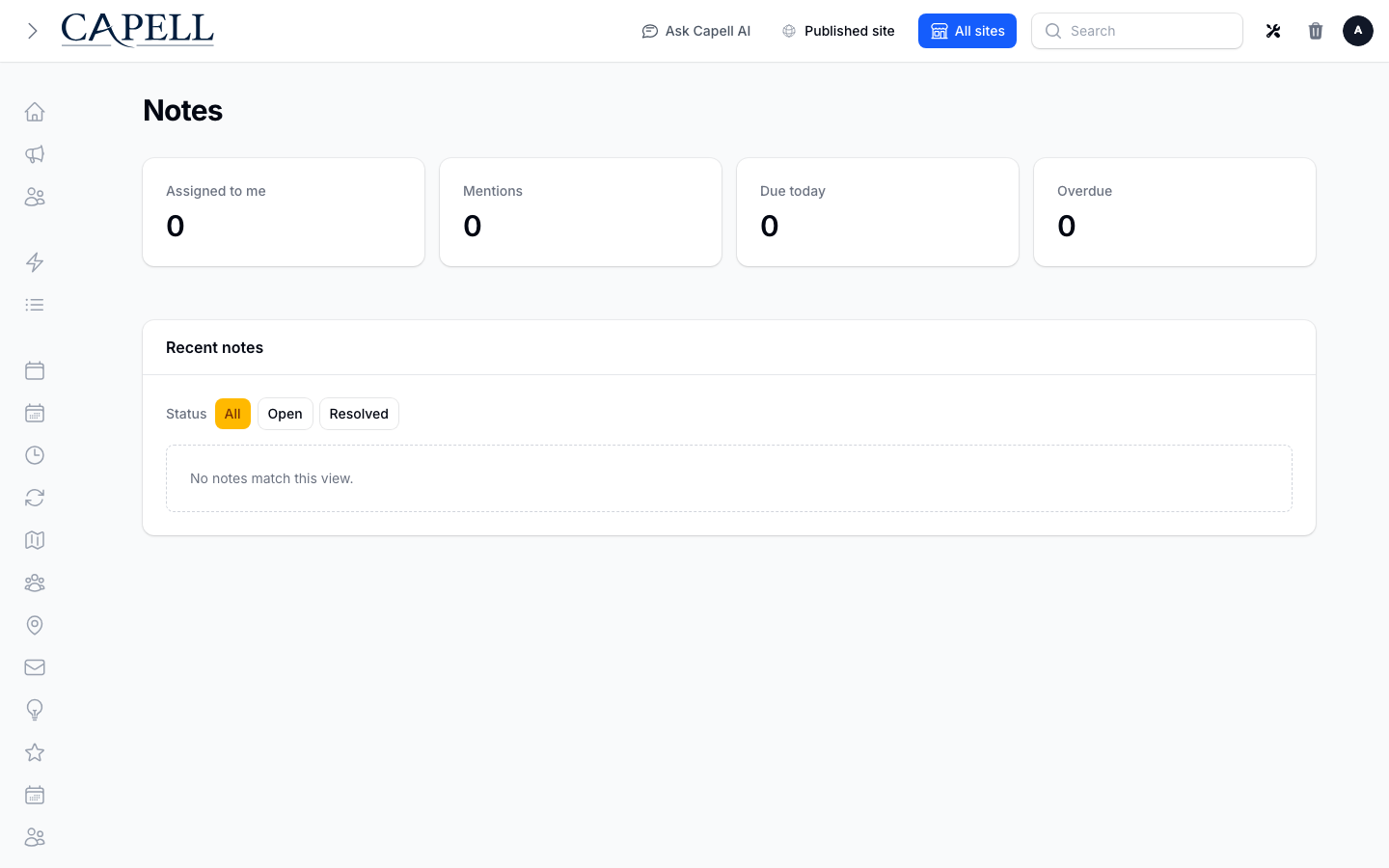
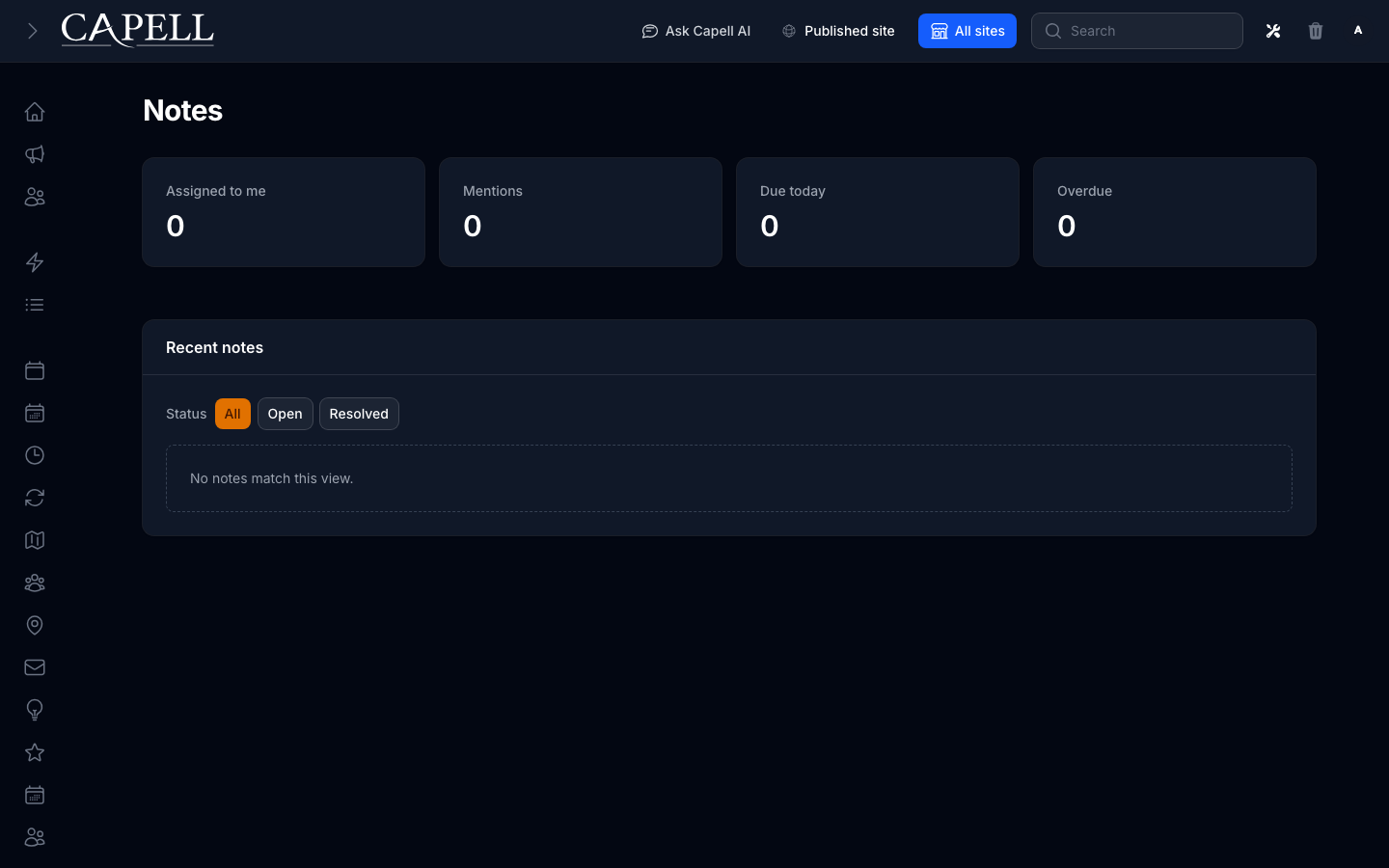
2. If you see a message that no notes match the view, nothing needs your attention right now.
3. Switch the **Status** filter to **All** to confirm there are no notes hiding under another status.
### How to read an empty inbox
1. Open **Notes**.
2. If you see a message that no notes match the view, nothing needs your attention right now.
3. Switch the **Status** filter to **All** to confirm there are no notes hiding under another status.
 ## Rolling out Notes (for owners)
### Turn on first
- **Notes on records and the inbox.** This is the whole package: adding notes, assigning them, and clearing them from the inbox. Get your team adding notes on a few records, then introduce reminders.
### Add when needed
| Need | Use |
| ---------------------------------------------- | -------------------------------------------------------------- |
| Hand a note to a specific person | **Assign to** when writing the note |
| Make someone aware without giving them the job | **Mention** when writing the note |
| Not forget a follow-up | **Reminder due**, with **Reminder repeats** for recurring ones |
| Keep a note tightly held | **Visibility** set to **Private** |
### Who does what
| Role | First useful screen |
| ---------- | ----------------------------------------------------------------------- |
| Editor | A record's edit screen: click **Add note** to flag something |
| Note owner | **Notes** inbox: pick up assigned notes and mentions, then resolve them |
## Troubleshooting
| What you see | What it means | What to do |
| --------------------------------------- | ----------------------------------------------------------------------- | ---------------------------------------------------------------------------------------------- |
| A note will not save | The **Note** field is empty or the text is too long | Enter some text and keep it within the length the message states |
| A note I expected is not in my inbox | It was not assigned to or mentioning you, or its status is filtered out | Switch the **Status** filter to **All**; check it lists you under **Assign to** or **Mention** |
| The inbox says no notes match this view | Nothing needs your attention under the current filter | Switch the **Status** filter to **All** to see everything |
| A badge shows on the account menu | Some notes are assigned to you, mention you, or are overdue | Open **Notes** and work through them |
| I worry a note is visible to visitors | It is not; notes are internal to the admin only | Nothing to do - visitors never see notes |
| A reminder did not surface | The reminder time has not been reached yet | Check the **Reminder due** time on the note |
## Rolling out Notes (for owners)
### Turn on first
- **Notes on records and the inbox.** This is the whole package: adding notes, assigning them, and clearing them from the inbox. Get your team adding notes on a few records, then introduce reminders.
### Add when needed
| Need | Use |
| ---------------------------------------------- | -------------------------------------------------------------- |
| Hand a note to a specific person | **Assign to** when writing the note |
| Make someone aware without giving them the job | **Mention** when writing the note |
| Not forget a follow-up | **Reminder due**, with **Reminder repeats** for recurring ones |
| Keep a note tightly held | **Visibility** set to **Private** |
### Who does what
| Role | First useful screen |
| ---------- | ----------------------------------------------------------------------- |
| Editor | A record's edit screen: click **Add note** to flag something |
| Note owner | **Notes** inbox: pick up assigned notes and mentions, then resolve them |
## Troubleshooting
| What you see | What it means | What to do |
| --------------------------------------- | ----------------------------------------------------------------------- | ---------------------------------------------------------------------------------------------- |
| A note will not save | The **Note** field is empty or the text is too long | Enter some text and keep it within the length the message states |
| A note I expected is not in my inbox | It was not assigned to or mentioning you, or its status is filtered out | Switch the **Status** filter to **All**; check it lists you under **Assign to** or **Mention** |
| The inbox says no notes match this view | Nothing needs your attention under the current filter | Switch the **Status** filter to **All** to see everything |
| A badge shows on the account menu | Some notes are assigned to you, mention you, or are overdue | Open **Notes** and work through them |
| I worry a note is visible to visitors | It is not; notes are internal to the admin only | Nothing to do - visitors never see notes |
| A reminder did not surface | The reminder time has not been reached yet | Check the **Reminder due** time on the note |