PublishingStudio Publishing Workflow
This focused guide extends Overview for the PublishingStudio package.
Purpose
Section titled “Purpose”PublishingStudio controls Capell’s editorial timeline for Draftable records: preview, compare, comment, assign reviewers, approve, validate, schedule, publish, restore, and rollback. It is the premium workflow layer for teams that want content history, readiness checks, and safe publishing without editing live records directly.
Release Workspaces are the campaign-shaped form of the same workflow: editors group coordinated changes, preview the workspace, compare it with live, collect approvals, schedule the release, and publish the workspace atomically.
Workflow
Section titled “Workflow”- Create a draft workspace or page draft.
- Preview the draft through signed preview links, managed preview-link records, or the frontend preview banner.
- Compare the draft against the live version and resolve field comments.
- Assign reviewers, request review, and collect submit, approve, reject, or request-changes decisions.
- Run dry-run validation and readiness checks for accessibility, links, alt text, SEO meta, stale workspace state, URL collisions, and release-window rules.
- Publish immediately, schedule the release, set unpublish dates, add embargo windows, add review reminders, or request changes.
- Watch stale drafts and activity history so unresolved work stays visible.
- Use version history, entity restore, rollback, and rollback reporting when a published version needs to move back.
Included Package Surfaces
Section titled “Included Package Surfaces”- WorkspaceResource for draft publishing-studio, status, compare, approve, schedule, validate, preview, publish, and rollback actions.
- CompareVersionPage for field/media/URL/layout diff, comments, dry-run validation, and readiness context.
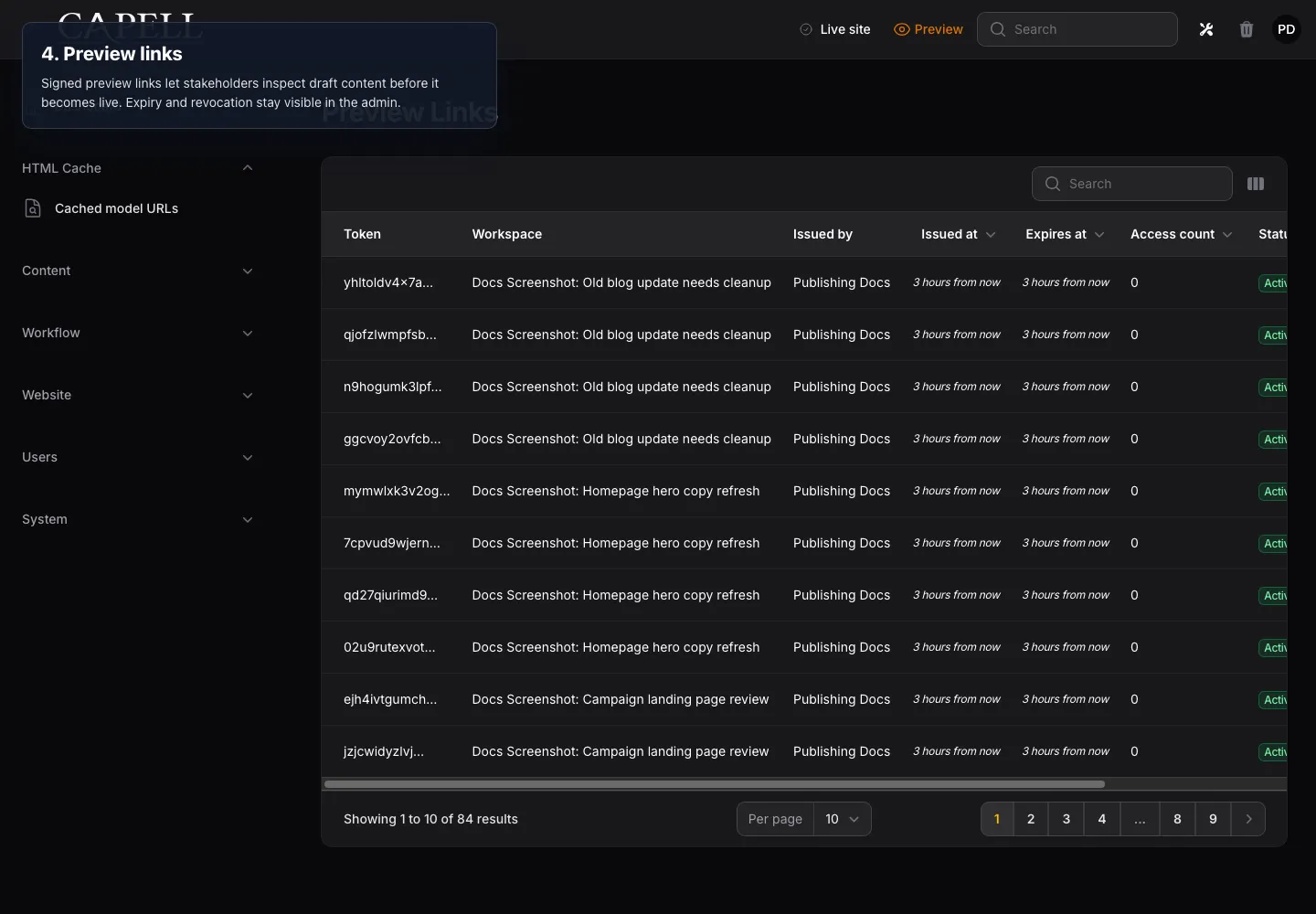
- PreviewLinkResource for preview link expiry, revocation, access counts, and issued-by context.
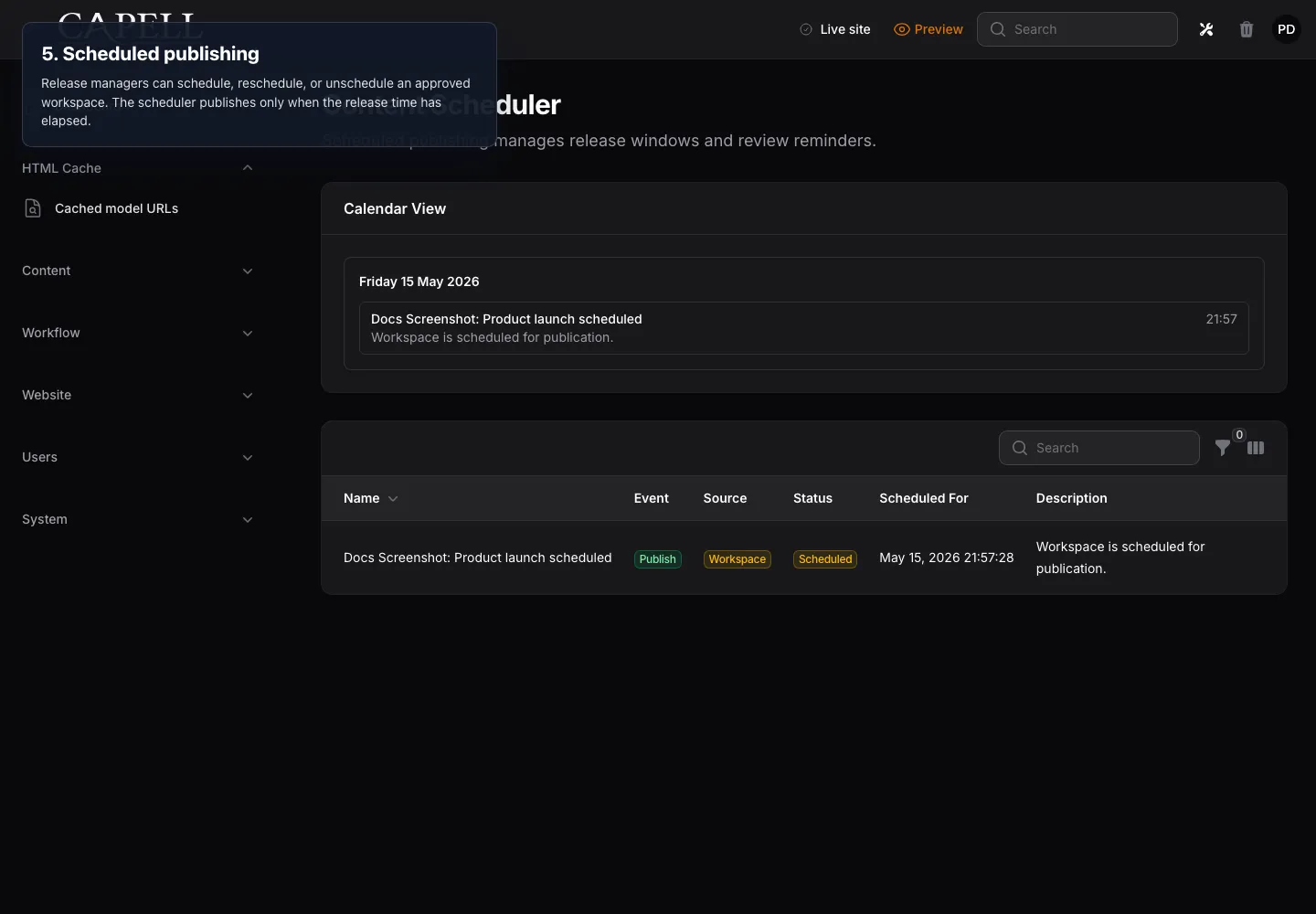
- ScheduledPublishingPage for scheduled releases, embargoes, unpublish dates, and review reminders.
- StaleDraftsPage for old draft cleanup and review nudges.
- ActivityTrailPage and widgets for audit-friendly workflow history.
- PageVersionHistoryPage for revisions, published versions, rollback lineage, and restore context.
- Migration Assistant owns the recovery-center page import workflow; Publishing Studio contributes workspace staging, context, and URL-collision adapters.
submit_workspaceapprove_workspacepublish_workspacerollback_workspacepublish_outside_release_window
Draftable Contract
Section titled “Draftable Contract”- Draft/publish models must implement the Capell Draftable contract.
- Models must be registered for workspace copy-on-write behaviour.
- Package integrations should use PublishingStudio actions instead of writing live rows directly.
Annotated Workflow Screenshots
Section titled “Annotated Workflow Screenshots”These screenshots were captured from a local Capell admin panel with overlay text that names the responsibility at each stage. They are intended for package docs and package catalog review, not as a substitute for the automated workflow tests.
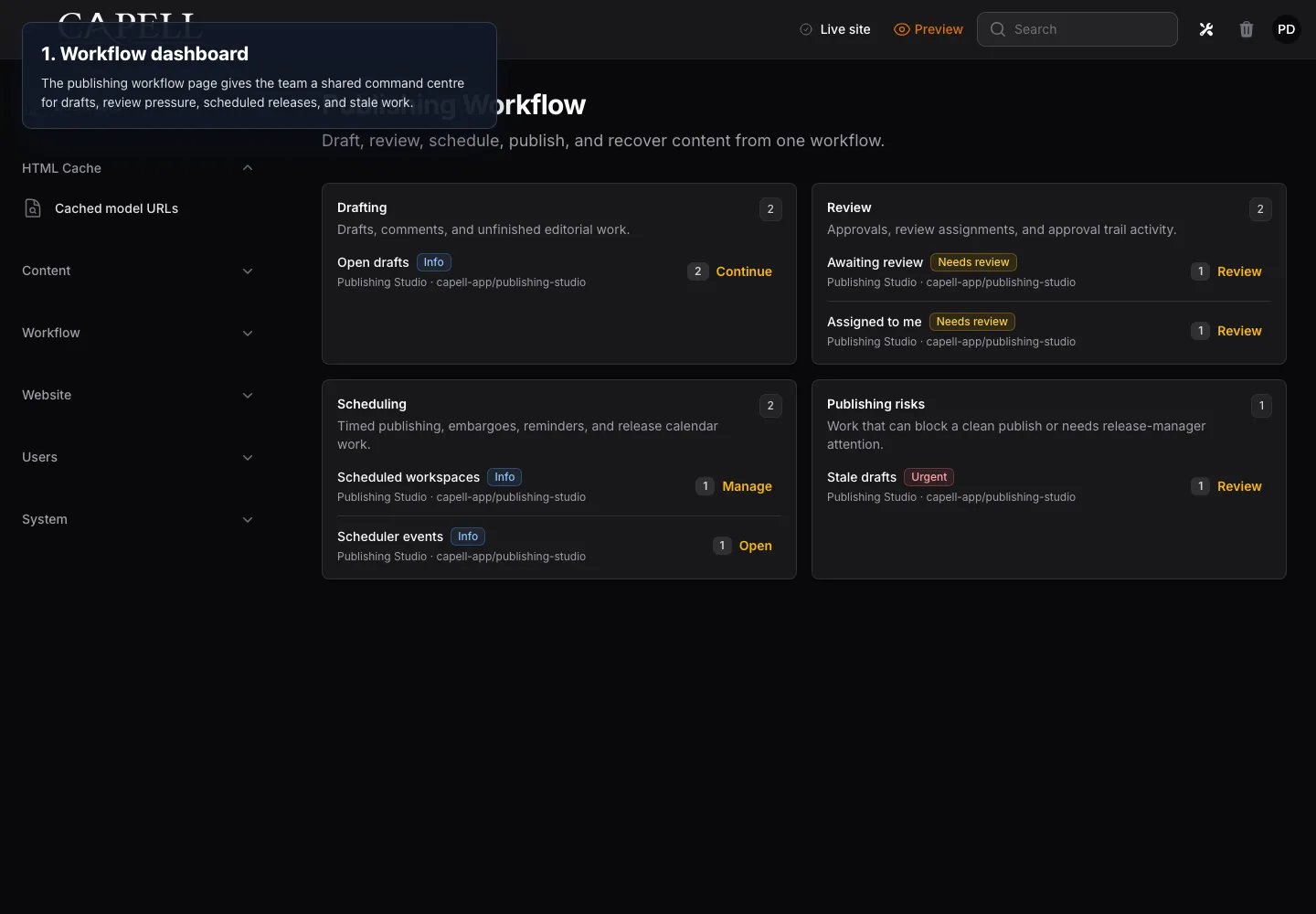
1. Workflow Dashboard
Section titled “1. Workflow Dashboard”The publishing workflow page is the shared command centre for open drafts, review pressure, scheduled releases, and stale work.
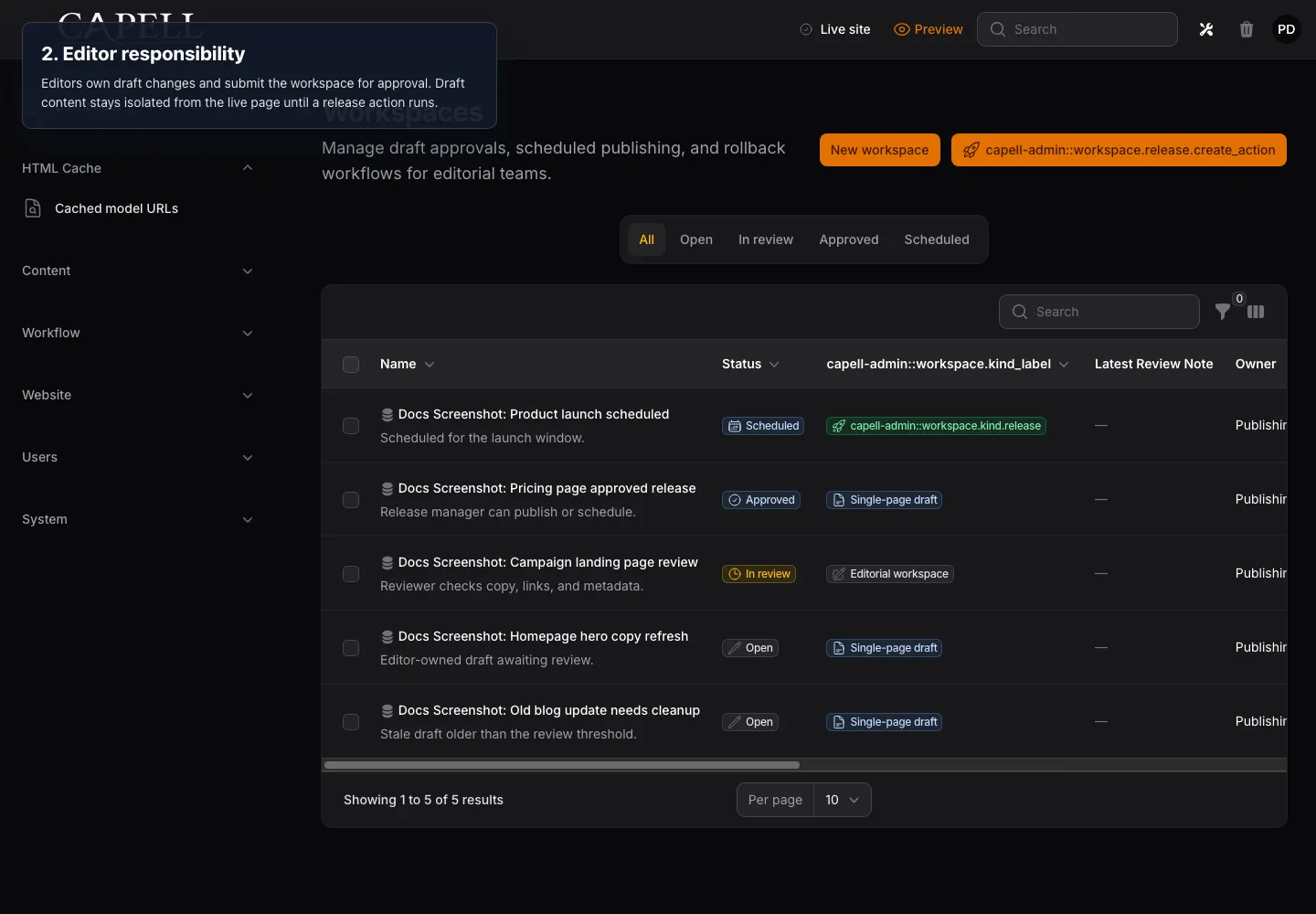
2. Editor Responsibility
Section titled “2. Editor Responsibility”Editors own draft changes and submit the workspace for approval. Draft content stays isolated from the live page until a release action runs.
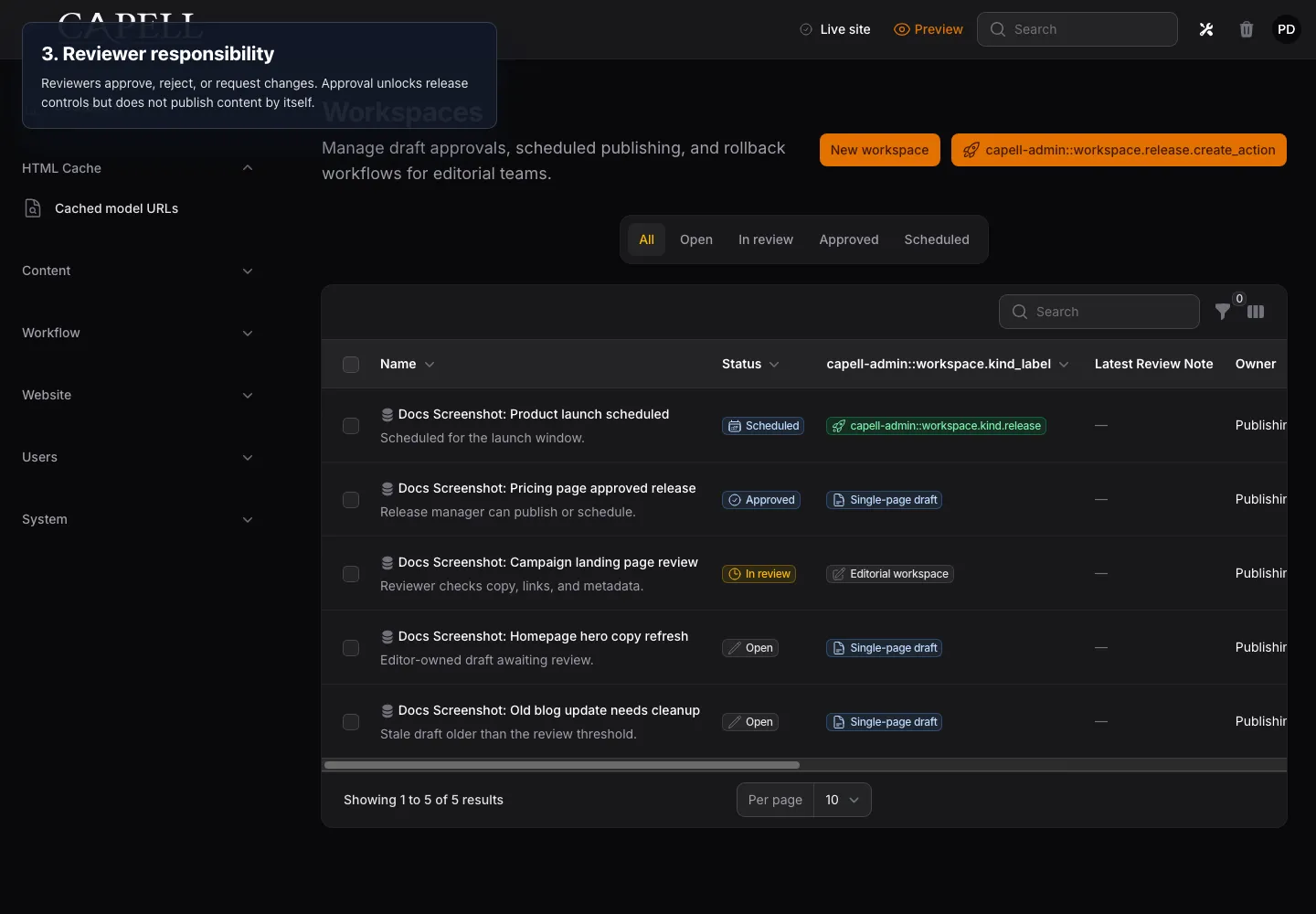
3. Reviewer Responsibility
Section titled “3. Reviewer Responsibility”Reviewers approve, reject, or request changes. Approval unlocks release controls but does not publish content by itself.
4. Preview Links
Section titled “4. Preview Links”Signed preview links let stakeholders inspect draft content before it becomes live. Expiry and revocation stay visible in the admin.
5. Scheduled Publishing
Section titled “5. Scheduled Publishing”Release managers can schedule, reschedule, or unschedule an approved workspace. The scheduler publishes only when the release time has elapsed.
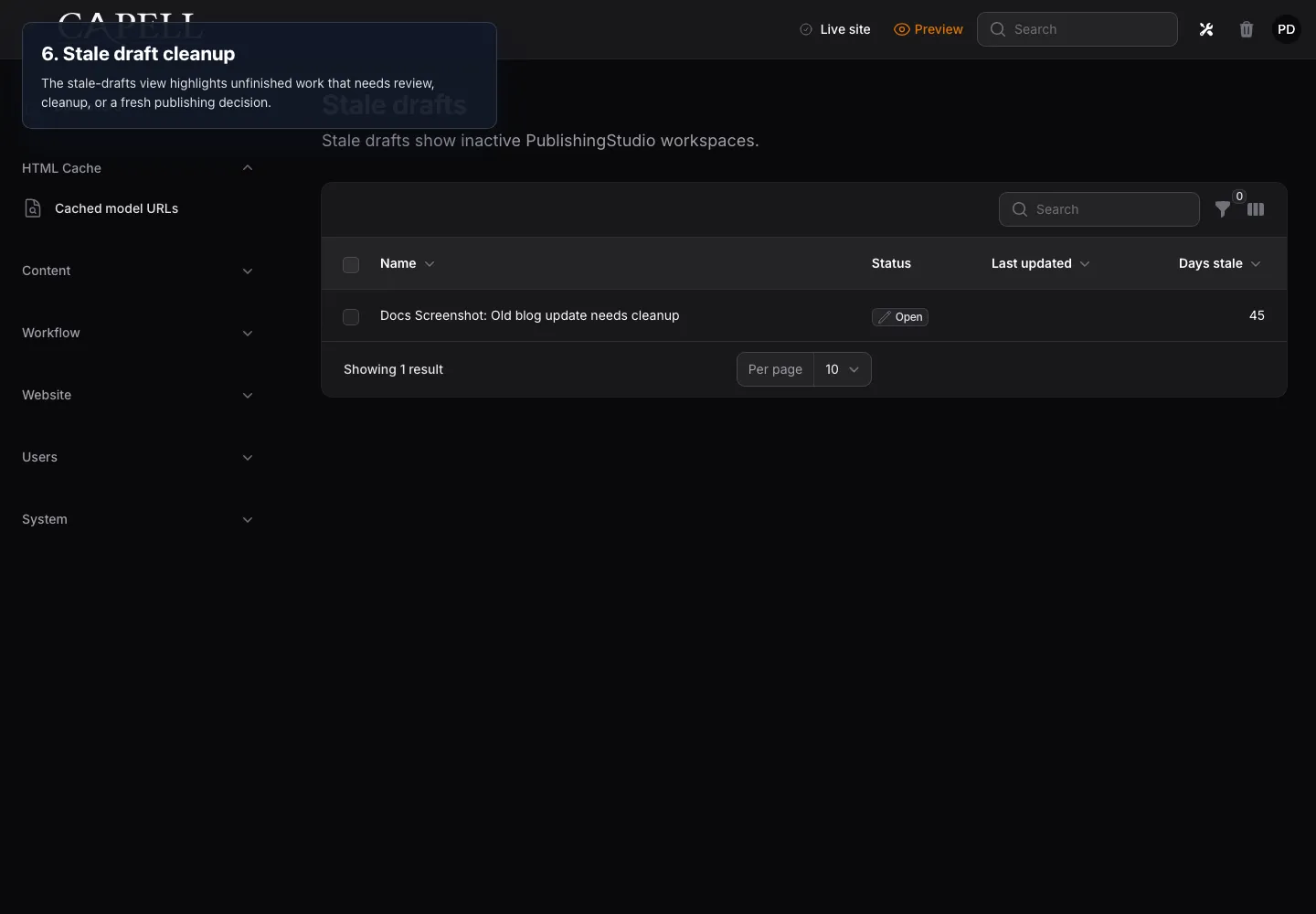
6. Stale Draft Cleanup
Section titled “6. Stale Draft Cleanup”The stale-drafts view highlights unfinished work that needs review, cleanup, or a fresh publishing decision.