
Capell quickstart
Use this path to install the current 1.x Foundation in a fresh Laravel application, open a styled Pages workspace, publish your own page, and inspect its history. It selects Core, Admin, Frontend, Installer, and Marketplace, with the default theme and demo content.
The current 1.x Capell Foundation release is MIT-licensed and available through public Packagist packages without a Capell account. Paid marketplace packages use separate commercial terms and entitlement-scoped Composer access.
For an existing application, use the Install guide and take a database and media backup before running migrations.
Before you start
Section titled “Before you start”Allow about ten minutes for the first Composer install.
| Requirement | Supported value |
|---|---|
| PHP | 8.4+ |
| Laravel | 13.x |
| Filament | Installed by the selected Capell Admin package; supported line ^5.7.6 |
| Node.js | 20+ |
| Composer | 2.7+ |
| Database | MySQL 8+, MariaDB 10.5+, PostgreSQL 16+, or SQLite |
Required PHP extensions: fileinfo, intl, mbstring, openssl, curl, simplexml, and either gd or imagick.
Capell renders through this Laravel application. This quickstart does not create a hosted Capell account or a public content-delivery API.
1. Create the Laravel application
Section titled “1. Create the Laravel application”composer create-project laravel/laravel capell-sitecd capell-sitecp .env.example .envphp artisan key:generateConfigure APP_URL and a database in .env. SQLite is enough for a disposable local evaluation:
touch database/database.sqliteAPP_URL=http://localhost:8000DB_CONNECTION=sqliteQUEUE_CONNECTION=sync2. Run the guided installer
Section titled “2. Run the guided installer”Require the public Installer package first. Do not run filament:install --panels separately: Admin is one of the packages selected and configured by capell:install.
composer require capell-app/installerphp artisan capell:install --demo --package-mode=all --theme=default --url=http://localhost:8000 --update-app-urlThis command selects the full Foundation and default theme explicitly, skipping the suite question. --url sets the browser address and --update-app-url writes it to .env.
For this disposable local application:
- create an administrator with an email and strong local password;
- accept the preselected cache-clearing options;
- let Capell handle the homepage;
- review the site, database, packages, theme and planned host-file changes, then confirm Install Capell with these settings?.
Declining the final review applies no installation changes. Cache clearing also clears application data in the default cache store. For existing applications, return to the Install guide.
The final output is part of the install contract. A healthy run ends in this order:
Capell Install Health SummaryAll checks passed.✓ Installation complete!Capell Install HandoffIf a required package lifecycle, asset build, permission sync, or health check fails, the command exits non-zero and withholds the success message. Follow the printed Fix: instruction, then rerun the installer; do not treat a partial run as production-ready.
The handoff lists the installed packages, Admin and public URLs, first-page state, warnings and next action. Use those URLs to check your installation.
3. Start the application
Section titled “3. Start the application”Before opening Admin or the public page, apply the Frontend dependency plan and build the production assets unless the installer recorded a successful resource rebuild:
php artisan capell:frontend-after-install --apply --no-interactionphp artisan serveThe Frontend command applies the dependency and asset plan and builds once. With --no-interaction, omitting --apply only prints the plan; interactive runs ask before applying. If the install handoff records a successful resource rebuild, skip that command and run php artisan serve.
Open:
http://localhost:8000/adminand sign in with the administrator created by the installer;http://localhost:8000to see the seeded public page.
The Admin package should present a styled Pages workspace—not an unstyled Laravel or Filament shell:
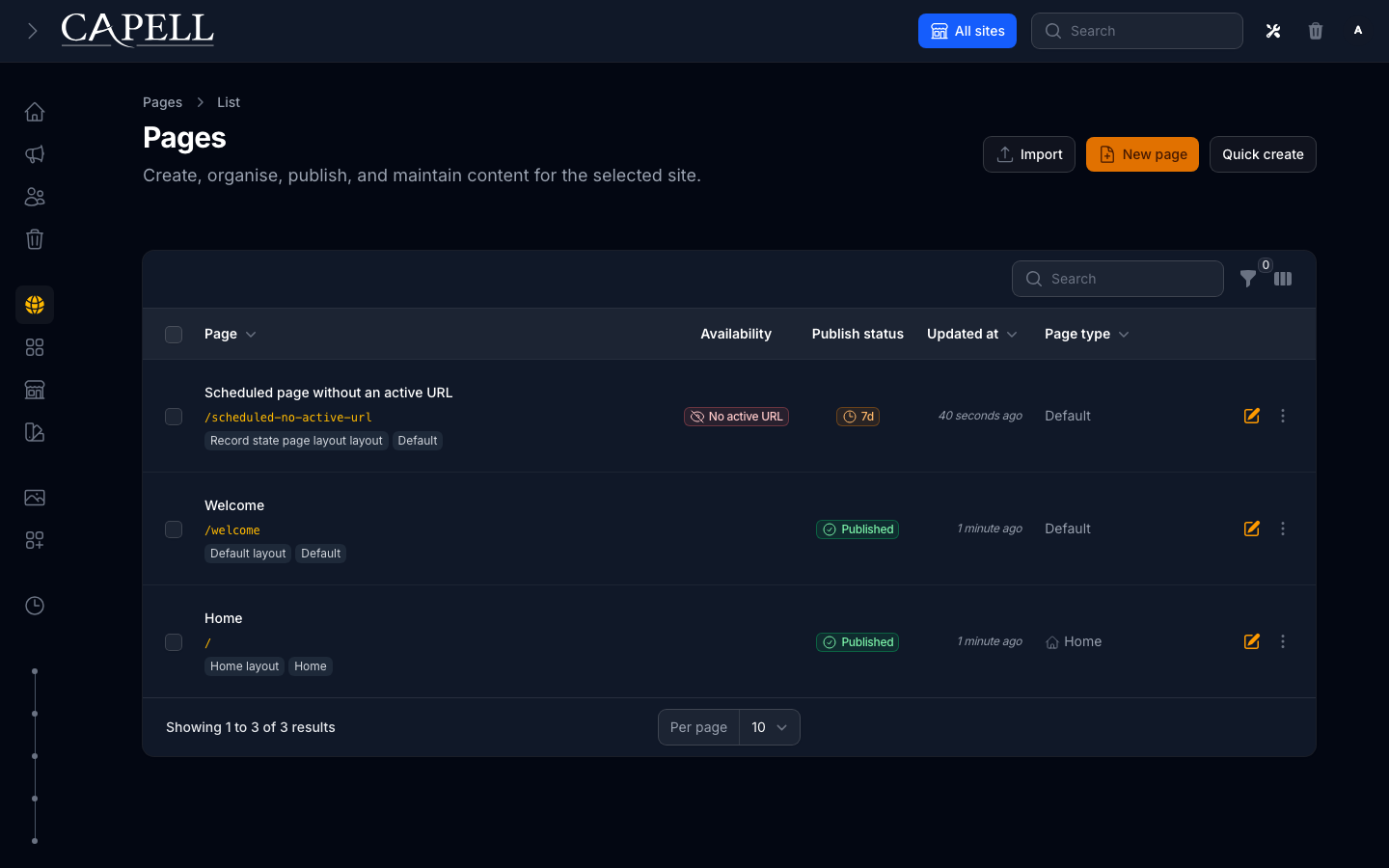
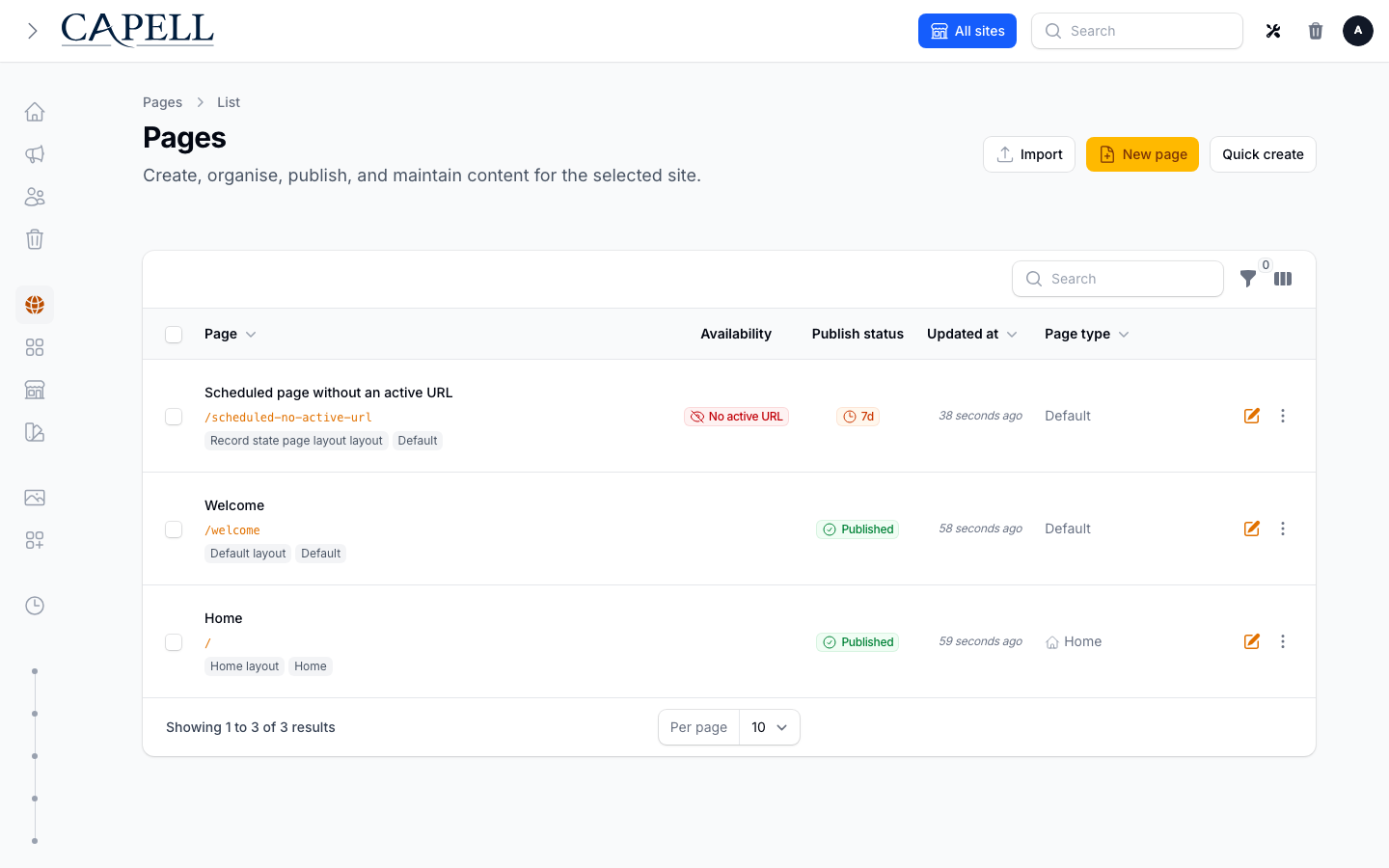
Your first check: Pages opens with its normal styling and the seeded records are visible.
4. Publish your first page and inspect history
Section titled “4. Publish your first page and inspect history”Demo content lets you inspect the workspace. Create your own saved page for this check; leave any read-only demo records alone.
- Select the intended site, open Pages, and create a page using the first-page guide. Choose a suitable page type, title and slug, then add a short paragraph and Save as draft.
- Follow Preview and publish: check the signed draft preview, inspect the Publish panel and its blockers, then Save and Publish. Saving a draft or scheduling it for later does not make it public now.
- Open the page’s canonical public URL in a private browser window with no Admin session. Your paragraph should appear at the ordinary site URL; the signed preview is a separate check.
- Edit one sentence on the published page and Save. Reload its public URL, then open the page’s history relation and inspect the before/after change. Preview a rollback and cancel unless you deliberately want to apply it.
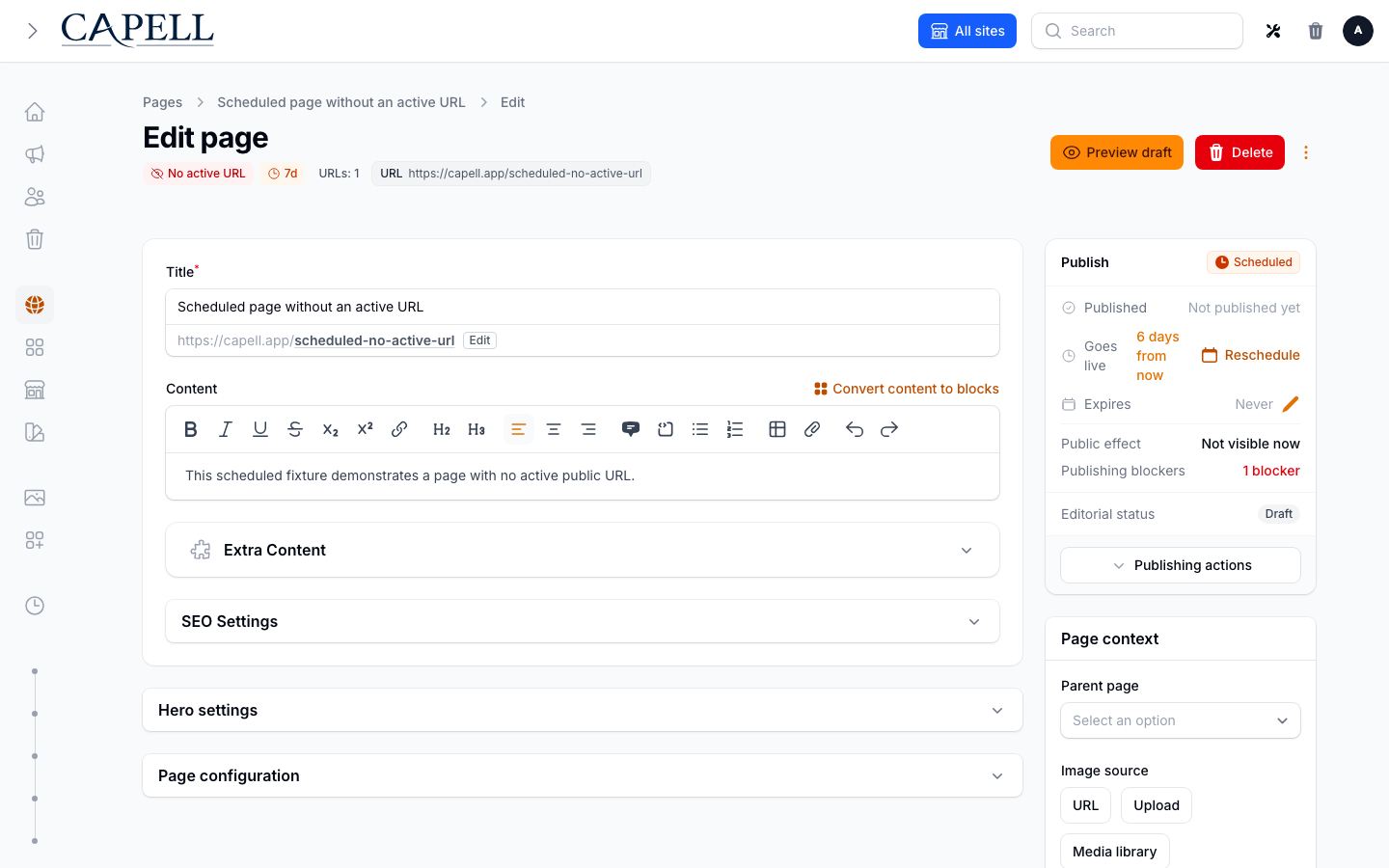
Compare your result with the published public-page example. Appearance depends on the selected theme and layout.
Page rollback restores the page and its owned content relationships. It does not restore the application database, media store, analytics counters or infrastructure. Read Page event history for the recovery boundaries.
5. Confirm health
Section titled “5. Confirm health”php artisan capell:doctorIf you switch from QUEUE_CONNECTION=sync to database or redis, keep a worker running:
php artisan queue:workBefore production, also configure and prove the separate database and media backup path. Page history is not disaster recovery.
First-run fixes
Section titled “First-run fixes”| Symptom | Action | Read next |
|---|---|---|
php artisan is not executable or writable paths fail | chmod +x artisan && chmod -R u+rwX storage bootstrap/cache | Permissions troubleshooting |
| A queued publish never finishes | Start php artisan queue:work | Published pages never generate |
| The public page remains stale | Follow the refresh procedure for the installed cache package, then verify the canonical response | Published pages still show old content |
| A package class is missing after Composer | composer dump-autoload && php artisan optimize:clear | Package discovery |
| Frontend CSS is missing | php artisan capell:frontend-install, then run the application’s normal npm build if the installer requests it | Themes and frontend assets |
| The installer stops at health review | Run the exact Fix: command shown, then rerun php artisan capell:doctor | Site Health |
Other install paths
Section titled “Other install paths”Suites and package choices
Section titled “Suites and package choices”For a guided suite or custom package selection, omit --package-mode=all and --theme=default and follow the installer prompts. Suites can recommend optional extensions; review their package and licence requirements before accepting downloads. See Run the CLI installer and Manual package selection.
Use Useful installer options for profiles, explicit recommendations and --plan. The Browser installer has its own reviewed-settings flow.
Hosts can replace the suite definitions through capell.install.recommendations, config/capell-install-recommendations.php or capell-install-recommendations.json.
Ports and asset pipelines
Section titled “Ports and asset pipelines”For Docker, set --url to the published host port rather than assuming the container port is reachable. See container development.
Browser Rebuild resources uses the npm-only build path. pnpm, Yarn and Bun applications should leave it unselected and apply the explicit Frontend plan. Prepared asset pipelines are covered in Themes and frontend assets.
Reproducible non-interactive smoke command
Section titled “Reproducible non-interactive smoke command”CI and release verification can use the same public path without prompts:
php artisan capell:install \ --fresh=force \ --demo \ --package-mode=all \ --theme=default \ --seed \ --url=http://localhost:8000 \ --name="Capell evaluation" \ --password='replace-this-local-password' \ --clear-cache \ --install-welcome-route \ --no-interactionThis command is destructive because --fresh=force rebuilds the database. Use it only in a disposable application or isolated CI database.
CI can persist the redacted install handoff with --handoff-json=storage/app/capell-install-handoff.json. A successful local evaluation still needs the separate production verification checks before deployment.