
Using Automation Studio
This guide is for the people who set up and watch over automations: operators who build the rules, and owners deciding how much to switch on. Automation Studio runs “when this happens, do that” rules for you, so a routine task happens on its own. Every step uses the labels you see on screen.
Using Automation Studio (how-to)
Section titled “Using Automation Studio (how-to)”How to build a rule
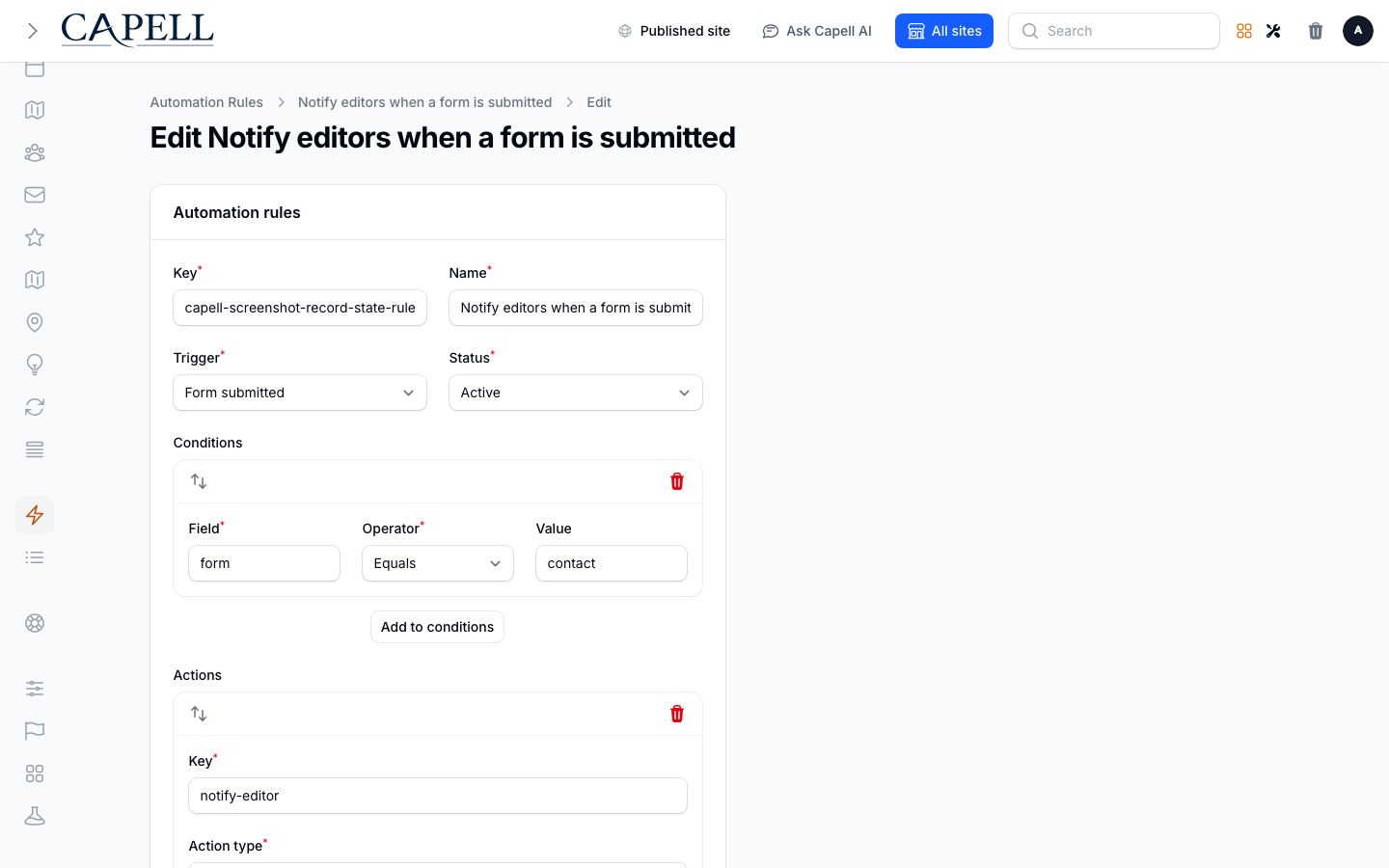
Section titled “How to build a rule”- Go to Automation Studio > Automation rules.
- Start a new rule.
- Give it a clear Name so you can recognise it later in the list.
- Pick a Trigger: the event that starts the rule. Choose from Access approved, Campaign converted, Form submitted, or Page published.
- Under Conditions, decide whether the rule should run every time the trigger fires, or only in certain cases. To narrow it, add a condition: pick a Field, choose an Operator (Equals, Does not equal, Blank, or Filled), and where needed type a Value. Add more conditions if you want the rule to be more specific.
- Under Actions, choose what the rule does. Set the Action type to one of Create note, Run Public Action, Queue agent capability, Send email, Subscribe user, Tag contact, or Webhook.
- Fill in the Settings for that action type. The fields you see depend on what you chose. For example, a key-and-value pair uses Key and Value, and a message uses Message.
- New rules default to Active. Select Paused before saving if you do not want the rule to respond to real events yet.
- Save the rule.
How to test a rule before turning it on
Section titled “How to test a rule before turning it on”- Go to Automation Studio > Automation rules.
- Choose Test rules. This is a dry run: it checks the currently Active rules for the selected trigger against an example without affecting anyone.
- Choose the Trigger you want to test.
- Provide a Sample payload: this is the made-up event data the rules use. Add a Payload key and a Payload value for each piece of information a rule looks at.
- Run the test and read the summary. It shows how many rules matched and actions were planned; no actions are executed.
- Adjust the affected rule’s Conditions or Settings if the result is not what you expected, then test again.
Test rules does not evaluate paused rules. If you need to test a newly saved rule, set it to Active first and take care that a real matching event could then run its actions. The dry run itself never executes actions.
How to turn a rule on or off
Section titled “How to turn a rule on or off”- Open the rule from Automation Studio > Automation rules.
- Set the Status to Active to turn it on. From now on the rule runs whenever its Trigger fires and its Conditions are met.
- Set the Status to Paused to turn it off. The rule stops running but stays in your list, ready to switch back on later.
- Save the rule.
How to find and review your rules
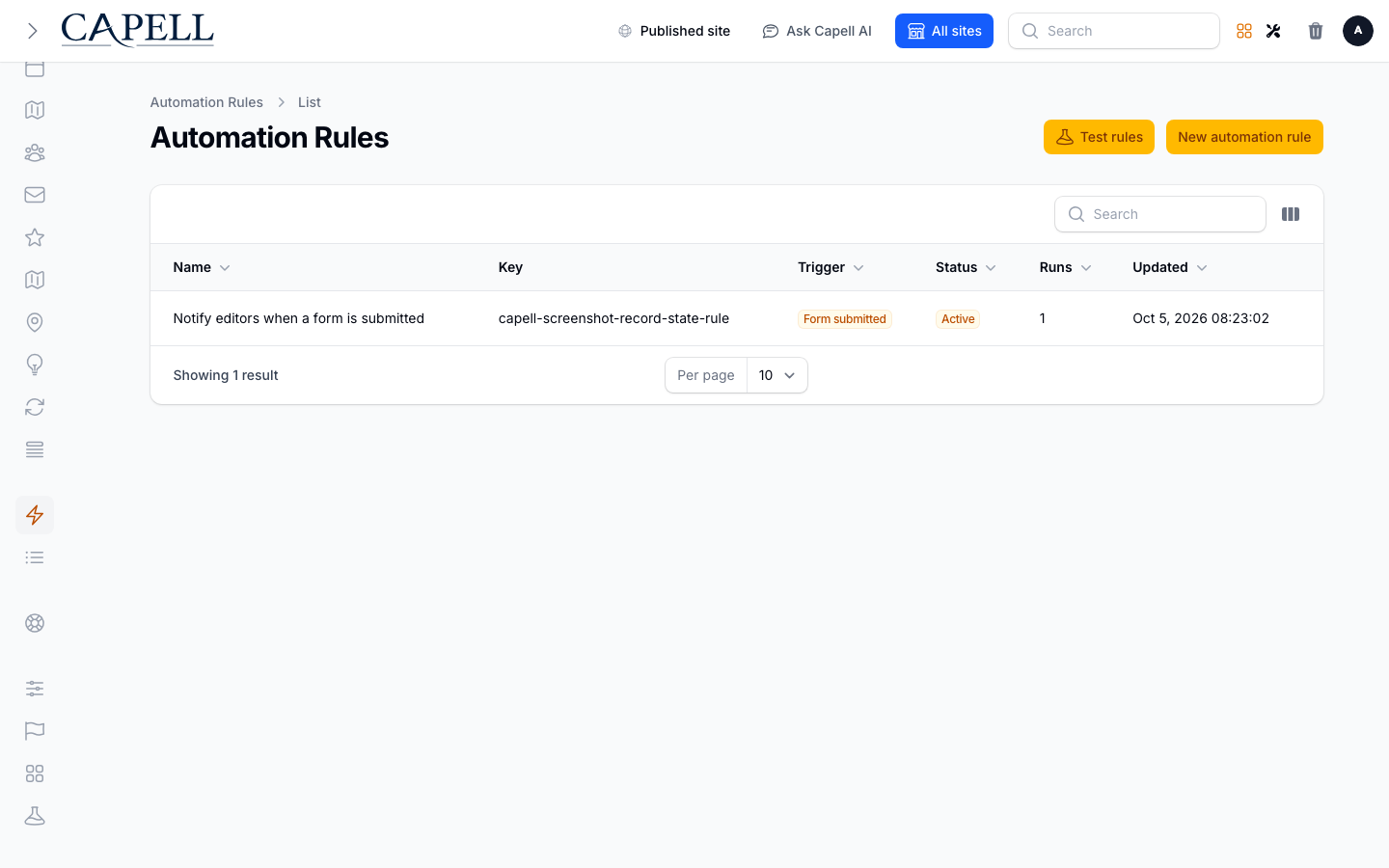
Section titled “How to find and review your rules”- Go to Automation Studio > Automation rules.
- The list shows each rule’s Name, Trigger, Status (Active or Paused), run count, and last update.
- Scan the Status column to see at a glance which automations are on.
- Open any rule to read or change its trigger, conditions, and action.
How to review run history
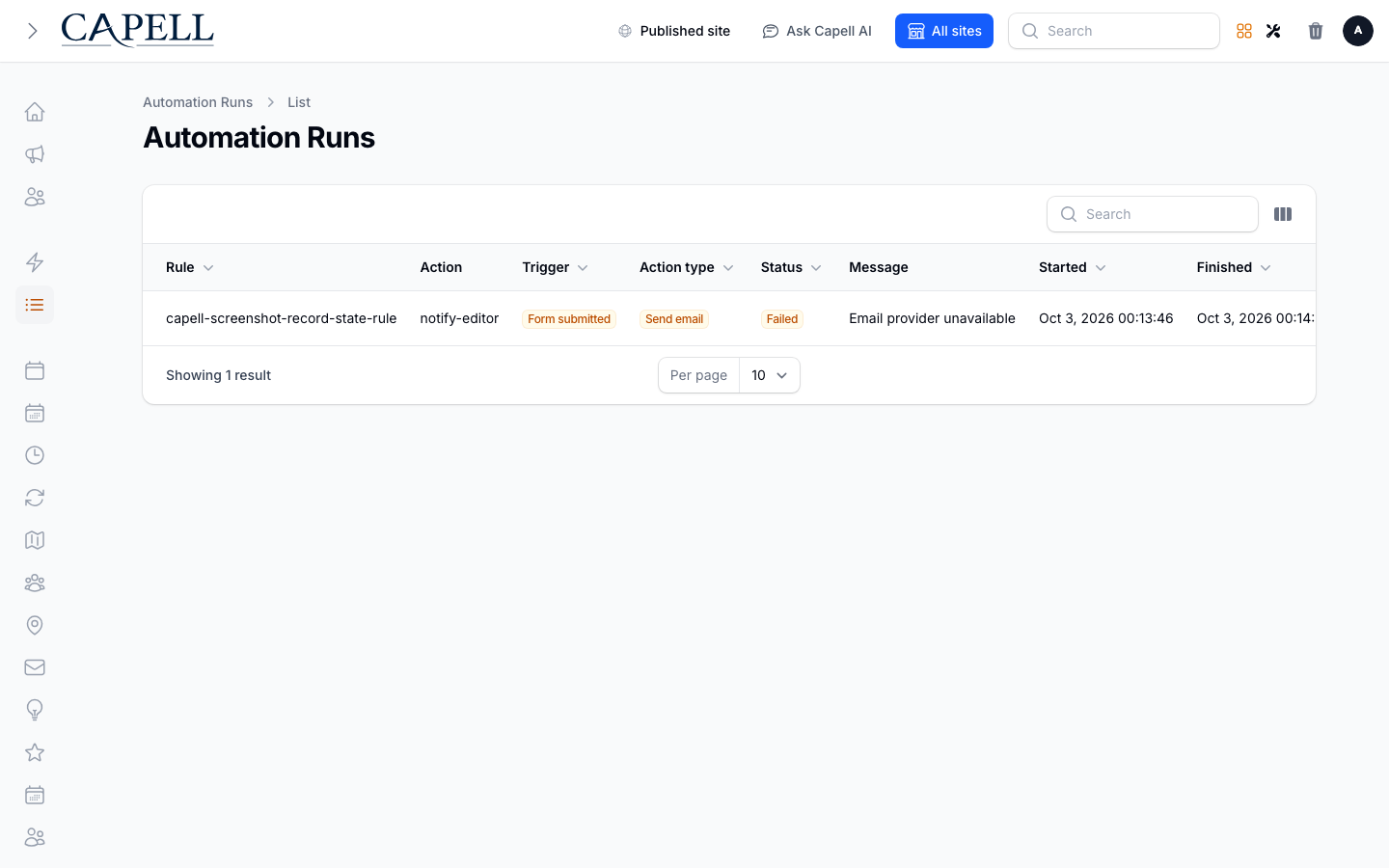
Section titled “How to review run history”- Go to Automation Studio > Automation runs.
- Each row is one action attempt. You can see its Rule, Action, Trigger, action type, when it Started and Finished, and its Status.
- Use the table’s column controls to reveal the hidden Idempotency key or Message columns when you need them.
- Use Replay on eligible pending, skipped, or failed rows after correcting the cause.
See every run, so you can confirm a new rule does what you expect before relying on it.
How to understand run statuses
Section titled “How to understand run statuses”A run can show one of four statuses:
- Succeeded: the rule ran and its action completed.
- Pending: the run is waiting to finish.
- Skipped: the rule was triggered but its conditions were not met, so no action was taken.
- Failed: the run started but did not complete. Open it to see why.
How to replay a failed run
Section titled “How to replay a failed run”- Go to Automation Studio > Automation runs.
- Find the action attempt you want to retry. Replay is available only for rows marked Pending, Skipped, or Failed that still have their original rule and action keys.
- Fix whatever caused the problem first. For a Failed run, that might mean correcting the rule’s Settings or an outside service it depends on.
- Choose Replay to run it again.
- Check the run history afterwards to confirm the new attempt Succeeded.
How to pause a rule instead of deleting it
Section titled “How to pause a rule instead of deleting it”- Open the rule from Automation Studio > Automation rules.
- To stop it temporarily, set the Status to Paused and save. The rule keeps all its settings and its run history, so you can switch it back to Active at any time.
- Delete a rule only when you are sure you will not need it again. Deleting removes it entirely, while pausing keeps it for later.
Rolling out Automation Studio (for owners)
Section titled “Rolling out Automation Studio (for owners)”Turn on first
Section titled “Turn on first”- One simple rule. Start with a single, low-risk automation, such as creating a note or sending an email when a form is submitted. Use Test rules with a sample payload, remembering that it evaluates only rules currently marked Active and never executes their actions.
Switch to live when ready
Section titled “Switch to live when ready”| Choice | What it means |
|---|---|
| Paused | The rule is saved but does not run for real events. Test rules does not include it. |
| Active | The rule is live and runs whenever its Trigger fires and conditions match. |
| Test rules | A dry run against a Sample payload. No one is affected. |
Don’t enable yet
Section titled “Don’t enable yet”- Test rules evaluates only rules marked Active. If you activate a rule to test it, remember that real matching events can also run it; the dry run itself remains non-destructive.
- Add more rules one at a time. Confirm each one in the Automation runs history before building the next.
Who does what
Section titled “Who does what”| Role | First useful screen |
|---|---|
| Operator | Automation Studio > Automation rules: build, dry-run active rules, and turn rules on or off |
| Site owner | Automation Studio > Automation runs: confirm rules are running and nothing is failing |
Troubleshooting
Section titled “Troubleshooting”| What you see | What it means | What to do |
|---|---|---|
| My rule never runs | It is still Paused, or its Conditions are never met | Open it, set the Status to Active, and use Test rules to check the conditions match |
| A run shows Skipped | The rule was triggered but its Conditions did not match the event | Open the rule and check the Field, Operator, and Value in each condition |
| A run shows Failed | The action attempt did not complete | Reveal its Message column, fix the cause, then use Replay if it is available |
| A run is stuck on Pending | The run has not finished yet | Wait a moment and refresh Automation runs; if it stays pending, ask your developer to check |
| The same event seems to run twice | A repeat was sent for an event that already ran | Reveal the Idempotency key column to compare attempts, then tell your developer |
| Test rules does nothing useful | The rule is paused, or the sample payload does not match its conditions | Set the rule Active if safe, then add the right Payload key and Payload value |
| I want to stop a rule without losing it | You only need to pause it, not delete it | Set the Status to Paused; it keeps its settings and run history for later |