
Using Campaign Studio
This guide is for editors who build marketing campaigns and owners deciding how to measure them. Every step uses the labels you see on screen.
Using Campaign Studio (editor how-to)
Section titled “Using Campaign Studio (editor how-to)”How to create a campaign group
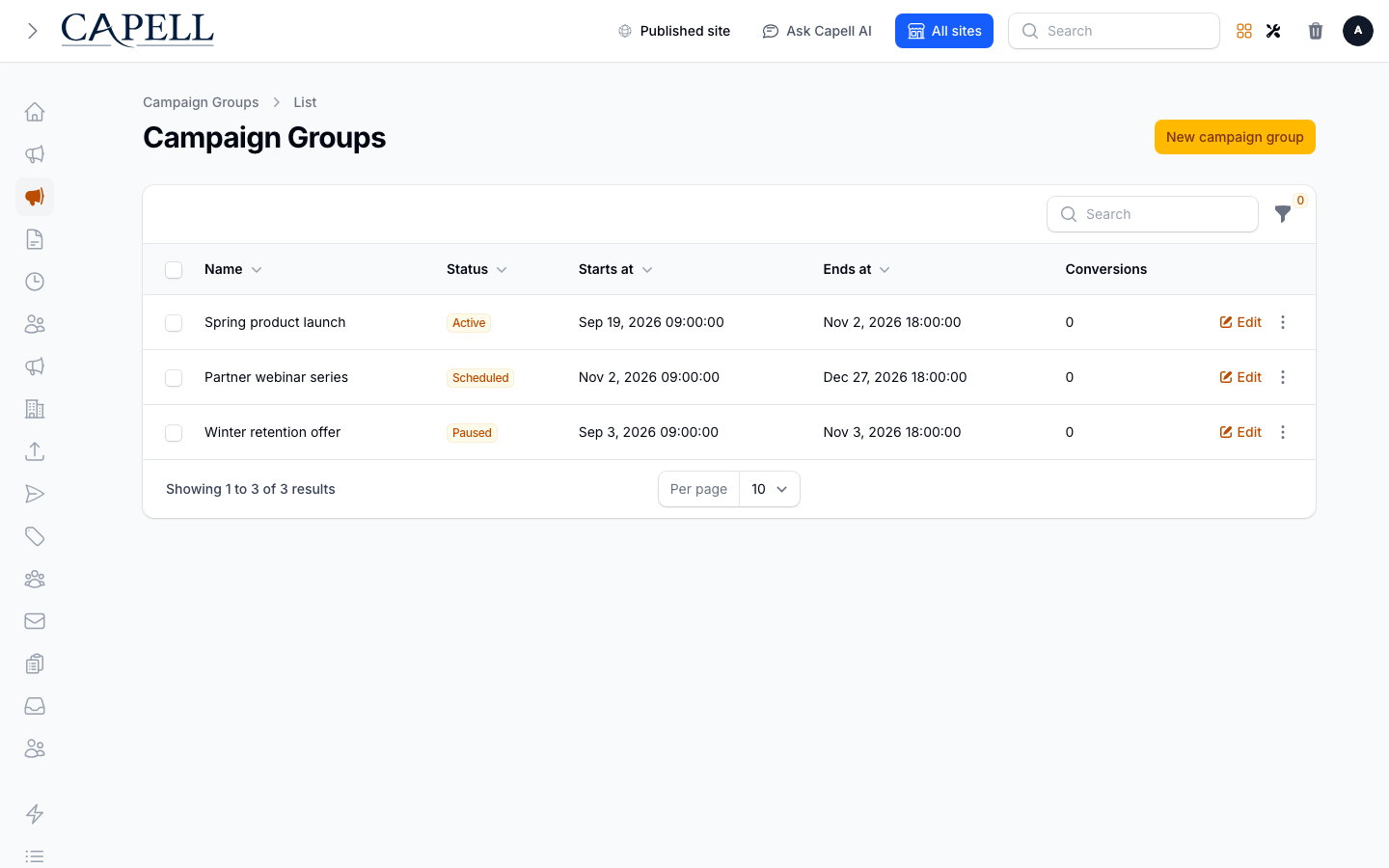
Section titled “How to create a campaign group”- Open Marketing Studio and choose Campaign groups.
- Create a Campaign group and enter its name, slug, status, and site (for example, “Summer Sale 2026”). Add dates or UTM defaults when they apply.
- Save the group. Pages are assigned separately from each page’s Campaign tab.
How to review landing pages
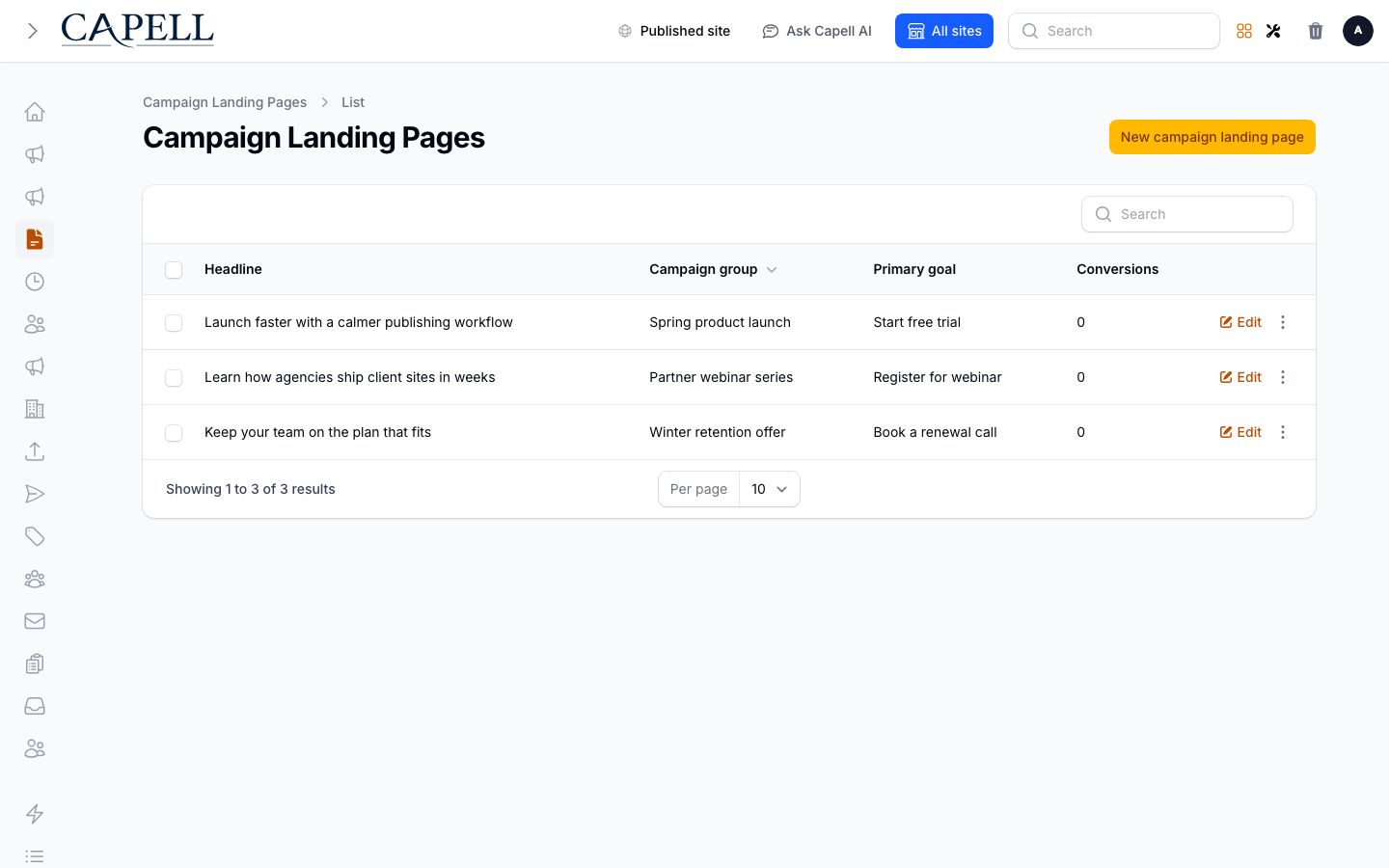
Section titled “How to review landing pages”- Edit the page that should be a landing page.
- Open its Campaign tab, choose the Campaign group, turn on Landing page, and select a Primary goal if one applies.
- Save the page. The landing-page record is kept in sync and appears in Marketing Studio > Landing pages.
How to add a call to action
Section titled “How to add a call to action”- Open Marketing Studio > CTA widgets and create or edit a reusable CTA. Choose its campaign group, site, copy, actions, goal key, and active status.
- In Layout Builder, add a Campaign CTA widget and select an active CTA from its settings.
- Use the Campaign hero or Campaign lead form widget when you need those layouts; their Campaign tabs hold the button, form, goal, and UTM fields that apply to that widget.
How to set a conversion goal
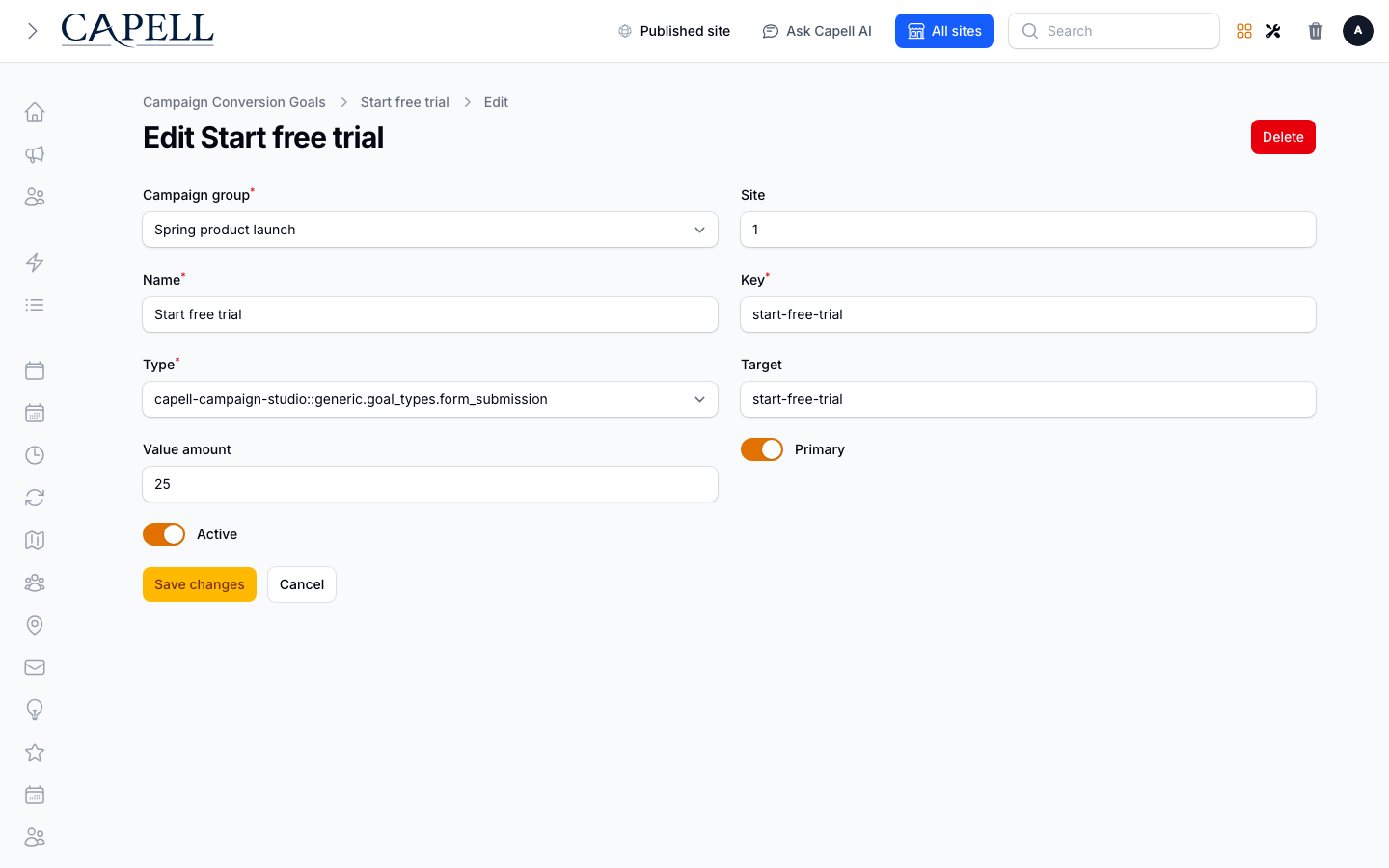
Section titled “How to set a conversion goal”- Open Marketing Studio > Conversion goals.
- Choose the Campaign group, then define the name, key, type, target, and active state. Available types are page view, CTA click, form submission, and custom action.
- Save, then select the goal as a landing page’s Primary goal or in the relevant campaign widget.
How to read the dashboard
Section titled “How to read the dashboard”- Open a dashboard where the campaign widgets have been enabled for your role.
- Use the configured campaign summary, Top campaigns, and Top landing pages widgets to review visits, conversions, and conversion rate for the dashboard date range.
- Use the result to decide which landing pages to keep or improve.
Example: Spring launch from /pricing to book-demo
Section titled “Example: Spring launch from /pricing to book-demo”- Create a Spring launch campaign group for the intended site and use
spring-launchas its UTM campaign value. - Assign the public
/pricingpage as a landing page and give it a clear headline such as Spring pricing. - Create one active CTA-click goal with the key
book-demo, then connect the pricing-page CTA to that goal. - Open
/pricing?utm_campaign=spring-launchthrough a consent-eligible Insights visit and use the Book demo CTA. - Check the campaign dashboard. Spring launch and Spring pricing should each show the conversion, and the rate should use Spring launch visits as its denominator.
Campaign Studio gives each recorded outcome a stable event key. If the same submission or click delivery is replayed with the same key for the same goal, the existing conversion is returned instead of adding a second dashboard conversion. A genuinely new outcome must use a new event key.
Rolling out Campaign Studio (for owners)
Section titled “Rolling out Campaign Studio (for owners)”Turn on first
Section titled “Turn on first”- One campaign with a clear conversion goal. Define success before you build, so the dashboard means something from day one.
Add when needed
Section titled “Add when needed”| Need | Enable |
|---|---|
| Capture leads on a campaign | A Campaign lead form |
Don’t enable yet
Section titled “Don’t enable yet”- Don’t add more than one campaign goal until you know which interaction you need to measure. Start with a single clear primary goal.
Who does what
Section titled “Who does what”| Role | First useful screen |
|---|---|
| Editor | A landing page’s Campaign tab and its Layout Builder campaign widgets |
| Site owner | Conversion goals and configured campaign dashboard widgets |
Troubleshooting for editors
Section titled “Troubleshooting for editors”| What you see | What it means | What to do |
|---|---|---|
| The dashboard shows no conversions | No active goal is selected or the interaction does not match its type | Define an active Conversion goal and select it on the landing page or widget |
| A campaign page isn’t measured | It is not marked as a landing page in a campaign group | In the page’s Campaign tab, select the group, enable Landing page, and save |
| A CTA widget cannot be selected | The reusable CTA is inactive or belongs to another accessible site | Activate the CTA and confirm its campaign group and site |