
Using Comments
This guide is for editors who moderate comments and owners deciding the moderation policy. Every step uses the labels you see on screen.
Using Comments (editor how-to)
Section titled “Using Comments (editor how-to)”How to approve or hide a comment
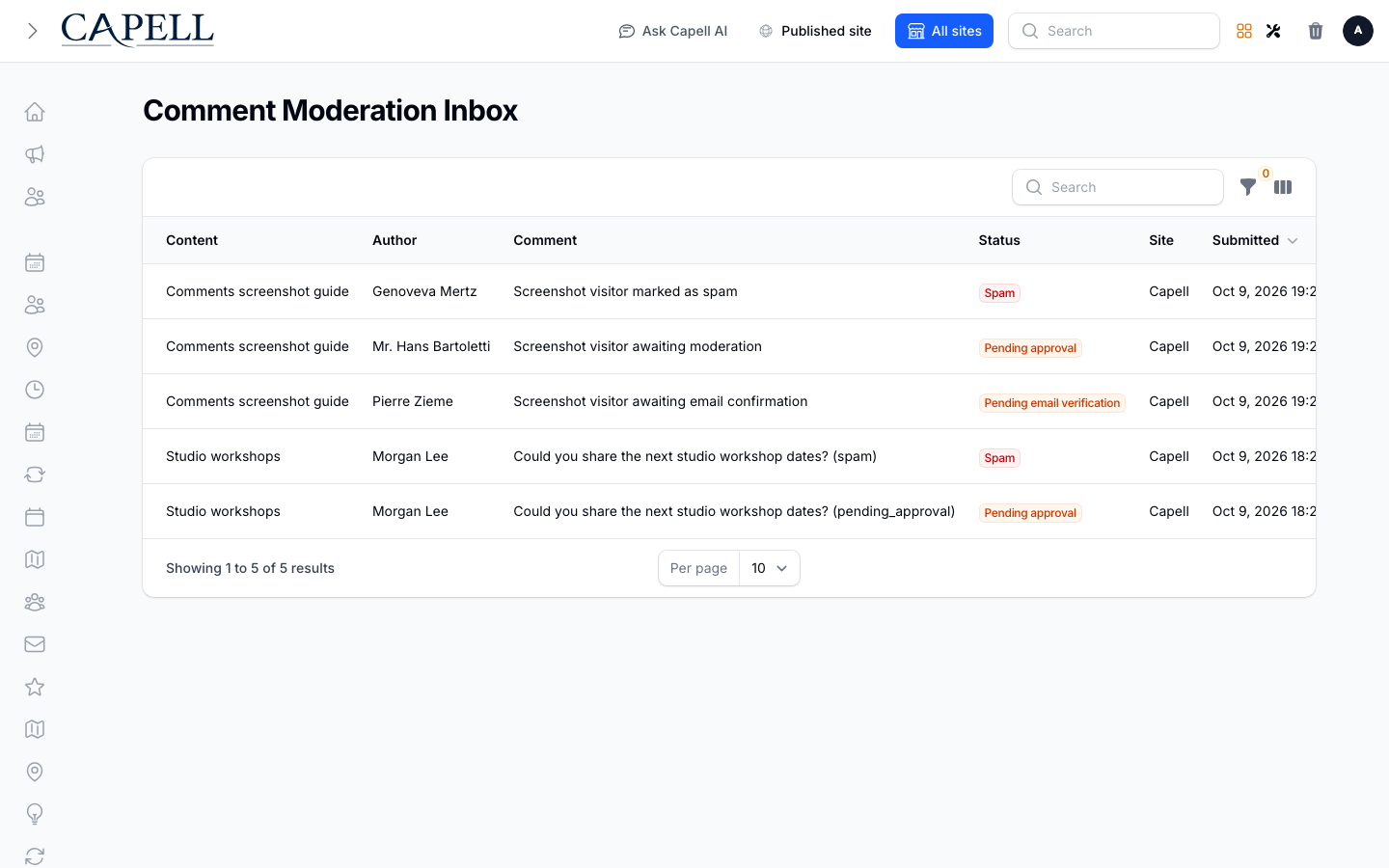
Section titled “How to approve or hide a comment”- Go to the Moderation inbox.
- Read each waiting comment.
- Use Context when you need the surrounding thread or linked content.
- Click Approve to make an eligible comment public, Reject when it should not appear, Mark spam for spam, or Archive to remove it from active moderation.
How replies work
Section titled “How replies work”Visitors reply through the public comment thread when replies are enabled for that content. The admin moderation tables do not create replies; use them to review the public context and moderate existing comments.
How to mark spam
Section titled “How to mark spam”- In the inbox, use Context if you need to review the thread.
- Click Mark spam.
- Its status changes to spam and it is removed from the public thread.
How to add a moderator note
Section titled “How to add a moderator note”- Choose Approve, Reject, Mark spam, or Archive for the comment.
- Add an optional Moderator note in the action form.
- This is for your team only and is not shown to visitors.
How to audit all comments
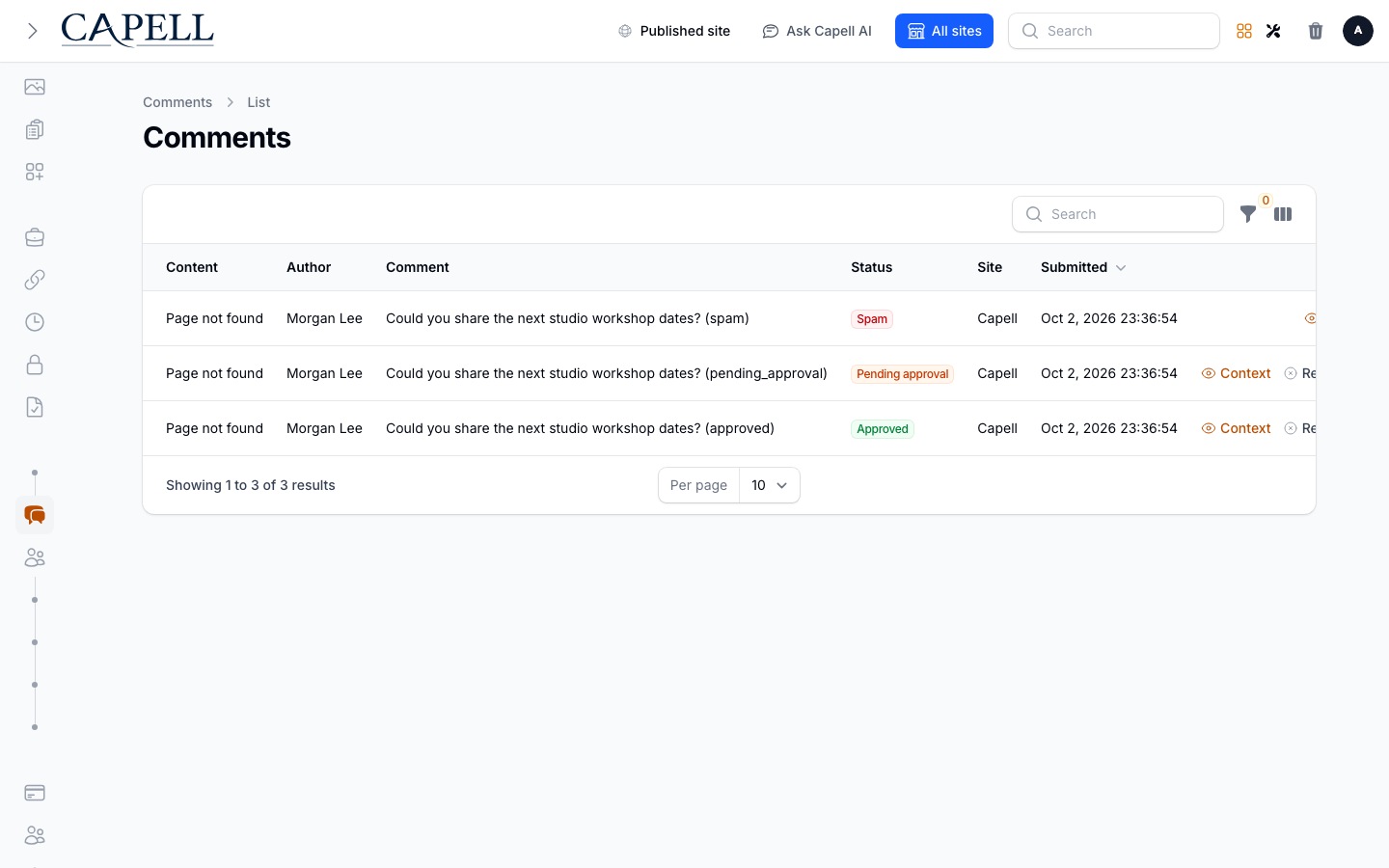
Section titled “How to audit all comments”- Go to Comments.
- Review every comment with its content, author, status, site, and submitted time in one table.
- Filter by status to find approved, pending, rejected, or spam comments.
How to review comment authors
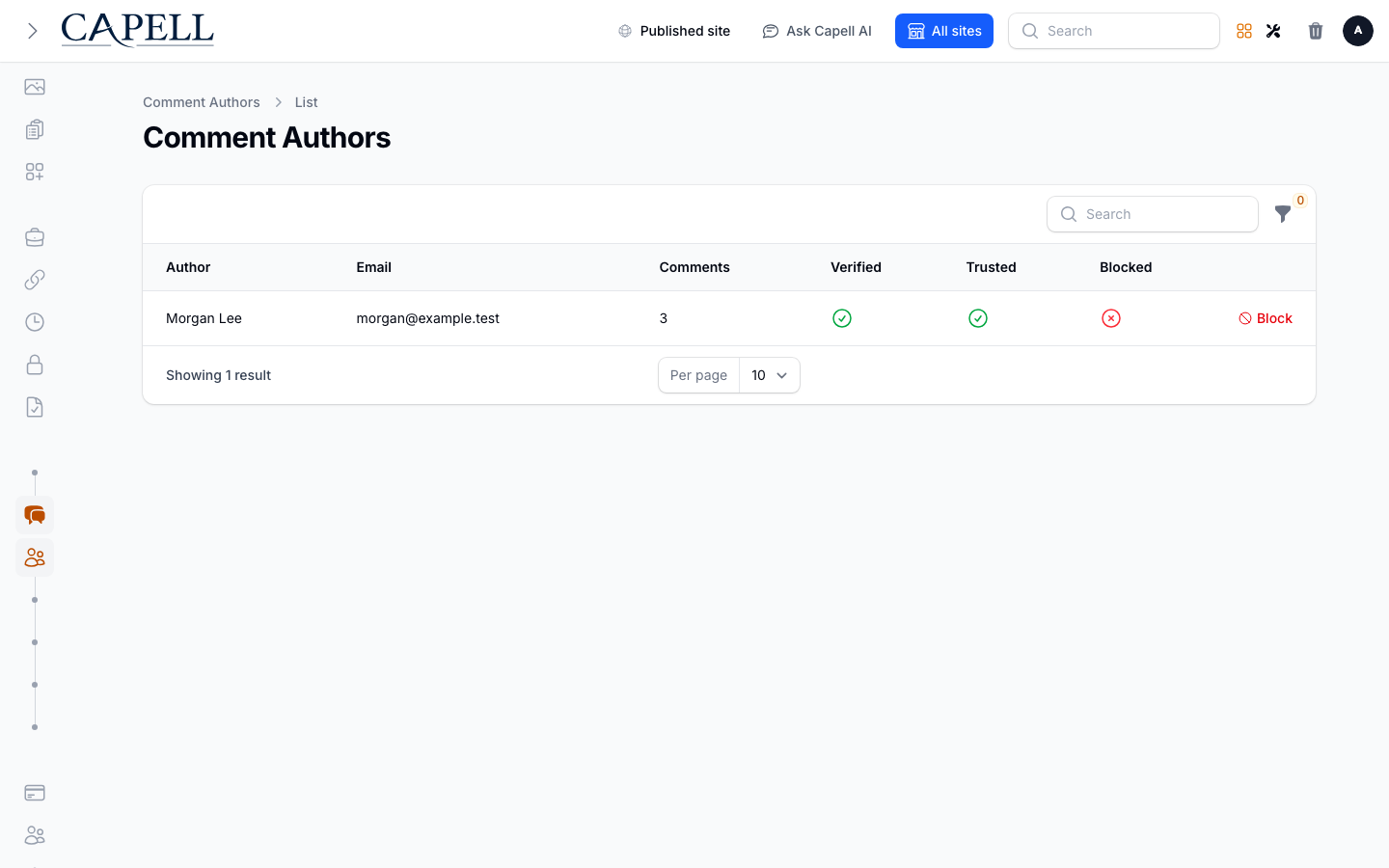
Section titled “How to review comment authors”- Go to Comment authors.
- Check each author’s public display name, verification, trust, block state, and comment count.
- Block, unblock, trust, verify, or resend verification from the available actions.
Rolling out Comments (for owners)
Section titled “Rolling out Comments (for owners)”Turn on first
Section titled “Turn on first”- Pre-moderation (approve before it appears). Start by approving every comment so nothing unwanted is ever live, then relax later if you wish.
Add when needed
Section titled “Add when needed”| Need | Enable |
|---|---|
| Less manual work as trust grows | Post-moderation (comments appear, then you review) |
| Stay within your privacy policy | A comment retention period |
Don’t enable yet
Section titled “Don’t enable yet”- Don’t let comments appear without review on a new site. Start with pre-moderation.
Who does what
Section titled “Who does what”| Role | First useful screen |
|---|---|
| Editor / moderator | Moderation inbox: review context and moderate comments |
| Site owner | Settings: moderation mode and retention |
Troubleshooting for editors
Section titled “Troubleshooting for editors”| What you see | What it means | What to do |
|---|---|---|
| A comment isn’t showing on the site | It isn’t approved yet | Open the Moderation inbox and Approve it |
| Spam keeps appearing | Unwanted comments need moderation | Use Mark spam and block repeat authors where appropriate |
| Comments aren’t available on a page | Commenting is off for that content | Confirm comments are enabled for that content type |
| Old comments need removing | Retention period not set | Set how long comments are kept |