
Using Contacts
This guide is for staff who review contacts collected by connected Capell packages and owners deciding how to use that information. Every step uses the labels you see on screen.
Using Contacts (editor how-to)
Section titled “Using Contacts (editor how-to)”How to review a contact
Section titled “How to review a contact”- Open Marketing Studio > Contacts.
- Choose View for a contact to see their name, email, phone, status, first and last seen times, and recent activity.
- Use Add note on the contact overview when staff need an internal activity entry.
Contacts are created or updated by connected package workflows. This resource does not include a manual create form.


How to filter contacts by an existing tag
Section titled “How to filter contacts by an existing tag”- Open Marketing Studio > Contacts.
- Use the Tag filter and select the tag you want to review.
- Inspect the resulting contacts or open an individual contact for its activity timeline.
How to group contacts with tags
Section titled “How to group contacts with tags”Tags can filter contacts here, but Contacts does not provide a form or standalone screen for manually adding, removing, or managing them. Configure the workflow that supplies a tag in its owning package, then use the Tag filter to review the resulting segment.
How to merge duplicates
Section titled “How to merge duplicates”- Open Marketing Studio > Contacts and find one of the duplicates.
- Choose Merge, select the other contact from the same site as the target, and optionally record a reason.
- Confirm the merge. Contacts can only be merged within the same site.
How to export or anonymize one contact’s privacy data
Section titled “How to export or anonymize one contact’s privacy data”- In the Contacts list, use Export privacy data for the individual contact when it is available to your role. The download is a JSON privacy export, not a spreadsheet contact-list export.
- Use Anonymize contact only when your approved privacy process requires it; the action requires confirmation and records an activity.
How to review contact activity
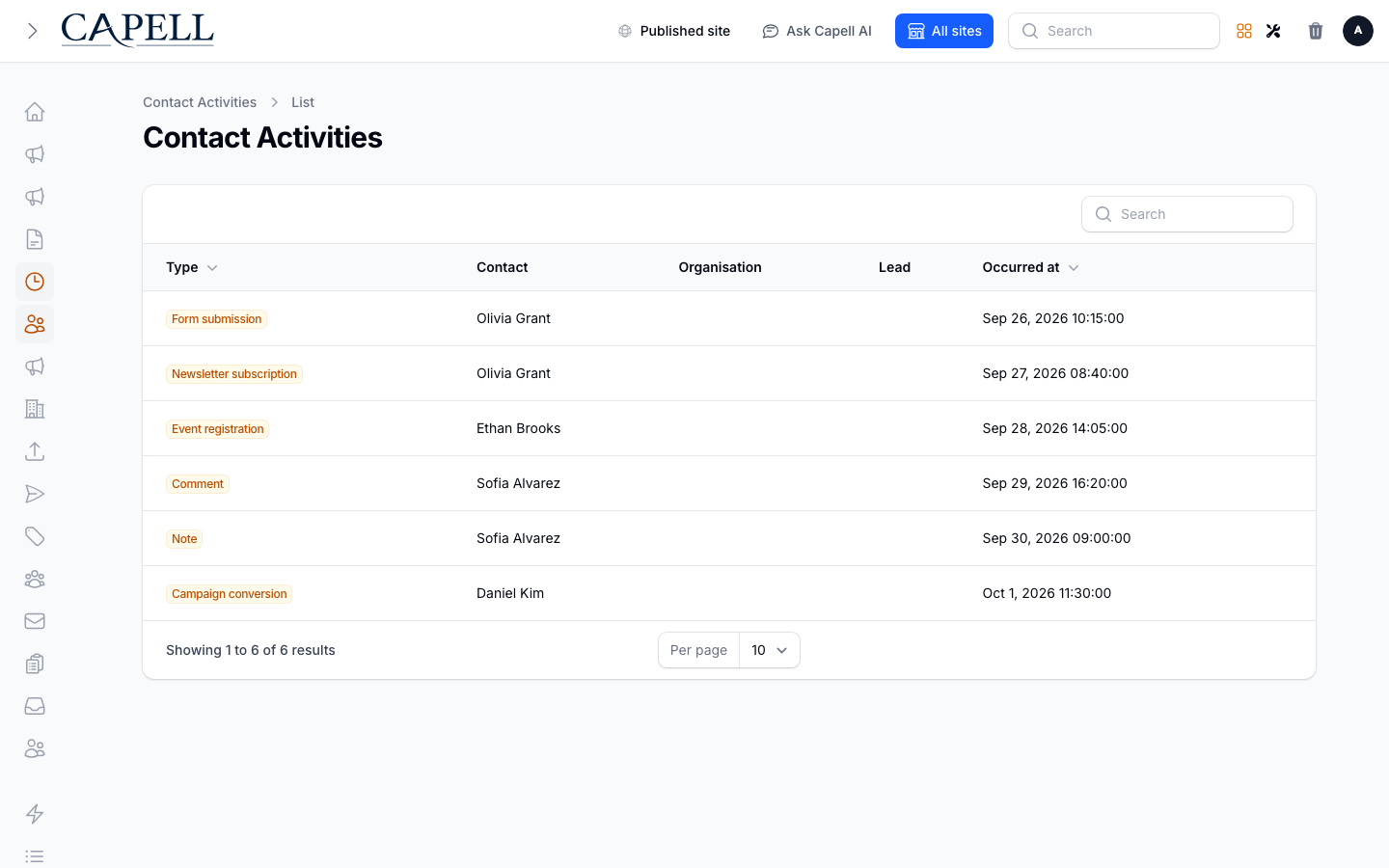
Section titled “How to review contact activity”- Open Marketing Studio > Activities for the cross-contact activity list, or view one contact for its latest activity timeline.
- Review the timeline of activity recorded for your contacts, such as form submissions and event registrations.
- Use it to see how each contact has engaged over time.
Rolling out Contacts (for owners)
Section titled “Rolling out Contacts (for owners)”Turn on first
Section titled “Turn on first”- One connected source and a clear review process. Start by confirming the package that creates contacts produces the records and activity your staff need.
Add when needed
Section titled “Add when needed”| Need | Configure in |
|---|---|
| Target groups of people | The owning package workflow that supplies tags |
| Bring in an existing list | A supported integration or source package |
Don’t enable yet
Section titled “Don’t enable yet”- Don’t assume Contacts can create, import, or bulk-export records itself. Confirm the owning package or integration supplies the data you expect.
Who does what
Section titled “Who does what”| Role | First useful screen |
|---|---|
| Staff | Contacts: review, filter, merge, and add notes |
| Site owner | The connected package workflows that create contacts and tags |
Troubleshooting for editors
Section titled “Troubleshooting for editors”| What you see | What it means | What to do |
|---|---|---|
| I have duplicate contacts | Two records exist for the same person on the same site | Use Merge and select the target contact |
| A contact is missing | The owning workflow has not created or synced it | Check the connected package event or integration that should supply the record |
| I can’t find a segment | The expected tag was not supplied by its owning workflow | Check that workflow, then use the Tag filter after it has added the tag |