Skip to content

Using Content Sections

This guide is for editors who build reusable sections and owners deciding when to use sections instead of one-off blocks. Every step uses the labels you see on screen.

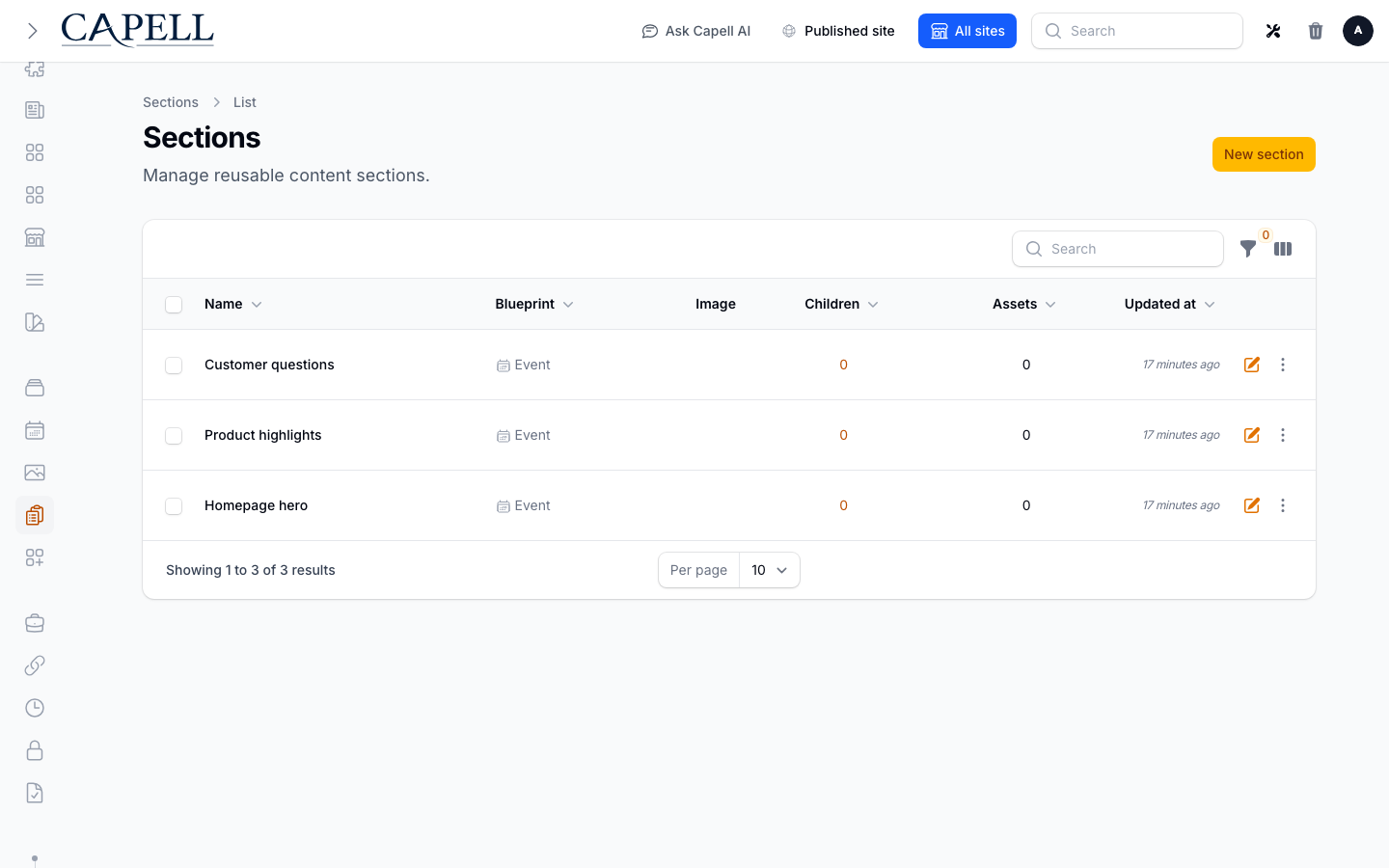
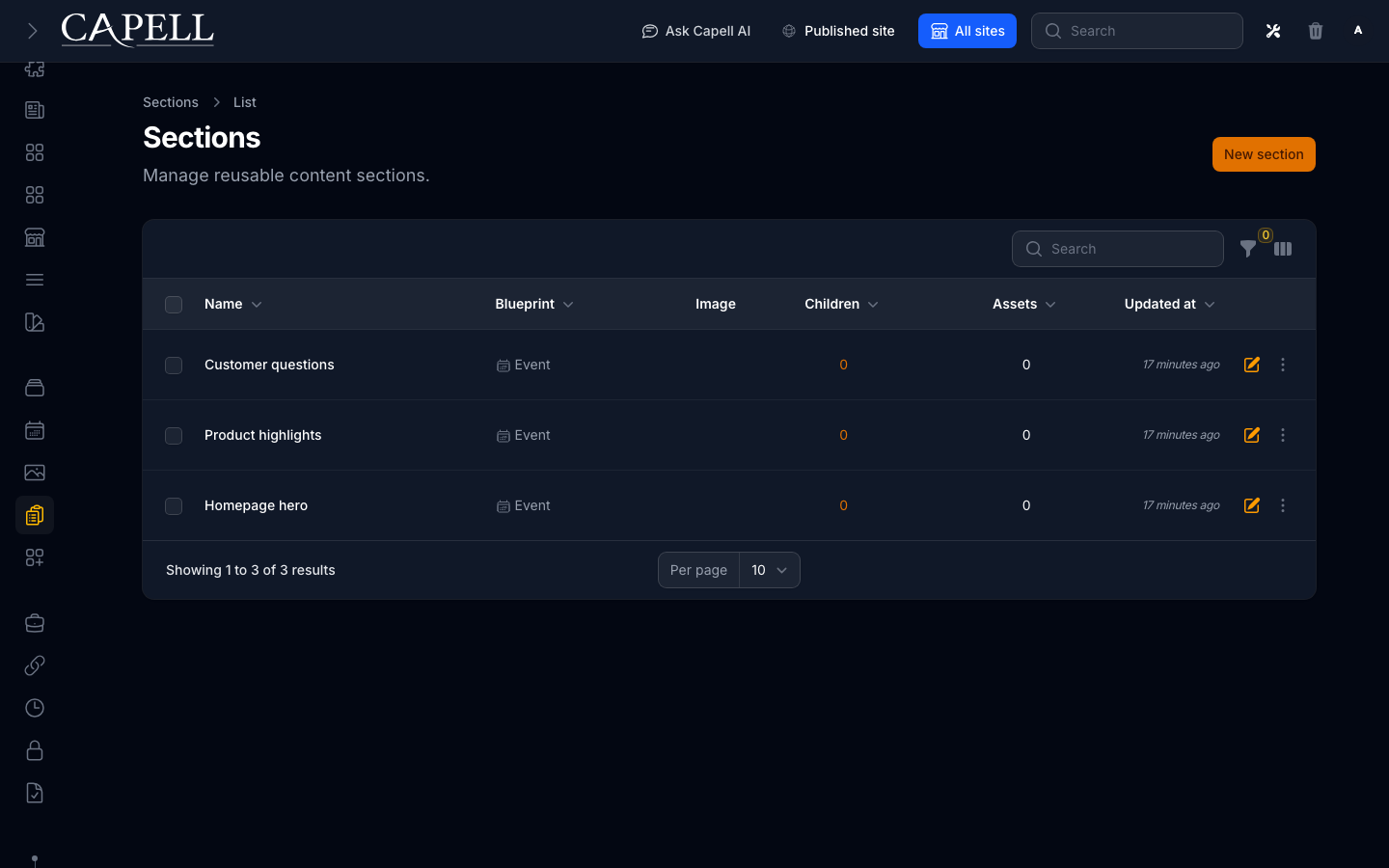
  1. Go to Content > Sections.
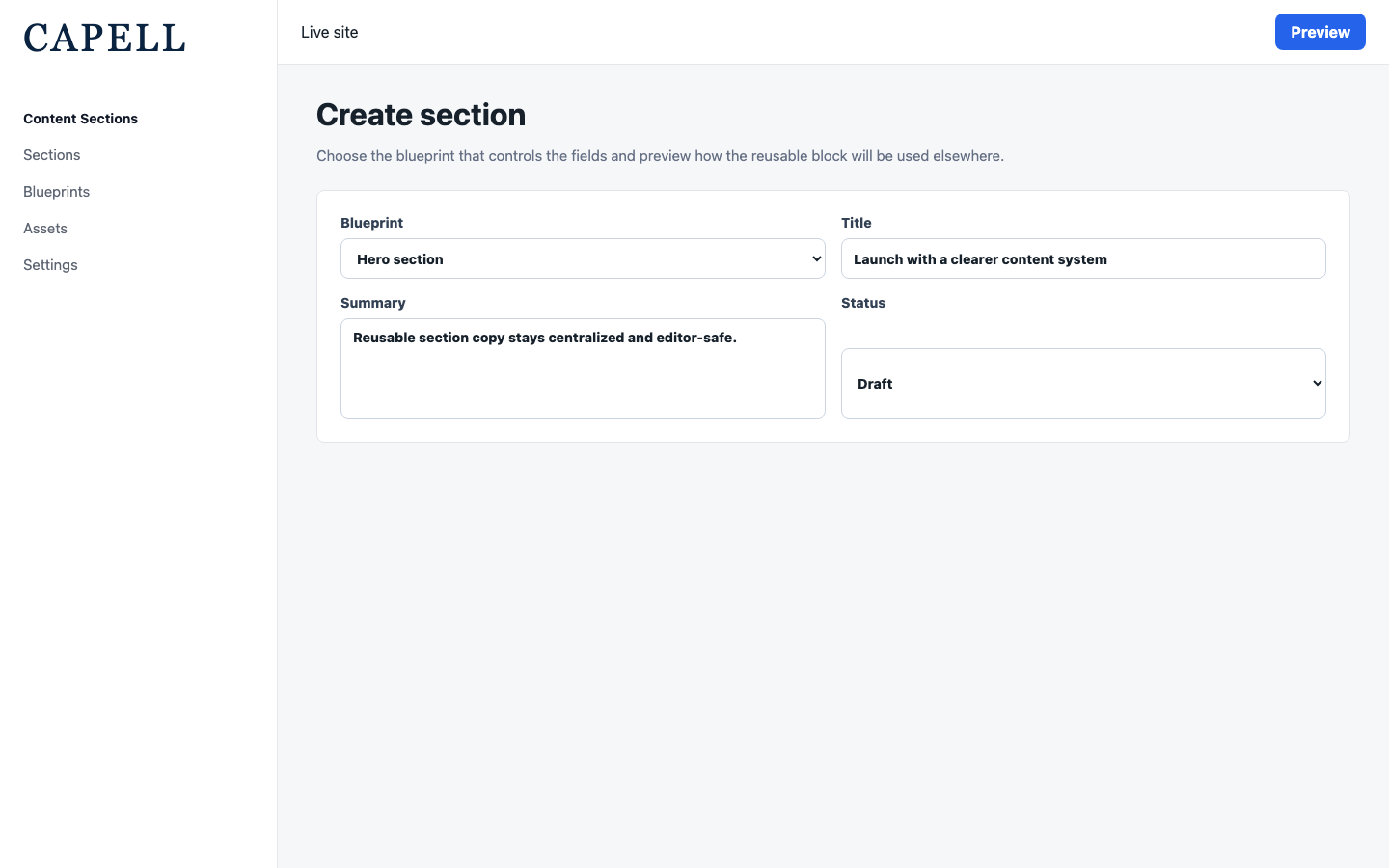
  2. Click to create a new section and give it a clear name (for example “Newsletter call to action”).
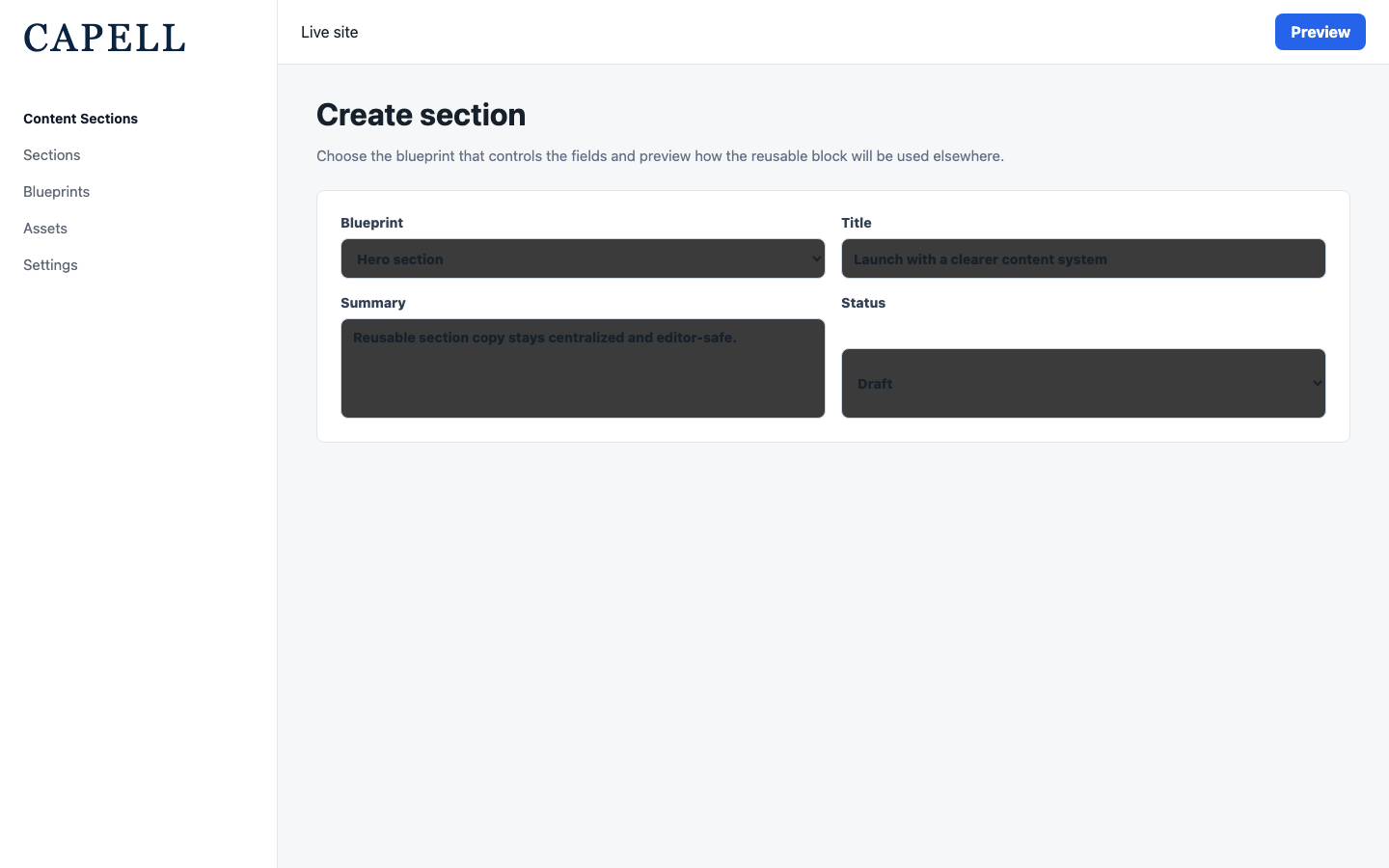
  3. Choose the section blueprint that controls the available fields.
  4. Add your blocks, text, and images.
  5. Set its site and visibility dates as needed, then save. A section is available to other content surfaces, while its public output follows its publishing and visibility state.
Review reusable sections before choosing which shared content block to update. Review reusable sections before choosing which shared content block to update. Start a new reusable section and choose the section blueprint that controls the available fields. Start a new reusable section and choose the section blueprint that controls the available fields.
  1. Open the page you want to edit.
  2. Add a section from the Section library.
  3. Pick the section by its name.
  4. Save the page.
  1. Go to Content > Sections and open the section.
  2. Make your change, confirm its visibility dates still allow it to be published, and save.
  3. Public pages that resolve the section use the current published section content. You do not edit each use separately.
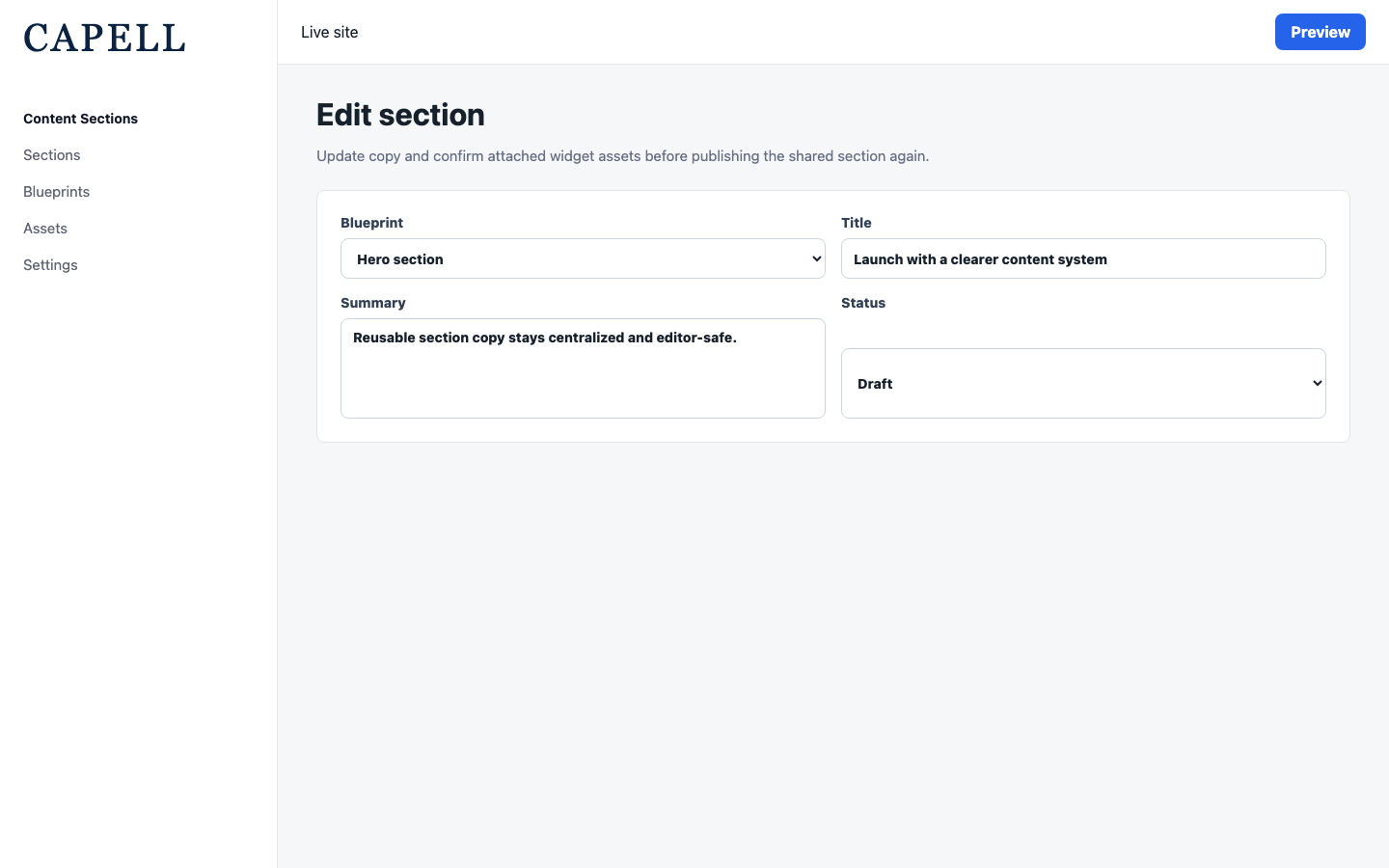
Update shared section copy and check which widget assets are attached before saving. Update shared section copy and check which widget assets are attached before saving.
  • A few high-value reusable sections. Start with content that genuinely repeats, like a call to action or a contact block, so editors see the benefit of editing once.

NeedEnable
The same content on many pagesA reusable section
Content that only appears onceA one-off widget on that page instead
  • Don’t turn every block into a section. Sections are for content that repeats. One-off content is better as a plain widget.
RoleFirst useful screen
EditorContent > Sections: build and edit reusable sections
Site ownerThe Content > Sections list: see what is shared across the site
What you seeWhat it meansWhat to do
I changed a section and it changed on other pages tooThat is by design for pages that resolve the published sectionCheck where a section appears before editing, or make a separate section for the one-off case
I can’t find the section to insertIt was not saved, is outside the current site scope, or its name is unclearOpen Content > Sections to confirm it exists and is available in the right site scope
The section looks empty on a pageIt has no configured content, is outside its visibility window, or the page cache is staleAdd content, check visibility dates, save, and clear the page cache if needed