
Using Deployments
This guide is for the people who keep your site’s add-on packages up to date: operators who connect the deployment repository and watch what gets published, and owners deciding how releases are applied. No technical knowledge needed. Every step uses the labels you see on screen. The page lives under System > Deployment Repository.
Using Deployments (how-to)
Section titled “Using Deployments (how-to)”How to connect your repository to a Git provider
Section titled “How to connect your repository to a Git provider”- Go to System > Deployment Repository.
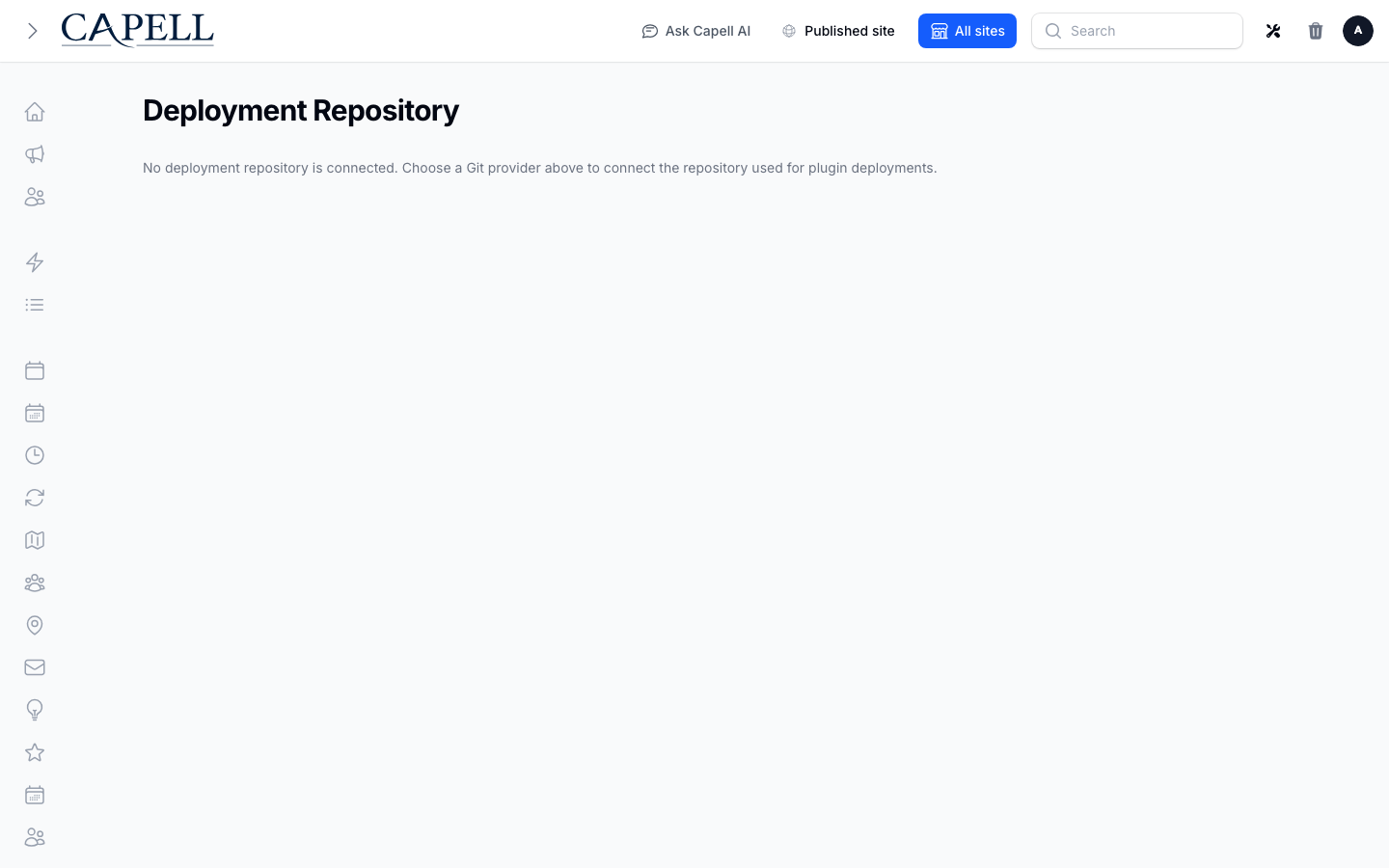
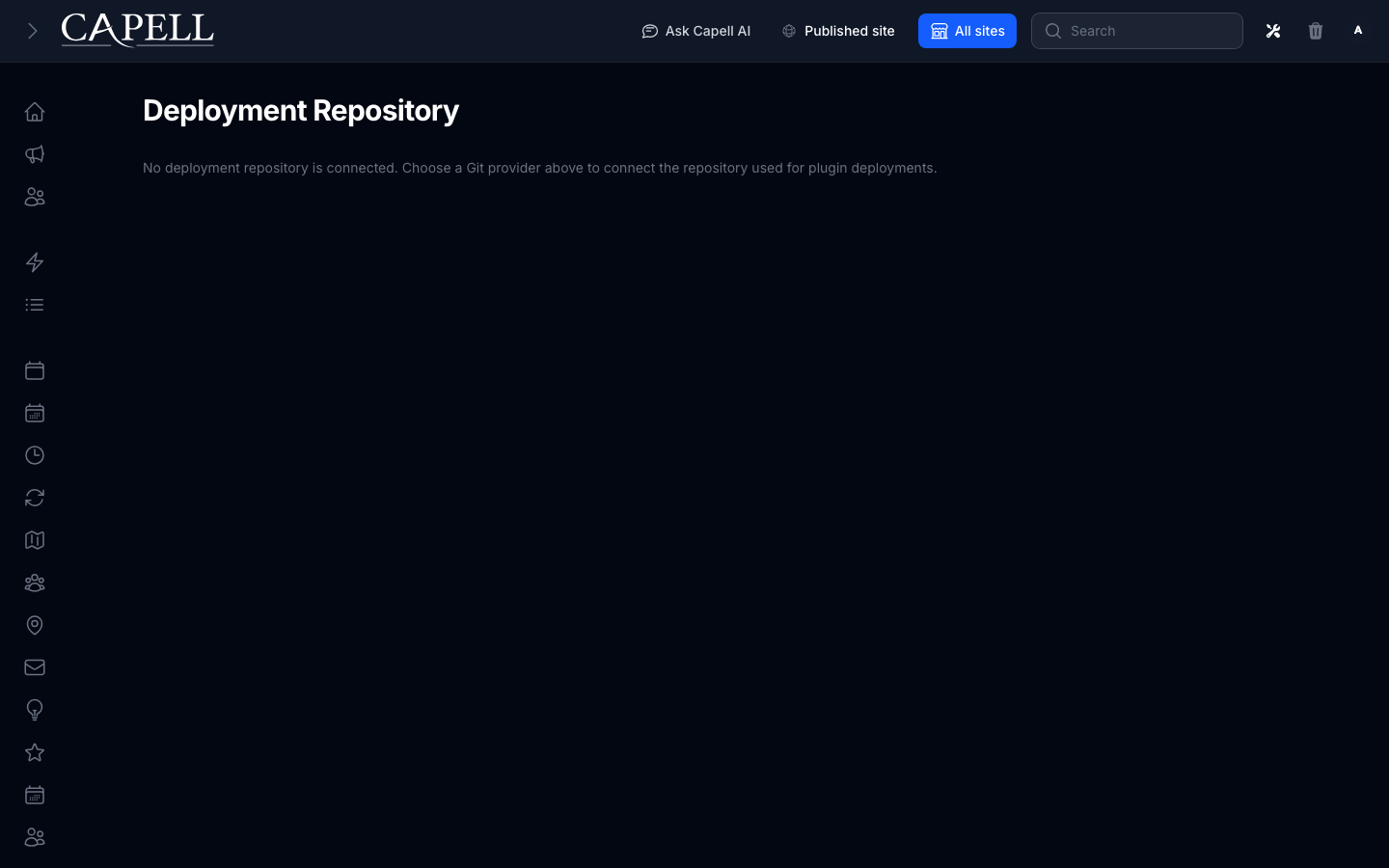
- If nothing is connected yet you see the message “No deployment repository is connected. Choose a Git provider above to connect the repository used for plugin deployments.”
- Fill in Repository owner or group. This is the account or team that owns the repository.
- Fill in Repository name. This is the name of the repository itself.
- Choose your provider by clicking Connect GitHub Repository, Connect GitLab Repository, or Connect Bitbucket Repository.
- Complete the sign-in for that provider when it asks you to. Once you approve, you are returned to the page and the repository is connected.
How to see whether a repository is connected
Section titled “How to see whether a repository is connected”- Go to System > Deployment Repository.
- If a repository is connected, the page shows Connected to
- near the top, along with a Disconnect button. - If nothing is connected, you instead see the message “No deployment repository is connected. Choose a Git provider above to connect the repository used for plugin deployments.” and the three provider buttons.
How to review recent publishes and read their statuses
Section titled “How to review recent publishes and read their statuses”- Go to System > Deployment Repository.
- Look at the Recent publishes section. Each row shows the Package, the Reference, the Status, when it was Published, and any available Actions.
- The Reference links to a pull request when one exists; otherwise it shows the recorded commit or branch reference.
- Read the Status to see how that publish went:
- Pending: the pull request has been raised and is still waiting.
- Passed: the change was applied cleanly.
- Failed: the change did not complete. Share this with your developer.
- Cancelled: the publish was stopped before it finished.
- Dry run: a safe check that confirms a change works without applying it.
- If nothing has run yet you see “No Composer requirement publishes have been recorded for this repository yet.”
How to cancel a publication pull request
Section titled “How to cancel a publication pull request”- Go to System > Deployment Repository and find the row in Recent publishes.
- An eligible pull-request publication shows a Cancel button in its Actions. Dry runs, completed publications, and rows without a pull request cannot be cancelled here.
- Click Cancel.
- Confirm when asked “Cancel this pending deployment publication pull request?”
- The publish stops and its status moves to Cancelled.
How to choose the Install policy
Section titled “How to choose the Install policy”- Go to System > Deployment Repository before connecting a repository.
- Choose the Install policy that matches how you want package changes applied.
- The selected policy is included when you use one of the Connect actions; it is not saved separately on the page.
How to disconnect the repository
Section titled “How to disconnect the repository”- Go to System > Deployment Repository.
- Click Disconnect next to Connected to
- . - Confirm when asked “Are you sure you want to disconnect this deployment repository?”
- The repository is disconnected. To start again, connect a provider as above.
Rolling out Deployments (for owners)
Section titled “Rolling out Deployments (for owners)”Connect first
Section titled “Connect first”- Connect the deployment repository. Nothing happens here until a repository is connected. Enter the Repository owner or group and Repository name, choose the Install policy, pick a provider with Connect GitHub Repository, Connect GitLab Repository, or Connect Bitbucket Repository, and complete the sign-in. This is the repository where Composer requirement changes are published.
Choose how changes are applied
Section titled “Choose how changes are applied”- Install policy. Decide how package changes are handled once they are published. Pick the option that fits how cautious you want to be, then save. When in doubt, prefer the safer choice and review publishes in Recent publishes before relying on them.
Watch, then decide
Section titled “Watch, then decide”- Use Recent publishes as your status view. Passed means a change went out cleanly. Pending means it is still in flight, so wait for it to finish. Failed is the one to act on: tell your developer. A Dry run confirms a change works without applying it, so it is the safe way to check before committing.
Disconnecting
Section titled “Disconnecting”- Use Disconnect to stop using a repository. You can reconnect later. Disconnecting does not undo changes that have already been published.
Troubleshooting
Section titled “Troubleshooting”| What you see | What it means | What to do |
|---|---|---|
| ”No deployment repository is connected. Choose a Git provider above to connect the repository used for plugin deployments.” | No repository is connected yet | Enter the Repository owner or group and Repository name, then click one of the Connect buttons and complete the sign-in |
| A publish shows Failed | The change did not complete | Tell your developer and share the Status and recorded Reference |
| A publish stays on Pending | The publication is still in flight | Wait for it to finish before making more changes; cancel it only when its eligible pull-request row shows Cancel |
| ”No Composer requirement publishes have been recorded for this repository yet.” | Nothing has been published for this repository | This is normal for a new connection; it fills in once changes are published |
| You expected a change but see a Dry run | This was a safe check, not a real apply | Run the real publish when you are ready, or ask your developer if a dry run is all that was intended |
| The Disconnect button is missing | No repository is connected | Connect a provider first; Disconnect only appears once Connected to |