
Using Document Lifecycle
This guide is for staff who manage controlled documents and owners setting the approval process. Every step uses the labels you see on screen.
Using Document Lifecycle (editor how-to)
Section titled “Using Document Lifecycle (editor how-to)”How to add and version a document
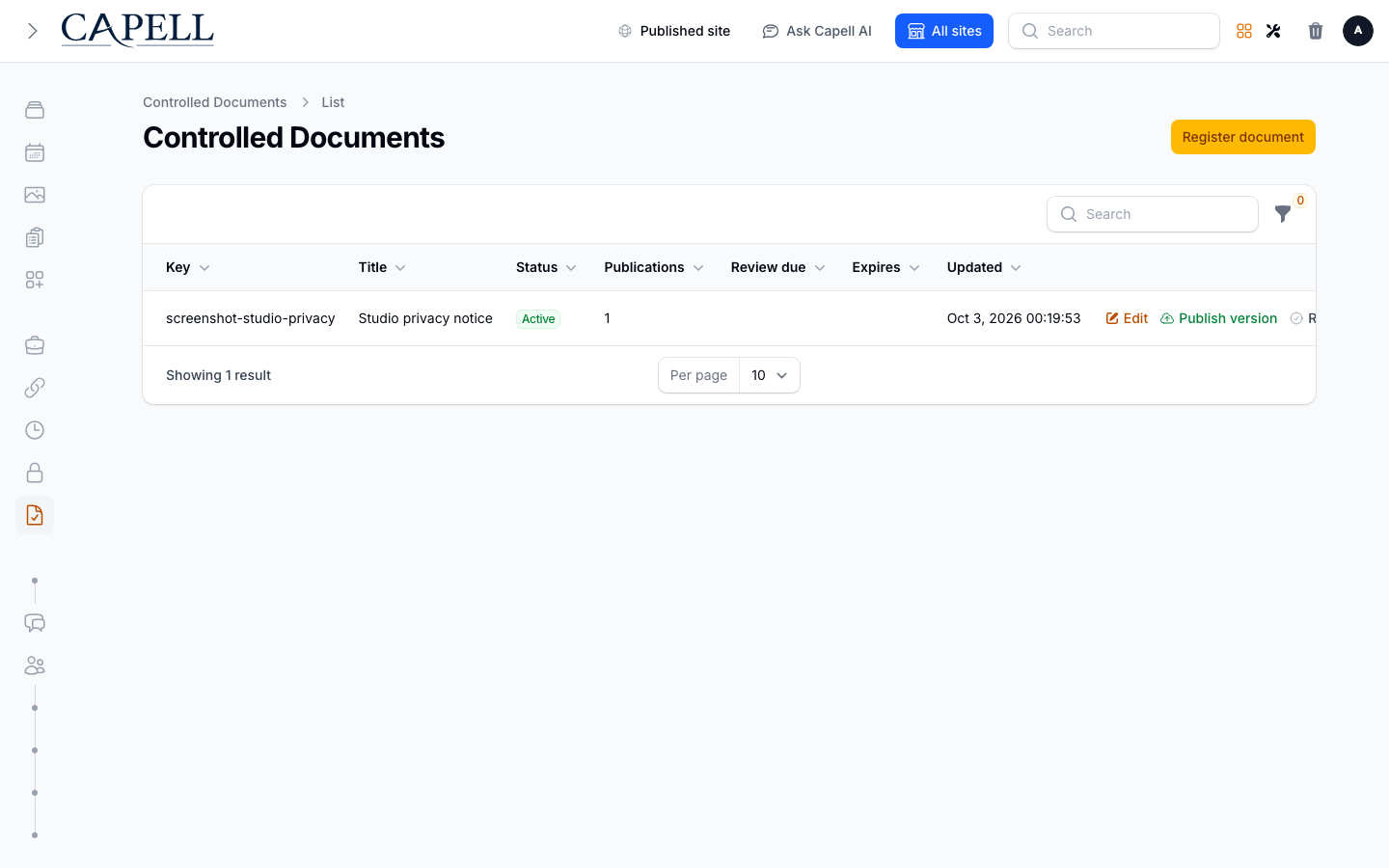
Section titled “How to add and version a document”- Go to Workflow > Controlled documents.
- Add a document with a stable key, title, status, metadata, and any review or expiry dates.
- Use Publish version on the document to add the version label, immutable text content, and an optional admin note. Earlier publications remain in Publications.
How to update a document’s details
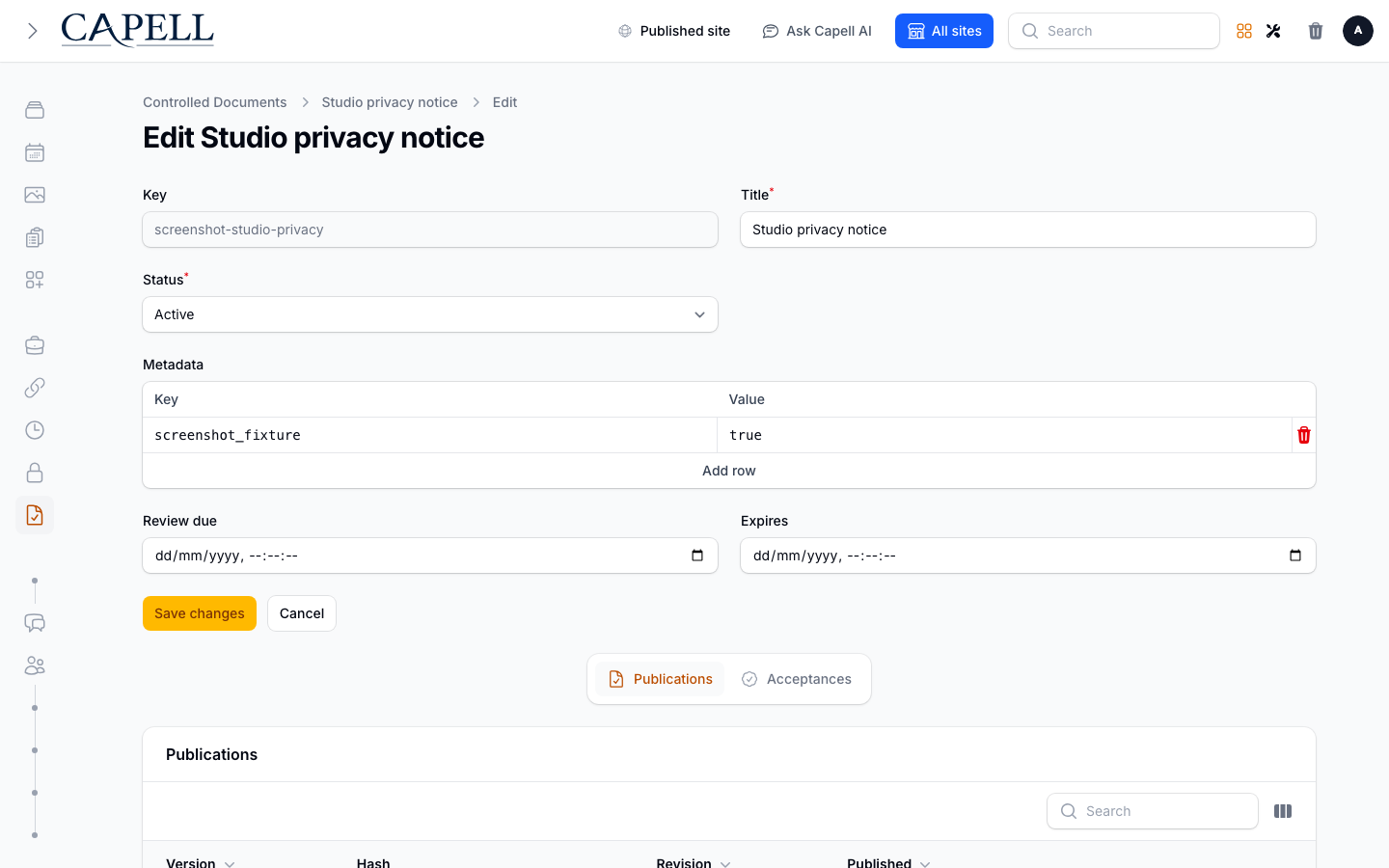
Section titled “How to update a document’s details”- Open a document from Workflow > Controlled documents.
- Change its title, lifecycle status, or other details. The key field stays fixed so links keep working.
- Save your changes.
How to set review and expiry dates
Section titled “How to set review and expiry dates”- Open the document.
- Set its review date and Expires date.
- Save. Expired documents are handled by the scheduled archive process; use your normal review process to act before that date.
How to send a document for approval
Section titled “How to send a document for approval”- Open the document and use Publish version to record the approved content, version label, and an optional approval note.
- This resource does not route approval tasks or track approver status. Run the review and approval process through your organisation’s workflow before publishing.
- Use Publications to confirm the immutable version and its publish time.
How to check published versions
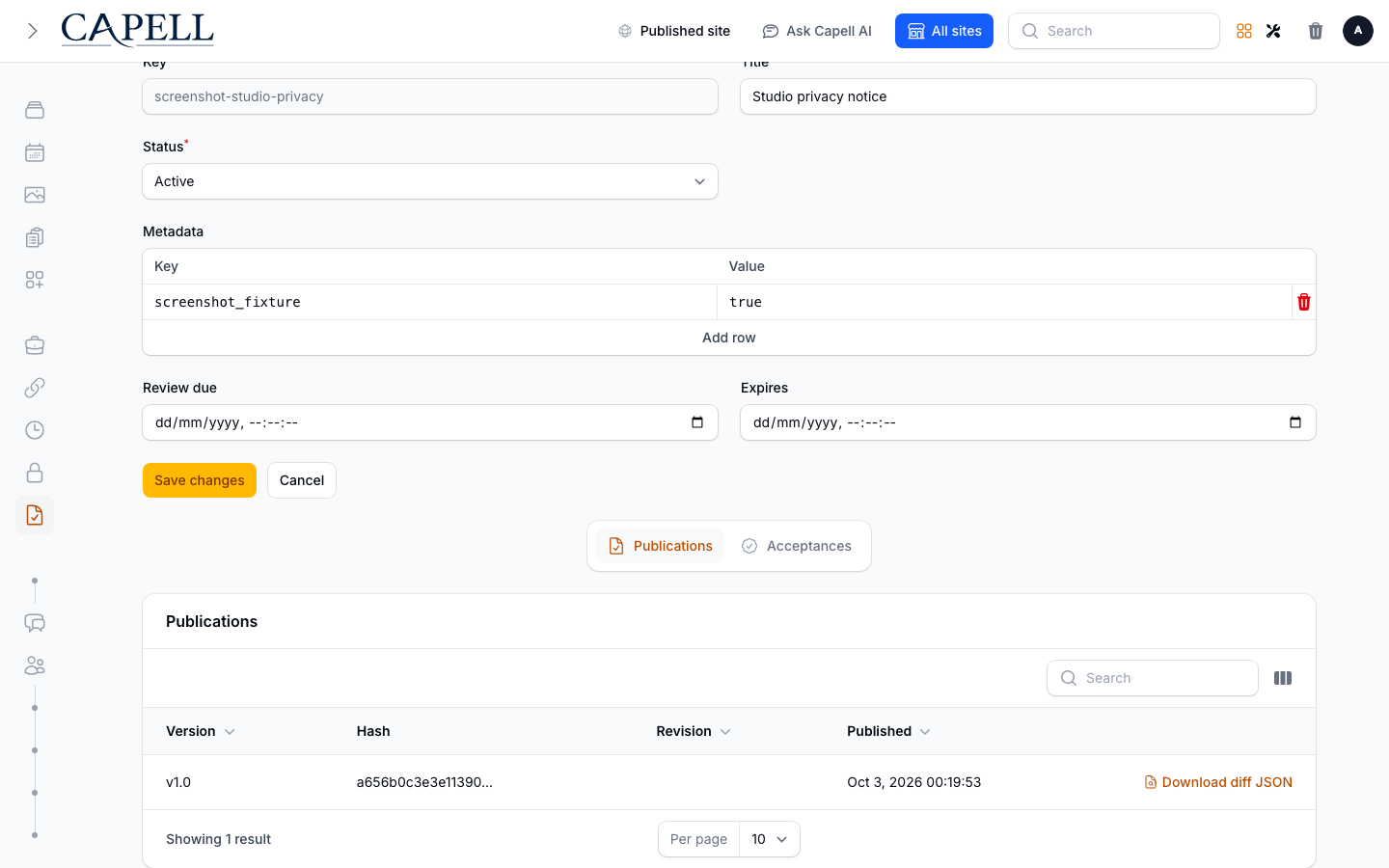
Section titled “How to check published versions”- Open a document and go to Publications.
- Each published version is locked and kept on record, with its own hash, revision reference, and publish time.
- Use this list when you need to confirm exactly what was published and when.
How to track acceptances
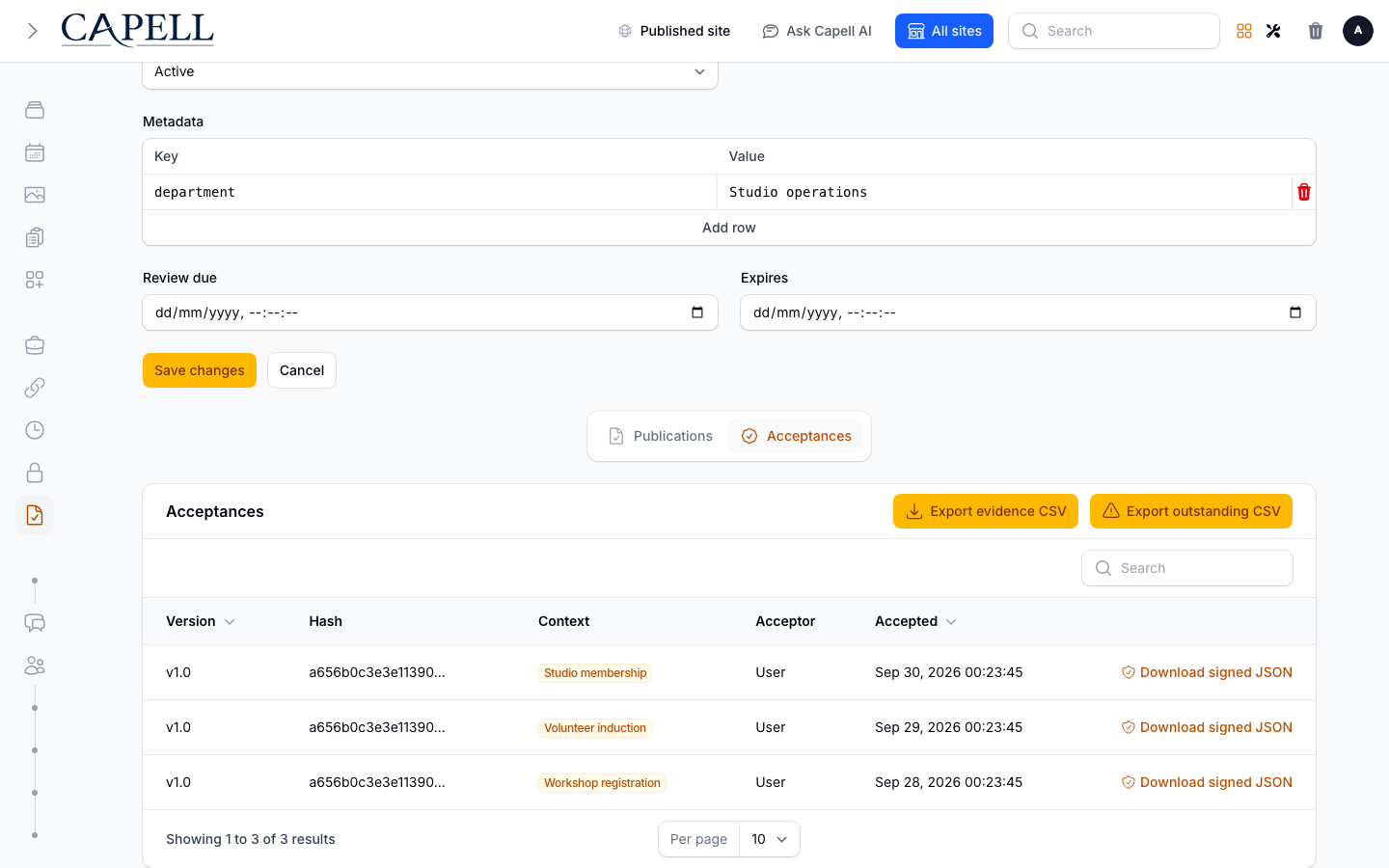
Section titled “How to track acceptances”- Open the document’s Acceptances tab.
- See who has accepted the current version.
- Use Export evidence CSV if you need a record.
How to archive a document
Section titled “How to archive a document”- Open the document.
- Click Archive document when it is retired.
- It moves out of the active list but stays on record.
Rolling out Document Lifecycle (for owners)
Section titled “Rolling out Document Lifecycle (for owners)”Turn on first
Section titled “Turn on first”- Versioning and expiry reminders. Get documents under version control with review dates before adding approvals.
Add when needed
Section titled “Add when needed”| Need | Enable |
|---|---|
| Require sign-off before use | Approvals |
| Prove people read a policy | Acceptances and Export evidence CSV |
Don’t enable yet
Section titled “Don’t enable yet”- Don’t add complex approval chains before the basics (versions and expiry dates) are in routine use.
Who does what
Section titled “Who does what”| Role | First useful screen |
|---|---|
| Document owner | Workflow > Controlled documents: publish versions and set dates |
| Site owner | Acceptances and evidence exports |
Troubleshooting for editors
Section titled “Troubleshooting for editors”| What you see | What it means | What to do |
|---|---|---|
| A document expired or was archived | Its Expires date passed and the scheduled archive process ran | Restore it if appropriate, then review the expiry date and status |
| People are using an old version | The new version wasn’t published, or acceptances are pending | Confirm the current version and chase outstanding acceptances |
| I can’t prove someone accepted a policy | Acceptance wasn’t recorded | Use Export evidence CSV for recorded acceptances; ensure acceptance is required |
| A retired document still shows | It wasn’t archived | Open it and Archive document |