This guide is for editors who brand the emails customers receive and owners deciding what to change. Every step uses the labels you see on screen. Everything lives under the Email Studio group in the admin menu.
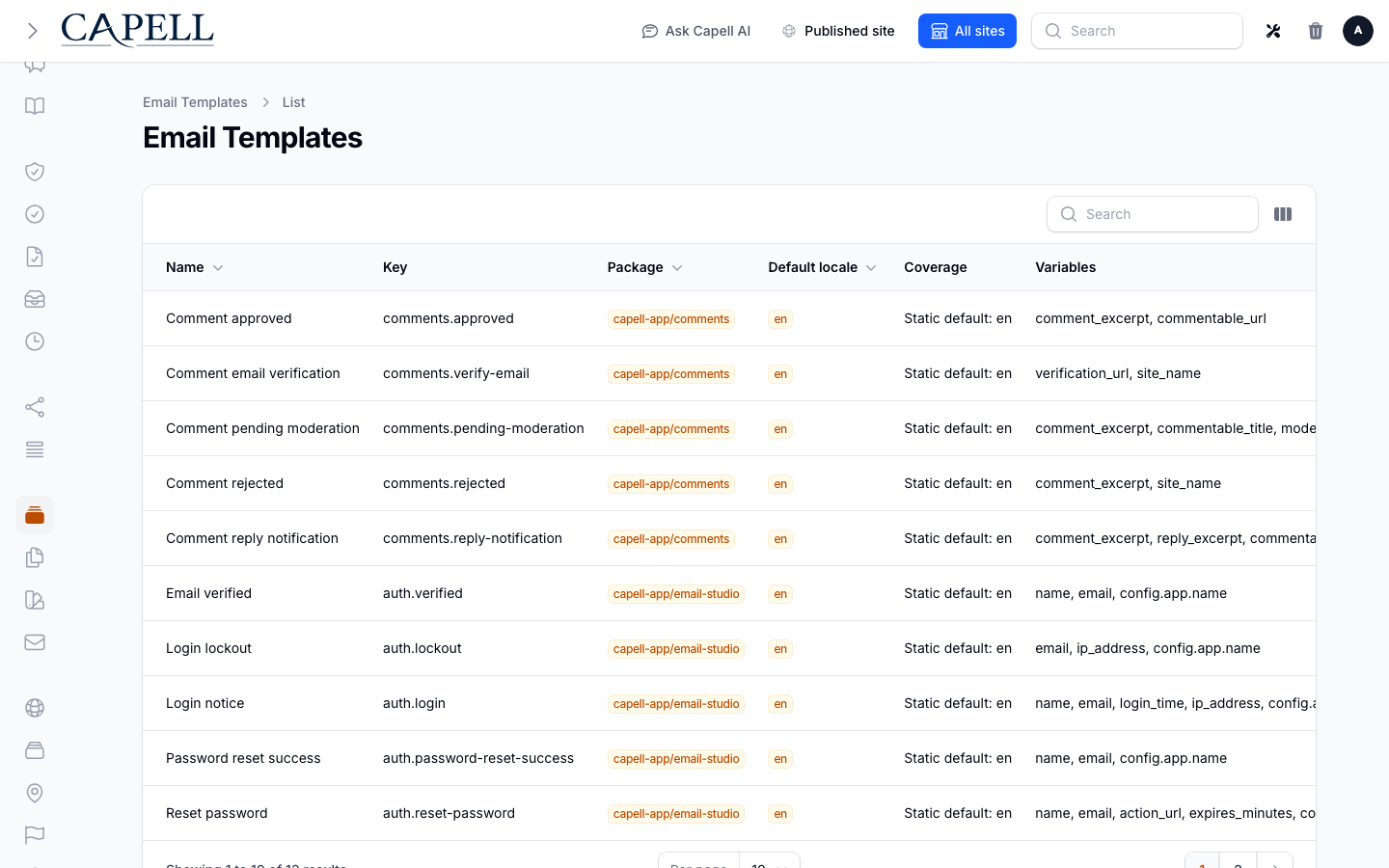
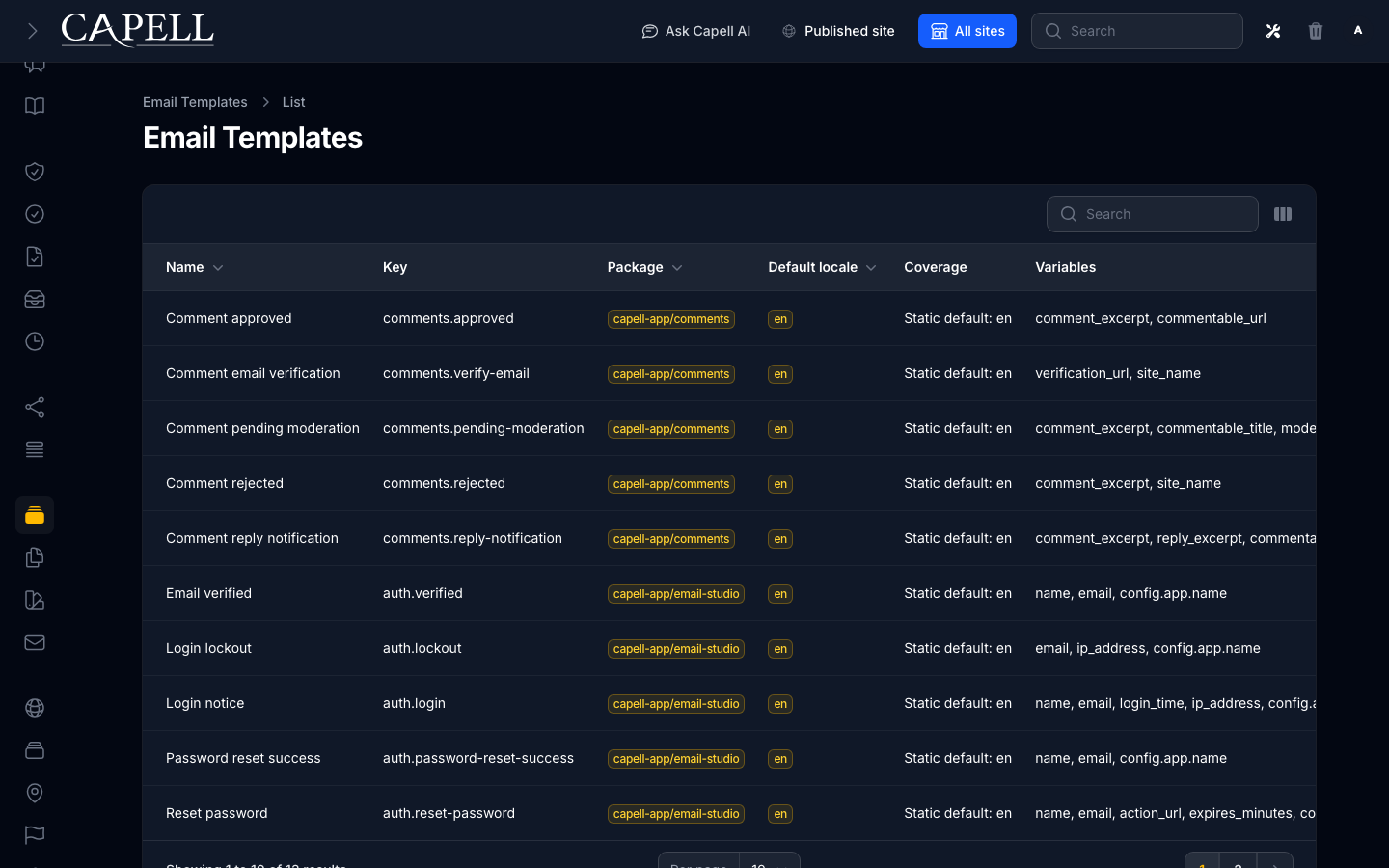
Go to Email Studio > Email Templates and find the email you want (for example the welcome email).
Use Customize to start your own editable version from the package default.
Go to Email Studio > Template Variants and open the new draft for that template.
Edit its subject, preview text, recipients, content, and selected email theme. Save the draft.
Use Activate when the draft is ready to become the version customers receive.
The list shows each template’s Package , Coverage , and Status , so you can see at a glance which emails are still on the Static default and which you have customised.
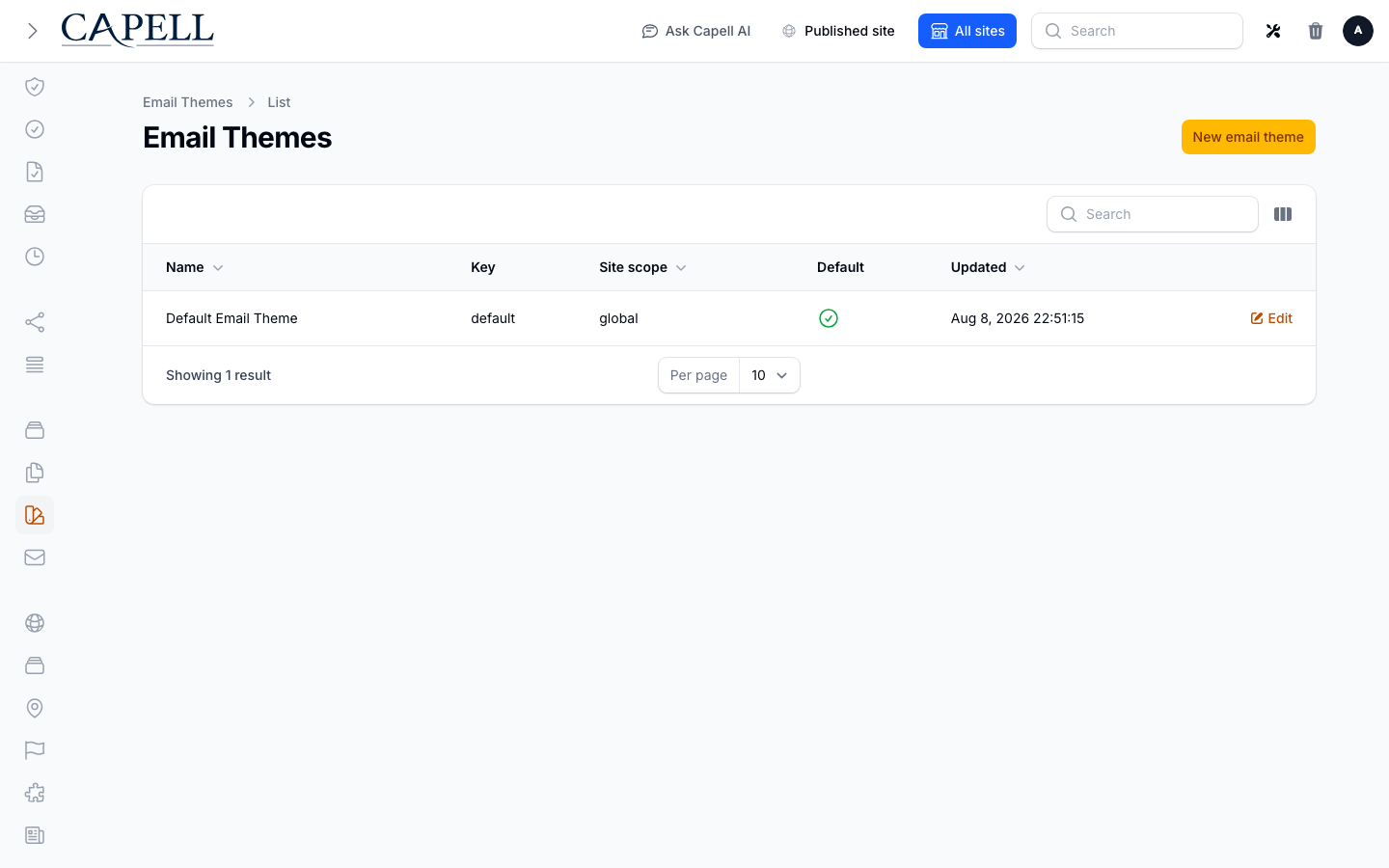
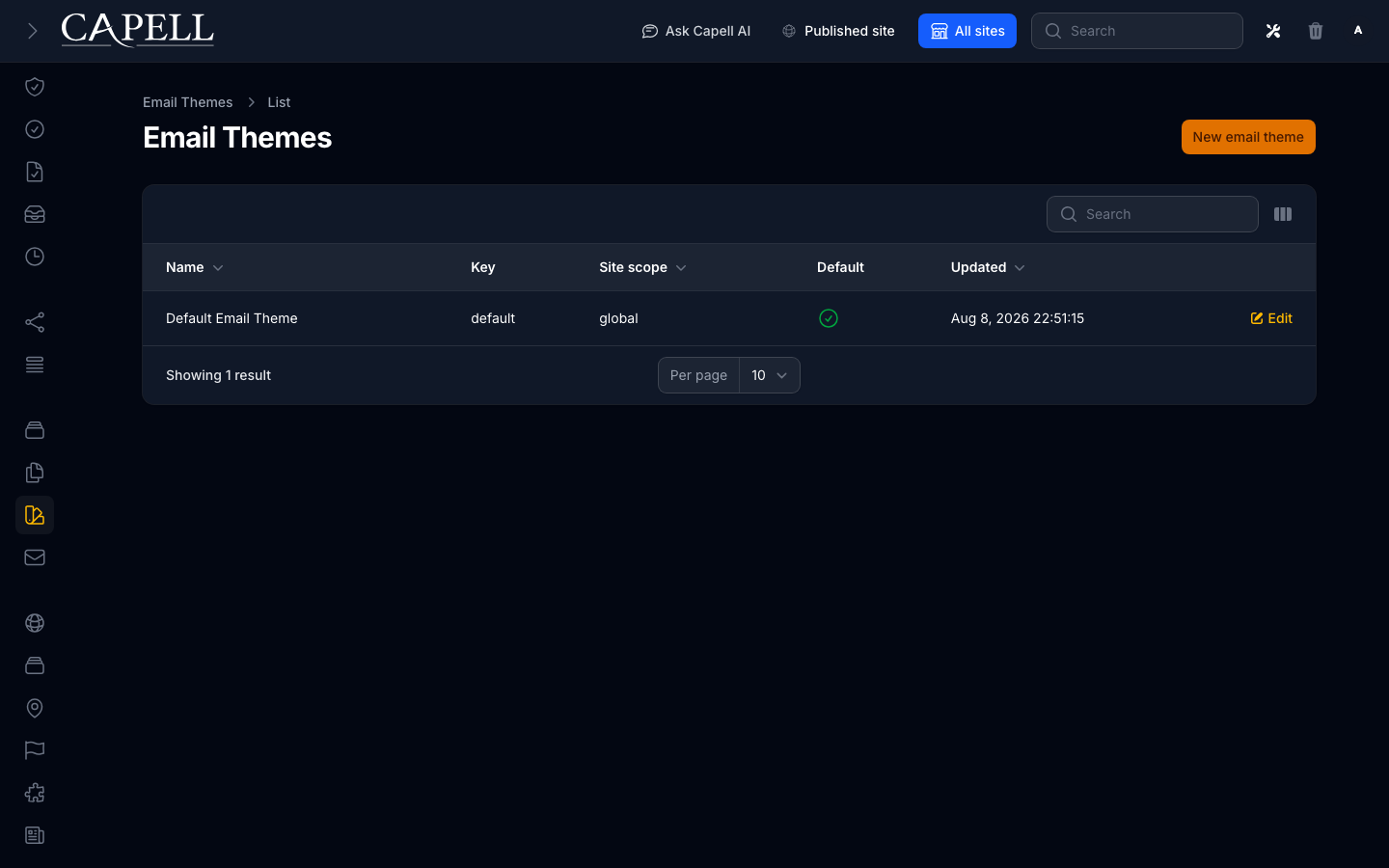
Go to Email Studio > Email Themes .
Open the theme you want to edit, or add a site theme for your brand.
Set the shared branding tokens, such as Logo URL , Header background , Button background , and Button text .
Use Make default on the theme you want themed templates to use.
Save. Templates that use the theme pick up your branding without editing each one.
With a template open in the list, use Preview .
Check how it looks before any customer receives it.
If the preview flags unresolved variables, fill in the missing details before sending.
From the template list, use Send test .
Enter the Test recipient address (your own).
Send it, then confirm the content, links, and branding are right before going live.
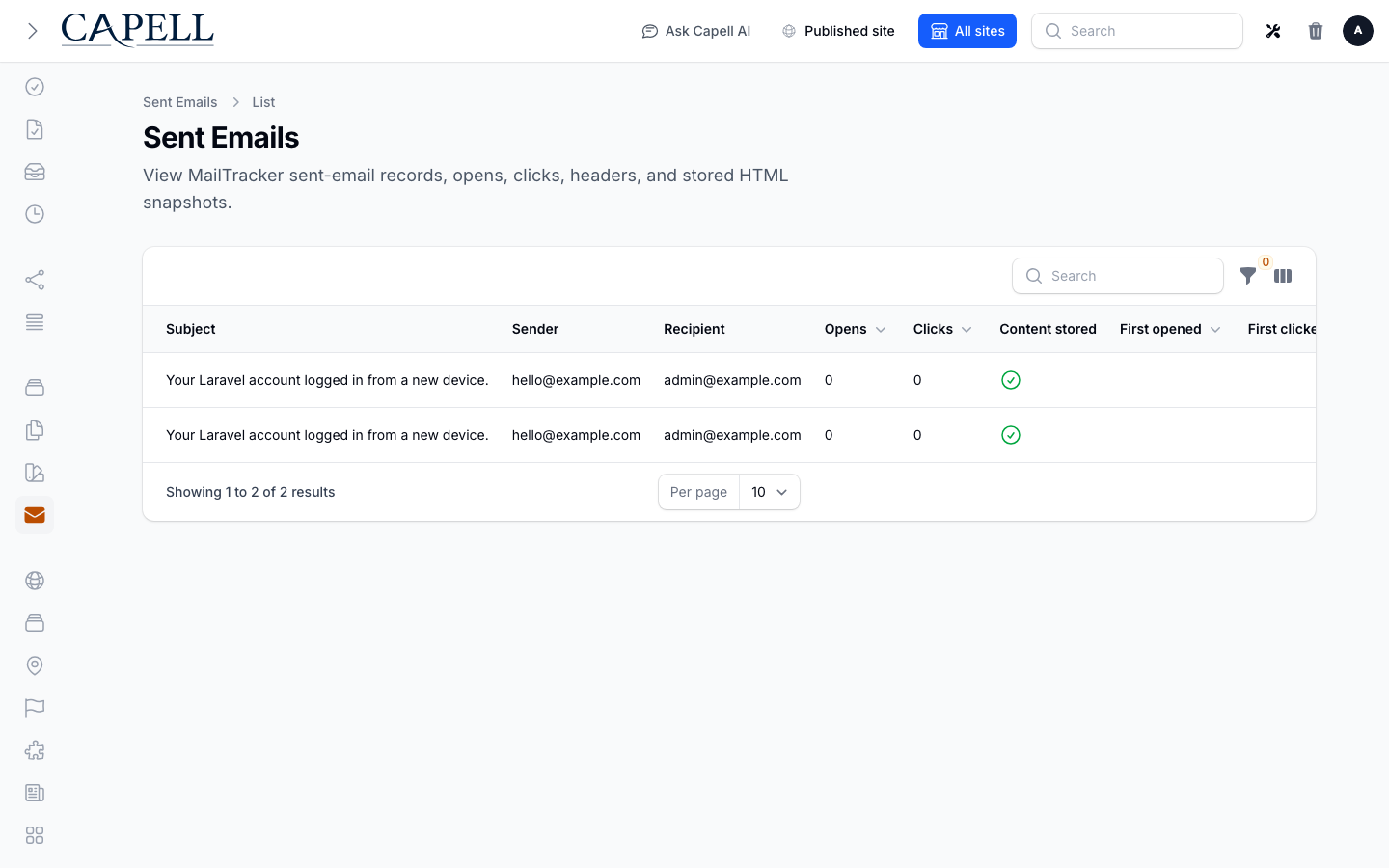
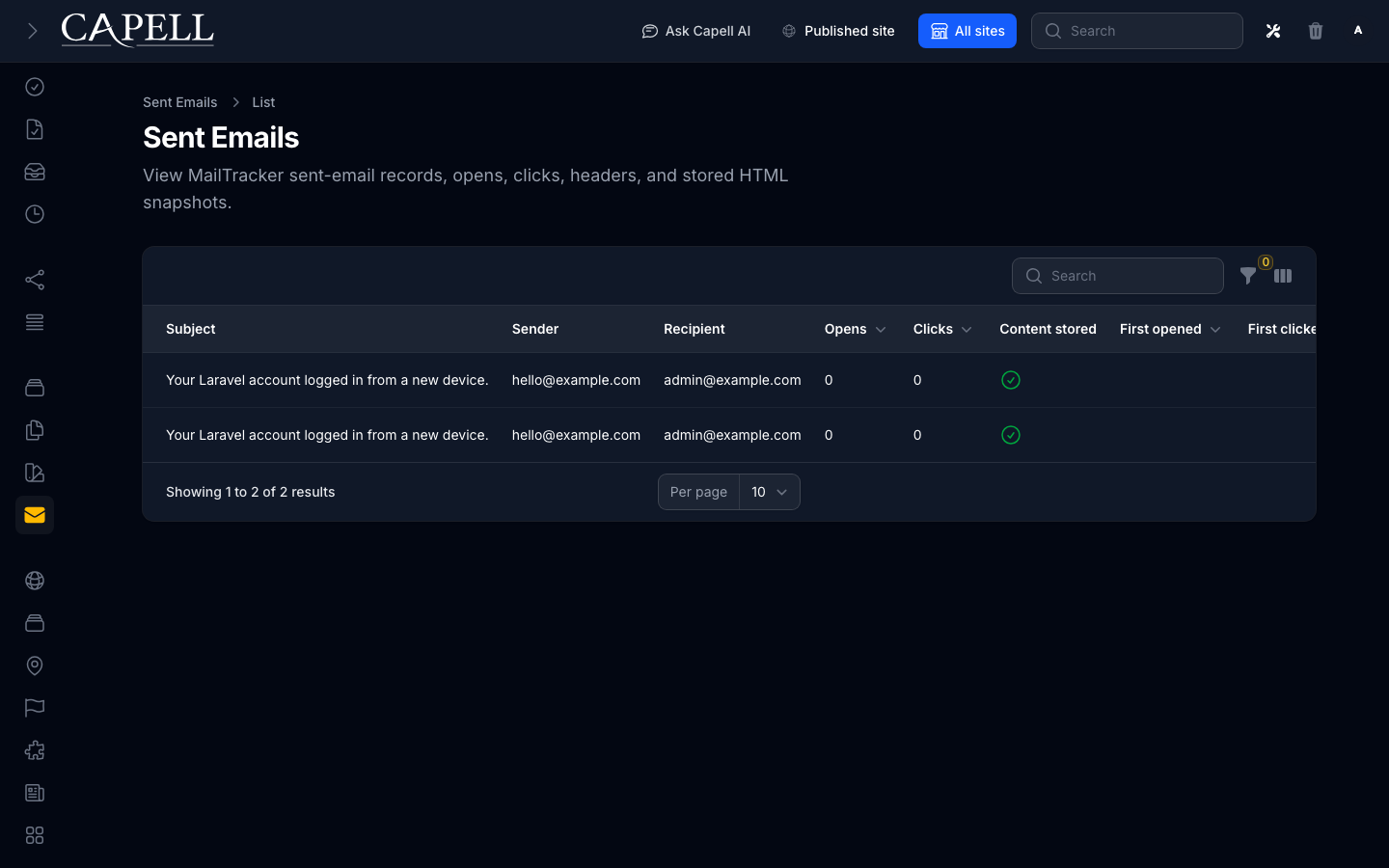
Go to Email Studio > Sent emails .
Each row shows the Subject , Sender , Recipient , and whether the message has Opens and Clicks .
Use the filters to narrow by Sent date , or to show only those that were Opened or Clicked .
Use this when a customer says an email didn’t arrive.
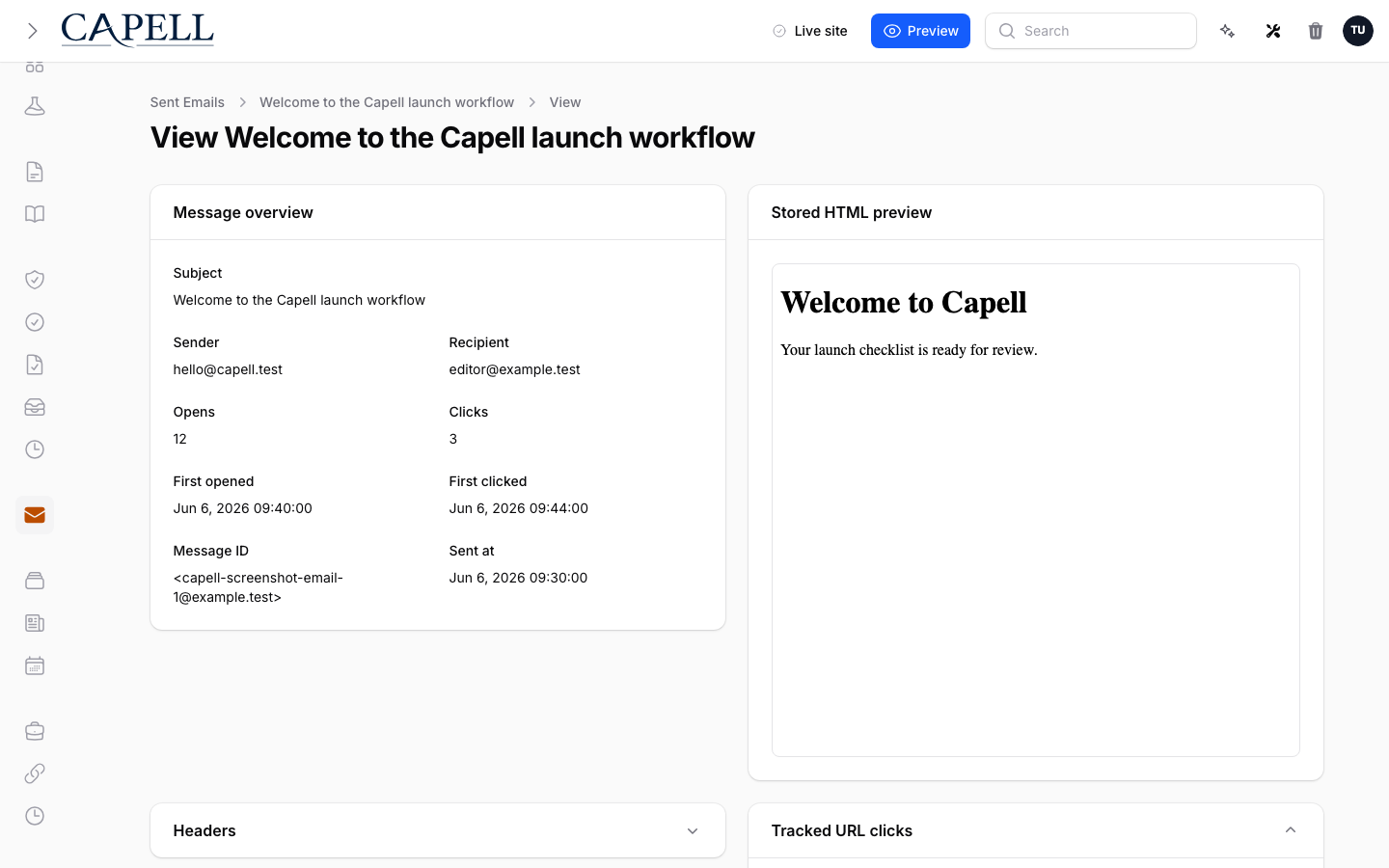
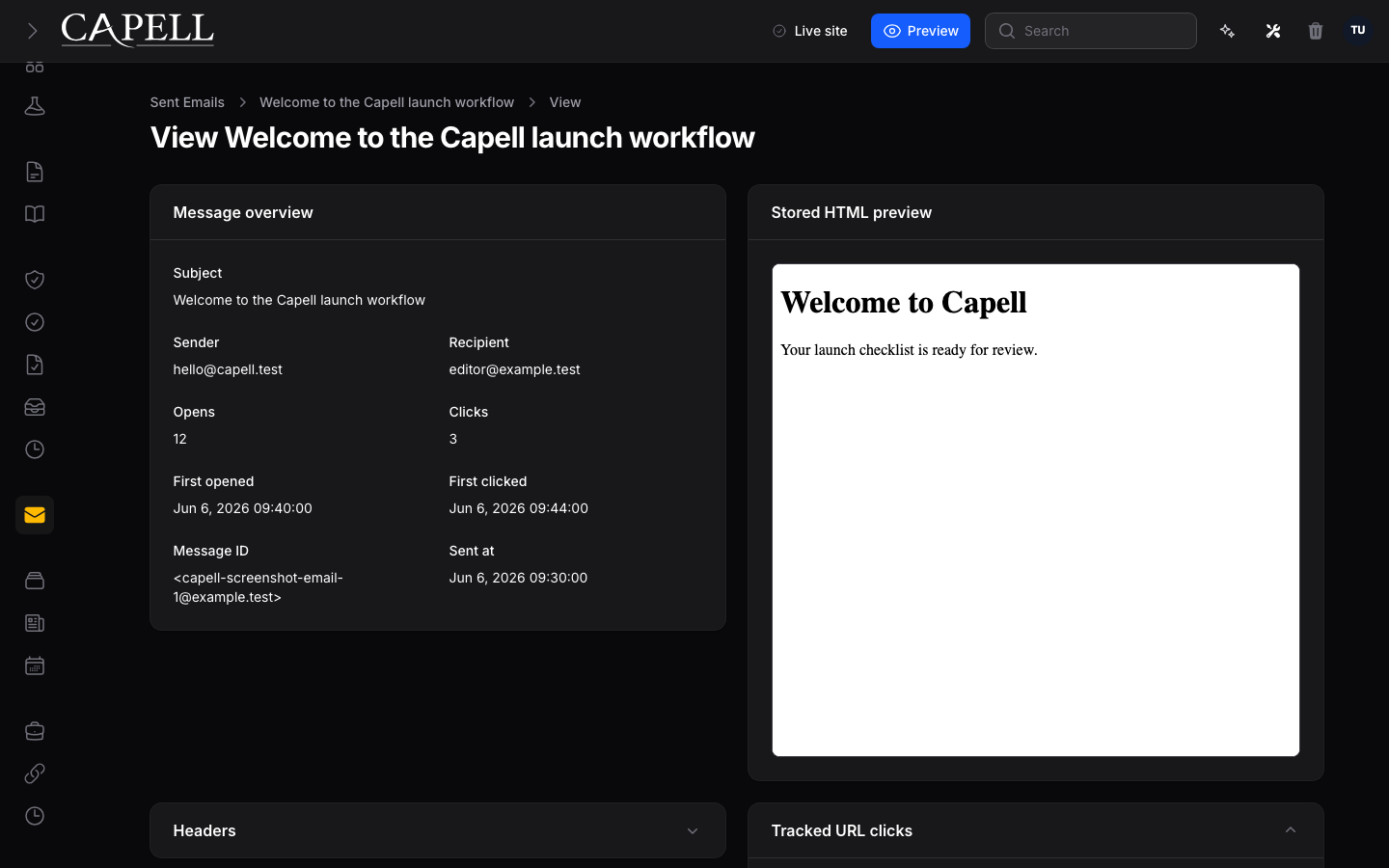
From Email Studio > Sent emails , open the message you want.
Read the Message overview for the basics, and the Headers section for delivery details.
Check Tracked URL clicks to see which links the recipient followed.
If content storage is on, use the Stored HTML preview to see exactly what was sent. This snapshot does not change.
Branding the core templates. Edit the everyday emails (welcome, password reset) and test them before relying on them.
Need Enable Confirm an email was opened Track opens in Email Studio settingsSee which links were followed Track clicks in Email Studio settingsInspect exactly what was sent Store rendered email content in settingsApply one brand across emails An Email theme , set with Make default
Don’t change a template customers depend on without a test send first. These emails are transactional.
Role First useful screen Editor Email Studio > Email Templates : edit and brandSite owner Email Studio > Sent emails : confirm delivery
What you see What it means What to do A customer says an email didn’t arrive It may have failed or gone to spam Check Email Studio > Sent emails for that email’s row The email looks unbranded The template wasn’t saved, or the wrong one was edited Re-open the correct template, apply branding, and save A test email looks broken A content or link issue in the template Fix it, Preview again, and re-test before going live Opens show as zeroOpen tracking is off, or the email wasn’t opened Confirm Track opens is on in Email Studio settings Clicks show as zeroClick tracking is off, or no link was followed Confirm Track clicks is on in Email Studio settings The stored HTML preview is empty Email content storage is off Turn on Store rendered email content in settings A preview shows leftover variables The template still has unresolved placeholders Fill in the missing details, then Preview again