
Using Events
This guide is for the people who run events on the site: editors who create and schedule events, and administrators who manage venues, attendees, and the calendar. No technical knowledge needed. Every step uses the labels you see on screen.
Using Events (editor how-to)
Section titled “Using Events (editor how-to)”How to review your events
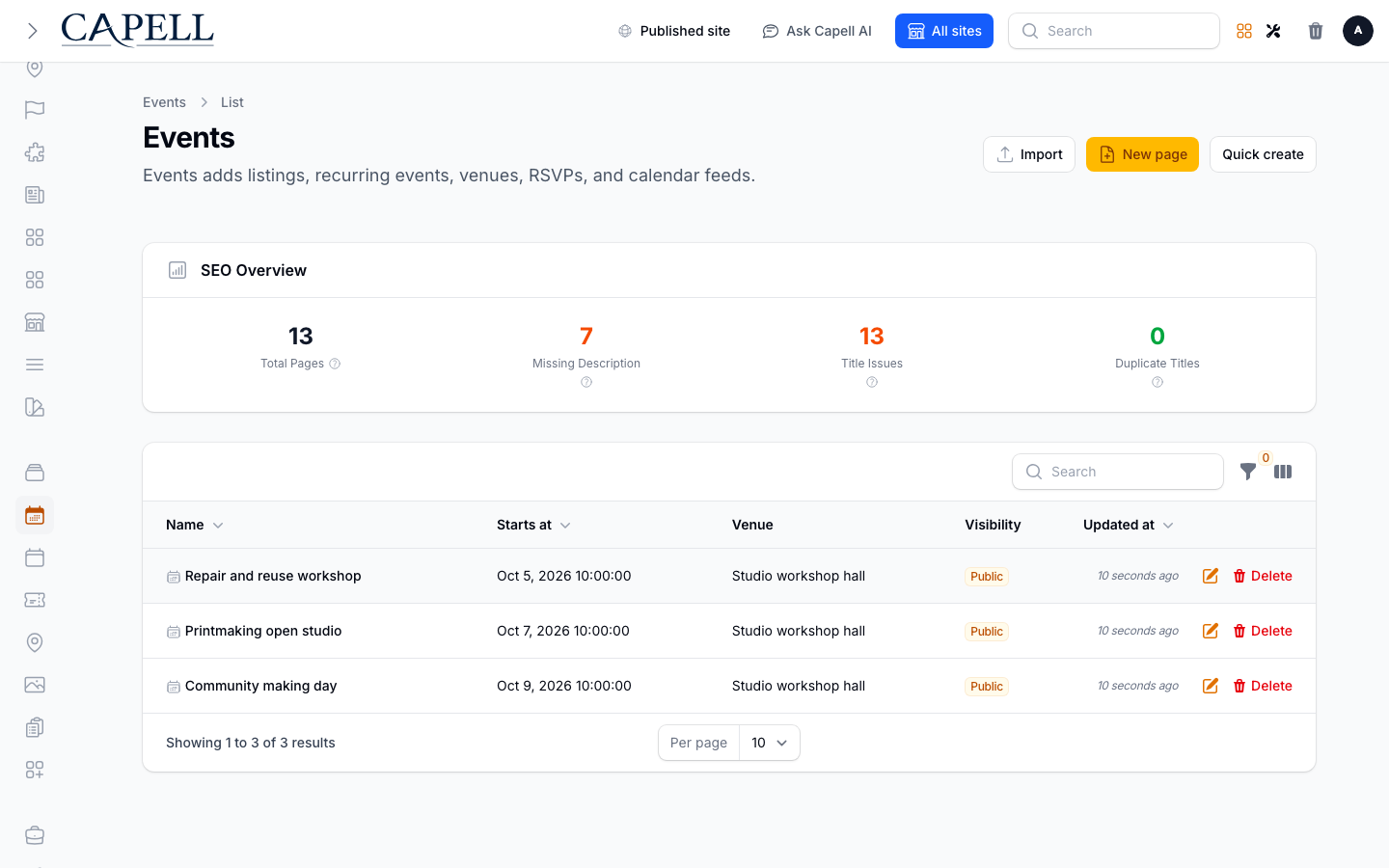
Section titled “How to review your events”- Go to Content > Events.
- The list shows each event’s start date, Venue, and Visibility.
- Use this view to find an event before opening it to change its schedule or registration settings.
- Click an event to open it for editing, or use New event to start a new one.
How to create an event
Section titled “How to create an event”- From Content > Events, click the button to create a new event.
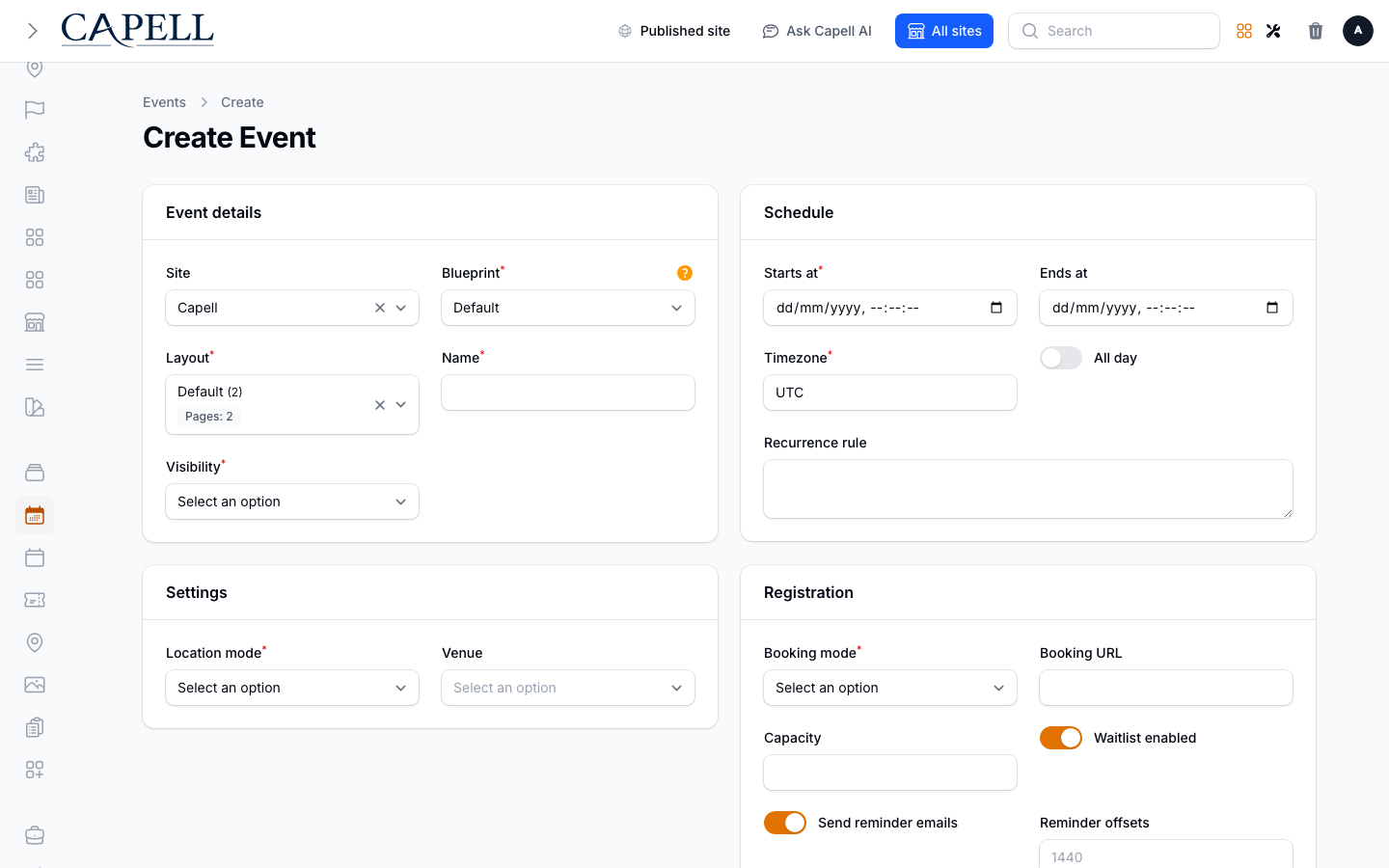
- Under Event details, give the event a Name, choose its Site, and pick a layout. Set the Visibility to Public so it appears on the site, or to Unlisted or Private to keep it out of public listings.
- Under Schedule, set Starts at and, if it has an end time, Ends at. Set the Timezone, and switch on All day for events without set hours.
- To repeat the event, fill in the Recurrence rule. The package then builds a separate dated page for each occurrence.
- Under Settings, choose the Location mode and, if it is held at a place, pick a Venue.
- Under Registration, choose a Booking mode. For an outside ticket page, set External and add the Booking URL. To take sign-ups on the site, choose the RSVP option, set a Capacity, and turn on Waitlist enabled so people can still join once it is full.
- To email attendees before the event, leave Send reminder emails on and set the Reminder offsets in minutes before the start.
- Save the event.
How to edit a recurring event
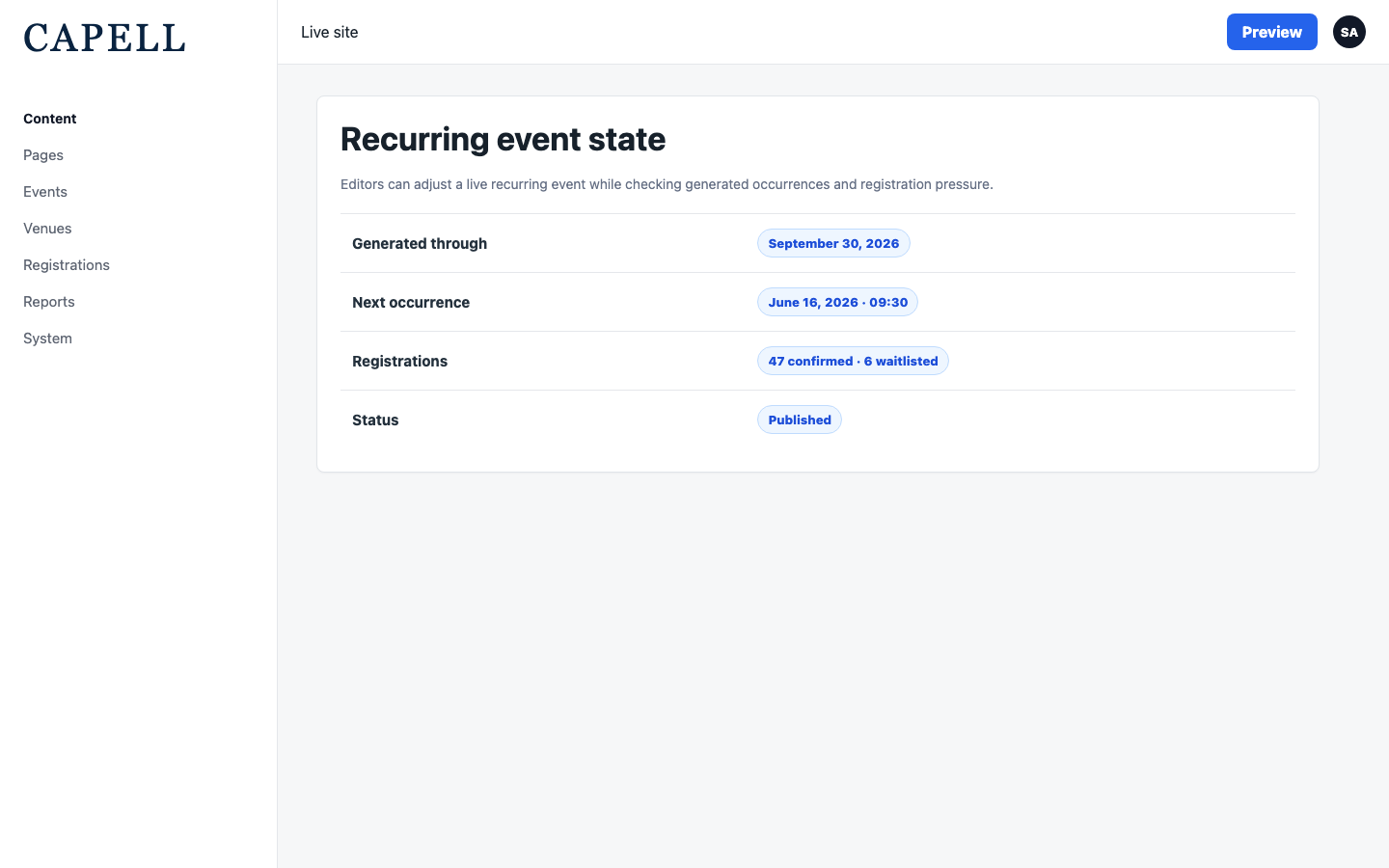
Section titled “How to edit a recurring event”- Go to Content > Events and open the event.
- Change the Schedule or Recurrence rule as needed. The generated occurrences update to match.
- Check the Visibility and Registration settings before saving.
- Save the event.
How to manage venues
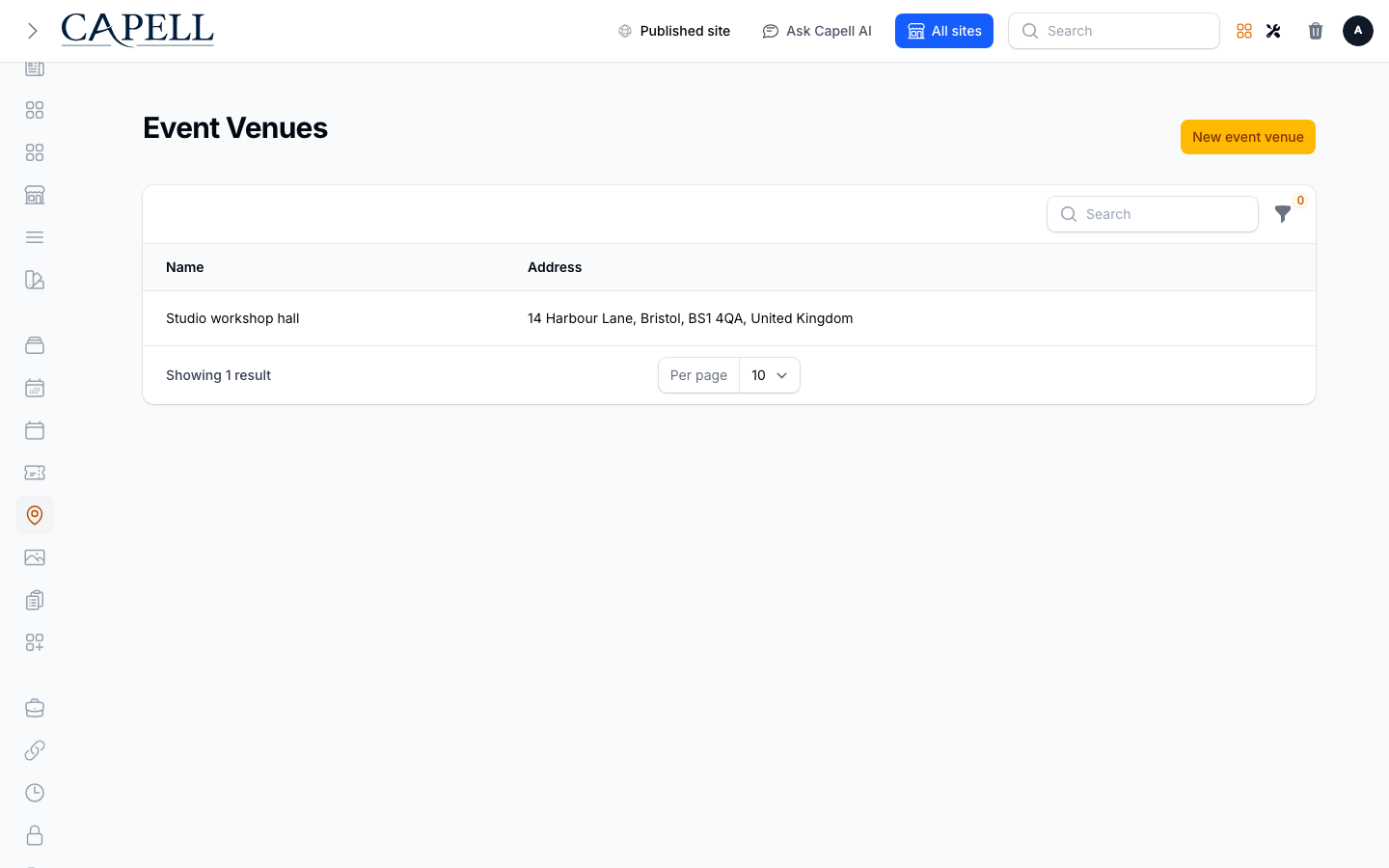
Section titled “How to manage venues”- Go to Content > Event venues.
- Add a venue and fill in its Address and Map URL so the place shows correctly on the event page.
- Reuse the same venue across many events instead of typing the address each time.
How to review the dates of a recurring event
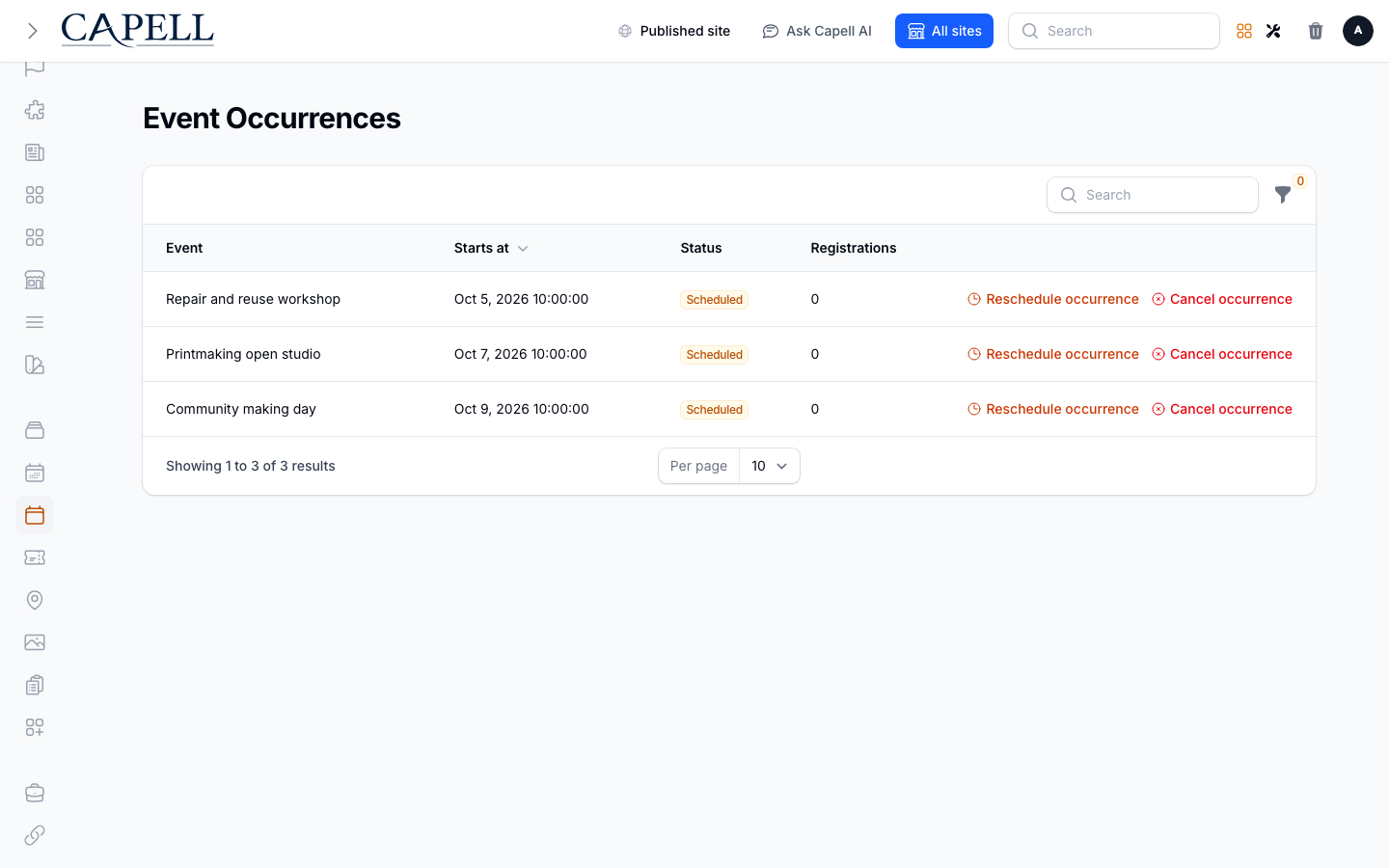
Section titled “How to review the dates of a recurring event”- Go to Content > Event occurrences.
- This shows the individual dates the package generated for your events, with each occurrence’s Status and registration count.
- To change a single date, use Reschedule occurrence. To call one off without affecting the rest, use Cancel occurrence.
How to manage attendee registrations
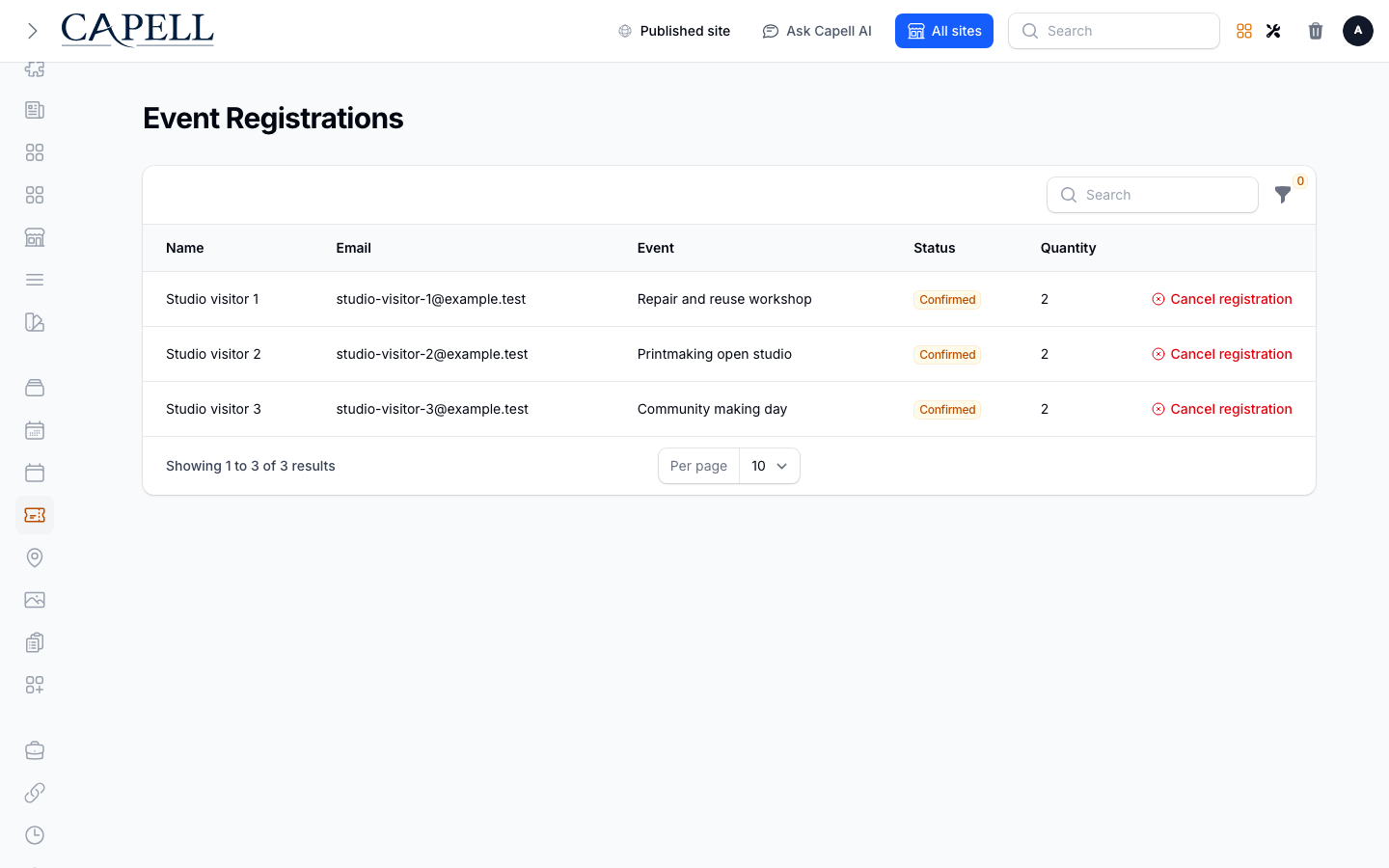
Section titled “How to manage attendee registrations”- Go to Content > Event registrations.
- The list shows each attendee’s Name, Email, Quantity, Status, and the occurrence they signed up for.
- Use Confirm registration to approve a pending sign-up, or Cancel registration to remove one. When a confirmed place is freed, a waitlisted attendee can move up.
How to scan upcoming events on the calendar
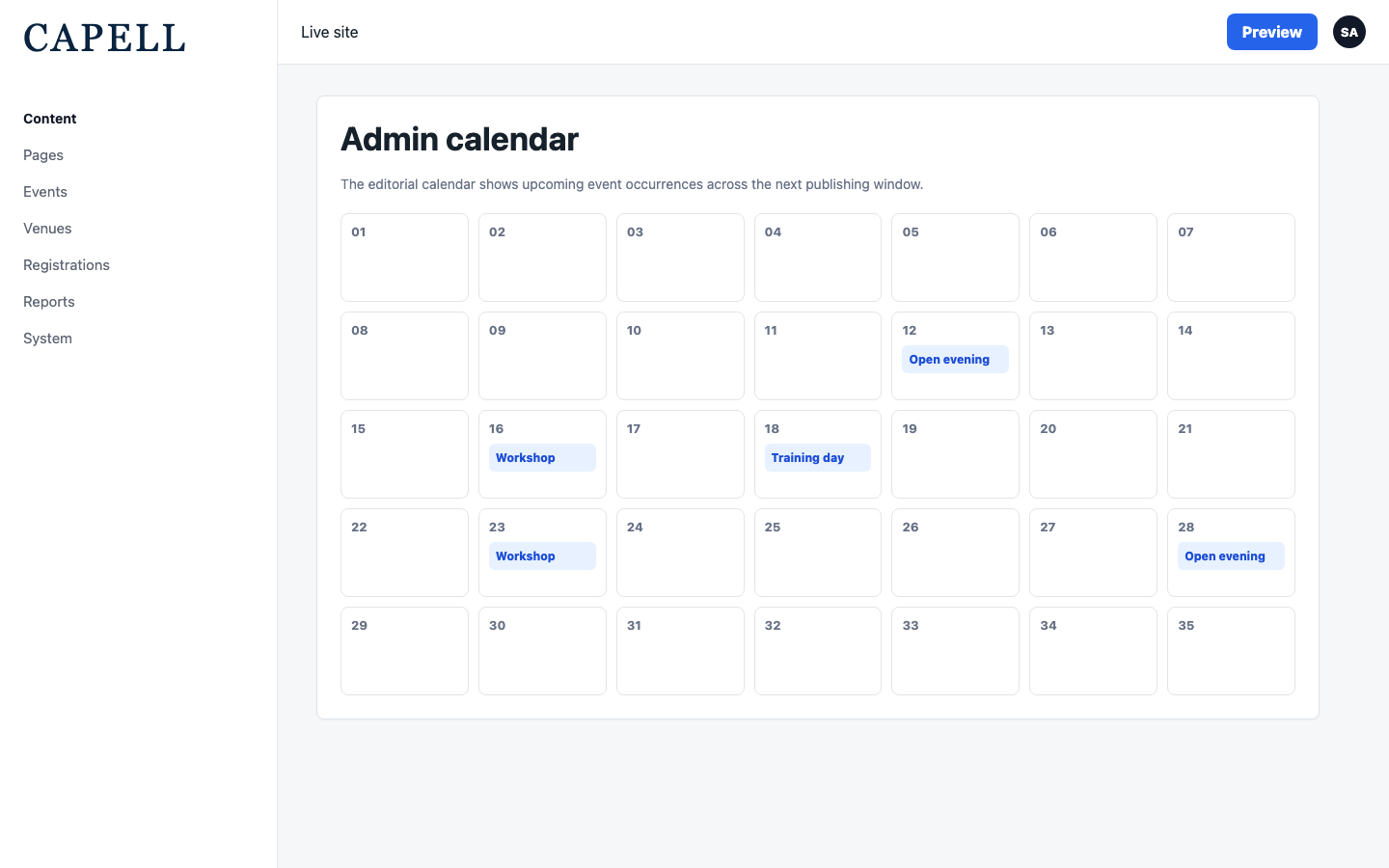
Section titled “How to scan upcoming events on the calendar”- Go to Content > Event calendar.
- The calendar shows upcoming event occurrences across the coming weeks so you can see the programme at a glance.
- Use the month controls to move between Previous month and Next month.
How to see upcoming events without leaving your work
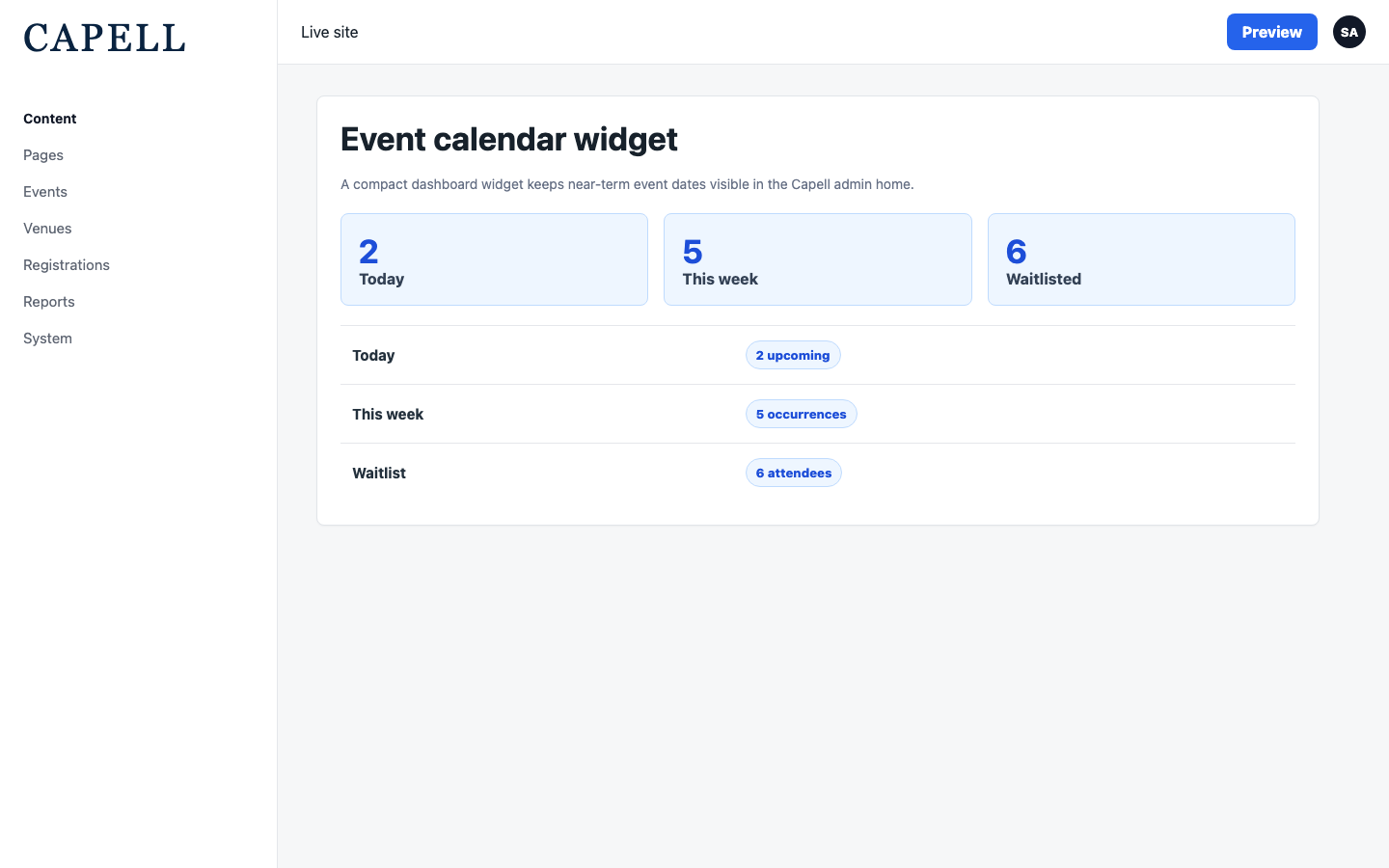
Section titled “How to see upcoming events without leaving your work”- The event calendar widget appears on the dashboard where it has been added.
- It lists upcoming event dates so you can check the near-term schedule without opening the full calendar.
Rolling out Events (for owners)
Section titled “Rolling out Events (for owners)”Turn on first
Section titled “Turn on first”- Events and the schedule. This is the core of the package: creating an event, setting its schedule, and publishing it. Start here and get your team comfortable creating a single event before adding recurrence or registration.
Add when needed
Section titled “Add when needed”| Need | Enable |
|---|---|
| Hold events at set places | Event venues with address and map details |
| Repeat an event on a pattern | A Recurrence rule on the event |
| Take sign-ups on the site | An RSVP Booking mode, with a Capacity set |
| Keep taking sign-ups once an event is full | Waitlist enabled |
| Remind attendees before the event | Send reminder emails with Reminder offsets |
Who does what
Section titled “Who does what”| Role | First useful screen |
|---|---|
| Editor | Content > Events: create, schedule, and publish events |
| Administrator | Content > Event venues and Content > Event registrations: places and attendees |
| Site owner | Content > Event calendar: see the whole upcoming programme |
Troubleshooting
Section titled “Troubleshooting”| What you see | What it means | What to do |
|---|---|---|
| My event isn’t on the site | Its Visibility is Unlisted or Private | Open the event and set Visibility to Public |
| A recurring event shows no dates | The Recurrence rule is empty or does not produce future dates | Open the event, check the Recurrence rule and Starts at, then save |
| People can’t RSVP | The Booking mode does not take sign-ups, or Capacity is full | Set an RSVP Booking mode and a Capacity; turn on Waitlist enabled if it is full |
| Reminder emails didn’t go out | Send reminder emails is off, or the Reminder offsets are wrong | Open the event, turn on Send reminder emails, and check the Reminder offsets |
| A single date is wrong | One occurrence needs its own change | Go to Content > Event occurrences and use Reschedule occurrence or Cancel occurrence |