
Using Experiments
This guide is for owners and operators who run A/B tests: people who set up a test, send a share of visitors to each version, and pick the version that performs best. No technical knowledge needed. Every step uses the labels you see on screen. Everything lives under the Experiments group in the admin menu.
Using Experiments (operator how-to)
Section titled “Using Experiments (operator how-to)”How to set up an experiment
Section titled “How to set up an experiment”- Go to Experiments > Experiments.
- Click the button to add a new experiment.
- Give it a Name you will recognise later, and a short Key that identifies the test.
- Set the Status to Draft while you are still building it. Visitors are not split until the test is running.
- Choose the Subject type so the test knows what it is changing (for example a Page).
- Set the Traffic percentage to decide how many visitors take part. Lower it if you want to expose only a slice of your audience.
- Optionally set Starts at and Ends at to limit when the test can allocate visitors. To have it start automatically later, set Status to Scheduled as well as choosing Starts at.
- Save the experiment.
Your experiment now appears in the list. The list shows each test’s Status along with how many Variants, Goals, and Allocations it has.


How to add the versions you want to compare
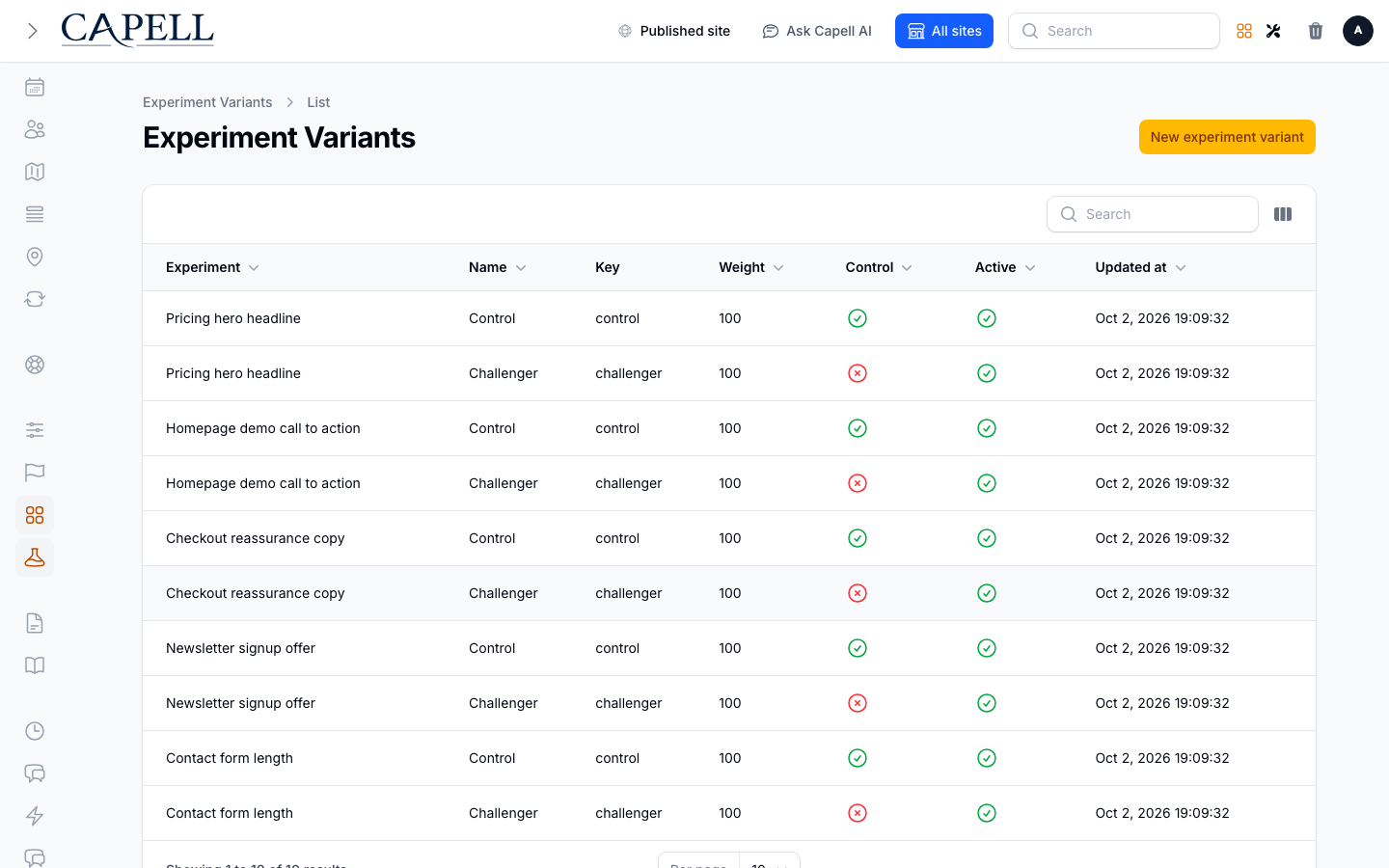
Section titled “How to add the versions you want to compare”- Go to Experiments > Variants.
- Click the button to add a new variant.
- Pick the Experiment this version belongs to.
- Give it a Name and a Key (for example “control” and “new headline”).
- Set the Weight to control how much of the test’s traffic this version receives. Equal weights split traffic evenly.
- Turn on Control for the version that represents your current page. Every test needs one control to measure against.
- Leave Active on so the version is included while the test runs.
- Use Sort order if you want the versions listed in a particular order.
- Save the variant, then repeat for each version you want to compare.
How to choose what counts as a win
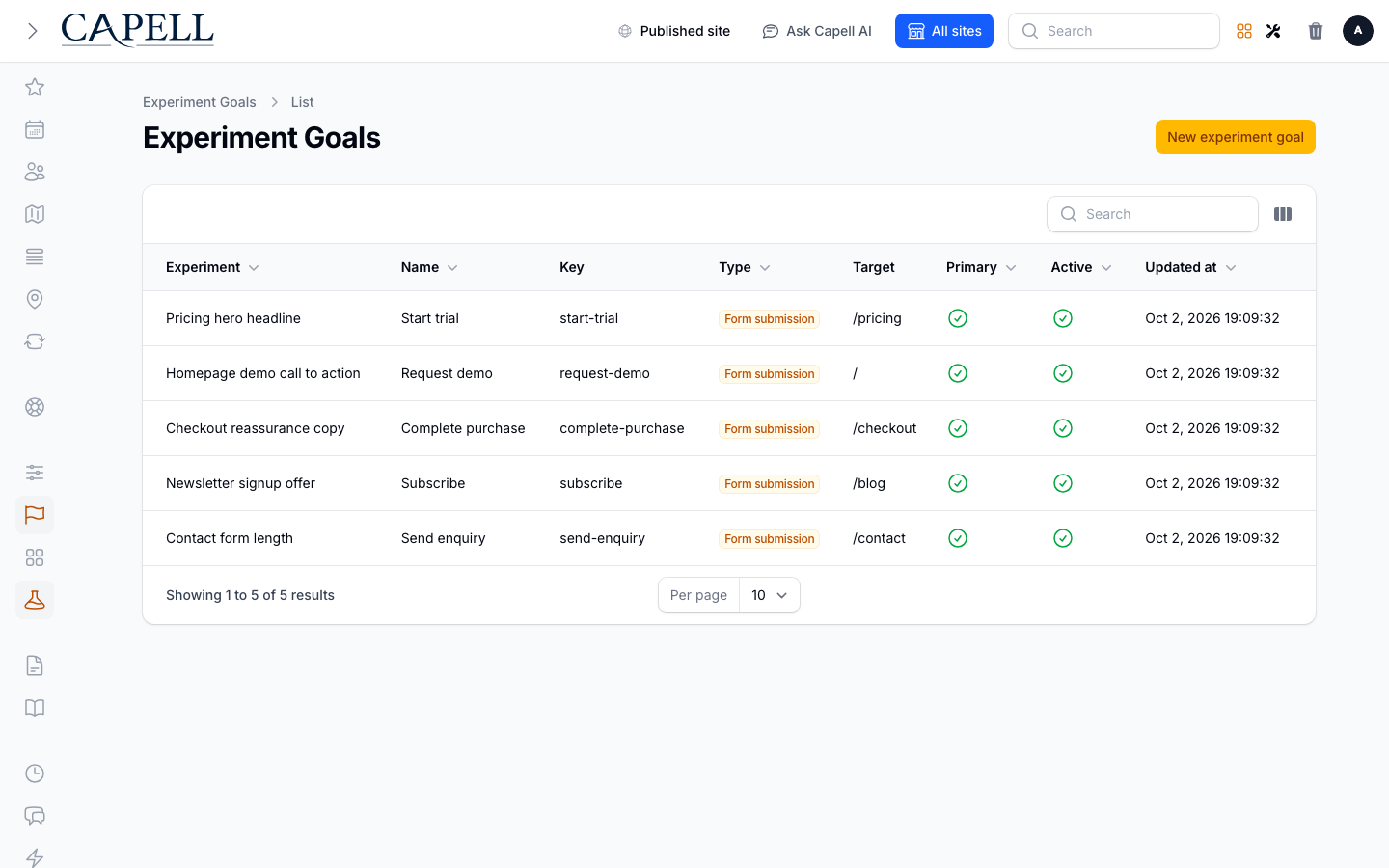
Section titled “How to choose what counts as a win”- Go to Experiments > Goals.
- Click the button to add a new goal.
- Pick the Experiment the goal belongs to.
- Give it a Name and a Key.
- Set the Type to match the action you are measuring, such as Page view, Click, Form submission, or Custom event.
- Fill in the Target if the goal needs one (for example the page or element being measured).
- Turn on Primary for the single goal you will use to pick the winner. Keep other goals as secondary measures.
- Leave Active on and save.
The list shows each goal’s Type and whether it is the Primary goal, so you can confirm the test is measuring the right thing before you launch.
How to decide who sees an experiment
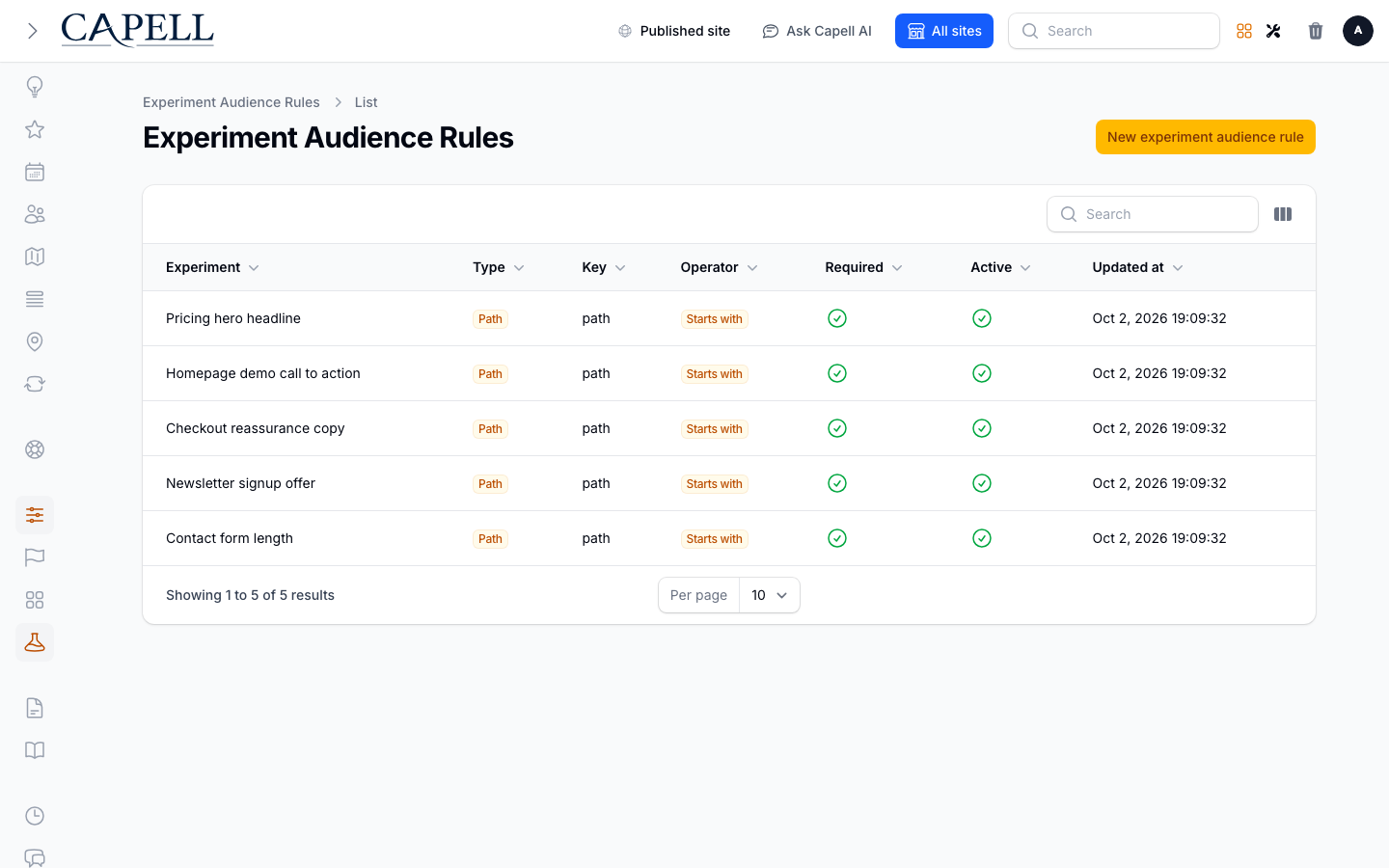
Section titled “How to decide who sees an experiment”- Go to Experiments > Audience rules.
- Click the button to add a new rule.
- Pick the Experiment the rule applies to.
- Choose the Type of rule, such as Path (which page they are on), Query, Referrer, or UTM.
- Set the Operator (for example Equals, Contains, or Starts with) and the value it should match.
- Leave Required on if every visitor must match this rule to take part. If you turn it off, it becomes an alternative: when an experiment has optional rules, a visitor must match at least one of them as well as every required rule.
- Leave Active on and save.
Only visitors who match your rules are entered into the test. With no rules, everyone in the traffic share takes part.
How to launch an experiment
Section titled “How to launch an experiment”- Go to Experiments > Experiments and open the test.
- For useful winner reporting, confirm it has at least two active Variants, mark your current version as Control, and add an active Primary goal.
- Change the Status from Draft to Active.
- Save. Visitors in your traffic share now start being split between the versions.
To start later, set Status to Scheduled and choose Starts at. The scheduled status-sync job changes it to Active when that time arrives. A future Starts at also prevents allocation while an experiment is active, but does not change its displayed status on its own.
How to read results and pick a winner
Section titled “How to read results and pick a winner”- Go to Experiments > Experiments.
- On the test’s row, use the Results action to open its results.
- Read the Conversion rate and Lift for each variant against the control, plus the Confidence in the numbers.
- Wait until the test reports that the sample is ready and the result is Significant before trusting it.
- When a variant is clearly ahead and the result is stable, the Results screen marks it as the Winner. Update the page or layout to roll that version out; the Results screen does not declare the winner or deploy the version for you.
If the results say there is no significant winner yet, the test needs more visitors. Let it keep running.
How to pause or end an experiment
Section titled “How to pause or end an experiment”- Go to Experiments > Experiments and open the test.
- To stop splitting traffic for a while without losing the test, set the Status to Paused.
- To finish the test for good, set the Status to Ended.
- Save. An ended test stops entering new visitors but keeps its results for reference.
Rolling out Experiments (for owners)
Section titled “Rolling out Experiments (for owners)”Turn on first
Section titled “Turn on first”- One simple test with a clear control. Start with a single experiment, two variants (your current page as the Control and one challenger), and one Primary goal. Get comfortable reading the Results before running more.
Add when needed
Section titled “Add when needed”| Need | Add |
|---|---|
| Compare more than two versions | More Variants, with Weight set on each |
| Show the test to only part of your audience | A lower Traffic percentage |
| Limit the test to certain visitors or pages | Audience rules |
| Start or stop a test on a set date | Starts at and Ends at on the experiment |
| Measure more than one outcome | Extra Goals (keep one marked Primary) |
Don’t run yet
Section titled “Don’t run yet”- Hold off on launching until the test has a Control variant and a Primary goal. The runtime can allocate without them, but Results needs them to give a meaningful comparison and winner.
- Don’t run many tests on the same page at once. Overlapping tests make the numbers hard to trust.
Who does what
Section titled “Who does what”| Role | First useful screen |
|---|---|
| Operator | Experiments > Experiments: set up, launch, pause, and read Results |
| Site owner | Experiments > Experiments list: see which tests are Active vs Draft |
Troubleshooting
Section titled “Troubleshooting”| What you see | What it means | What to do |
|---|---|---|
| Visitors aren’t being split | The experiment is still Draft or Paused, or its Starts at is ahead | Open it, set the Status to Active, and check the start date is not in the future |
| The results won’t name a winner | Not enough visitors have taken part yet for a reliable result | Let the test keep running until it reports the sample is ready and the result is Significant |
| A variant is getting almost no traffic | Its Weight is low, or it is switched off | Open the variant, raise its Weight, and confirm Active is on |
| Hardly anyone is entering the test | The Traffic percentage is low, or the Audience rules are too narrow | Raise the Traffic percentage, or loosen or remove a Required audience rule |
| The results look wrong or one-sided | No variant is marked Control, so there is nothing to measure against | Open Variants, mark your current page as Control, and let the test gather fresh data |
| A scheduled test never started | It is not marked Scheduled, the Starts at time has not been reached, or scheduling is not running | Set Status to Scheduled, re-check Starts at; if it has clearly passed, ask your developer to confirm scheduling is active |