
Using Live Chat
This guide is for the team who triage chats and owners deciding staffed hours. Every step uses the labels you see on screen.
Using Live Chat (editor how-to)
Section titled “Using Live Chat (editor how-to)”How to turn on chat
Section titled “How to turn on chat”- Go to Live Chat.
- Open Chat sites and create a chat site for the Capell site you want to serve.
- Give it a clear Name, choose the Site, and leave Active on. For an external embed, add the permitted domains under Allowed domains.
- Save. This creates the active installation that the site widget uses.
An active chat site does not add the widget to a page by itself. Ask your developer to use the package’s widget render hook or embed route; see the package README for that integration boundary.
How to set your available hours
Section titled “How to set your available hours”- Open Availability windows.
- Create a window for the relevant Site, then set its day, opening and closing times, and timezone.
- Leave Active on and save. The widget uses a matching active window to show that chat is available.
How to set an offline message
Section titled “How to set an offline message”The package uses its configured offline message when no availability window applies. There is not currently an admin field for it: ask your developer to change the package widget configuration if the default message needs changing.
How to read past conversations
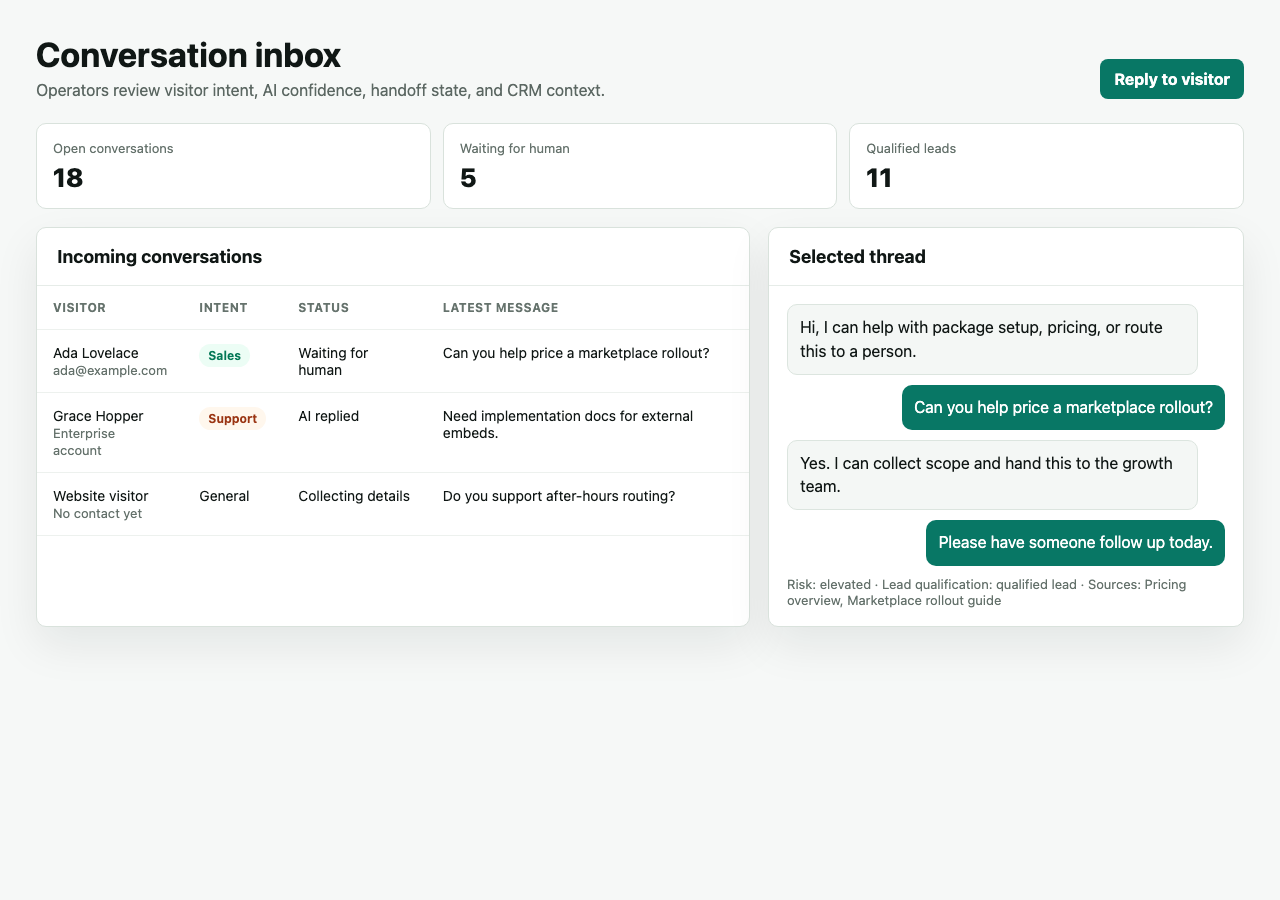
Section titled “How to read past conversations”- Open Conversations.
- Inspect a conversation to read what was said.
- Use the available actions to generate a summary or reply suggestion, sync the visitor to Contacts, request a human handoff, or close the conversation.
- Follow up through your team’s normal support channel when a conversation needs a human response. The admin screen does not include a reply composer.
Rolling out Live Chat (for owners)
Section titled “Rolling out Live Chat (for owners)”Turn on first
Section titled “Turn on first”- An active chat site and realistic available hours. Create the installation and use the widget integration, then only show chat as available when someone can actually respond.
Add when needed
Section titled “Add when needed”| Need | Enable or use |
|---|---|
| Capture enquiries after hours | Developer-configured offline message |
| Send chats to the right person | Escalation rules or Request handoff |
Don’t enable yet
Section titled “Don’t enable yet”- Don’t advertise chat as always-on if you can’t staff it. An ignored chat is worse than none.
Who does what
Section titled “Who does what”| Role | First useful screen |
|---|---|
| Support team | Conversations: review, hand off, and follow up externally |
| Site owner | Chat sites and Availability windows |
Troubleshooting for editors
Section titled “Troubleshooting for editors”| What you see | What it means | What to do |
|---|---|---|
| Visitors say no one replies | Chat shows available outside staffed hours | Set realistic Availability windows |
| Chat box doesn’t appear | The widget is not rendered, or no active site exists | Confirm the active Chat site, then ask a developer to check the widget integration |
| The after-hours message is wrong | It comes from package widget configuration | Ask a developer to update the configured offline message |
| A chat needs a specialist | It should be escalated | Use Request handoff or configure Escalation rules |