This guide is for editors who build site menus and owners deciding how menus are structured. Every step uses the labels you see on screen.
Go to Navigation .
Create a new menu and give it a name.
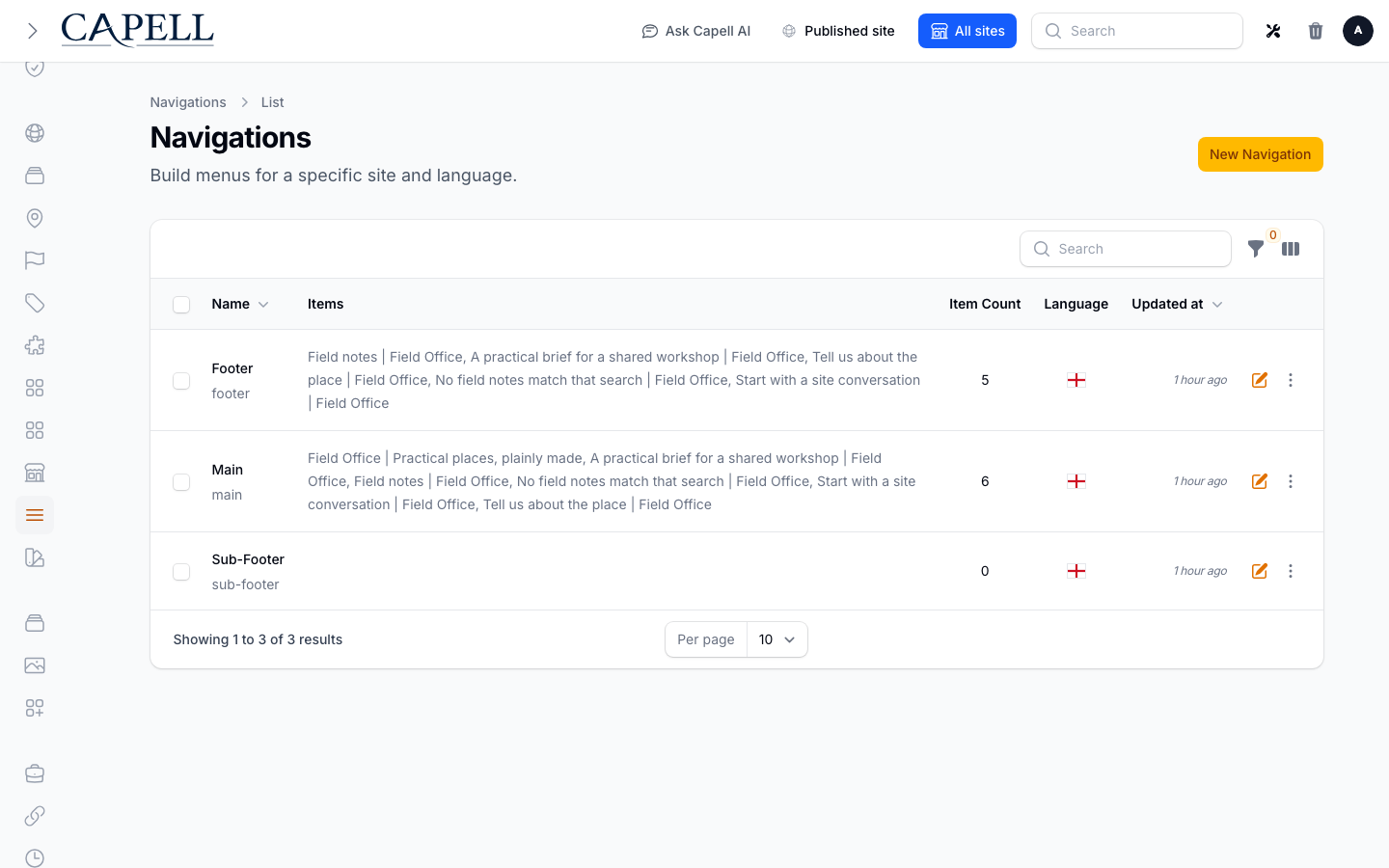
Choose a Key . Use Main , Footer , or Sub-footer when your theme renders that built-in menu location. A key can be used once for the same site and language.
Choose the site and, when needed, the language for this menu.
Add links to your pages, or add an External link to another site.
Save the menu.
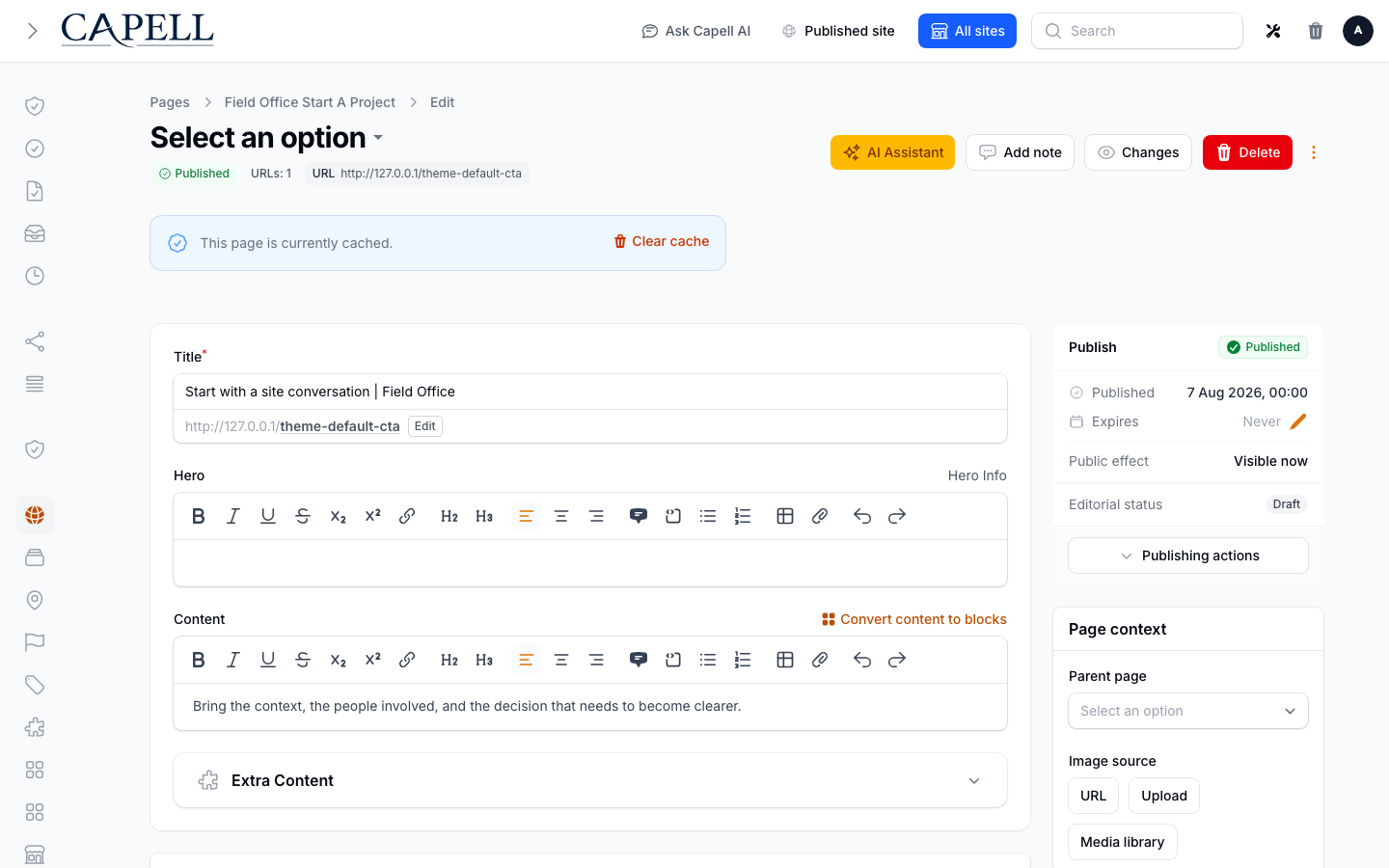
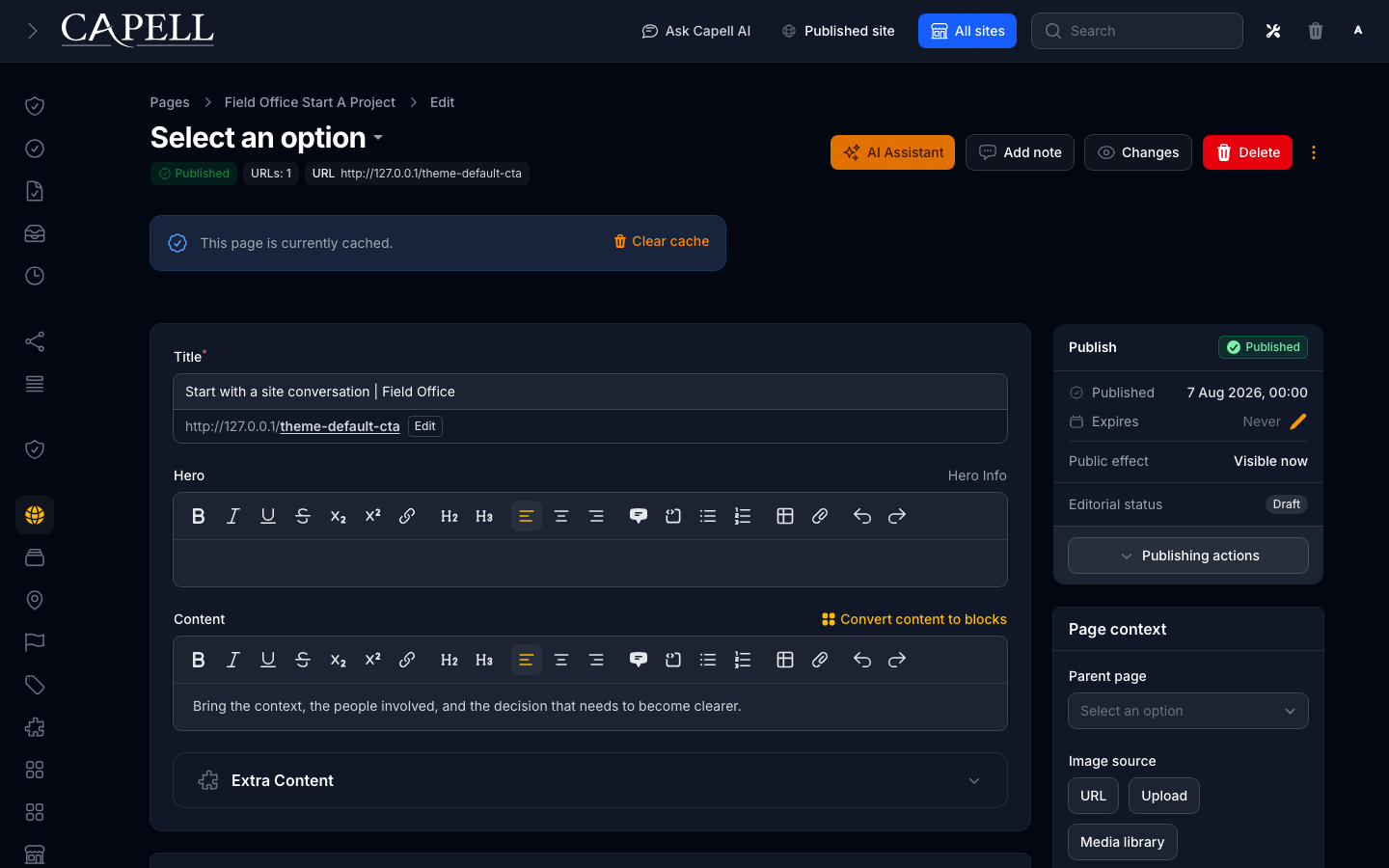
The promoted create-form evidence covers desktop (1440x900), tablet
(768x1024), and mobile (360x780), with both light and dark captures for each
viewport. The six images are generated only by the installed-App screenshot
runner described by the screenshot contract .
Open the menu in the editor.
Drag a link up or down to change its order.
Drag a link underneath another to nest it. Nested links become a dropdown.
Save the menu.
Nest links under a parent item.
On the parent item, choose how its children open: Standard dropdown or Mega menu .
Save the menu.
Check which menu key the theme renders. The built-in keys are Main , Footer , and Sub-footer .
Open or create the menu for that site and language.
Set its Key to the matching value and save.
Preview the public page. The theme decides where that key appears; there is no separate Header or Footer assignment control.
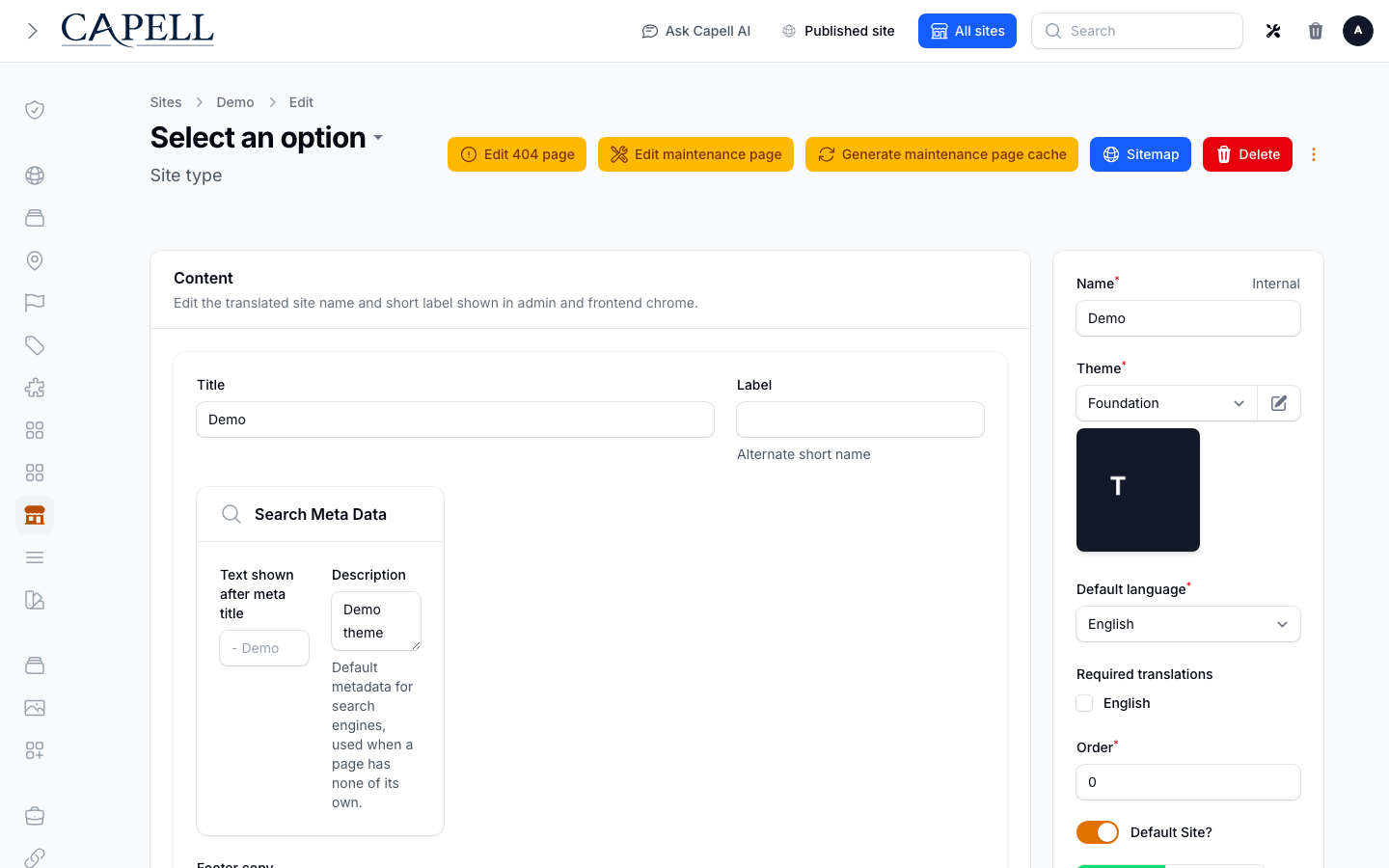
Open the site you are working on.
Use the navigations area on the site to add or edit the menus that belong to it.
Save. This keeps each site’s menus together in one place.
Open the page you want to control.
Go to its navigation tab.
Set how that page behaves in menus, then save.
A header menu with your main pages. Get the primary navigation right before adding footer menus or dropdowns.
Need Enable Group related pages under one heading Nested links (a Standard dropdown ) A large menu with sections and columns A Mega menu Links at the bottom of every page A Footer navigation menu
Avoid mega menus until you have enough pages to fill them. A simple dropdown is clearer for small sites.
Role First useful screen Editor The menu editor: add, nest, and reorder links Site owner Navigations : review each menu’s site, language, and rendered key
What you see What it means What to do A new menu isn’t showing on the site Its key is not one the theme renders, or the menu is not eligible for the current site/language Match the menu Key to the theme’s rendered key, check the site and language, then preview the public page A link goes to the wrong place The page reference or external URL is wrong Open the link and fix its target A dropdown isn’t opening Its child links aren’t nested, or the layout isn’t set Nest the links under the parent and set Standard dropdown or Mega menu A menu item points to a deleted page The page it linked to no longer exists Remove or repoint the link, then save