This guide is for owners and operators who set the password rules for admin accounts. No technical knowledge needed. Every step uses the labels you see on screen. You decide how strong passwords must be, whether they expire, and when people are made to change them.
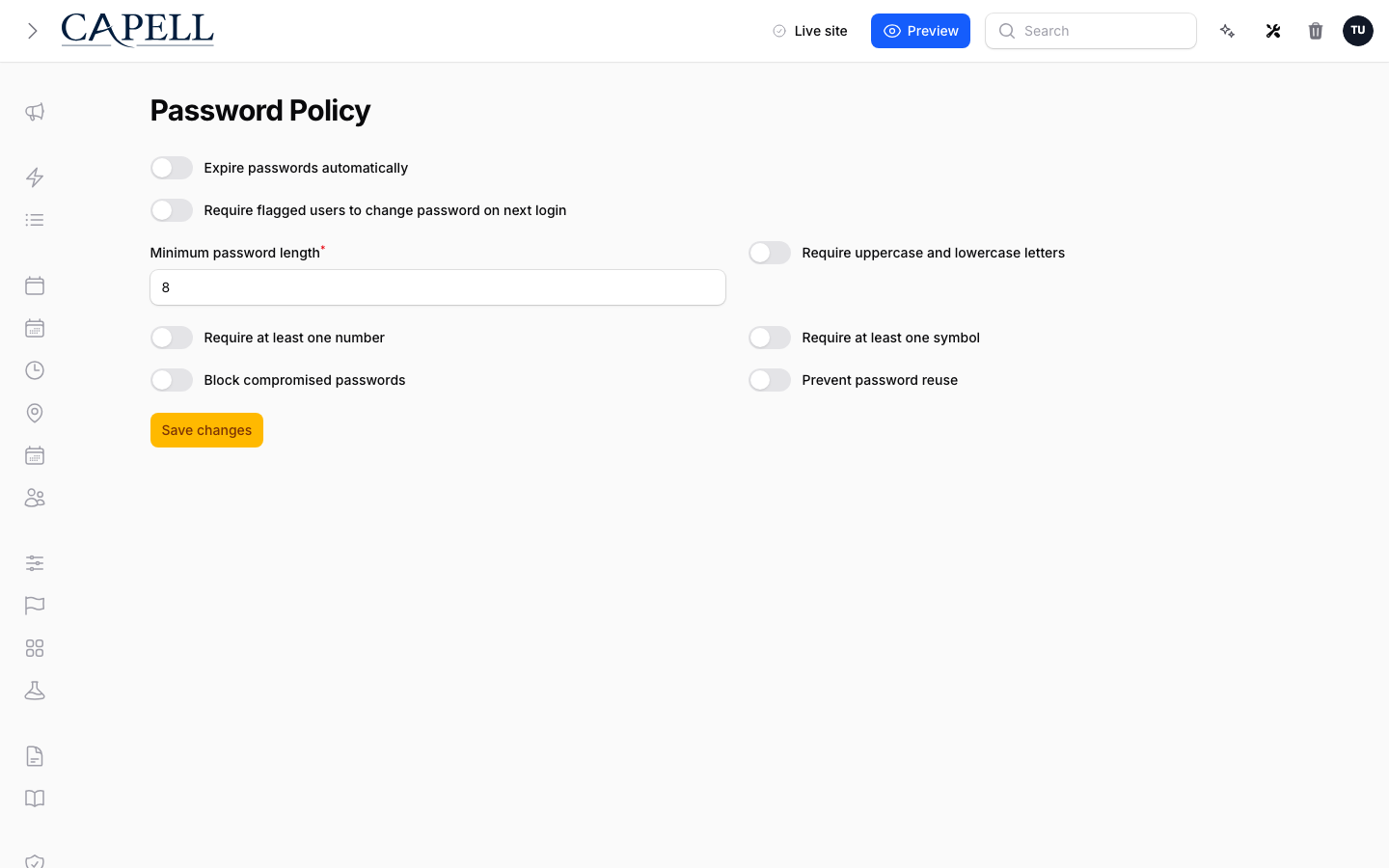
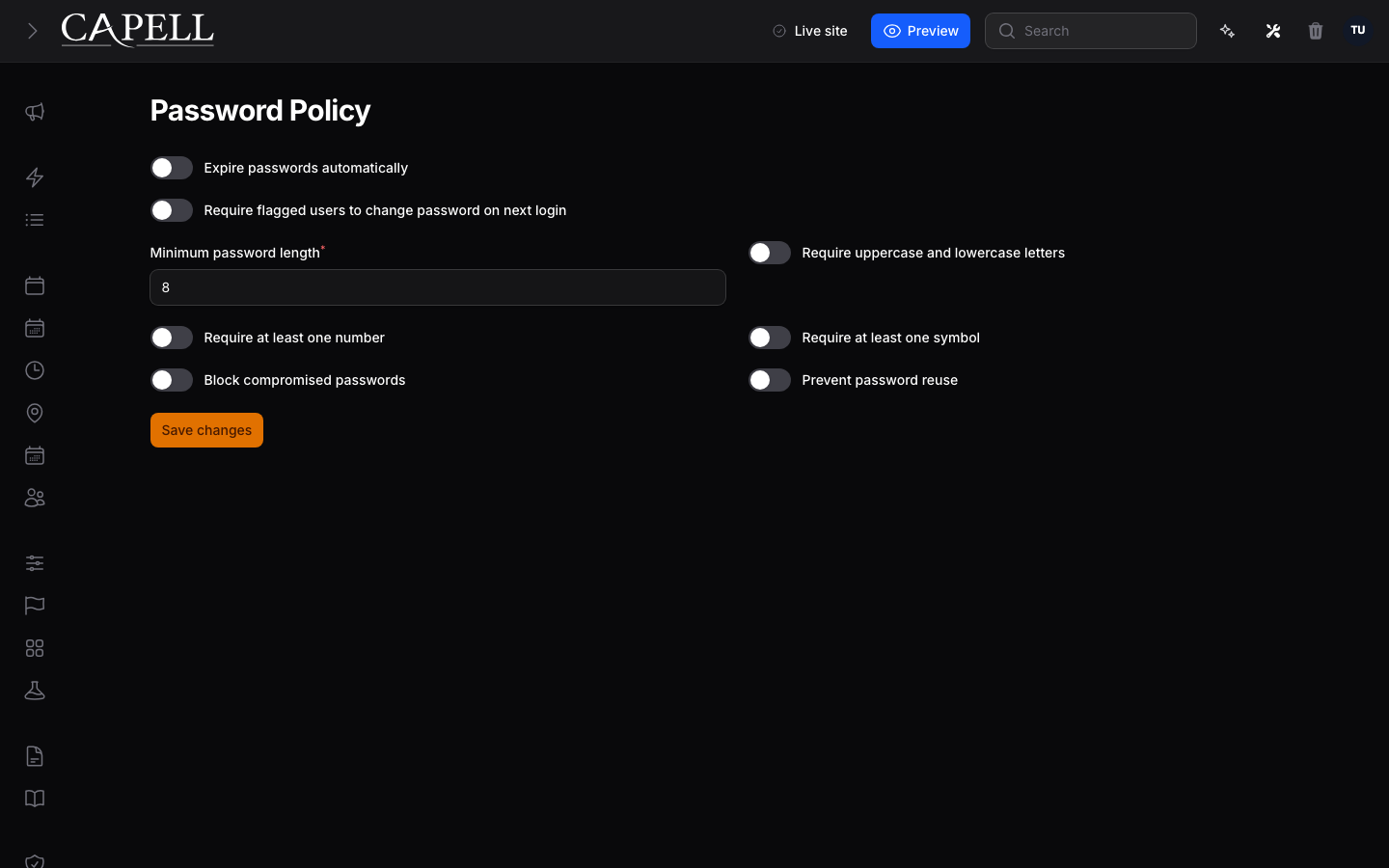
Go to System > Password Policy in the admin.
Set Minimum password length to the shortest password you will allow.
Turn on the strength rules you want: Require uppercase and lowercase letters , Require at least one number , and Require at least one symbol .
Turn on Block compromised passwords to reject passwords that have shown up in known data leaks. This is checked without storing the password itself.
Save your changes.
Go to System > Password Policy .
Turn on Prevent password reuse .
Set Remembered passwords to how many recent passwords should be off-limits.
Save your changes. People will now be asked to choose a password they have not used recently.
Go to System > Password Policy .
Turn on Expire passwords automatically .
Set Expiry interval in days to how long a password stays valid.
To warn people before their password expires, turn on Send expiry warning emails and set Warning window in days to how many days of notice they get.
Save your changes.
Go to System > Password Policy and turn on Require flagged users to change password on next login . Save the setting.
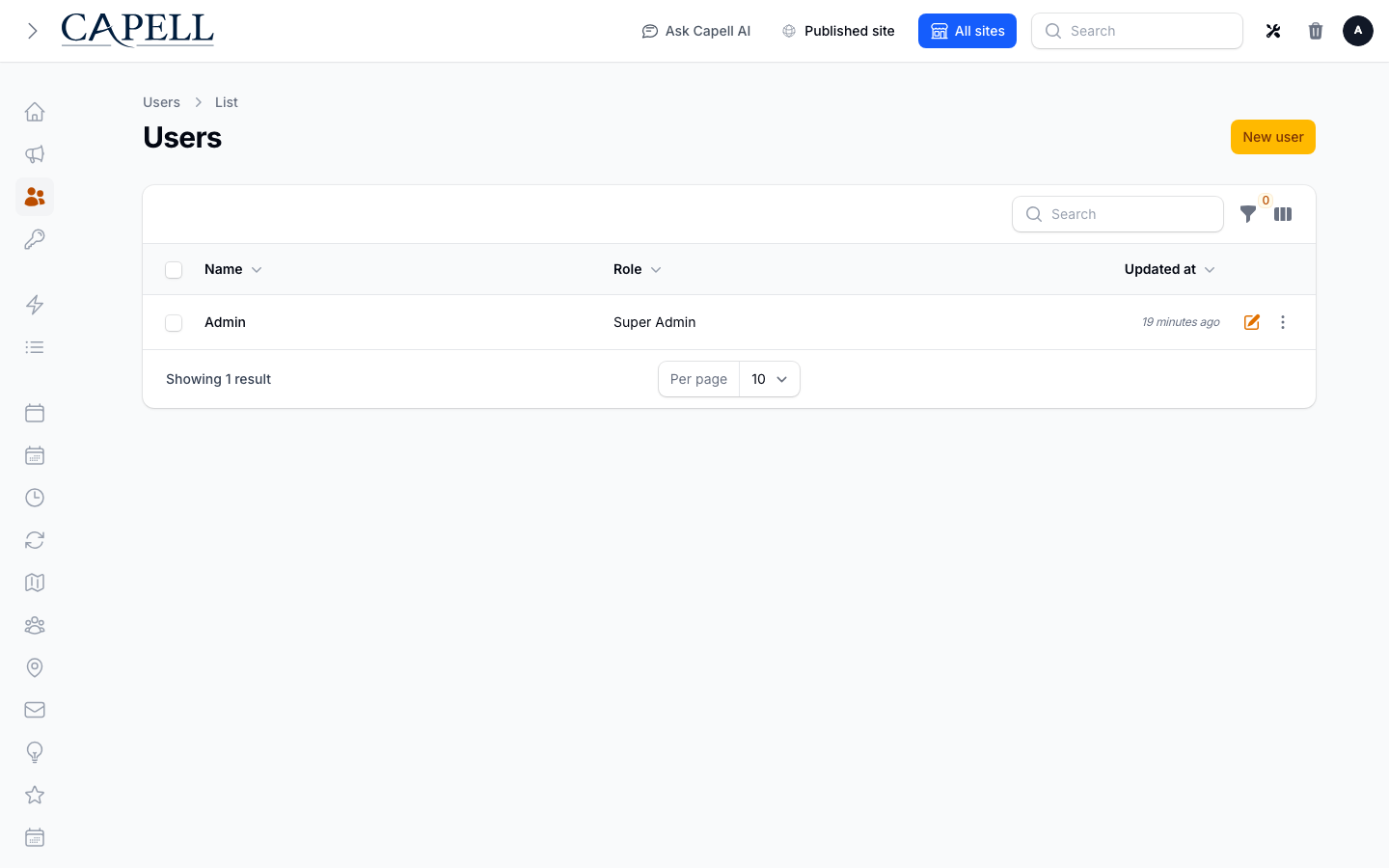
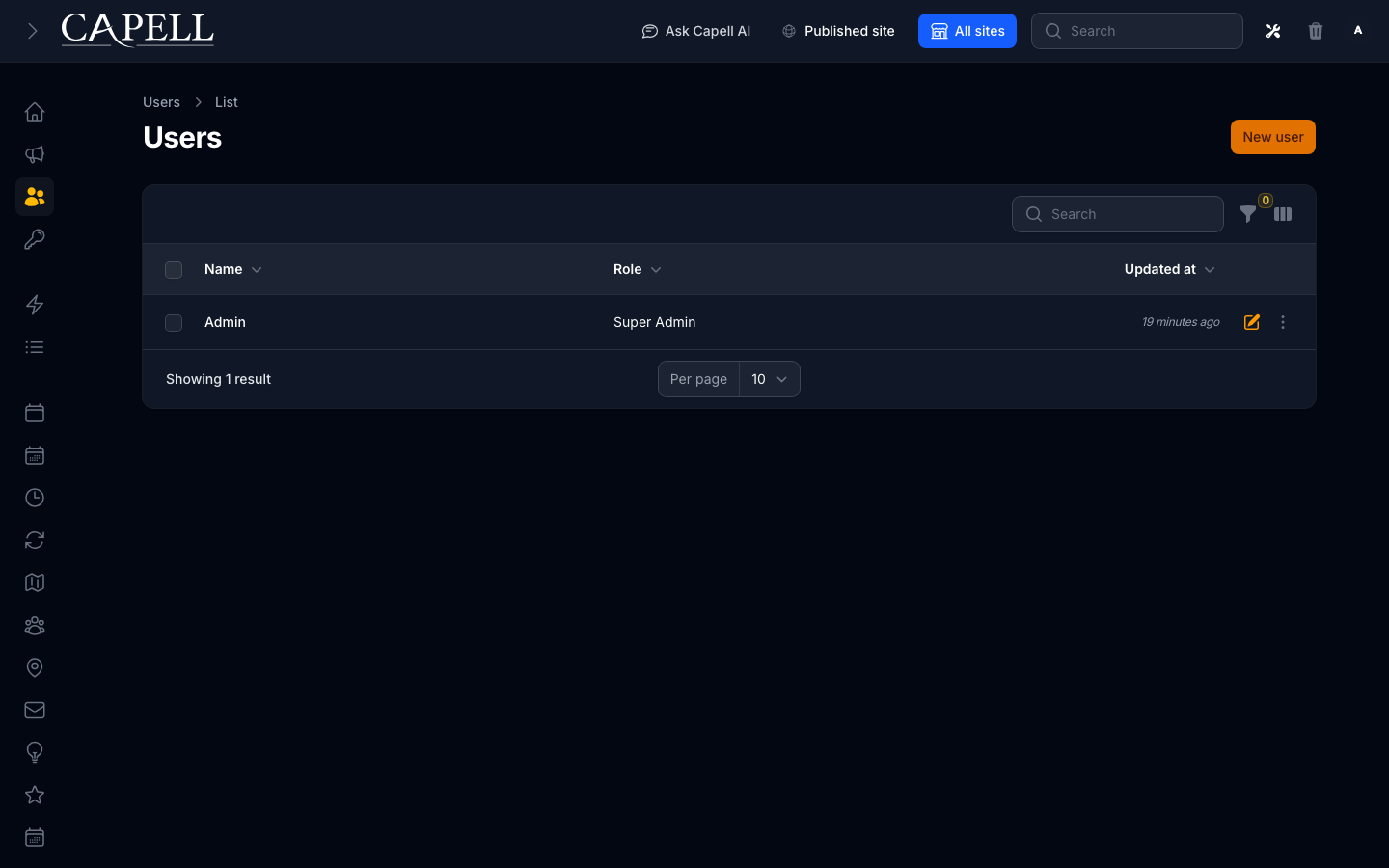
Go to the users list in the admin.
Find the user. The added columns show their password state, including Must change password , Password changed , and Password expired .
Use the filters to narrow the list, for example to people who Must change password , whose Password expired , or who have a Password never changed .
Use the Require password change action on that user. To do several at once, select them and use the Require password change bulk action.
The next time each flagged user signs in, they are sent to the password-change screen before they can continue.
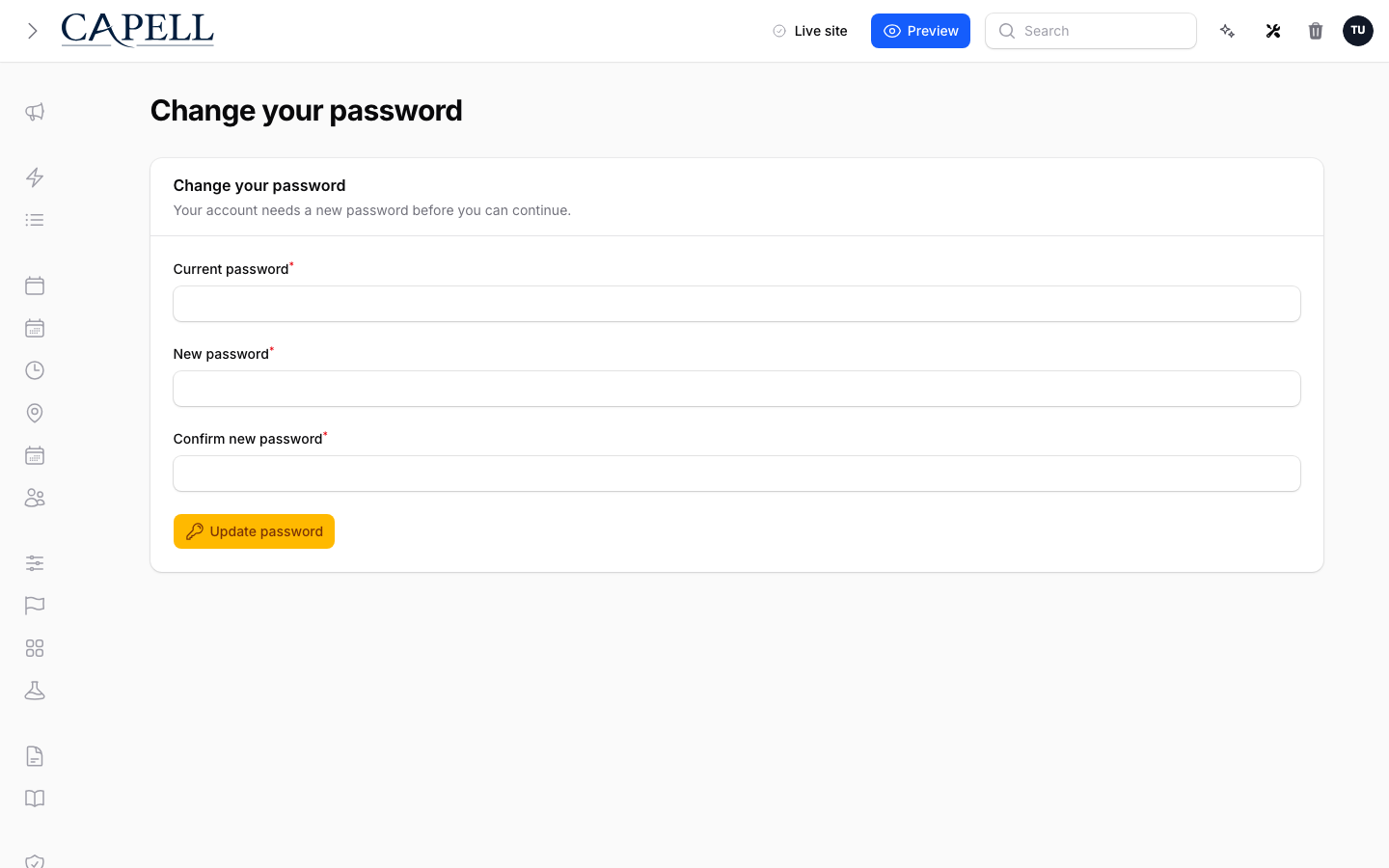
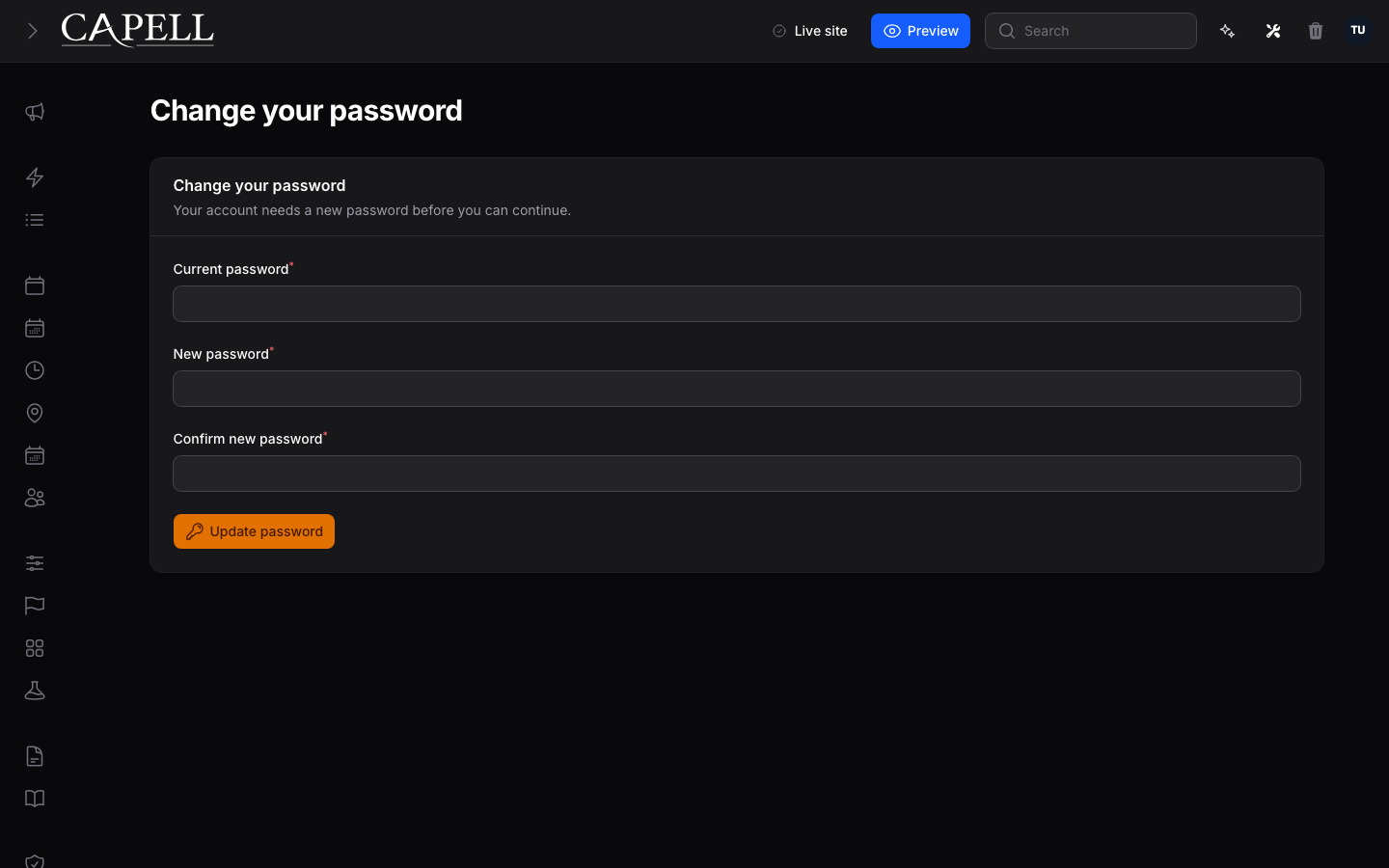
When a flagged user signs in, they land on the Change your password screen and cannot move on until they set a new password.
They enter their Current password , then a New password , and repeat it in Confirm new password .
The new password must meet all the rules you set. If it does not, the screen explains what to fix.
They click Update password to continue into the admin.
Length and strength rules. Start with Minimum password length and the Require… strength options, plus Block compromised passwords . These protect new and changed passwords without disrupting anyone immediately.
Need Turn on Stop people recycling old passwords Prevent password reuse , with Remembered passwords Make passwords age out over time Expire passwords automatically , with Expiry interval in days Give warning before expiry Send expiry warning emails , with Warning window in days Force a fresh password at the next sign-in Require flagged users to change password on next login , then the Require password change action
Role First useful screen Owner System > Password Policy : set the rulesOperator The users list: review password state and use Require password change as needed
What you see What it means What to do A new password is rejected It fails one of your rules Read the message; meet the length and strength rules, then try again A password is rejected as compromised It has appeared in a known data leak Choose a different password that is not in any breach A password is rejected as recently used Prevent password reuse is on and this one is in the historyChoose a password not used recently A user is stuck on the Change your password screen They are flagged to change their password or their password expired They must set a compliant new password to continue You have tightened the rules The new rules apply when someone sets or changes a password Tell your team before requiring password changes, so they know what to expect