
Using Payments
This guide is for staff who handle transactions and owners deciding how to go live safely. Every step uses the labels you see on screen.
Using Payments (editor how-to)
Section titled “Using Payments (editor how-to)”How to view transactions
Section titled “How to view transactions”- Go to the Monitoring group in the admin.
- Open Payment intents to see the provider payment ID, status, amount, currency, and when each payment was created.
- Copy the provider payment ID when you need to investigate the payment with your processor.
How to monitor checkout sessions
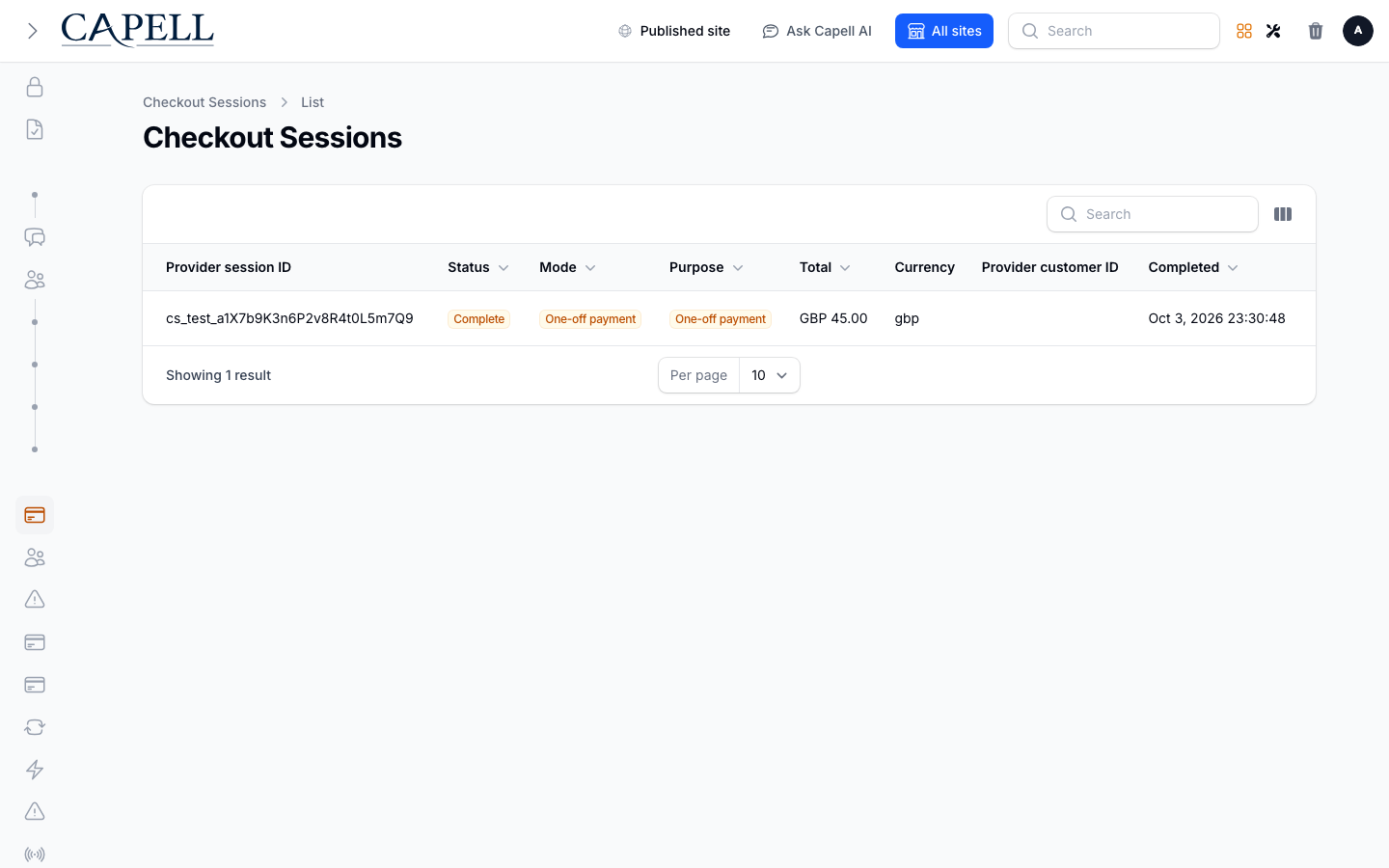
Section titled “How to monitor checkout sessions”- Open the Checkout sessions list.
- Each row shows the session status, mode, purpose, total, currency, and completion time.
- Look for sessions that are still open or expired to spot purchases that did not complete.
How to check webhook health
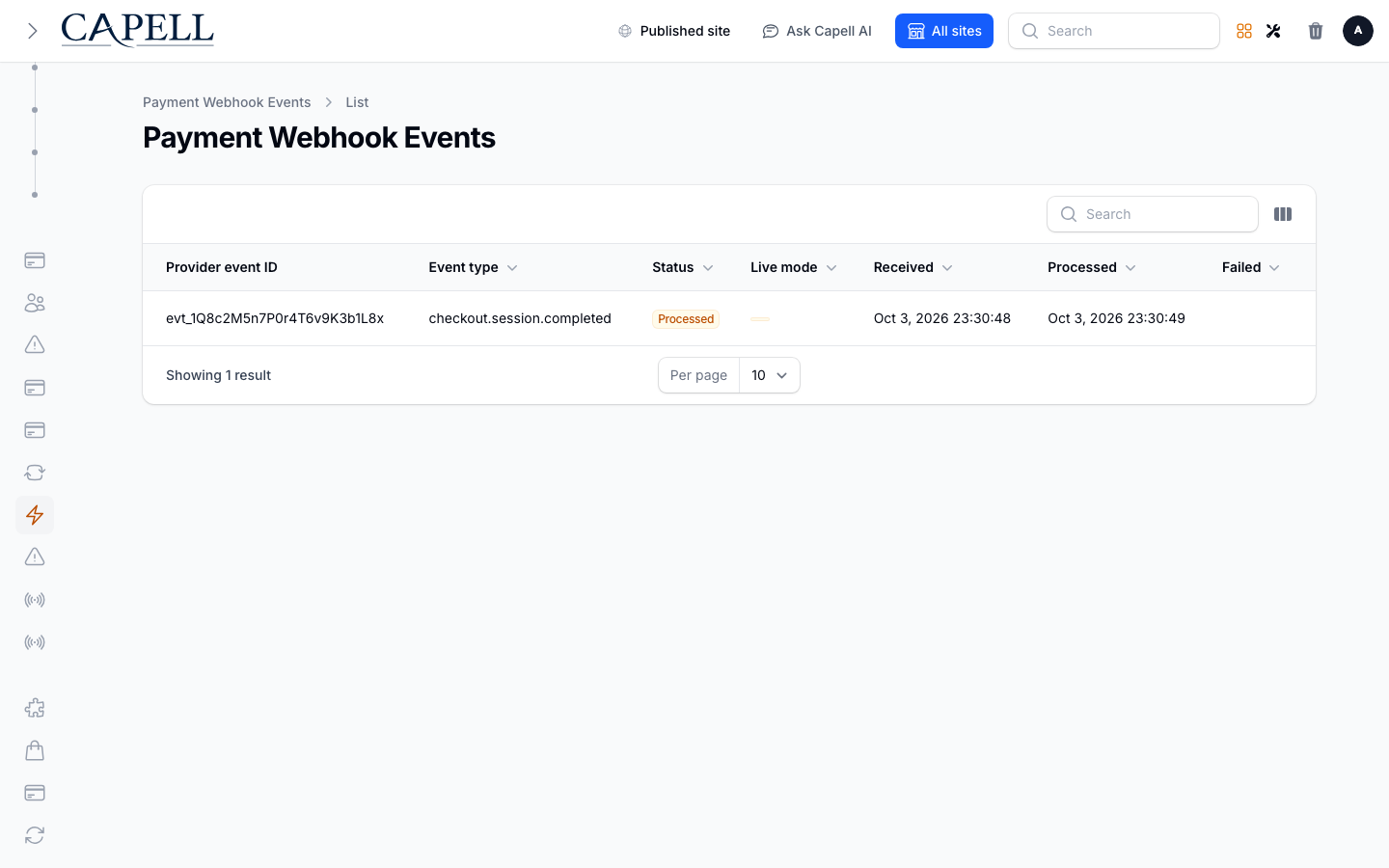
Section titled “How to check webhook health”- Open the Webhook events list.
- Each row shows the event, when it arrived, and whether it has been processed.
- If events are stuck or failing, your processor connection or webhook secret may need attention.
- Use this to confirm your processor is talking to the site before and after going live.
How to issue a refund
Section titled “How to issue a refund”- Open Monitoring > Payment intents and find a successful payment.
- Use Issue refund on that payment.
- Leave Amount blank for a full refund, or enter the amount in the currency’s minor units (for example,
1099for GBP 10.99). You can also select a reason. - Confirm the action, then check Monitoring > Refunds for its status.
How to reconcile
Section titled “How to reconcile”- Compare Payment intents, Refunds, and Checkout sessions with your processor’s records.
- Use the copyable provider IDs to investigate any mismatch with the processor.
- Check Webhook events for failed events or processing errors that may explain a missing update.
How to configure payments before launch
Section titled “How to configure payments before launch”Ask your developer to configure and verify the provider credentials and webhook endpoint for the intended environment. The package registers PaymentsSettings and PaymentsSettingsSchema, but does not currently declare a management UI for those settings in Extensions. Keep provider API URLs, versions, timeouts and the webhook freshness window at their defaults unless your developer advises otherwise.
Rolling out Payments (for owners)
Section titled “Rolling out Payments (for owners)”Turn on first
Section titled “Turn on first”- Provider credentials and webhooks. Enter the credentials for the payment provider you use, then confirm the provider can deliver webhook events to the site.
Add when needed
Section titled “Add when needed”| Need | Use |
|---|---|
| Investigate payments | Payment intents, Checkout sessions, and provider IDs |
| Handle returns | A clear refund policy and the Issue refund action |
| Spot integration faults | Webhook events, including its status and error columns |
Don’t enable yet
Section titled “Don’t enable yet”- Don’t replace provider credentials without confirming the expected environment and webhook endpoint with your developer.
Who does what
Section titled “Who does what”| Role | First useful screen |
|---|---|
| Staff | Monitoring > Payment intents: view payments and issue refunds |
| Site owner | Payments settings: manage provider credentials |
Troubleshooting for editors
Section titled “Troubleshooting for editors”| What you see | What it means | What to do |
|---|---|---|
| A payment is missing | It may still be processing, or an event was not applied | Check Payment intents, Checkout sessions, and Webhook events for a failed event or error |
| A refund didn’t go through | The refund may be pending, failed, or need action | Check its status in Refunds and investigate its provider ID with the processor |
| The processor won’t connect | Provider credentials or endpoint configuration need attention | Re-check the Payments settings and webhook configuration with your developer |
| A customer disputes a charge | The provider has recorded a dispute | Open Monitoring > Disputes, note its status and evidence due date, then follow your processor’s dispute process |