
Using Privacy Center
This guide is for staff who handle privacy requests and owners setting the policy. Every step uses the labels you see on screen. Follow your organisation’s legal process alongside these steps.
Using Privacy Center (editor how-to)
Section titled “Using Privacy Center (editor how-to)”How to handle a data request
Section titled “How to handle a data request”- Go to Privacy center > Privacy requests.
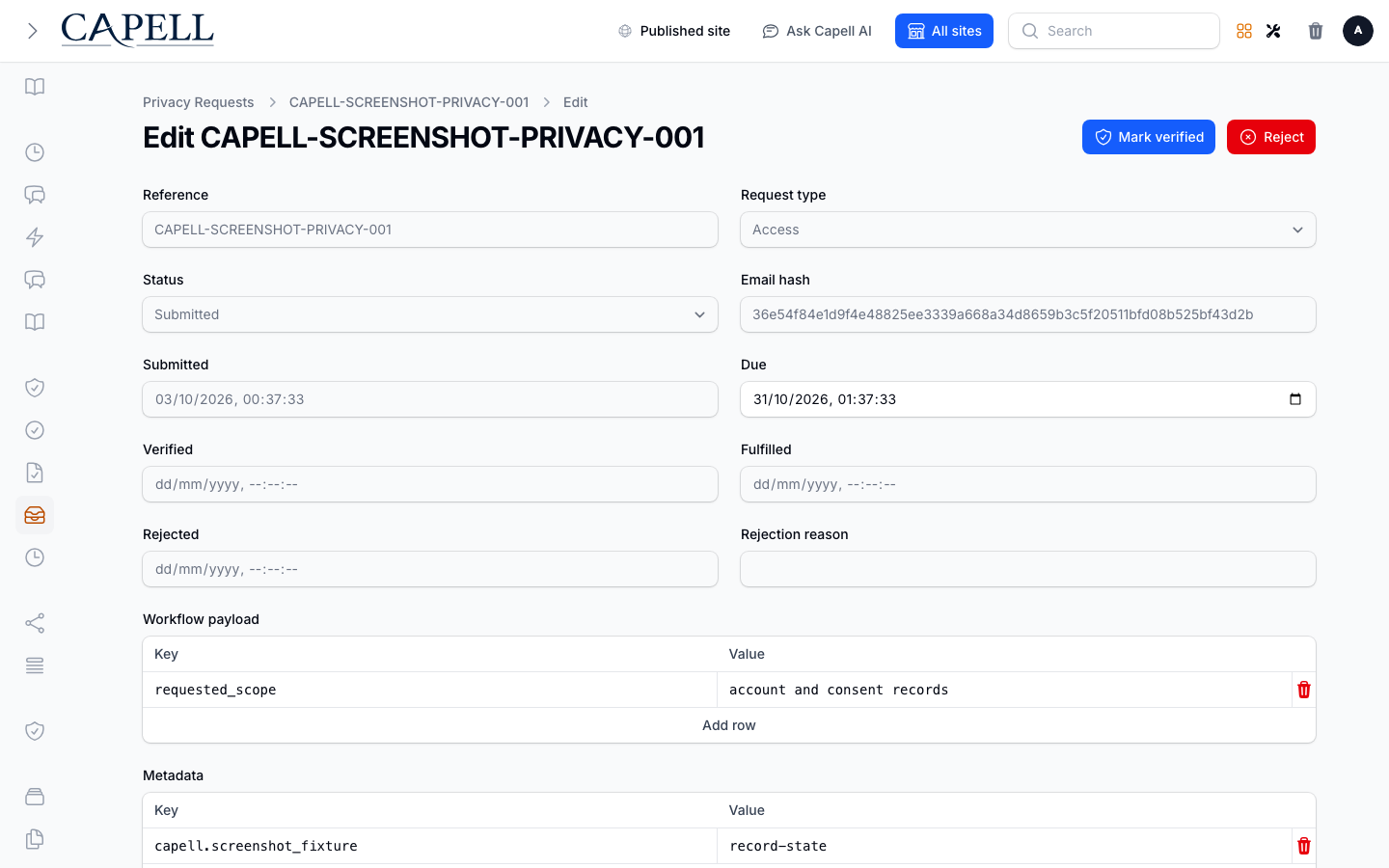
- Open the request, check its type, due date, and workflow details, then verify who is asking with Mark verified.
- The request moves to processing. Complete the required operational work and retain any evidence in the request’s workflow details.
- For a verified Delete request with a resolvable subject, Mark fulfilled performs the configured anonymization and erasure work. For an access or export request, prepare and deliver the export through your approved process before marking it fulfilled.
- Use Reject with a reason if the request cannot proceed.
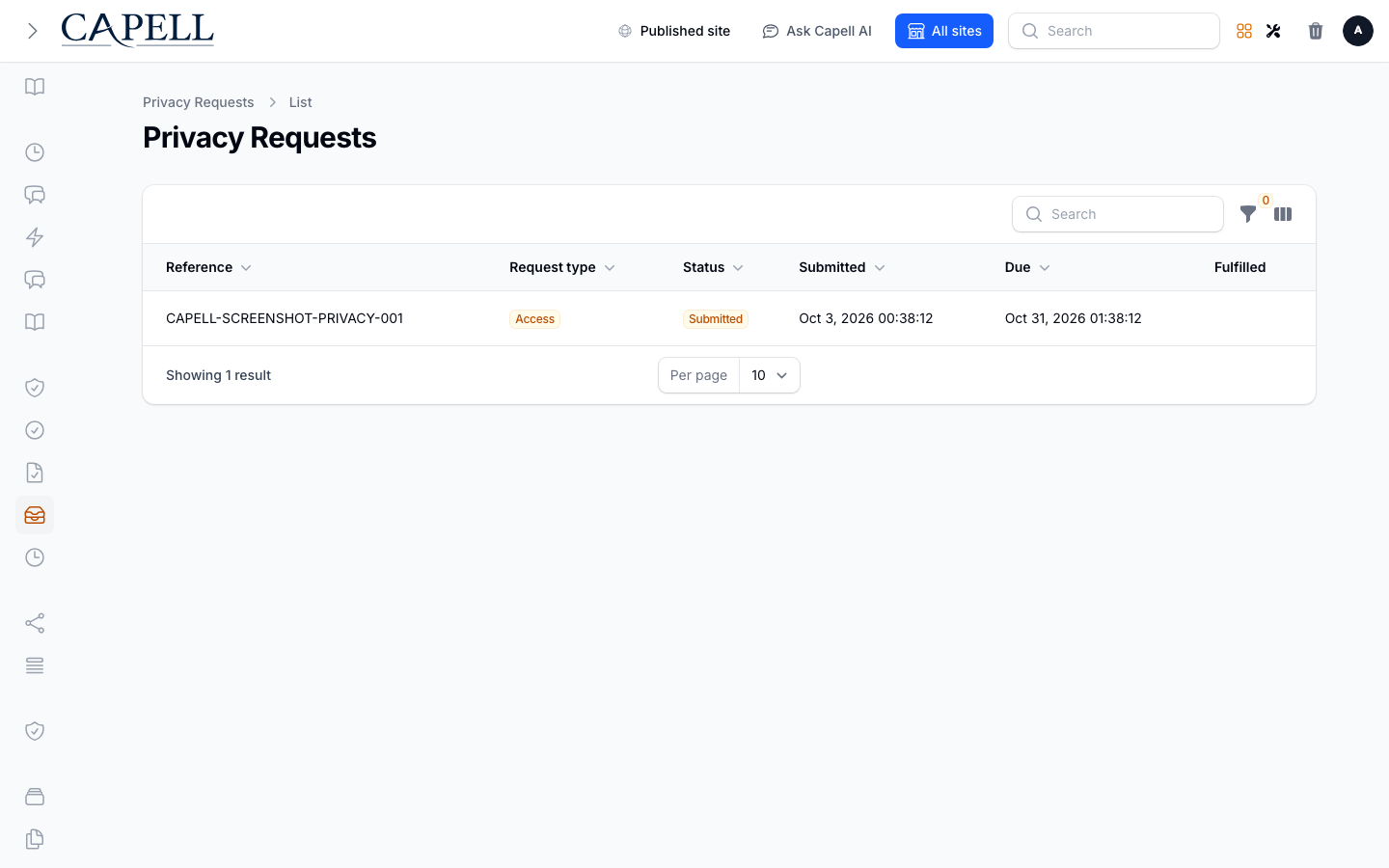
How to export or erase a customer’s data
Section titled “How to export or erase a customer’s data”- Open the verified request and check that it is in processing.
- For access or export requests, use your approved export process; the admin screen records workflow state but does not provide an Export button.
- For delete requests, confirm the request has a resolvable subject, then use Mark fulfilled to run configured anonymization and erasure contributors.
- Keep the workflow evidence and confirm the fulfilled status updates.
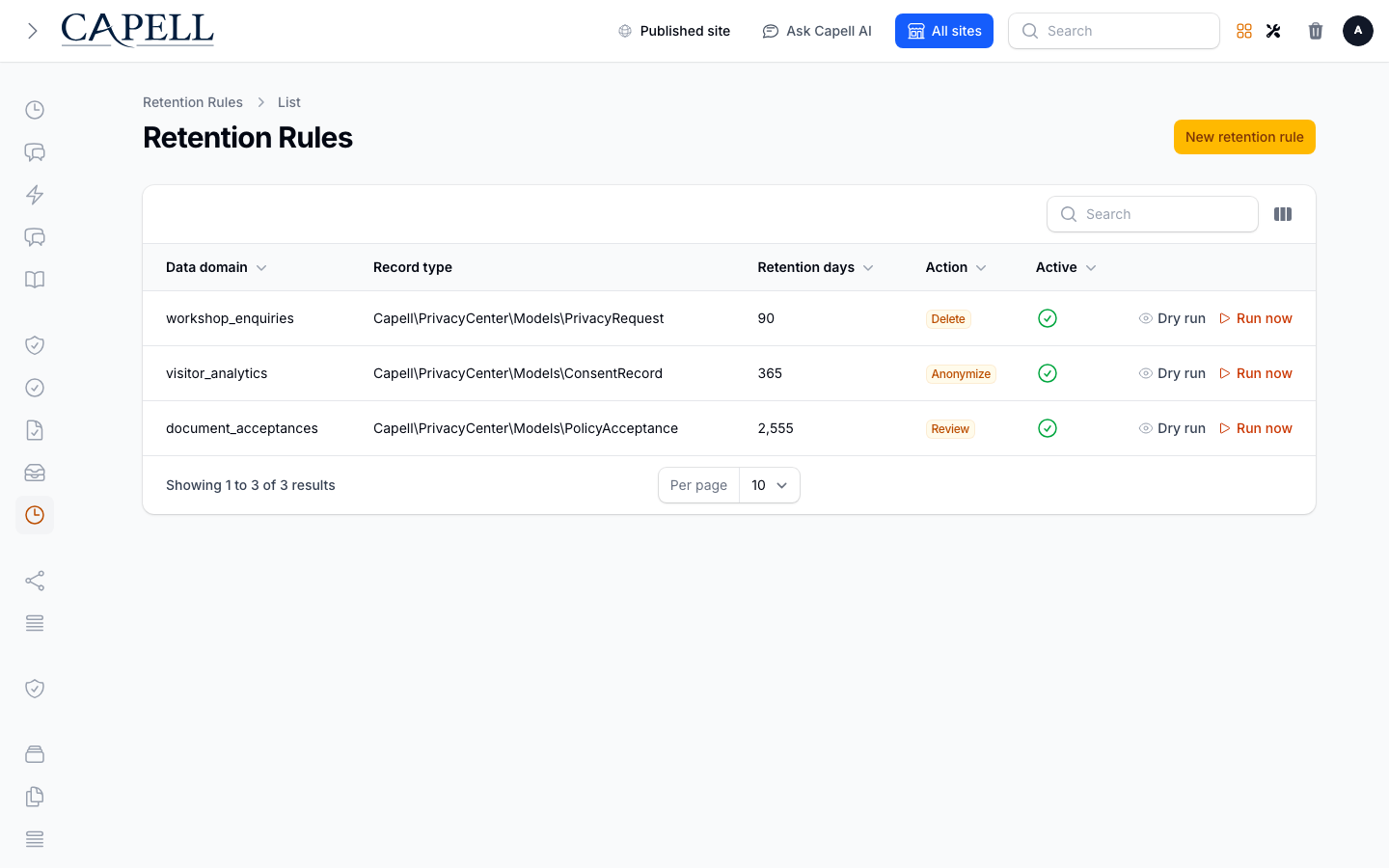
How to review retention rules
Section titled “How to review retention rules”- Open the Retention rules list.
- Each rule shows the data domain, record type, retention days, action, and whether it is active.
- Use Dry run to see the affected records before using Run now.
- Active rules are also handled by the scheduled retention job. Adjust a rule if its window or action no longer matches your policy.
How to manage consent records
Section titled “How to manage consent records”- Open Consent records.
- Review who granted consent, to which policy version, and when.
- Use this if a customer or regulator asks for proof.
How to manage cookie settings
Section titled “How to manage cookie settings”- Open Privacy center > Consent policies.
- Create or edit the policy record with a key, version, title, and Cookie policy type, then set its effective and published dates as appropriate.
- The public preference centre records visitors’ choices for the built-in cookie categories. Category definitions and banner behaviour are application configuration, not an admin settings form.
Rolling out Privacy Center (for owners)
Section titled “Rolling out Privacy Center (for owners)”Turn on first
Section titled “Turn on first”- Consent records and the cookie preference centre. Capture consent correctly before you need to prove it.
Add when needed
Section titled “Add when needed”| Need | Enable |
|---|---|
| Handle formal data requests | The Privacy requests workflow |
| Show consent history | Consent records |
Don’t enable yet
Section titled “Don’t enable yet”- Don’t action data requests without your verification and legal process agreed first. Privacy steps must follow policy.
Who does what
Section titled “Who does what”| Role | First useful screen |
|---|---|
| Privacy / support staff | Privacy center > Privacy requests |
| Site owner | Consent policies and Retention rules |
Troubleshooting for editors
Section titled “Troubleshooting for editors”| What you see | What it means | What to do |
|---|---|---|
| A request can’t be fulfilled | It must be verified and in processing | Use Mark verified first; for deletion, also confirm the request has a resolvable subject |
| I can’t prove a consent | The consent record wasn’t captured | Check Consent records; ensure consent is recorded going forward |
| The cookie banner shows the wrong options | Cookie categories or banner behaviour need application configuration | Ask your developer to update the privacy-centre configuration; policy records do not change the categories |