
Using Search
This guide is for editors who tune site search and owners deciding what should be searchable. Every step uses the labels you see on screen.
Using Search (editor how-to)
Section titled “Using Search (editor how-to)”How to choose what is searchable
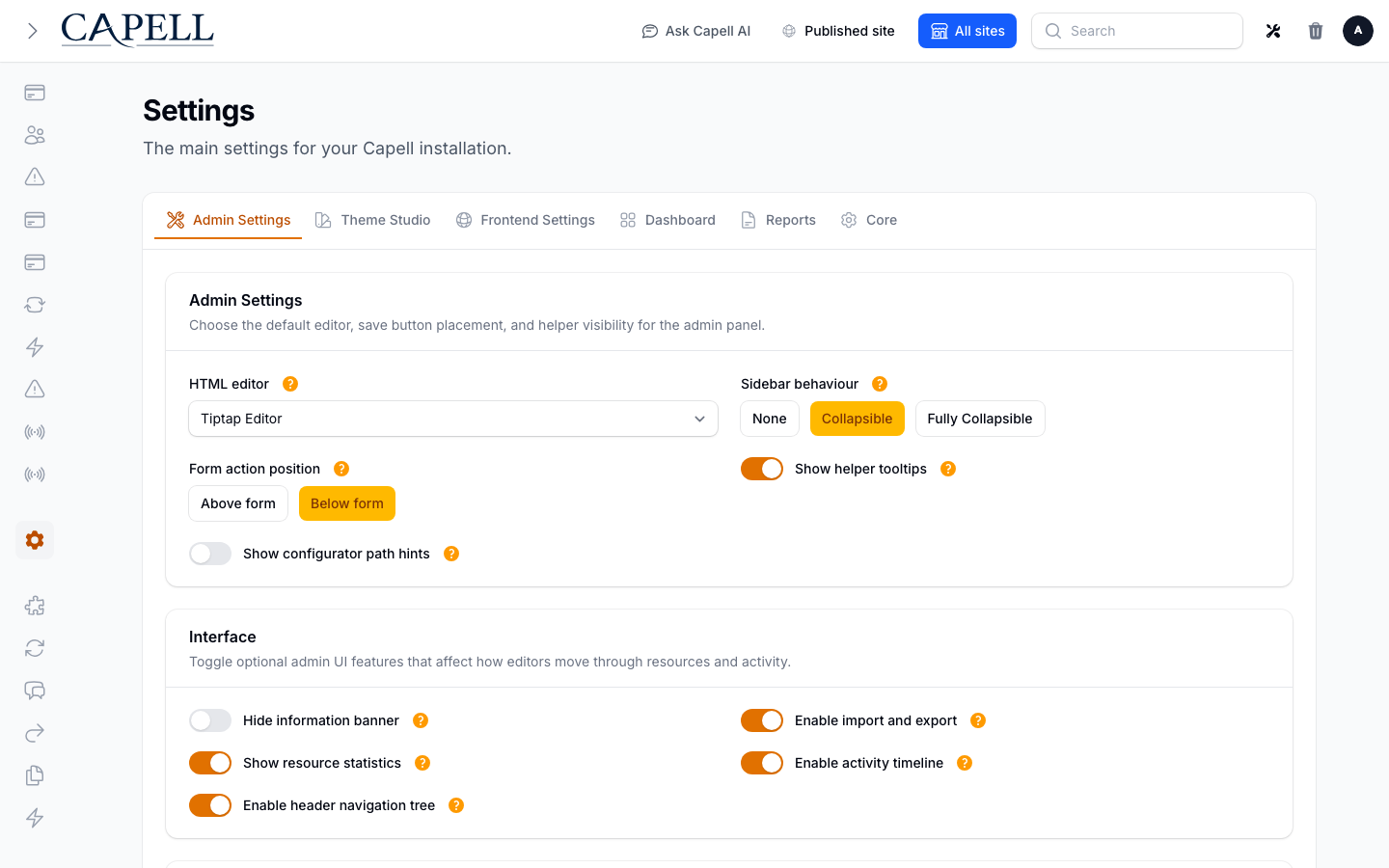
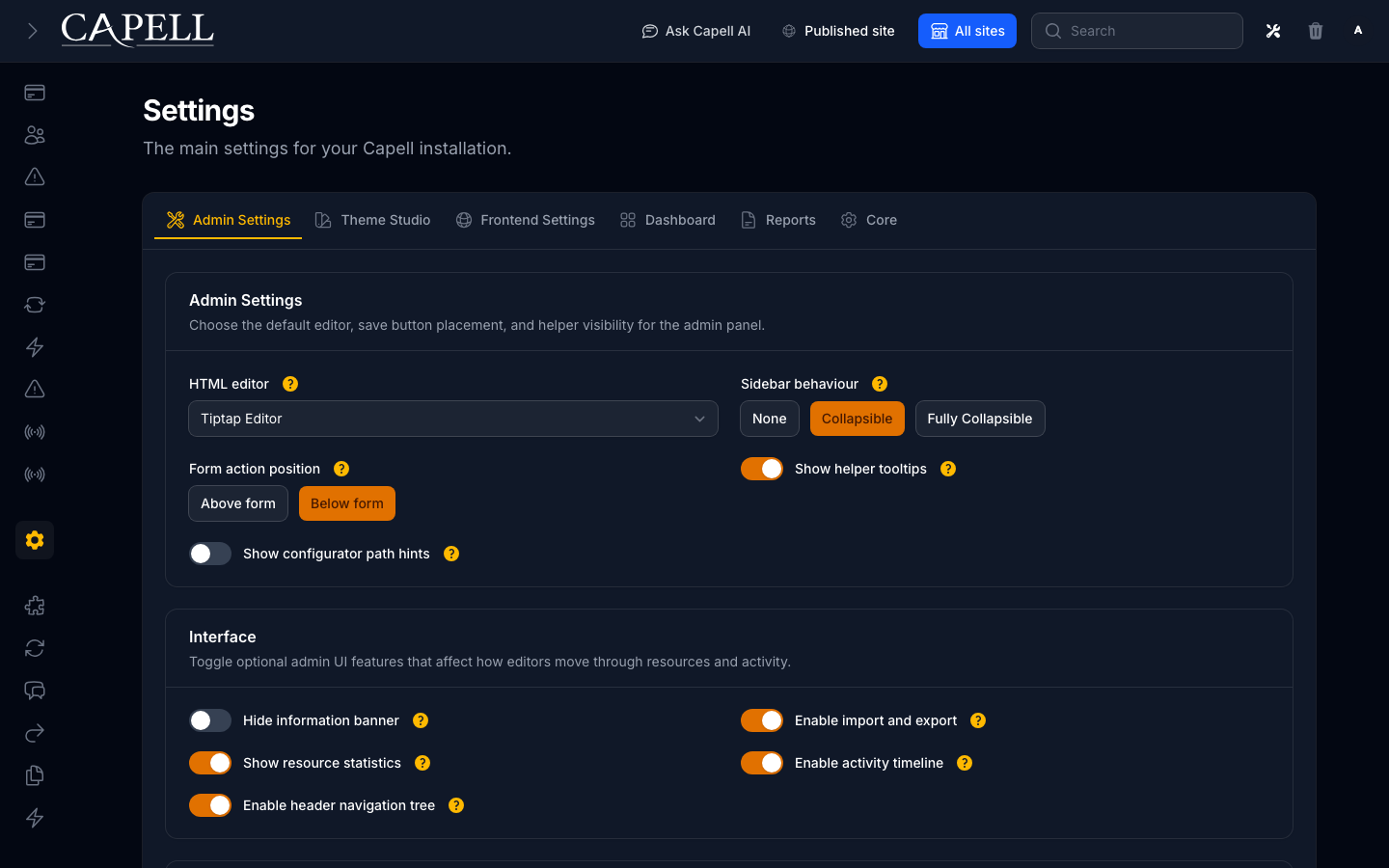
Section titled “How to choose what is searchable”- Open Extensions, select Search, then open Settings.
- Turn on each registered content source that should appear in public search.
- Set the driver, logging, retention, and result behavior.
- Save. Visitors can now find the enabled sources from the search box.
How to see what visitors search for
Section titled “How to see what visitors search for”- Open the main admin dashboard.
- Enable the Search dashboard widgets if your dashboard settings hide them.
- Review the most common searches, rising searches, and searches that returned nothing.
- Use those signals to decide what content, synonyms, typo corrections, or promoted results to add.
The Top searches widget shows your most searched terms. Trending searches compares the current dashboard period with the preceding one, and Zero result searches highlights terms that need content or curation.


How to add a synonym
Section titled “How to add a synonym”- Open Extensions → Search → Settings.
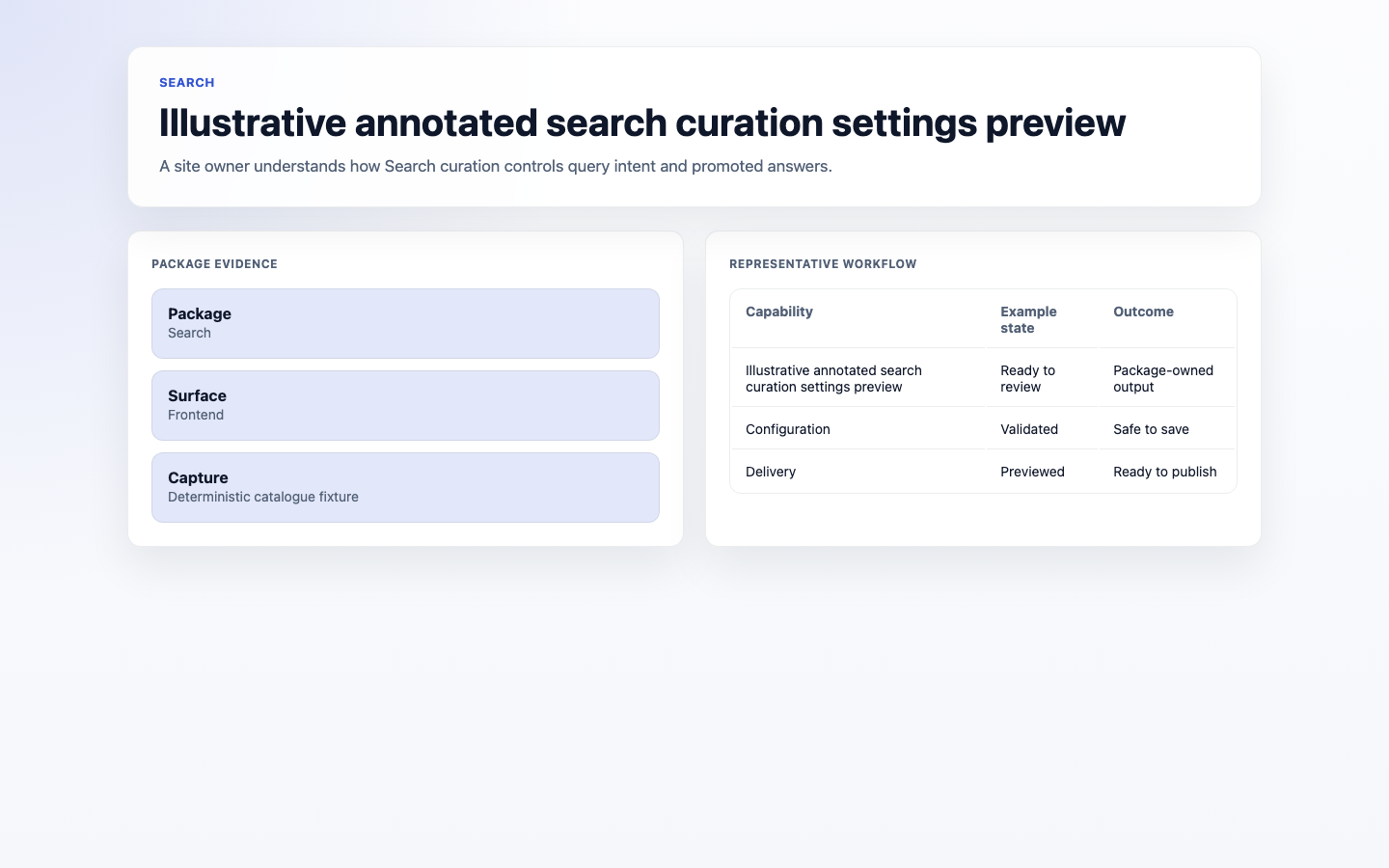
- In Search curation, add a Query and its equivalent queries (for example “tee” and “T-shirt”).
- Save. Now either word finds the same results.
The same Search curation section also lets you correct common typos and promote a chosen answer for a query.
How to handle searches with no results
Section titled “How to handle searches with no results”- Review the Zero result searches dashboard widget.
- Either add the missing content, or use Search curation to add a synonym, typo correction, or promoted result that leads visitors to existing content.

Rolling out Search (for owners)
Section titled “Rolling out Search (for owners)”Turn on first
Section titled “Turn on first”- A sensible set of searchable content. Make your key pages and products findable before fine-tuning.
Add when needed
Section titled “Add when needed”| Need | Enable |
|---|---|
| Different words for the same thing | Synonyms |
| Understand visitor intent | Search dashboard widgets |
Don’t enable yet
Section titled “Don’t enable yet”- Don’t make everything searchable at once. Too much low-value content makes results noisy. Add as needed.
Who does what
Section titled “Who does what”| Role | First useful screen |
|---|---|
| Editor | Search dashboard widgets and Search curation |
| Site owner | Search settings: decide what is searchable |
Troubleshooting for editors
Section titled “Troubleshooting for editors”| What you see | What it means | What to do |
|---|---|---|
| A search returns nothing | The content is not enabled, or visitors use different words | Enable the source, then add content or a curation rule |
| Results feel noisy or irrelevant | Too much low-value content is indexed | Narrow the enabled sources in Search settings |
| A new page isn’t found in search | The source has not refreshed its index | Ask a developer to check the source’s indexing behavior |