This guide is for editors who show cached social posts on the site and owners deciding which RSS-compatible feeds to use. Every step uses the labels you see on screen.
Open Growth > Social feed connections .
Create a connection, give it a name, choose the provider, and enter its Feed URL .
Use an RSS or Atom URL. Providers named after social networks use this same RSS-compatible URL path today; they do not connect a native account or start OAuth.
Save the connection, then use Sync now to fetch and cache its items.
Edit the page where you want the feed.
Add the Social feed block.
Choose the connection or provider and set the item limit.
Save the page.
Open Growth > Social feed connections and select the connection.
Use Sync now to pull the latest posts.
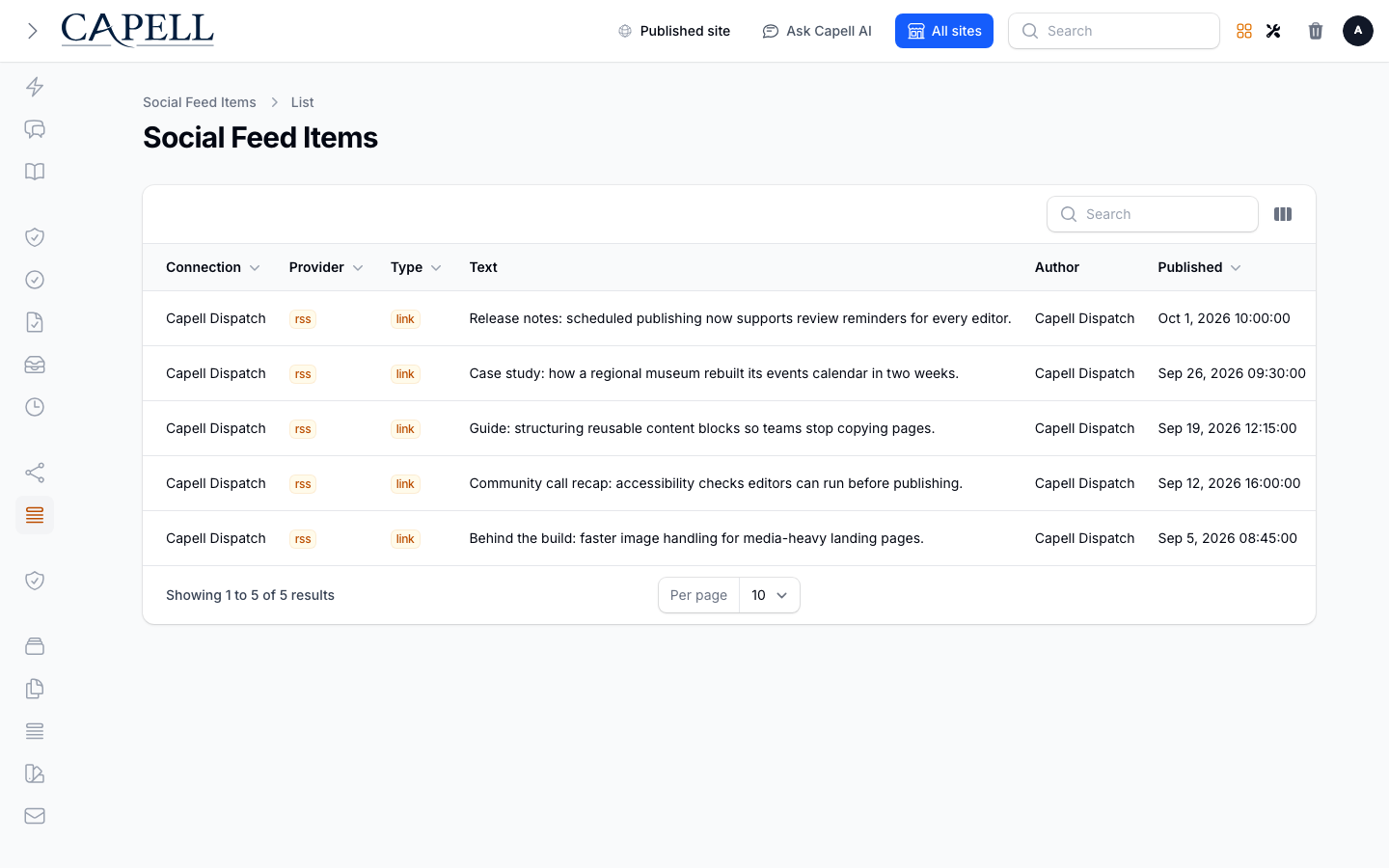
Check the Sync status , Last synced , and any Last sync error , then confirm posts appear in Growth > Cached social feed items .
Open Growth > Social feed connections and edit the connection.
Check the selected provider and Feed URL , then save any correction.
Select Sync now and review Last sync error if the result is not successful.
One active feed. Add the RSS or Atom URL you update most and confirm it produces cached items before adding others.
Need Enable Show more than one feed Additional Social feed connections Keep the page tidy A small post count per feed
Don’t add feeds you rarely update. An empty or stale cached feed looks worse than none.
Role First useful screen Editor The Social feed block on the page Site owner Growth > Social feed connections
What you see What it means What to do The feed is empty No posts have been cached yet, or the last sync failed Use Sync now , then check Last sync error and the configured Feed URL The feed stopped updating The feed URL is unavailable or scheduled sync is not enabled Correct the URL and use Sync now ; ask your developer to enable the optional scheduled sync if needed Too many posts on the page The post count is high Lower how many posts the widget shows