This guide is for editors moving a site from WordPress and owners planning the migration. Every step uses the labels you see on screen. WordPress Importer runs inside Migration Assistant, so install that first.
Export your content from WordPress (a WordPress export file).
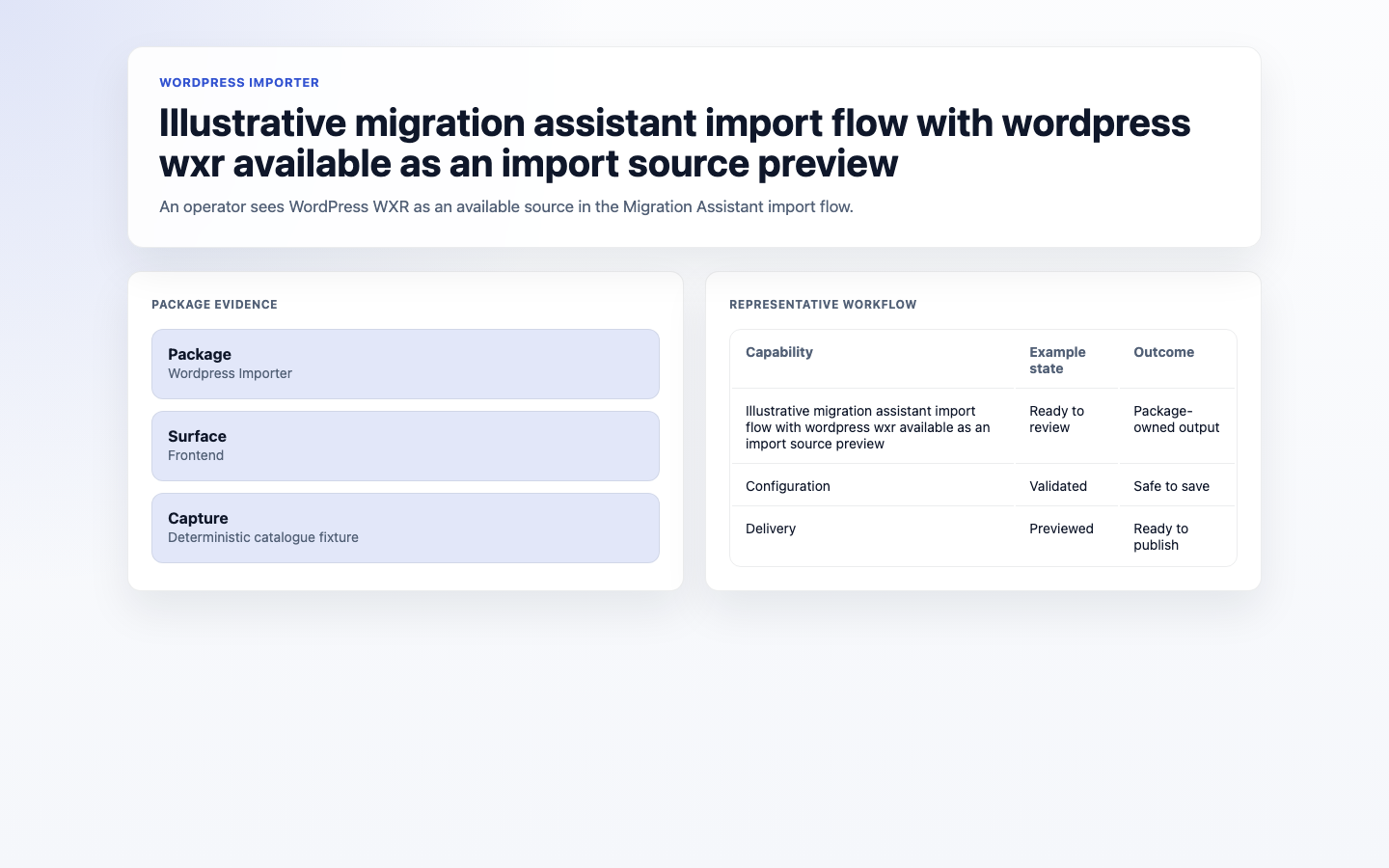
In Migration Assistant , start a new import and choose WordPress as the source.
Provide your WordPress export.
Preview the import.
Review the parsed title, body, date, categories, tags, author, permalink, and media references.
Use the preserved WordPress metadata to decide how imported content should be organised after import.
Preview the import to check the result. The preview lists the parsed posts and pages with their title, slug, status, date, categories, tags, and author.
Run the import to bring across posts, pages, and media.
Open the Results .
Confirm posts and pages came across, and spot-check a few on the site.
Check that images appear; re-import any that were skipped.
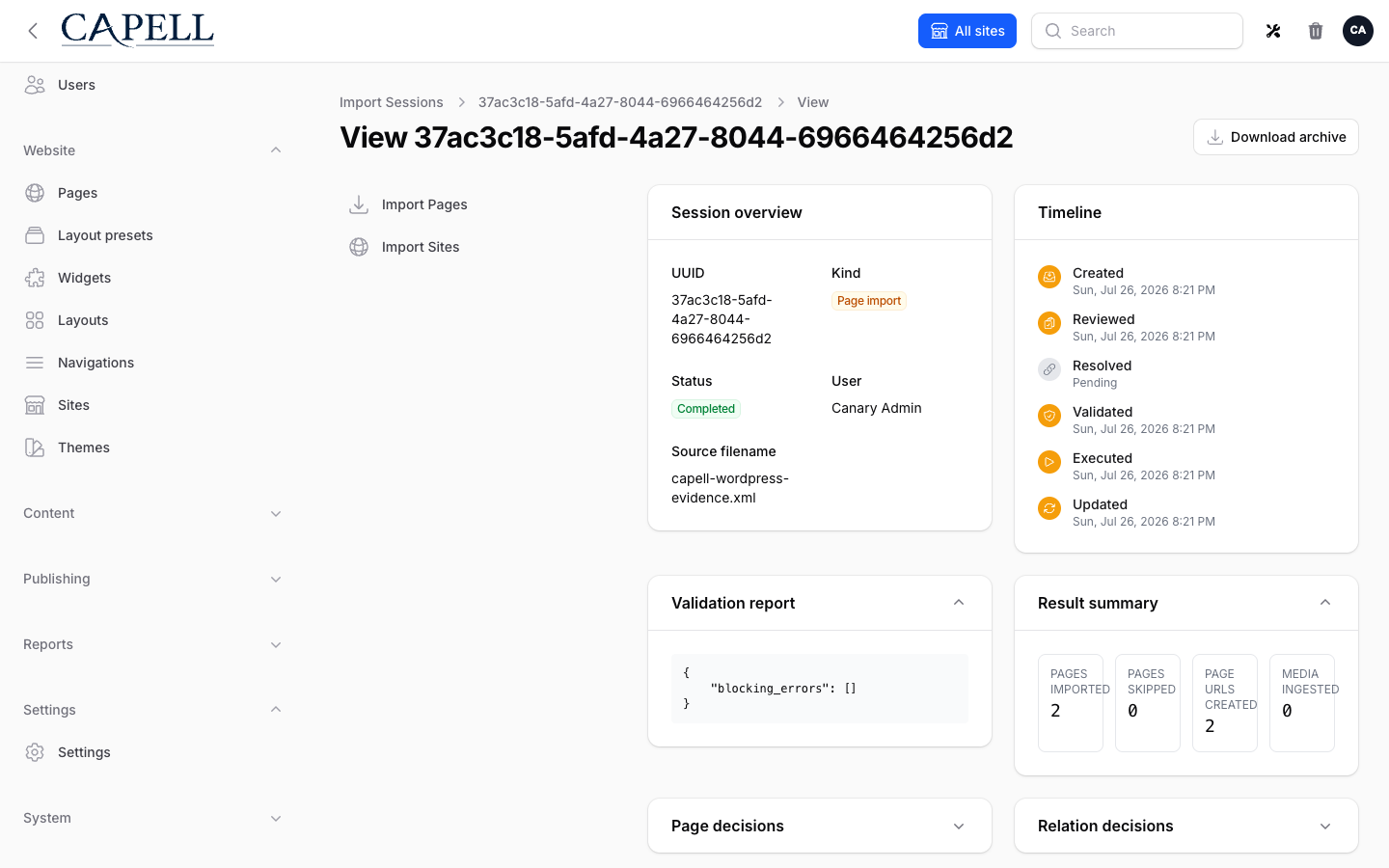
Open the import session that Migration Assistant created to review the full record of what was imported.
Migration Assistant, then a test import. Install Migration Assistant, back up, and import a few posts before bringing everything across.
Need Enable Move an entire WordPress site A full import once a test batch looks right Keep your old structure Review preserved category and tag metadata before running
Don’t run the full import until a small test batch and its media verify correctly.
Role First useful screen Editor The WordPress import in Migration Assistant Site owner Results : confirm the migration is complete
What you see What it means What to do WordPress isn’t offered as a source Migration Assistant or the importer isn’t installed Install Migration Assistant first, then the WordPress Importer Categories need follow-up WordPress categories and tags were preserved as metadata Review the imported content and organise it in Capell Images are missing Media wasn’t included or mapped Confirm media is part of the export and re-import Some posts didn’t import They were skipped due to errors Review Results and re-import the affected posts