Skip to content

Using Blog

This guide is for the people who run the blog: editors who write and publish articles, and owners deciding how much of the blog to switch on. No technical knowledge needed. Every step uses the labels you see on screen.

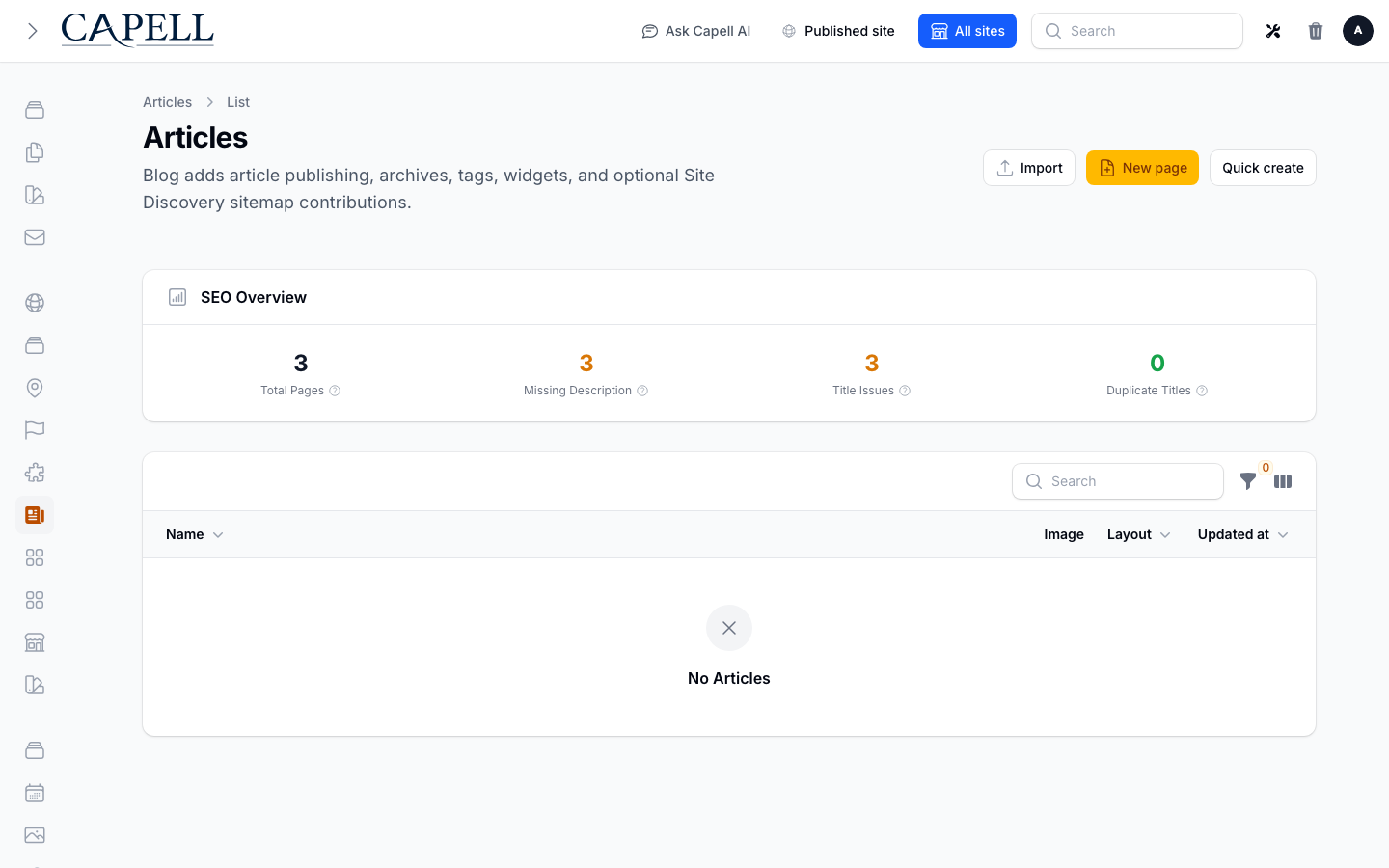
  1. Open Articles in the admin navigation.
  2. Click New article.
  3. Give it a Title. This is the headline readers see.
  4. Write your article in the body. You can add text, images, and other blocks just as you build any page.
  5. Set a Featured image so the article looks right when it is shared or listed.
  6. Add Tags to group it with related articles (for example “Product news”).
  7. When you are happy, set the article to Published and save.

Your article is now live on the blog page.

Create or update an article with publishing windows, metadata, layout selection, media, and tags. Create or update an article with publishing windows, metadata, layout selection, media, and tags.
  1. While editing, leave the article as Draft instead of Published, then save.
  2. A draft stays private. Visitors never see it.
  3. Reopen it any time from Articles (drafts are marked in the list) and keep working.
  4. Switch it to Published when it is ready.
  1. Open or create the article.
  2. Find the Publish date and set it to the future date and time you want.
  3. Save the article.
  4. It stays hidden until that moment, then goes live on its own. You do not need to come back and publish it.
  1. In the editor, set the Featured image. This is the picture used in listings and when the article is shared on social media.
  2. Add one or more Tags. Each tag gets its own page, so readers can browse everything tagged “Guides”, for example.

How to find published, draft, and scheduled articles

Section titled “How to find published, draft, and scheduled articles”
  1. Open Articles in the admin navigation.
  2. The list shows each article’s status: Published, Draft, or Scheduled.
  3. Use the filters at the top of the list to show only one status, or to filter by site or language.
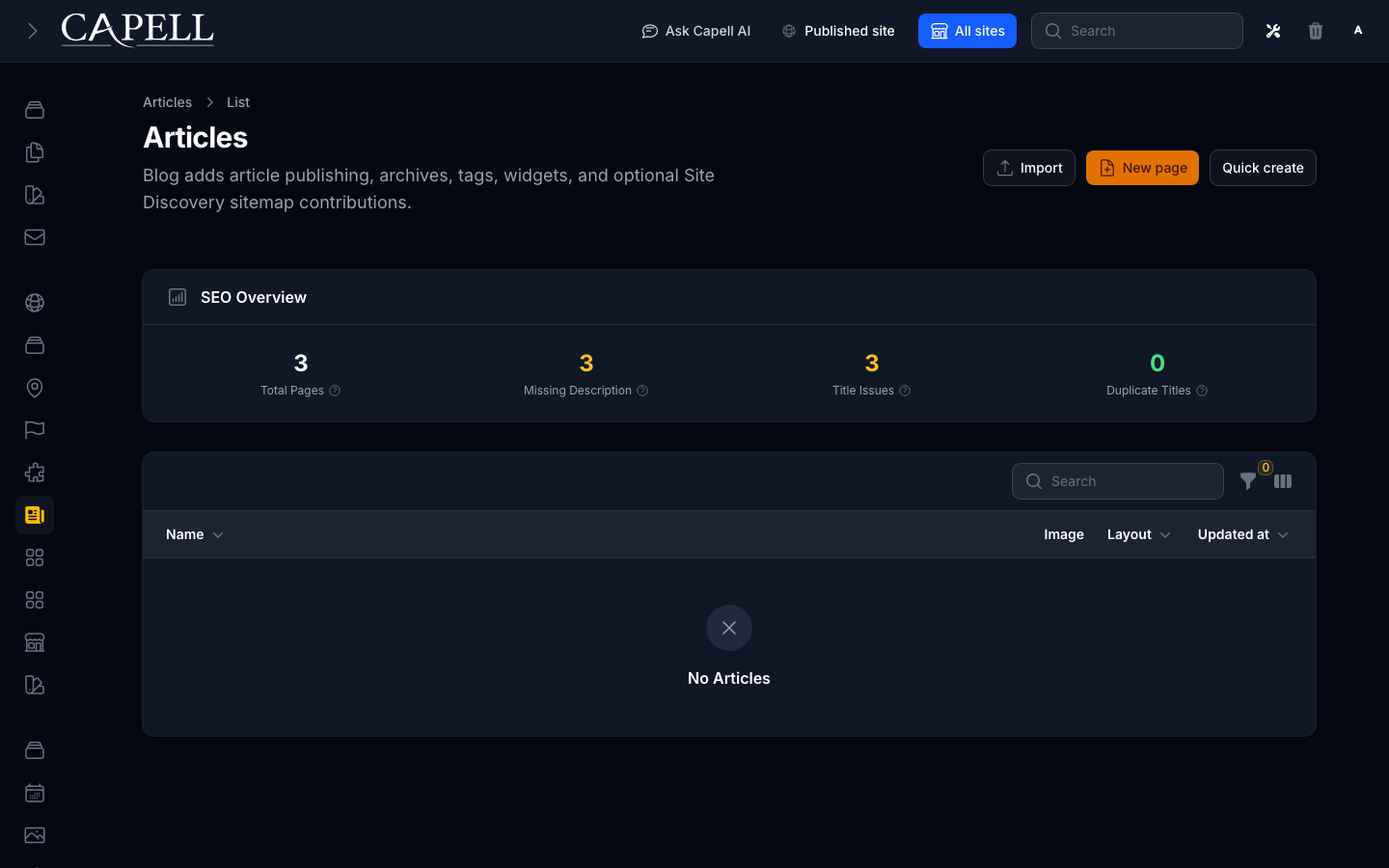
Review the article queue, publish windows, language coverage, and article status before editing content. Review the article queue, publish windows, language coverage, and article status before editing content.
  1. Edit any page where you want to show articles.
  2. Add the Article widget to show a single article, or the Related widget to show articles related to the current one.
  3. Choose how many articles appear and save the page.
  • Articles and the blog page. This is the core of the package: writing, drafting, and publishing. Start here and get your team comfortable creating articles before adding anything else.
NeedEnable
Group articles by topic for readers to browseTags (and the tag pages that come with them)
A browsable history of older postsArchives (monthly archive pages)
Show articles on other pages (home page, sidebars)The Article and Related widgets
Let readers subscribe in their reader appThe blog’s RSS/Atom feeds (on automatically)
  • Hold off on widgets and archive pages until you have a handful of published articles. They look empty otherwise.
RoleFirst useful screen
Writer / editorArticles: write, draft, schedule, publish
Site ownerArticles list: see what is published vs in progress, plus the Article health dashboard widget
What you seeWhat it meansWhat to do
My article isn’t on the siteIt is still a Draft, or its Publish date is in the futureOpen it, set it to Published, and check the publish date is not later than now
A scheduled article didn’t appearThe publish time hasn’t been reached, the application clock is wrong, or the public response is still cachedRe-check the Publish date and timezone, then clear the relevant page/feed cache. Visibility is evaluated when public content is queried; no publishing worker is required
My change isn’t showing on the live pageThe public page is still serving a cached copyWait a moment, or ask whoever manages caching to clear it for that page
The Article health widget shows an unexpected totalIt summarizes article statuses, top tags, and language coverage across the blogReview the article list or translation coverage to find the records behind the total
A tag or archive page is emptyNo published articles use that tag or fall in that month yetPublish articles with that tag, or hide the empty page